When searching for WordPress using Google, it defaults to jumping to wordpress.com, but for building independent websites, we use wordpress.org — the former is WP's official hosting service (hassle-free but with many limitations), while the latter is a downloadable installation package for a fully controllable website building version. The core differences between the two are significant. 👉Click to View Detailed Differences
2026 Latest Guide
WordPress Website Building TutorialAI-Powered
Zero-Basics Launch in 30 Minutes, Naiba will guide you step-by-step to build a professional official website.
WordPress is the choice for 43% of websites globally. Whether you are a complete beginner with no coding knowledge or a developer looking to accelerate website building with AI, this tutorial can help you quickly master WordPress.
- 60,000+ Free Plugins
- 20 Years of Continuous Maintenance
- Global Community Support
Quick Summary (TL;DR)
- Core Steps:Domain Registration → Hosting Purchase → File Upload → 5-Minute Wizard Installation.
- Essential Environment:Recommend PHP 8.3 + MySQL 8.0.
- AI Efficiency:It is recommended to use AI tools like DeepSeek/Doubao to assist in planning the website sitemap and copywriting.
📌 Preface, Supplementary Knowledge Points
Naiba often receives questions from everyone about WordPress website building and finds that many beginners are prone to pitfalls. Let's clarify these 3 frequently asked questions first to help you avoid detours:
This article covers two core scenarios: 「Installing WordPress on Shared Hosting」 and 「Installing WordPress on a VPS」 (the operational logic is completely different). Moreover, the installation processes for different brands of shared hosting also vary. It is recommended to directly click on the dedicated tutorial for the corresponding hosting, without needing to read the general WordPress installation steps later in the article.
Before installing WordPress, you must prepare the two core components: 「Domain Name」 and 「Server.」 WordPress is deployed on a server (not on a personal computer). Once prepared, you can log in to the Admin Dashboard to manage the website just through a browser. (If you only want to experience it locally, you can refer to 👉Local Installation Tutorial)
🚀 Preparation Work: Domain and Server Configuration
The first step in installing a WordPress website is to prepare a 「Domain」 and a 「Server」 — these are the two core foundations for building a website, and neither can be omitted.
💰 Per YearTotal CostIt can be done for a few hundred to a thousand yuan, so beginners don't need to worry about budget pressure.
🌐 Domain Registration
A domain is the „web address“ of a website (e.g., baidu.com). It is paid for annually. A .com domain costs less than a hundred yuan per year. Beginners should prioritize choosing such mainstream suffixes.
💡 Recommended to useDeepSeek/DoubaoGenerate a domain name that aligns with brand positioning, is easy to remember, and is SEO-friendly.
🖥️ Server Selection
A server is the „network space“ where website files are stored, with annual costs ranging from a few hundred to a thousand yuan. Beginners should prioritize these two types:
Shared Hosting:No technical maintenance required, one-click WordPress installation, suitable for beginners/enterprise websites/blogs;
VPS:Better performance, highly customizable, suitable for users with some technical foundation or high-traffic websites.
⚡ Recommended Configuration:PHP 8.3+ and MySQL 8.0+.
🔗 Domain and Server Binding (DNS Resolution)
Simply put, this means pointing the „domain name“ to the „server IP“ so users can find your website when they enter the domain. It typically takes effect within minutes to hours.
VPS:After installing Baota Panel, add the website and configure DNS resolution within the panel;
Shared Hosting:Fill in the DNS records as prompted by your hosting provider; most hosts support one-click resolution.
🚀 Professional Assistance:Naiba offers a ¥198 service to help install WordPress. If needed, pleaseContact Me。
🚀 2026 Advanced Plan: If you're worried about not being able to learn it yourself, we offerthe „Website Building Coaching“ service, guiding you step-by-step from domain registration to website launch, all taught by Naiba.
⚡ Installation Tutorial: Complete Process for WordPress Manual/One-Click Installation
Once you have your domain and server ready and have configured DNS resolution, we can officially begin installing WordPress.
📥 Core Step 1: Obtain the Latest WordPress Installation Package
🌐 English Version (Recommended)
Official latest stable version, with optional Chinese language pack.
Official Download🇨🇳 Chinese Version
Official Chinese stable version, occasionally updated slower than the English version.
Chinese Download🔄 Alternative Download
Use when domestic users cannot access the official website
Local installation package download⚠️ Important Notice
If your server is located in China, you need to complete ICP filing first. Proceed with the installation only after the filing is approved. Alternatively, refer to:How to Access a Website via IP During Tencent Cloud ICP Filing
If your server usesSiteGround、Hostingerthis type ofWordPress Hosting, you can install WordPress with one click directly in the hosting control panel, and do not need to follow the steps below.
📋 Core Step 2: Detailed Graphical Installation Guide
1
Upload WordPress Installation Package
- Download the latest WP installation package
- Upload to the server root directory
- Extract files to the current directory
- Confirm file permissions are correct
Upload the downloaded program package to the space'sroot directoryand extract it. Usually it is thepublic_html、wwwrootorwwwdirectory.
If your VPS has Baota Panel installed, you can directly download the WP installation package online via the „Upload/Download“ feature in Baota„s file manager. Refer to:Baota Panel WordPress Installation Tutorial。
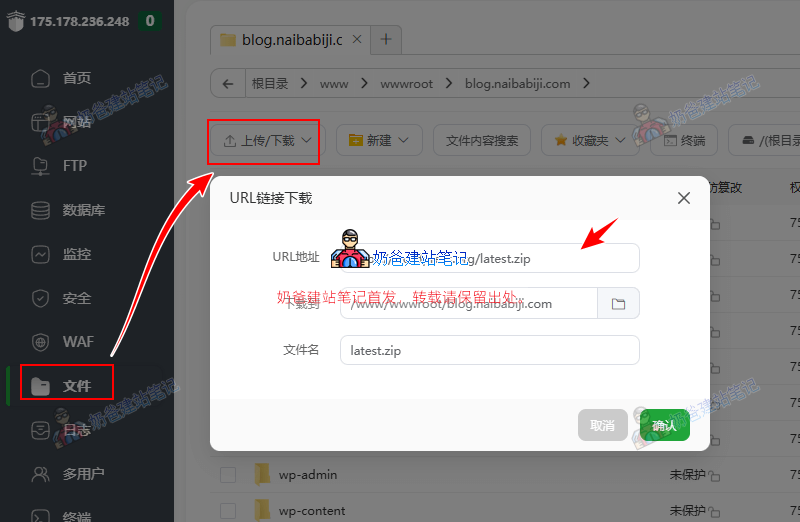 Upload and Extract WordPress Program Files
2
Access Installation Wizard in Browser
- Visit your domain in a browser
- See the program's installation preparation prompt
- Click „Let“s go!„
Enter your domain in the browser's address bar. The system will automatically guide you to the WordPress installation program. Follow the prompts step by step to fill in the corresponding information to install the WordPress program.
💡 If the website cannot be opened, please check if the domain name resolution is correct or if the firewall is blocking access.
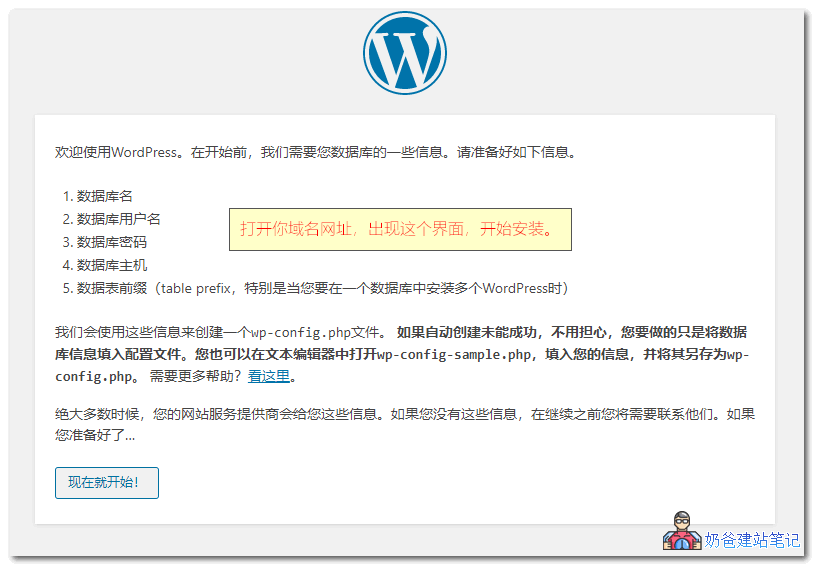 WordPress Installation Welcome Screen
 Database Information Configuration Guide
3
Set Basic Website Information
- Fill in Database Connection Information
- Set Site Title
- Set Administrator Account Password
Fill in basic website information, paying special attention to the security of the administrator password. The default generated strong password is difficult for hackers to crack.
💡 Before the website is completed, it is recommended to check „Discourage search engines from indexing this site“ to prevent search engines from indexing the unfinished website.
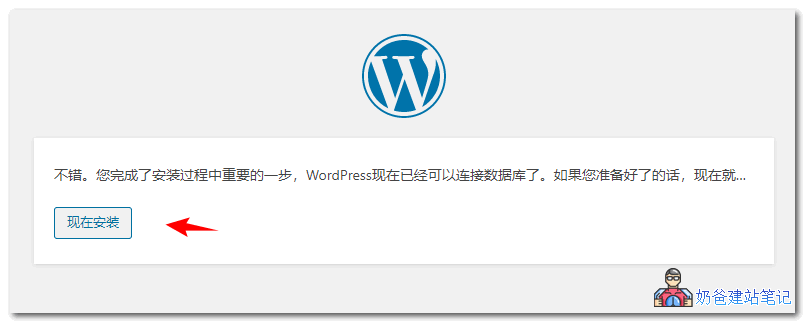 Installation Confirmation Screen
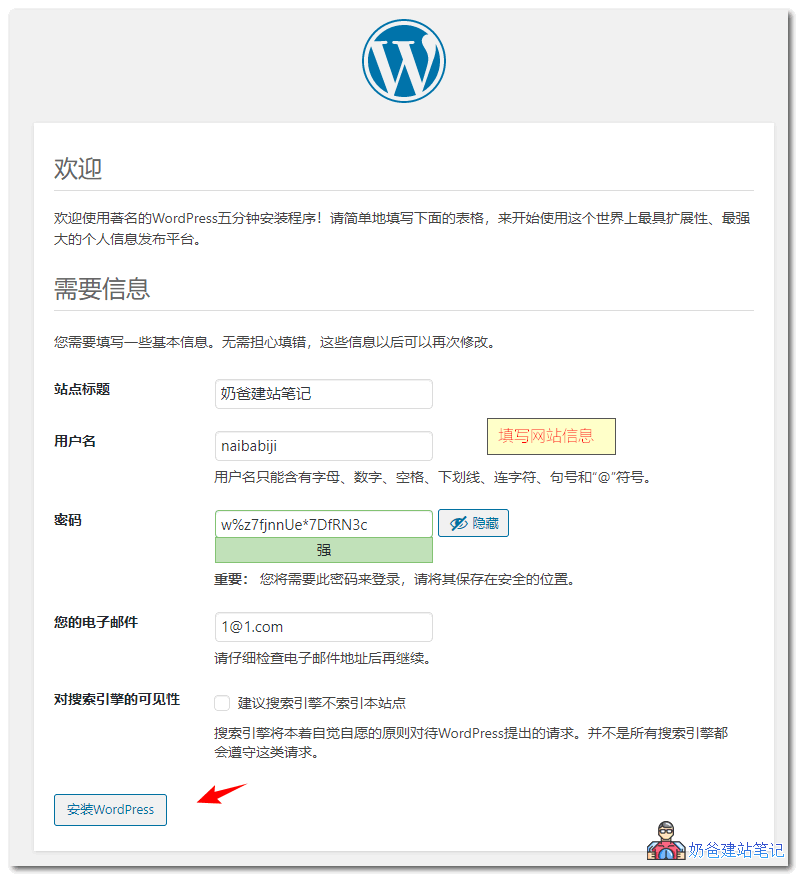 Website Information and Administrator Settings
✓
Installation Successful
Congratulations! WordPress has been successfully installed.
Click the login button to enter the Admin Dashboard with the account and password you just set and start managing your website.
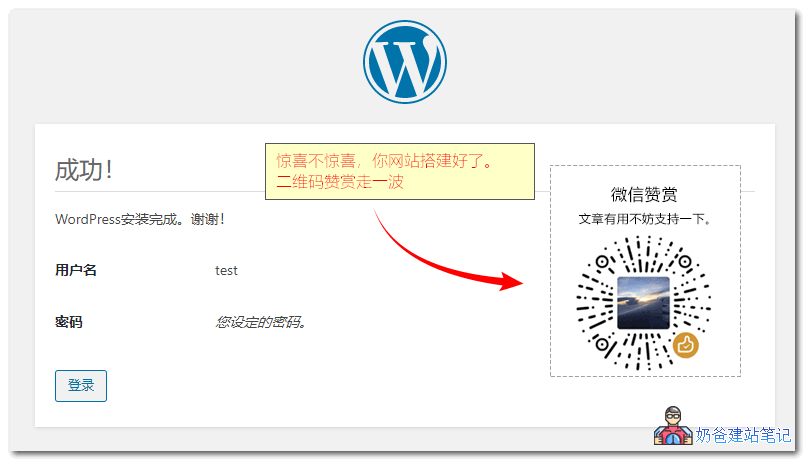 WordPress Installation Successful Preview
❓ Common WordPress Installation Error Issues
Although the WordPress installation process is simple, technical issues are occasionally encountered. The following are the most common error types and their solutions.
Database Connection Failed
+This is the most common error during WordPress installation, usually caused by incorrect database configuration information.
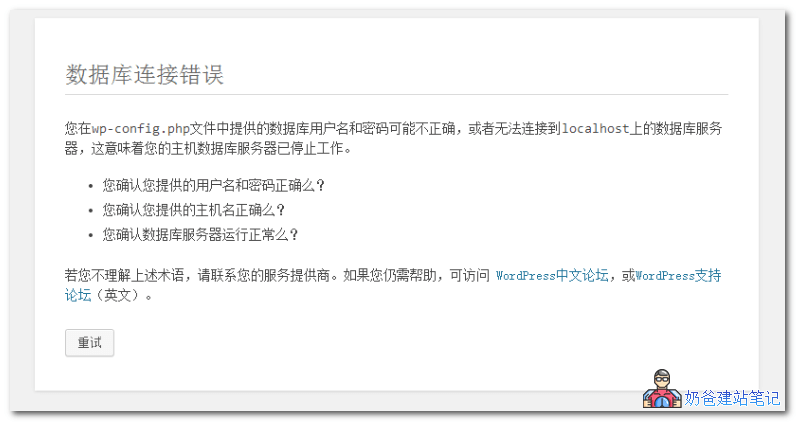 Database Connection Failure Error Example
Solutions:
- Check if the database name, username, and password are correct
- Confirm the database host address (VPS usually uses localhost)
- Verify if the database service is running normally
- Check database user permission settings
File Permission Issues
+When installing a Theme or Plugin, the prompt „Could not create directory“ is a typical file permission issue.
Solutions:
- Baota Panel:File Management → Set permissions to 755, change owner to www
- Command Line:
chmod -R 755 * && chown -R www:www * - Ensure
wp-contentThe directory has write permissions
🔗 Detailed tutorial reference: Resolving WordPress FTP Requirement Issues
Theme and Plugin Installation Errors
+Theme and plugin installation failures are usually related to network connection, server environment, or compatibility issues.
Solutions:
- Check if the PHP version meets the requirements
- Increase the server memory limit (Memory Limit)
- Delete problematic folders via FTP when the website crashes
- Use the manual upload method for installation
🛡️ WordPress Security Precautions and Best Practices
Regular Backups
Before installing a new theme or plugin, be sure to back up your website data and database.
Testing Environment
Test new features on a local or test server first, and deploy only after confirming they work correctly.
Record Information
Save important configuration information such as database connection details and FTP account credentials.
Keep Updated
Regularly update the WordPress core, themes, and plugins to the latest versions.
🎯 How to Use WordPress
After WordPress installation is complete, let's learn how to use this powerful content management system together.
🚀 Basic Operational Workflow After Setting Up a WordPress Website
Considering many friends are using WordPress for the first time, here we share the basic operational workflow to help you get started quickly.
01
Set up SSL Security Certificate
Set up the website SSL security certificate(Some hosts set this up automatically; it is recommended to complete this first to avoid security warnings).
02
Set Permalinks
Go to Settings to set Permalinks, optimize URL structure to make URLs more SEO-friendly.
03
Basic Settings Configuration
Go to „Settings“ to configure core basic options such as website title, subtitle, timezone, language, etc.
04
Set Up Post Categories
Go to „Posts – Categories“ to create sections, preparing for subsequent content organization and navigation display.
05
Choose a Theme
Go to „Appearance – Themes“ to install your preferred template. Recommended for foreign trade:ThemeForest 或 Linghang Theme。
06
Install Core Plugins
Install essential plugins, such as page builders (Elementor), SEO, caching, and security plugins.
07
Publish Core Content
Publish the first batch of posts or products, fill pages to avoid the website appearing „empty,“ which could affect visitor trust.
08
Design and Decorate Pages
It is recommended to use theElementorbuilder to create beautiful page layouts through drag-and-drop.
10
SEO Advanced Optimization
Learn basic SEO knowledge, improve website ranking on search platforms like Google through content optimization.
11
Establish a backup mechanism
Usebackup pluginto regularly export data, ensuring quick recovery in case of unexpected events.
✨
AI-Assisted Website Building: Website Decoration Planner
Naiba has noticed that most friends have no ideas for website decoration after installing WordPress. For this, we can use AI to assist in website building. Copy the following instructions toDeepSeek 或 Doubao, and let AI help you complete professional planning.
Plan
Website Sitemap Planning
Based on business type, automatically generate suggestions for a well-structured page architecture that is beneficial for SEO.
My website is for [enter business here], and the main selling point is [enter selling point here]. Please help me plan a sitemap that follows SEO logic and provides a good user experience, telling me which core pages need to be established (e.g., Home, About, Products, etc.).
Design
Page Layout Expert
For specific pages, guide on how to scientifically arrange content blocks to improve conversion. Recommended to use with Elementor.
I am using Elementor to decorate [which type of page, e.g., homepage], and my target audience is [target audience]. Please tell me which modules this page should contain from top to bottom (e.g., Hero Section, Social Proof, FAQ, etc.), and provide suggestions for the copy focus of each module.
Copywriting
High-Conversion Brand Slogans
Generate highly impactful, professional, and minimalist brand copy for your Hero area or buttons.
Please help me generate 5 attractive slogans (Headlines) for the website Hero area, targeting [specific product/service]. Style requirements: professional, minimalist, emphasizing trust, and with moderate word count.
💡 Suggestion:Use AI-generated content as a reference and fine-tune it based on practical experience.
🔑 How to log in to the WordPress Admin Dashboard?
Add/wp-adminafter your domain name to access the WP Admin Dashboard. In the image below, the topmost bar ① is called the admin bar, which provides quick access to create new content; the left side ② is called the menu bar, containing all WordPress function entries and Plugin settings entries.
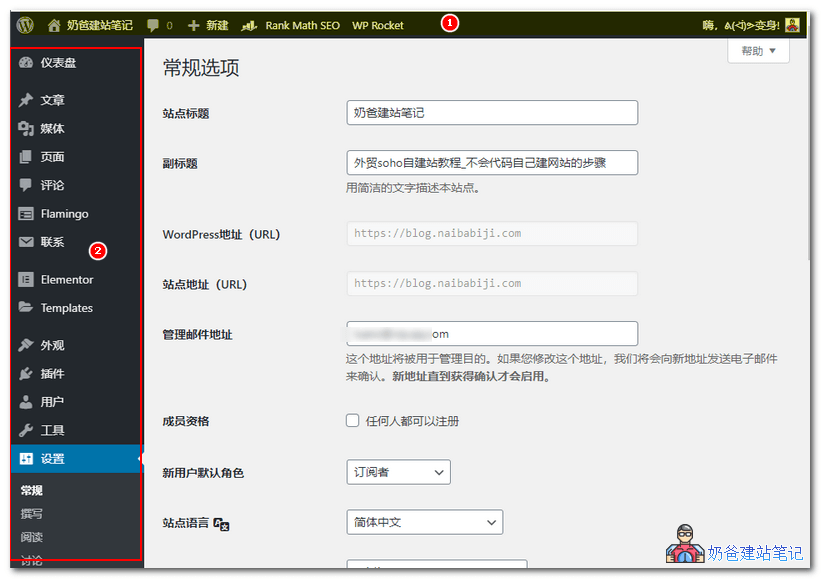 WordPress Standard Admin Dashboard Preview
🎨 How to install Themes and Plugins?
Installing WordPress Themes and Plugins is done within the left-side menu of the Admin Dashboard. You can search and install online via the official marketplace, or upload a downloaded ZIP package for manual installation.
- Theme Installation:Appearance → Themes → Add New Theme
- Plugin Installation:Plugins → Add New Plugin → Search/Upload Plugin
🎨 WordPress Theme Template Knowledge
Choosing the right Theme is key to building a professional website. Let's learn about acquiring and using Themes through the following guide.
📥 Ways to Acquire WordPress Theme Templates
01
🏪 Official Theme Directory
Search and install directly from „Appearance → Themes“ in the Admin Dashboard. It„s safe, reliable, and completely free.
02
🌐 Third-party Downloads
Download free or purchase premium Themes, offering richer features and designs better suited for professional business needs.
03
🎯 Custom Development
Pure code customization for specific requirements, perfectly matching brand identity, but with a long development cycle and high cost.
Small ad: Linghang Theme →is a WordPress enterprise theme specifically designed for the industrial and manufacturing sectors, allowing even beginners to easily build a professional official website.
🔍 Where can I find high-quality themes online?
🆓 Official RepositoryFree
WordPress.org official marketplace, the safe and preferred choice.
Visit Official Site Recommendation💎 ThemeForestRecommended for Foreign Trade
The world's largest premium theme forest, a must-visit for foreign trade enterprises.
Visit Theme Center🎨 Professional StoresOthers
Diverse commercial designs to meet the style needs of different vertical industries.
Visit TemplateMonster💼 How to Install and Use a Purchased Premium Theme?
1. Download the File
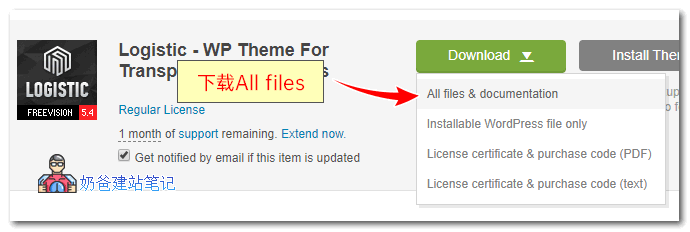
On ThemeForest „Downloads“, select „All files & documentation“ to download.
2. Extract the Installation Package
Extract the downloaded ZIP file, find the core file named `theme-name.zip` inside, and prepare to upload it.

3. Upload & Activate
Select the core file in the Admin Dashboard under „Appearance > Themes > Upload Theme“. It is recommended to also install and activate a Child Theme.
🔌 Popular WordPress Plugin Recommendations
Select and install essential plugins based on your actual needs to significantly enhance your website's core performance and functionality.
🔍
SEO Optimization Plugins
Rank Math Free
The most popular SEO plugin today, with comprehensive features and an extremely user-friendly interface, perfectly replacing older plugins.
The SEO Framework Free
Extremely lightweight, pursuing ultimate speed. No ads, no distractions, suitable for users seeking peak performance.
Yoast SEO Free
The most senior SEO plugin, comprehensive and stable, a standard for millions of users worldwide.
All in One SEO Free
Supports a complete Chinese interface, simple configuration. Very friendly to the Chinese website environment.
⚡
Caching & Speed Optimization
WP Rocket Paid
Universally recognized as the strongest paid optimization plugin. Not only caching, but also includes lazy loading, CDN, database cleanup, and other all-in-one features.
WP Super Cache Free
A free static caching plugin from the official team, simple and effective settings. Greatly alleviates server query pressure.
Asset CleanUp Free
Precisely control which CSS/JS loads on each page. Prevents loading of unnecessary scripts, improving mobile performance scores.
🛡️
Security and Backup
Defender Security Free
One-click security hardening. Includes features such as brute force protection, hotlink protection, and spam comment blocking.
Wordfence Free
The most professional firewall plugin, monitors and blocks malicious attacks in real-time, protecting core files from tampering.
UpdraftPlus Backup Free
Be prepared for any eventuality. Regularly backs up the entire website to remote cloud storage, allowing for one-click restoration in case of issues.
🎨
Utility Plugins
Elementor Builder Master Recommended
An essential visual tool for beginners building websites. Works best when paired withElementor Pro 及 ElementsKitfor enhanced results.
B2B Product Showcase Plugin Free
A self-developed plugin by Naiba, designed specifically for foreign trade enterprises as a minimalist product management solution. Showcases products without requiring WooCommerce.
Want to discover more high-quality plugins?Go to Naiba Web Development's curated plugin channel →
🎓 WordPress Advanced Content Tutorial
From basics to professional, master the advanced core skills of appearance customization and product management.
🎨
Website Appearance Editing
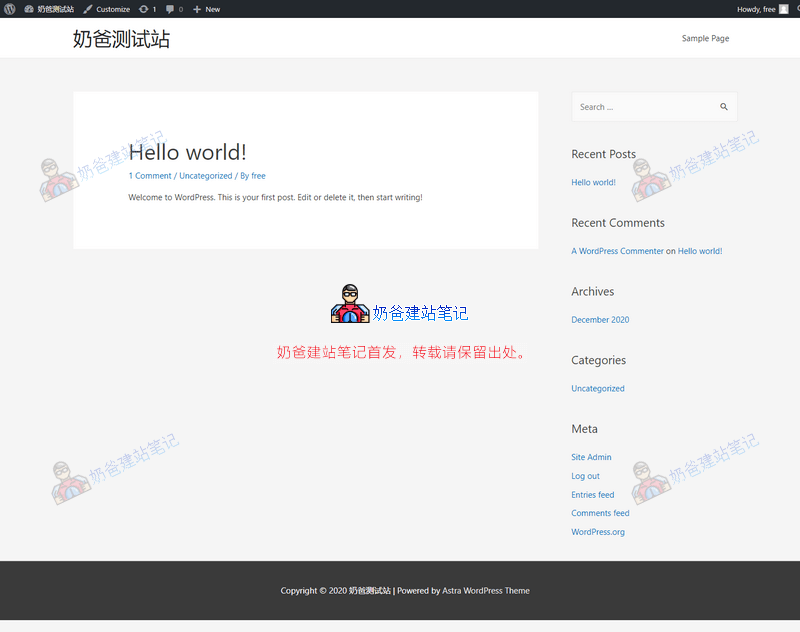
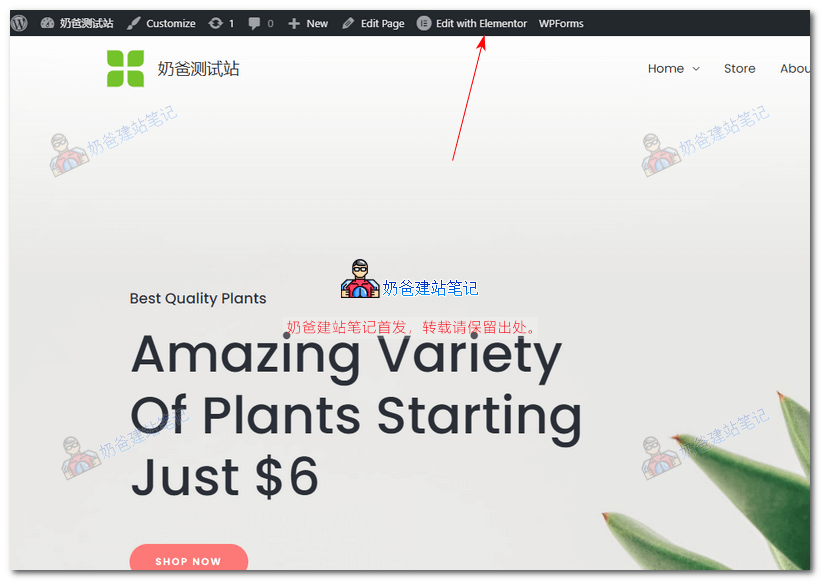
After installing WordPress, the default theme is used (Figure 1 below). We can change the theme according to our needs (Figure 2 below).
Figure 2 shows the default interface after installing the Astra theme. To make it more professional, we still need to perform page design.

Beginner Recommendation:The default theme uses Full Site Editing (FSE) to design the website, which is very difficult for beginners. It is recommended to useElementorto design the website. Importing the theme's demo template first and then modifying it is more efficient than starting from scratch.
✏️ Elementor Hands-on:
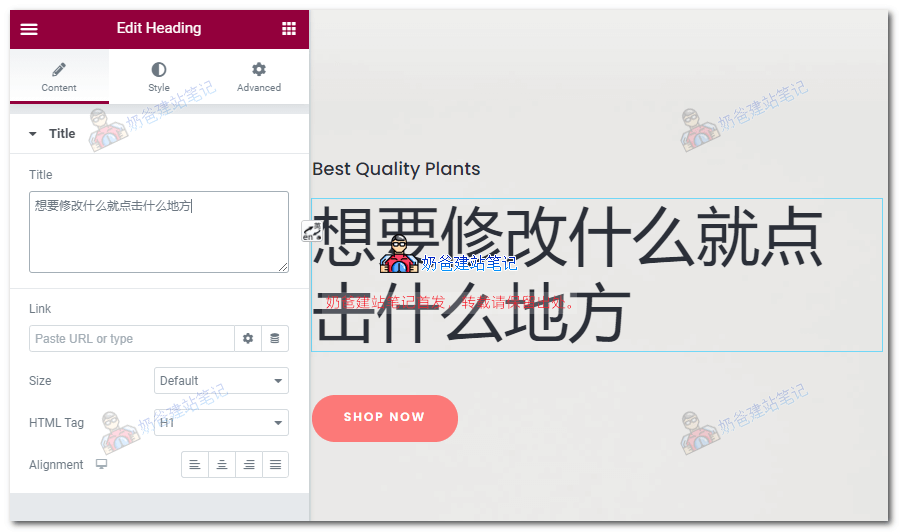
Using Elementor is simple; you can adjust page layouts by dragging and dropping with the mouse. For detailed operation tutorials, refer to:Elementor Usage Tutorial
- ClickEdit with ElementorEnable Visual Editing
- Drag Widgets on the left, preview changes in real-time on the right
- Precisely control spacing, colors, and fonts via the Style tab
🛒
Product Management Solutions
There are multiple ways to manage and display products using WordPress. You can choose the most suitable WordPress product management method based on your business scale and functional requirements.
1. WooCommerce (Professional E-commerce)
Most Suitable For:B2C websites with a large number of products requiring online sales, or B2B websites for catalog/quote requests (Catalog Mode).
2. Portfolio (Portfolio Preview)
Most Suitable For:A moderate number of products, focusing on minimalist visual presentation, often for case studies. (Portfolio functionality can be achieved via the theme's built-in features or by installing a plugin, offering an aesthetically pleasing interface and fast loading speeds.)
3. B2B Product Management Plugin (Self-developed by Naiba)
Most Suitable For:Lightweight requirements, quick to get started, better performance. (Search for "Naibabiji B2B Product Showcase" directly in the WordPress admin plugin directory to obtain it.)
4. Custom Pages
Most Suitable For:Websites with a small number of products, where each product page requires a special layout design.
5. Using ACF Custom Fields
Most Suitable For:Websites requiring flexible customization of product fields and with high performance demands; involves a certain level of technical difficulty.
| Solution | Difficulty | Main Drawback |
|---|---|---|
| WooCommerce | Medium | Relatively bloated, demanding on server configuration |
| Portfolio | Simple | Design is limited, low flexibility, more oriented towards case presentation |
| B2B Product Management Plugin | Simple | Conventional B2B product showcase interface, low design flexibility |
| Custom Page | Medium | Each product is a separate page, making management inconvenient |
| ACF + Elementor | Relatively high | Steep learning curve |

Scan the QR code to follow the official account
Follow Naibabiji, and you will get:
Latest tutorial updates
Get in-depth hands-on tutorials on WordPress website building, optimization, and AI empowerment as soon as they are released.
Experience sharing on avoiding pitfalls
A collection of years of website building pitfall avoidance guides to help you save significant trial-and-error costs and overcome technical bottlenecks.
Exclusive resource downloads
Regularly share essential advanced tools, plugin libraries, and internal SEO documents for website building.
🌐 WordPress FAQ
What is WordPress?
+WordPress is an open-source content management system (CMS) that powers over one-third of the world's websites. Whether it's a blog, corporate site, or e-commerce store, it can handle it perfectly.
How to use WordPress?
+Simply install the program and log in to the Admin Dashboard. You can publish content, change Themes, and install extensions through intuitive menus. The learning curve is low, allowing you to get started quickly even without programming experience.
Why use WordPress to build a website?
+1. Rich ecosystem:Has tens of thousands of ready-made Themes and Plugins.
2. SEO-friendly:Superior structure, more favored by Google.
3. Full control:Your data belongs entirely to you, free from platform restrictions.
🚀 2026 AI Empowerment: Naibabiji WordPress Website Building Coaching Service + In-depth Support
Not just website building, but comprehensive AI digital transformation support. Say goodbye to trial and error and launch quickly. Includes AI search optimization (SGE) and 1-on-1 expert outline planning.
Consult on the AI coaching plan now →
Hello teacher, I have set up the product categories, and there are corresponding products in each category. However, when I click on a category, it does not redirect to the corresponding product page. What could be the issue? Looking forward to your reply, thank you!
The product category has its own URL, and individual products have their own separate URLs. It depends on which URL you click; it will then go to the corresponding page.
I have finished creating the page and clicked publish, but when I open the official website, there is nothing. What is the reason for this?
It is likely that your server has caching enabled. Manually clear the cache and it should be fine.
The website built based on the Theme displays differently on different devices. Is there any way to handle this?
Modern website designs are typically responsive; they automatically adjust the layout based on different screen resolutions.
I purchased hosting services and a template extension website from HOSTINGER. Is it not possible to install WordPress? The customer service said I need to export the website and did not provide the root directory path.
I haven't used that pre-built website that comes with Hostinger. Check the source code to see if it contains wp-contact. If it doesn't, then it's not WordPress.
For a beginner using Shared Hosting, how do I upload the downloaded WordPress installation files to the server? Is there a detailed tutorial?
I don't know which Shared Hosting provider you are using. You can ask their customer service. Generally, Shared Hosting has a one-click WordPress installation option.