
WordPress Forgot Passwordis a common issue for website owners. When you cannot recover via email, the admin password is invalid, orUnable to Log in to WordPress Admin Dashboard, the4 password reset methodsprovided in this article can help you quickly regain access:
- ✅ PHP Reset Script– Suitable for users with server file management permissions, takes 5 minutes to complete
- ✅ Direct Database Modification– Reset password by executing SQL commands via phpMyAdmin
- ✅ functions.php Modification– Use FTP to upload code and temporarily create a new admin
- ✅ Server Control Panel One-Click Modification– Suitable for users using WordPress hosting (e.g.,SiteGround、Hostingeretc.)
Whether you are aWordPress Beginneror have some technical foundation, you can find a suitablePassword Recovery Solution. It is recommended to try Method 1 first, as it is simple and safe.
Method 1: Use Reset Script (Recommended)
Applicable Scenarios:Users who can upload files to the server. (Via Baota Panel, FTP, or the server's file manager)
Operation Steps:
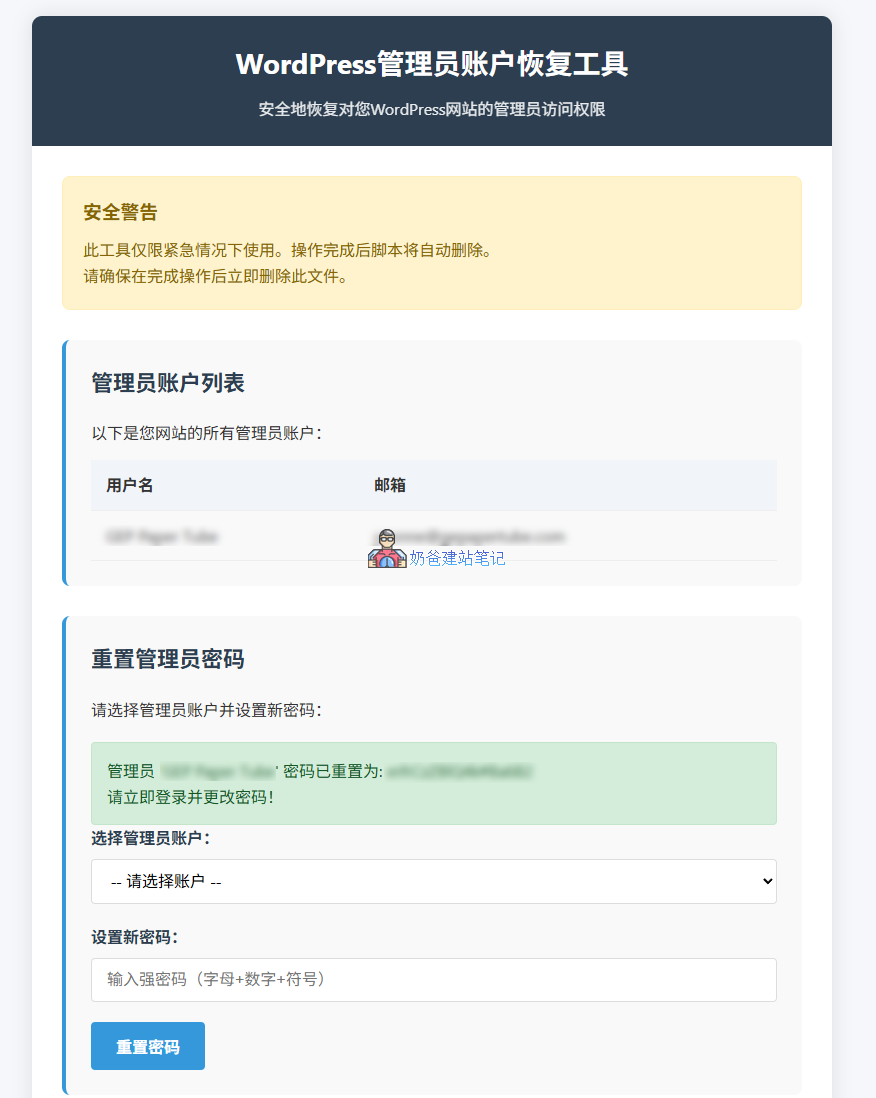
1. Download the reset script and upload it to the server.
2. Access the reset script via your domain +czjb.php?key=blog.naibabiji.comAccess the reset script.
URL Example: https://www.baidu.com/czjb.php?key=blog.naibabiji.com
3. Follow the prompts to modify the username and password. After a successful reset, the script will automatically delete the czjb.php file to ensure security.
4. Use the modified password to log in to the Admin Dashboard. The administrator password recovery is complete.
Method 2: Modify Password via Database
Applicable Scenarios:Users who know their server database information and can log in to the database via phpMyAdmin.
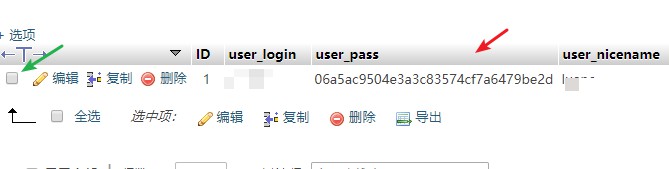
If you remember the database password, you can directly log in to the database via phpMyAdmin and modify it. The specific method steps are as follows:
- Log in to phpMyAdmin (or other database management software)
- Enter your website database's
wp_userstable. - Locate the row containing the account you need to modify.
- Double-click
user_passthe value in that row and replace the content with06a5ac9504e3a3c83574cf7a6479be2d - Log in to the website again; the password has been changed to
hao123
Method 3: Reset Admin Password via functions.php
Applicable Scenarios:
- Unable to recover password via email
- Know the administrator username but forgot the password
- Have FTP or file manager access
If you remember your website's FTP information, you can use FTP software to modify the functions.php file in the theme folder to change the password.
1. Use FTP software to download the functions.php file from the currently active theme folder to your local machine.
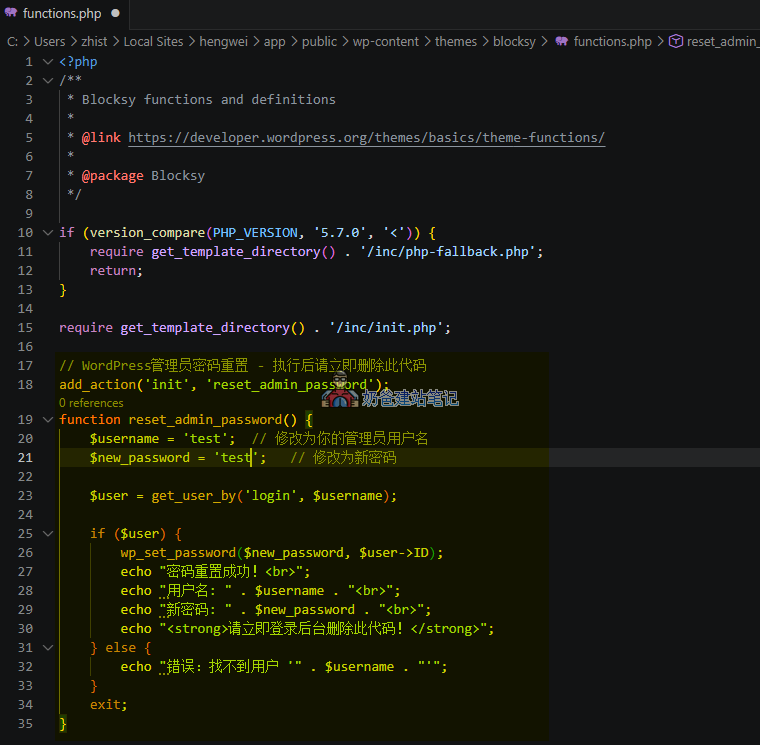
2. Edit the functions.php file and insert the following code at the very end.
// WordPress管理员密码重置 - 执行后请立即删除此代码
add_action('init', 'reset_admin_password');
function reset_admin_password() {
    $username = '你的管理员用户名';  // 修改为你的管理员用户名
    $new_password = 'NewPass123!';   // 修改为新密码
    $user = get_user_by('login', $username);
    if ($user) {
        wp_set_password($new_password, $user->ID);
        echo "密码重置成功!<br>";
        echo "用户名: " . $username . "<br>";
        echo "新密码: " . $new_password . "<br>";
        echo "<strong>请立即登录后台删除此代码!</strong>";
    } else {
        echo "错误:找不到用户 '" . $username . "'";
    }
    exit;
}
3. Upload the functions.php file to the theme directory, overwriting the original file.
4. Visit the website; a prompt will indicate that the password has been successfully changed.
5. Download the functions.php file to your local machine, remove the added code, and upload it again to the theme directory.
Method 4: One-Click Modification via Server Control Panel
Applicable Scenarios:
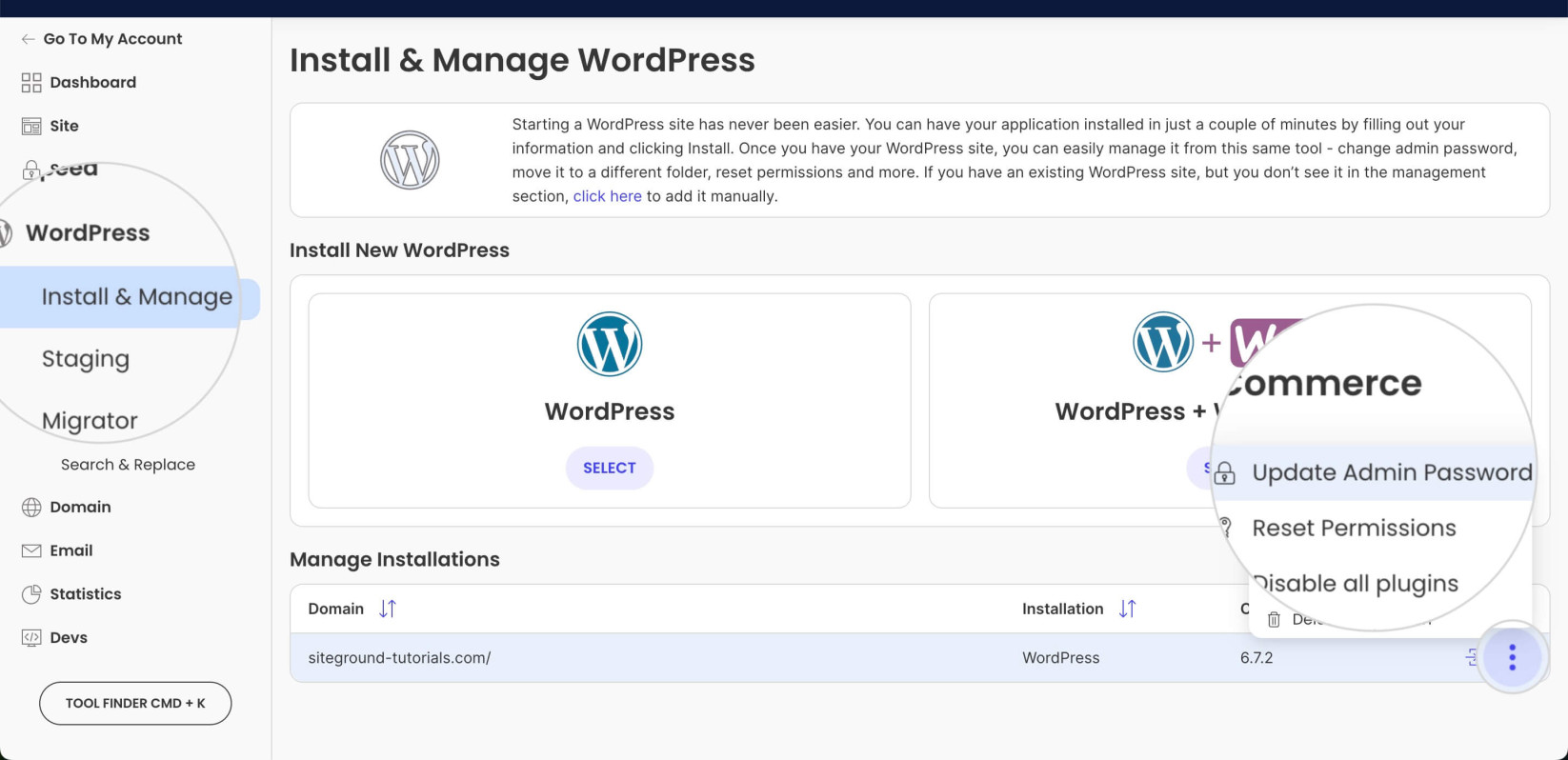
If the server uses specialized hosting like SiteGround or Hostinger that supports one-click WordPress installation from the backend, go to the server backend website management interface. You can directly access the website backend via quick links and manually change the user password.
Or click 'Modify Administrator Password' to change it directly from the server backend.
Comparison of the Four Methods
| Comparison Dimensions | Method 1 PHP Script | Method 2 Database | Method 3 functions.php | Method 4 Host Control Panel ⭐ |
|---|---|---|---|---|
| Operation Difficulty | ⭐⭐ Medium | ⭐⭐⭐ More Difficult | ⭐⭐ Medium | ⭐ Easiest |
| Security | ⭐⭐⭐⭐⭐ | ⭐⭐⭐⭐ | ⭐⭐⭐ | ⭐⭐⭐⭐⭐ |
| Time Required | Approximately 5 minutes | Approximately 10 minutes | Approximately 5 minutes | Approximately 2 minutes ⏱️ |
| Technical Requirements | File Management | SQL Basics | Coding Basics | Zero Foundation ✅ |
| Applicable Hosting | VPS/Cloud Server | Has phpMyAdmin | Any Host | SiteGround/Hostinger, etc. |
| Automatic Cleanup | ✅ Automatic deletion | ⚠️ Manual operation | ⚠️ Requires manual deletion | ✅ Automatically completed |
| Risk Level | 低 | 中 | 中 | Lowest |
🎯 Quick Selection Guide
Choose the most suitable method based on your hosting type:
- Managed Hosting like SiteGround/Hostinger/Bluehost → Recommended Method Four: One-click reset via Hosting Control Panel ✅ Easiest
- VPS/Cloud Server (Baota Panel/Self-managed) → Recommended Method One: PHP reset script ✅ Safest
- Only have database access → Method Two: Modify via phpMyAdmin
- Only have FTP access, cannot log in to the admin dashboard → Recommended Method One: PHP reset script ✅ Safest
As for Method Three? It's too complicated. If you have FTP, you can upload a PHP script to the server, so using Method One is simpler.
Frequently Asked Questions (FAQ)
❓ Why can't I receive the WordPress "Forgot Password" email?
Common reasons include:
– Server SMTP not configured, causing email sending failure
– Email classified as spam
– Incorrect website domain email configuration
– Hosting provider restricts email sending function
It is recommended to directly reset the password using the four methods in this article, or first configure aWordPress SMTP Pluginto resolve the email issue.
❓ What should I do if I still cannot log in after resetting the password?
Please check the following points:
1. Is the username correct? – Note case sensitivity
2. Is the password entered correctly? – It is recommended to copy and paste to avoid typos
3. Clear browser cache – Press Ctrl+F5 to force refresh the page
4. Check for multi-factor authentication – such as Google Authenticator, security plugins, etc.
5. Try logging in with private mode – to rule out browser plugin interference
If the issue persists, the website may be hacked or the database may be corrupted. It is recommended to contact your hosting provider or a professional.
❓ Will using these methods affect website data?
No. These four methods only modify the user password field and will not affect:
– Article content and pages
– Site settings and theme configuration
– Plugin data and user profiles
– Other database tables
However, it is recommended to backup the website before proceeding, just in case.
❓ Which method is the safest?
Method 1 (PHP reset script) and Method 4 (Host Control Panel) are the most secure.
❓ I'm a complete beginner and don't understand code at all. Which method should I use?
Method 4: Host Control Panel reset is highly recommended.
If you are using mainstream hosts like SiteGround, Hostinger, Bluehost, etc., you can complete the process with just a few clicks in the host's Admin Dashboard without touching any code.