2026 New Edition SiteGround WordPress Foreign Trade Website Building Installation Tutorial (Includes AI Website Building Assistant)
SiteGround is currently the most suitable website building service provider for beginners in foreign trade. Not only is it officially recommended by WordPress, but it also fully integrates an AI website building assistant. Purchasing a server includes free business email, free SSL certificates, free CDN, and daily backups, helping foreign trade newcomers easily build professional websites.
Naibabiji shares a step-by-step tutorial on building a foreign trade website from scratch using SiteGround's latest AI features.
Start Building Your Site Now"SiteGround may not be the cheapest, but it"s definitely the easiest for beginners to operate."
Naibabiji website owner, ᕕ(ᐛ)ᕗ transforming!
About SiteGround
Founded in 2004, SiteGround is one of the three WordPress officially recommended hosting providers. Thanks to its Google Cloud infrastructure and self-developed performance plugins, its speed and stability are highly praised in the foreign trade community.
In 2026, SiteGround launched a brand newAI Studio, allowing even complete technical novices to quickly generate website frameworks and content through AI conversation.

2026 New Highlight: SiteGround AI Studio
SiteGround AI Studio is a platform integrating various AI tools, designed to simplify website building and operational processes. All SiteGround users can enjoy theEssential free plan。
Just answer a few questions about your business, and the AI will automatically generate professionally designed website templates.
Directly generate blog posts, optimize product descriptions, and even batch manage WooCommerce products through conversation in the backend.
Freely switch between mainstream large models like ChatGPT, Claude, and Gemini within a single interface, saving on multiple subscription fees.
Each account receives a free monthly gift of20,000 Tokens, sufficient for daily content maintenance.
SiteGround AI Studio Simple Usage Tutorial ▾
When you finish creating a WordPress website with SiteGround, anAI Studio Pluginwill be installed by default. This plugin can help youuse AI to manage your WordPress website—including creating content, installing plugins, and effortlessly completing various website management tasks.
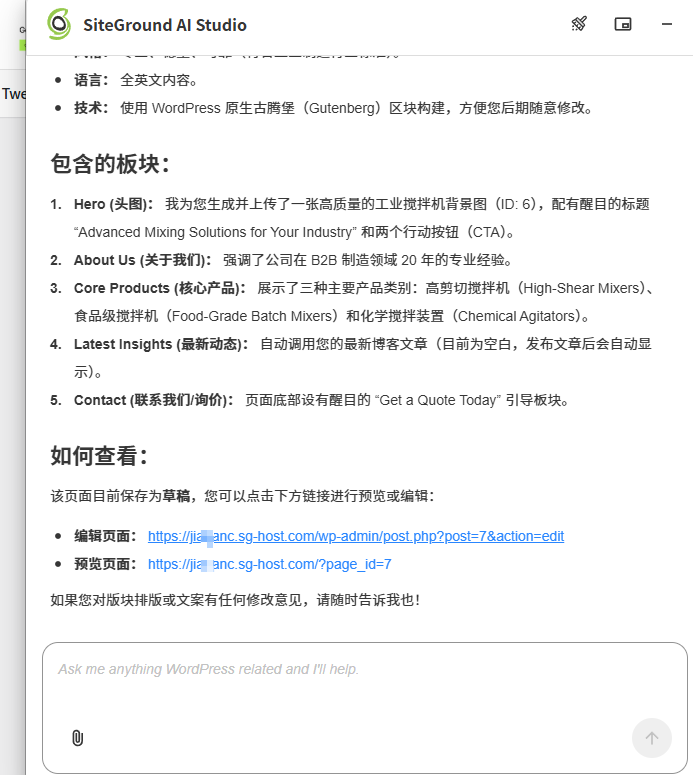
When you enter your WordPress website's backend, the AI Studio interface will pop up. In this interface, you can directly chat with AI to have it help manage or design your website. As shown in the screenshot below:

The screenshot shows Naiba having AI directly design the homepage for me—it directly created the Gutenberg block content corresponding to the homepage based on the default theme.
Although AI is very convenient, it has not yet reached the level of completely replacing manual creation of a full WordPress website. Naibabiji more recommends that you use this AI tool toanalyze and plan website content, rather than having it directly design the website for you.
If you want to quickly launch a website, you can trySiteGround Website Builder。
SiteGround Tutorial Step One: Purchase Service
Building a website requiresa domain, server, and website programthese three things. For the website program, Naibabiji recommends using WordPress, which is free, open-source, and very friendly to beginners.
A domain is the website"s "address plate" (e.g., naibabiji.com), while the server is the place where website data is stored—you cannot use your own computer; you must purchase a cloud server for the website to be accessible by others.
Theoretically, purchasing the domain and server separately offers better cost-effectiveness, but with SiteGround, you can get it done with one click, which is more beginner-friendly and hassle-free.
1. Click the button below to open the official SiteGround registration link(The foreign website may be slow; if it doesn't open, use a proxy to access it.)
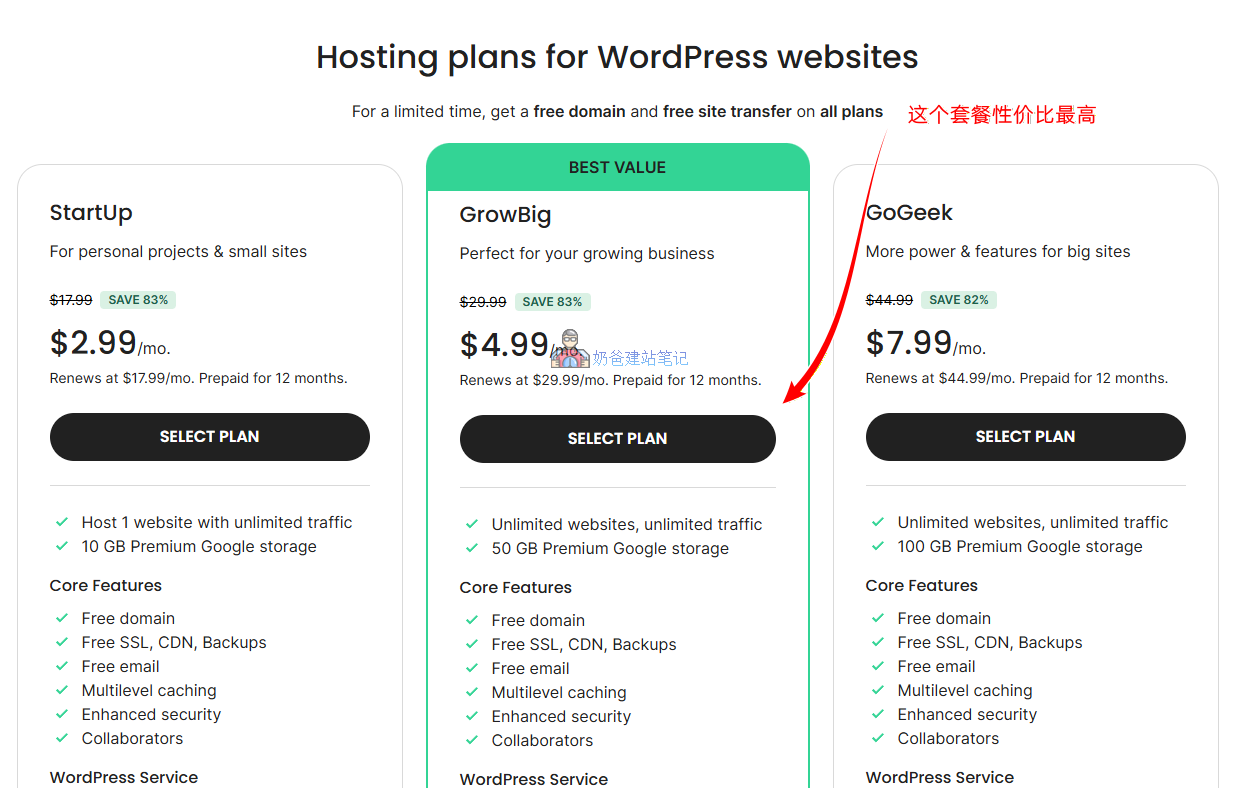
Purchase LinkOn the plan selection interface,it is recommended to choose the middle GrowBig plan, compared to the StartUp plan, it does not limit the number of websites, offers larger storage capacity, on-demand backups, and faster PHP and staging environments.

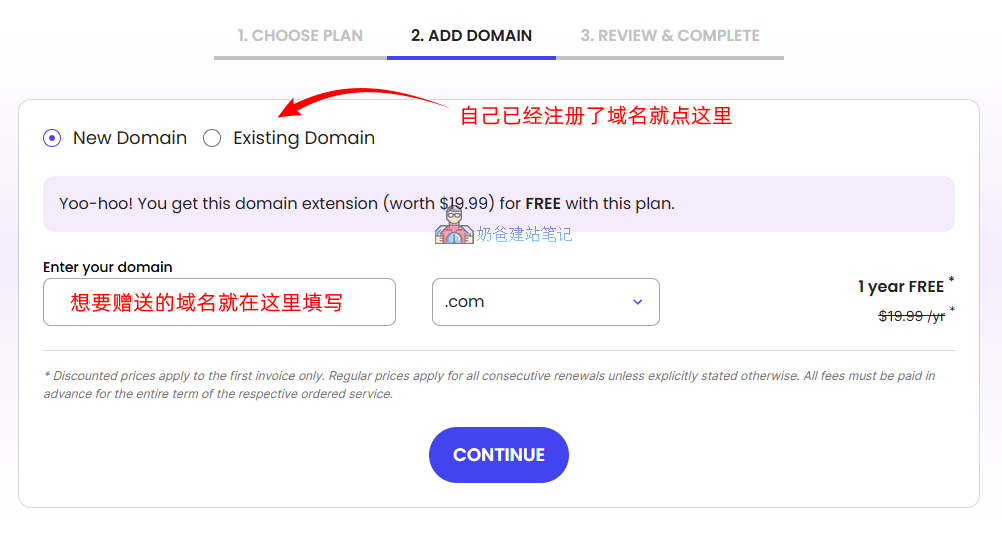
2. After clicking the SELECT PLAN button, you will enter the registration and domain selection page.If you need the free domain, simply enter your desired domain name in the input box and click the CONTINUE button.

Registering a domain from SiteGround will cost a few dollars more per year than other websites. For beginners, it is recommended to spend money to save trouble and purchase the domain and server together directly.
If you think you have no problem with domain name resolution, first refer to the tutorial below to register a domain name.. (If you have already registered a domain, select Existing Domain and then fill in your own domain name.)
- Tutorial for Registering a Domain with the Foreign Domain Registrar Namesilo(First register the domain name, then return to the interface shown above, select Existing Domain, and fill it in.)
- Tutorial for Namesilo Domain Resolution and DNS Server Modification(After purchasing the SiteGround server, come back to this tutorial for resolution.)
- How to Check SiteGround's Server IP and Name Servers。
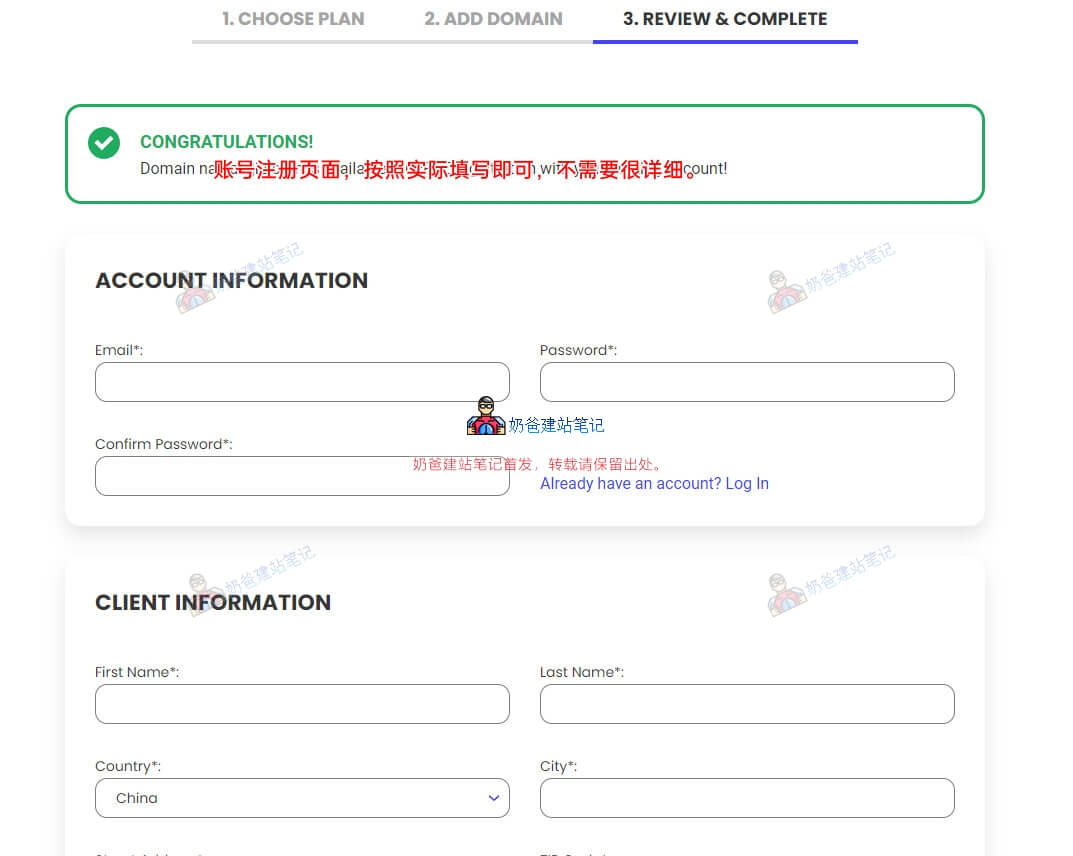
3. Enter the account registration page and fill in the information according to your actual situation.

Note: In the Phone Number field, add the country prefix +86 to your mobile number.

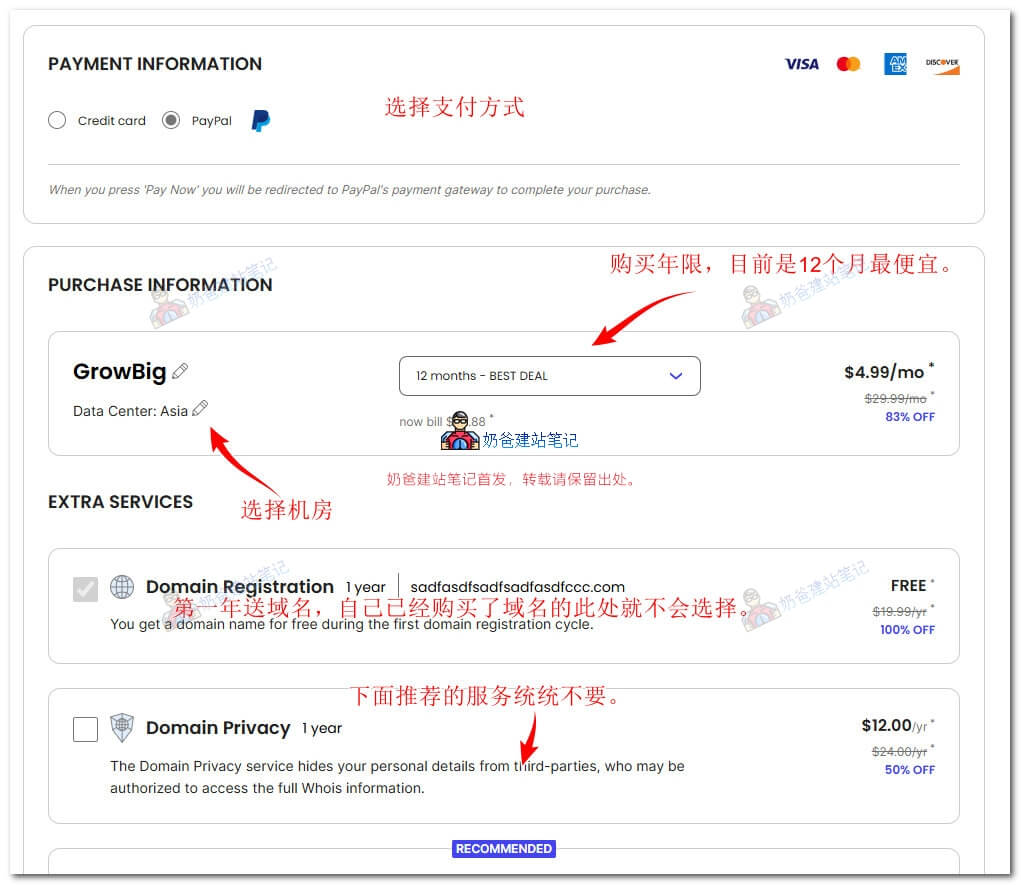
Payment methods now support credit cards and PayPal. If you have any issues,click here to contact customer service。(Contact customer service directly and ask 'Can I pay with PayPal?' The customer service representative will tell you yes, ask you to fill in all required fields on the order page except the credit card information, then click the PAY NOW button. They will see the order information in the backend and send you a PayPal payment link to complete the payment.)
SiteGround's pricing offers a discount for new purchases,renewal at the original price. You can buy one year first at $4.99/month, and decide whether to renew for the second year or switch to a cheaper provider (see:WordPress Hosting Recommendations).
Finally, make the payment and wait for the activation email.
Tip: If mobile SMS verification is required, please check if your phone has international SMS enabled and if your phone is automatically blocking spam messages. If you really cannot receive the SMS, you can switch to voice call verification. (Those who are capable can also call their customer service directly, which is faster.)
SiteGround Tutorial Step Two: Installing a WordPress Website
If there are any discrepancies in the following part of the tutorial, you are welcome to share your account details with Naiba to update the tutorial. (Contact Information)
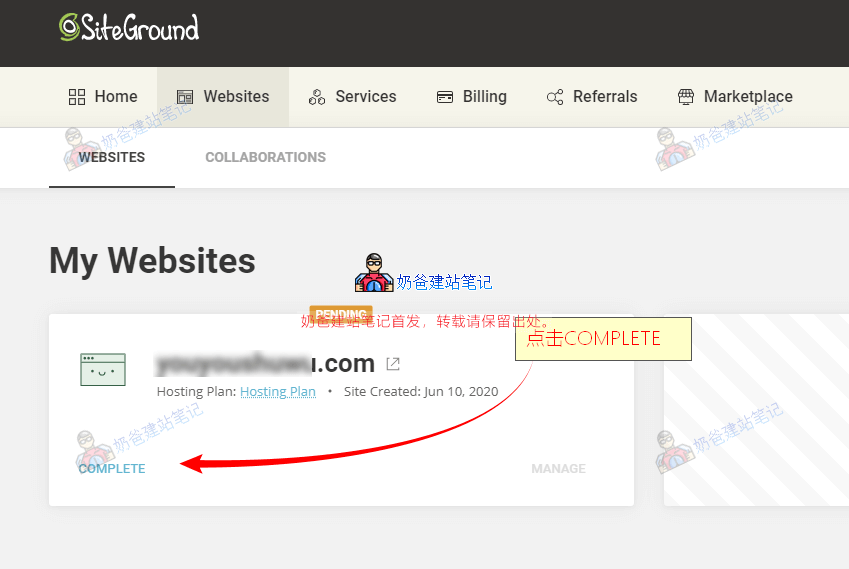
I. After payment is completed,log in to the SiteGround Admin Dashboard(All new registrations after 2020 have the new version interface shown below), click on the topWebsites, and thenThe following screen appears, click COMPLETE。

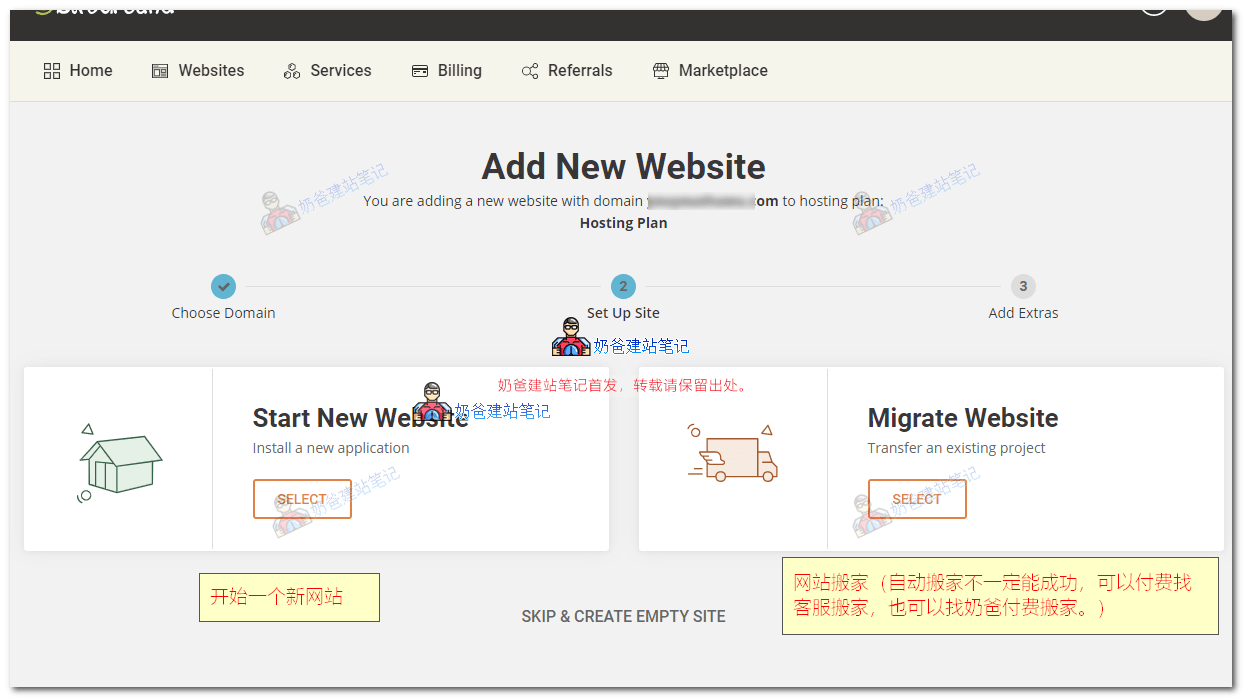
After clicking the COMPLETE button, the following screen appears.

The left option, Start New Website, is to create a new website. The right option, Migrate Website, is to move a website from another server to SiteGround. It supports automatic migration or paid migration by customer service. The automatic method may not be 100% successful. You can try it first. If it fails, you cancontact Naibafor paid migration assistance.
Second, click Start New Website on the leftto begin installing the website.

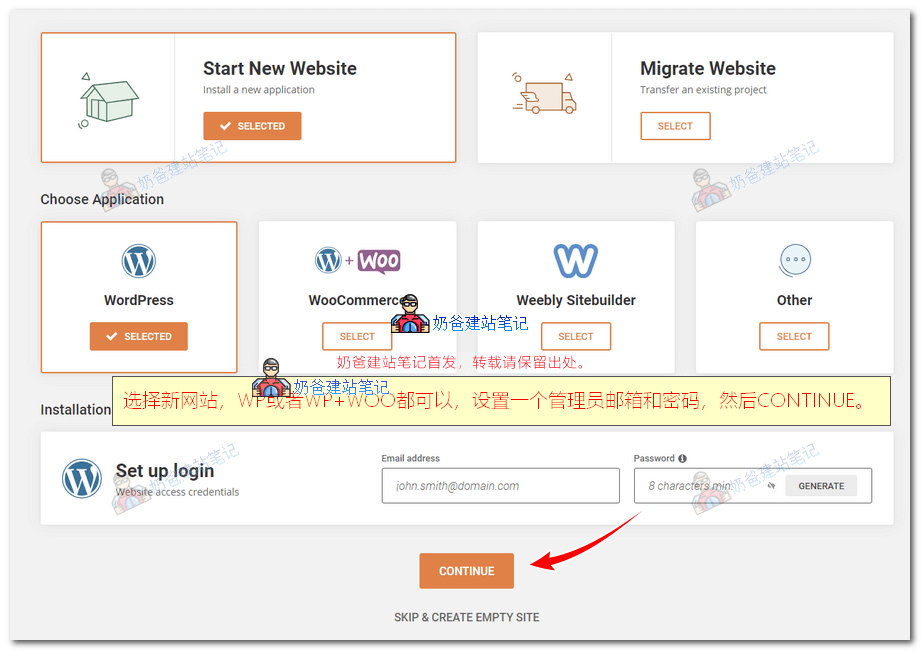
Under Install New WordPress, there are two options: WordPress or WordPress + WooCommerce. The difference is that the latter installs an e-commerce plugin by default.WooCommerceYou can also install WooCommerce separately if you choose WordPress alone, so it doesn't make much difference.
Fill in your website's administrator email and password below, then click the Continue button. The following screen will appear:

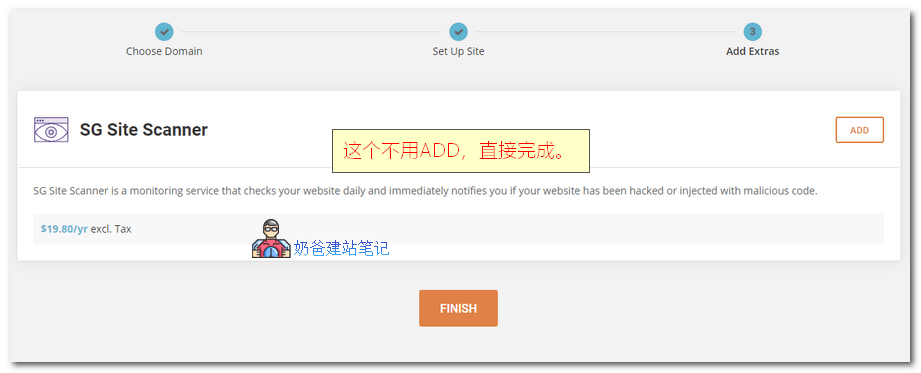
This SG Site Scanner is a website security scanning tool, costing $19.8 per year. It's not very useful if your site is actually infected, as it may not clean it thoroughly, so there's no need to select it. (How to properly secure a WordPress website?)
Third, WordPress website installation is complete。

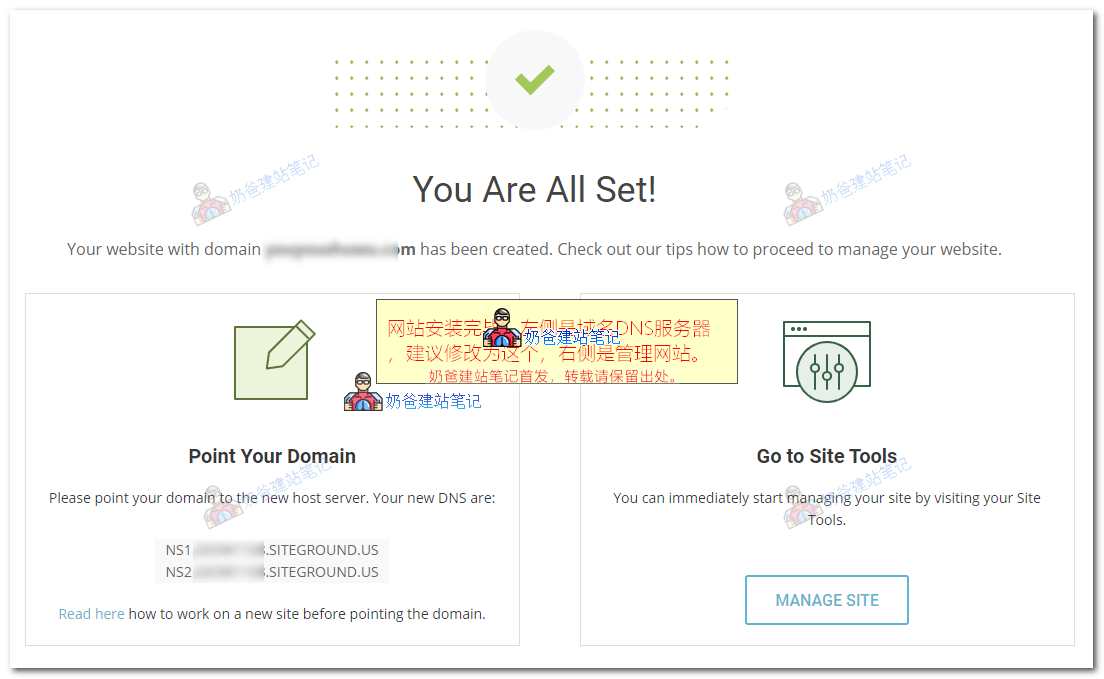
When 'You Are All Set!' appears, it means the website installation is complete. The two URLs under Point Your Domain on the left side of the screen are the DNS servers assigned to you by SiteGround. It is recommended for beginners to directly change their domain's DNS servers to SiteGround's. For the method, refer to:
- Tutorial for Namesilo Domain Resolution and DNS Server Modification
- Tutorial on modifying DNS records for domains registered with Godaddy
- Alibaba Cloud Domain Name Resolution Tutorial: How to Modify IP Records for Domains Registered with Alibaba Cloud
- Naibabiji Website Building Notes Domain Registration and Resolution Topic Articles
The Go to Site Tools button on the right takes you to the website management MANAGE SITE. (The default WordPress login address is your domain URL followed by/wp-admin)
At this point, the tutorial for installing WordPress using SiteGround is complete. For more SiteGround tutorials, please continue reading the following content.
SiteGround Step Three: Install SSL Certificate, CDN Acceleration, and Other Features
After installing the WordPress website, we can also install a free SSL certificate, enable CDN acceleration, and set up free business email features for the website. Refer to the links below for tutorials to complete the corresponding settings.

Install SSL Security Certificate
SSL certificates are considered a standard configuration for a website. SiteGround allows you to configure a free Let's Encrypt security certificate with one click.

Enable CDN Acceleration Service
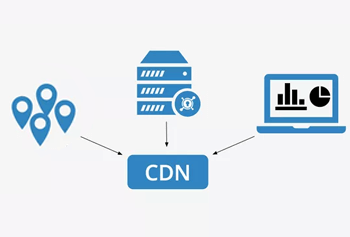
Path to enable security certificate on SiteGround: SG Admin Dashboard → SPEED → Cloudflare, then select ACTIVATE FREE.

Business Domain Email
The default SiteGround service includes domain email; you just need to add an email account to send and receive emails.

SG Optimization & Acceleration Plugin
The official SiteGround website caching and acceleration plugin supports not only caching but also optimization features like image compression and lazy loading.

Create a Second Website
If you purchase the GrowBig plan, it supports installing an unlimited number of websites. You just need to add a domain in the DOMAIN section.

Cancel Auto-Renewal
The original text has been deleted. PleaseFollow the Naibabiji WeChat Official Account, reply "SG Renewal".
SiteGround Frequently Asked Questions (FAQ)
Is SiteGround suitable for foreign trade users?
Highly suitable. Although the SiteGround official website may require a proxy to access in certain regions within China, the websites built on it have very fast access speeds for overseas users and come with built-in CDN acceleration.
Which pricing plan should I choose?
Highly RecommendedGrowBigplan. It includes on-demand backups and advanced caching, offers significantly better performance than StartUp, and supports building an unlimited number of websites, making it the most cost-effective choice.
Is AI Studio free?
All SiteGround users can use the Essential version of AI Studio for free, which includes 20,000 Tokens per month. If you have higher demands, you can upgrade to the Plus plan.
SiteGround Step Four: Decorate Your Own Website
When the domain name resolution takes effect and everything is set up, open it in your browser using your own domain name to see the default WordPress interface. As shown in the figure below:

This indicates that we can now directly access the built WordPress website using our own domain name.
However, this interface is very basic, so we need to design and decorate the website. You can refer to WordPress tutorials for this.
On SiteGround, we can proceed as follows. Please follow the steps below:
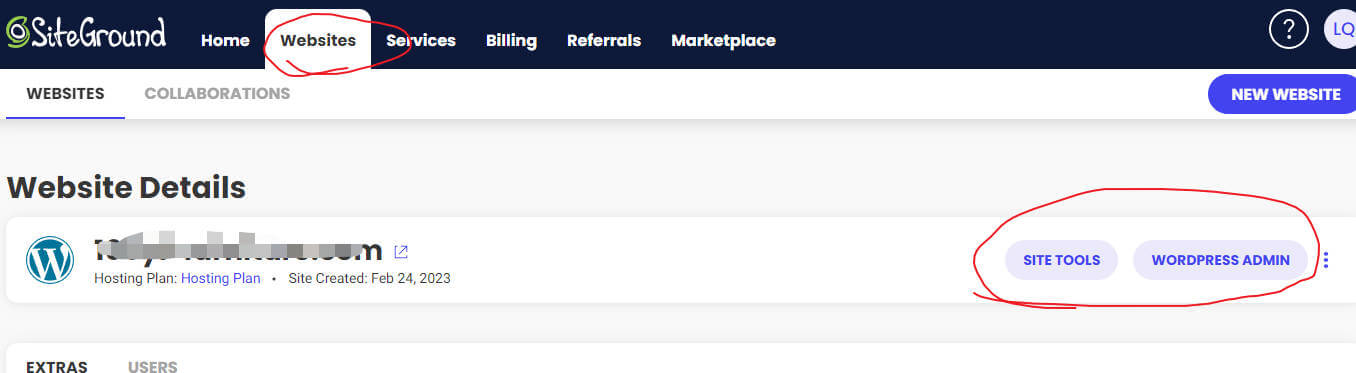
1. Enter the SiteGround Admin Dashboard, click on Websites, find your website, and click SITE TOOLS. You can also directly click WORDPRESS ADMIN, as shown in the figure below:

If you clicked SITE TOOLS, then the operation steps are as shown in the figure below:

Using either of these two methods, you can enter the WordPress Admin Dashboard.
On your first visit, there may be a guide; you can simply skip it, and then you will see an interface like the one shown in the image below.

Then, what we need to do is choose a suitable Theme and design it according to our own needs.
This content has been introduced by Naiba before, so I won't repeat it here. Please visit the link below to view:
Video Tutorial

Scan the QR code on WeChat to watch
Other platforms:Xigua Video、BILIBILI
Note: Some interfaces in the video tutorial differ from the new version of the SiteGround Admin Dashboard; please adapt accordingly.

💬 User Reviews
If you encounter any issues while using SiteGround, or have better suggestions and experience to share, feel free to leave a comment below for discussion!
<