
Domain Transfer involves moving a domain you registered with another service provider to a different provider, similar to mobile number portability. This article explains how to transfer a domain to SiteGround.
Why transfer a domain?
Domain transfer is the same as mobile number portability: you are dissatisfied with the current service provider's services, and other service providers offer better services and cheaper prices.
Another situation is that your server is purchased from another provider, and transferring the domain to that provider makes operations more convenient (actuallyModify NS serverscan also achieve operational convenience).
How to Transfer a Domain to SiteGround
Step 1: Apply for domain transfer from your old provider
Here, we take a domain registered with Xin Net as an example. The operation methods for other domain registrars are similar.
Log in to the Xin Net domain management backend, find the domain you want to transfer out, click Manage, then click Domain Transfer Out, as shown below:
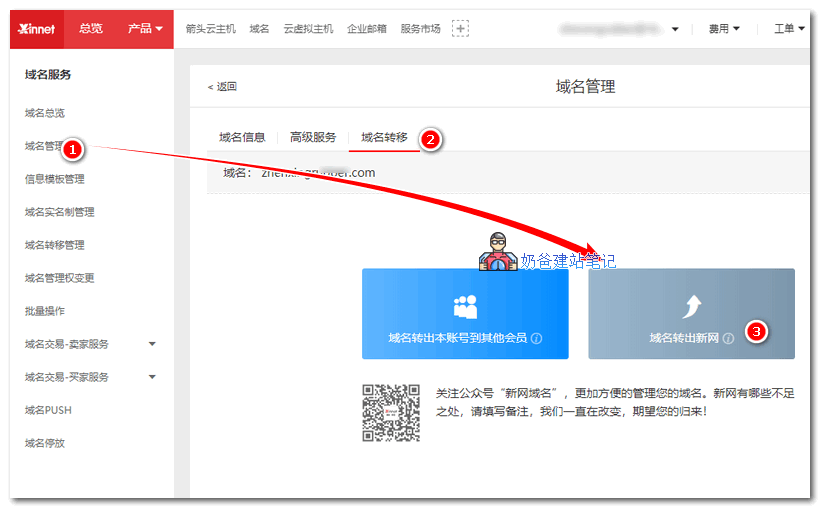
After submitting the transfer application, you will receive a transfer password (which may be sent via email or SMS). Save this password for future use.
Dear Xin Net user, hello!
Thank you very much for choosing domain services at Xin Net. We are honored and excited, and wish you a pleasant experience! Xin Net has accepted the transfer application for your domain [naibabiji.com]. Your domain transfer password is[+D7B0Axa1]。
Step 2: Purchase domain transfer service at SiteGround
Domain transfer requires payment, typically at the price of domain registration. SiteGround has both old and new management panels. The operation methods for each are as follows:
New Admin Dashboard: Dashboard → Marketplace, purchase the Domain Transfer service. On the interface that appears, enter the domain name you want to transfer in, and fill in the EPP code (the transfer password provided by your old service provider). Then proceed with the payment.
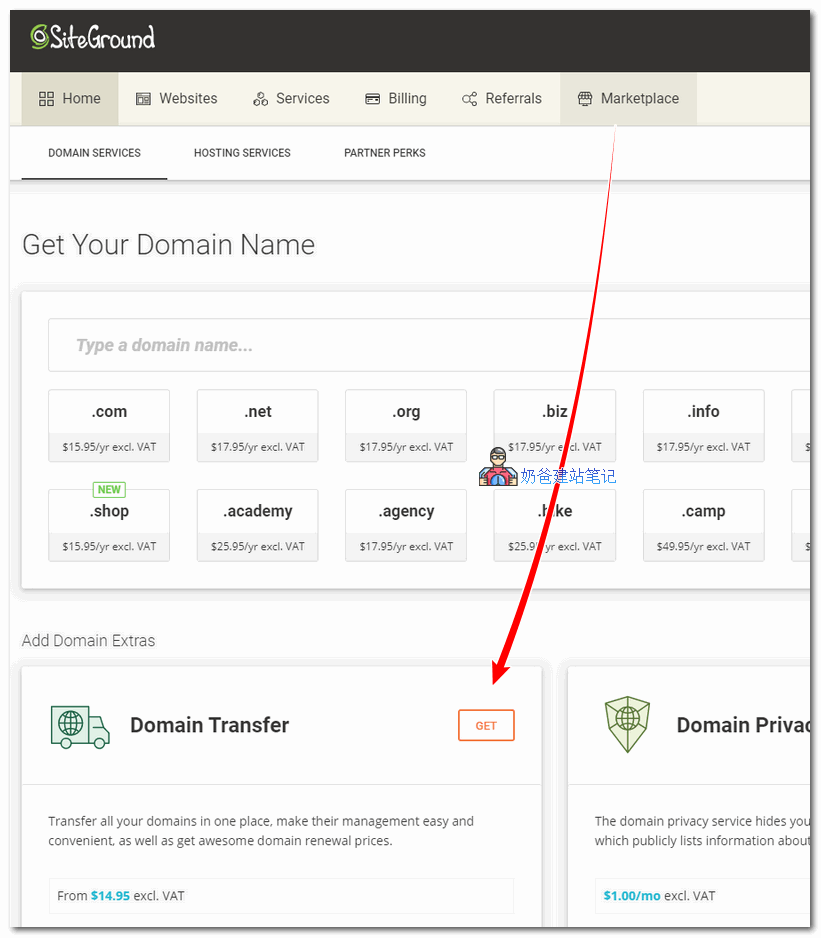
Old Version Interface: Dashboard → Add Services → Domain Transfer, enter the domain name you want to transfer to SiteGround, then check. On the new interface, enter the transfer password (EPP code) and complete the payment.
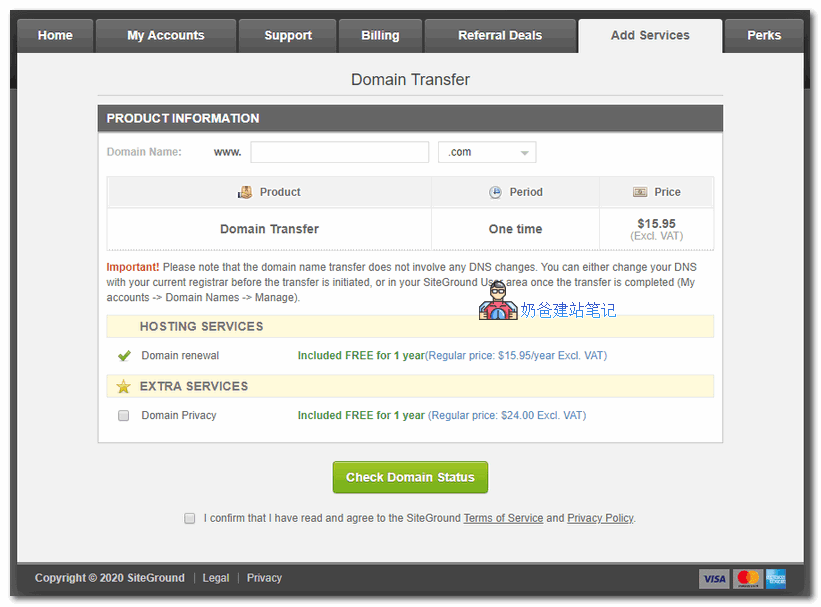
Step 3: Confirm the transfer operation via email
If the transfer password is correct, the email address associated with your old domain registrar will receive a confirmation email for the domain transfer. Click the link to confirm, and then the domain transfer will be successful. (Usually this is quick, but there are cases where it may take a few days to complete.)