SiteGround Tutorial / WordPress Hosting

SiteGround Chinese Beginner Tutorial: Purchase Hosting, Install WordPress, and Foreign Trade Website Building Basics

This is a SiteGround website building tutorial for beginners: first determine if SiteGround is suitable for you, then complete plan selection, domain handling, WordPress installation, Site Tools basic settings, SSL, cache, email, and AI Studio introduction.

  • Suitable for Foreign Trade Independent Websites
  • WordPress Hosting Tutorial
  • Verify price before purchase

Quick Conclusion: SiteGround is suitable for worry-free WordPress beginners

SiteGround's focus is not the lowest price, but centralized backend, easy installation, and complete WordPress tools, suitable for foreign trade independent websites, corporate websites, and beginners who don't want to maintain a VPS.

Beginners can judge like this

  • Formal foreign trade sites, corporate sites, English blogs: SiteGround can be a key consideration.
  • Very tight budget, just want to practice building a website: first look at Hostinger or cheaper entry-level hosting.
  • Want to master servers, panels, PHP, databases, and caching: continue to see VPS recommendations.
  • Before purchasing, review the current promotional price, renewal price, refund policy, data center, and plan resources.
Purchase Link

Already decided to buy SiteGround? First open the official website to check current prices and renewals

It is recommended to open the SiteGround official website in a new window, and while following the process in this article, confirm the first-year discount, renewal price, refund policy, plan resources, and domain options.

Who SiteGround is suitable for and who it is not suitable for

If you are still hesitating among several WordPress hosts, you can first checkWordPress Hosting Recommendations; if you are already leaning towards SiteGround, continue to see the purchase and installation steps below.

SiteGround Applicability Boundaries
TypeIs SiteGround SuitableReason
Foreign Trade Independent WebsiteSuitableOverseas access, WordPress tools, SSL, backups, and backend experience are relatively beginner-friendly for foreign trade.
Corporate WebsiteSuitableMore hassle-free than low-cost shared hosting, suitable for formal projects that value stability and support.
Pure Learning and TestingNot necessarilyIf you are just practicing WordPress, you may not need to buy a more expensive plan.
Primarily for Mainland China UsersCautiousYou need to consider ICP filing, domestic access speed, and Chinese localization support; Alibaba Cloud/Tencent Cloud servers may be more suitable.
Want Full Control of ServerNot SuitableSiteGround is a managed/shared hosting experience, not suitable for those who want deep server environment management.

SiteGround Purchase Process

The purchase interface and price promotions may change; the stable process is retained below without hardcoding specific prices. Before purchasing, refer to the SiteGround official website.

Step 1

Open the SiteGround official website and select a plan

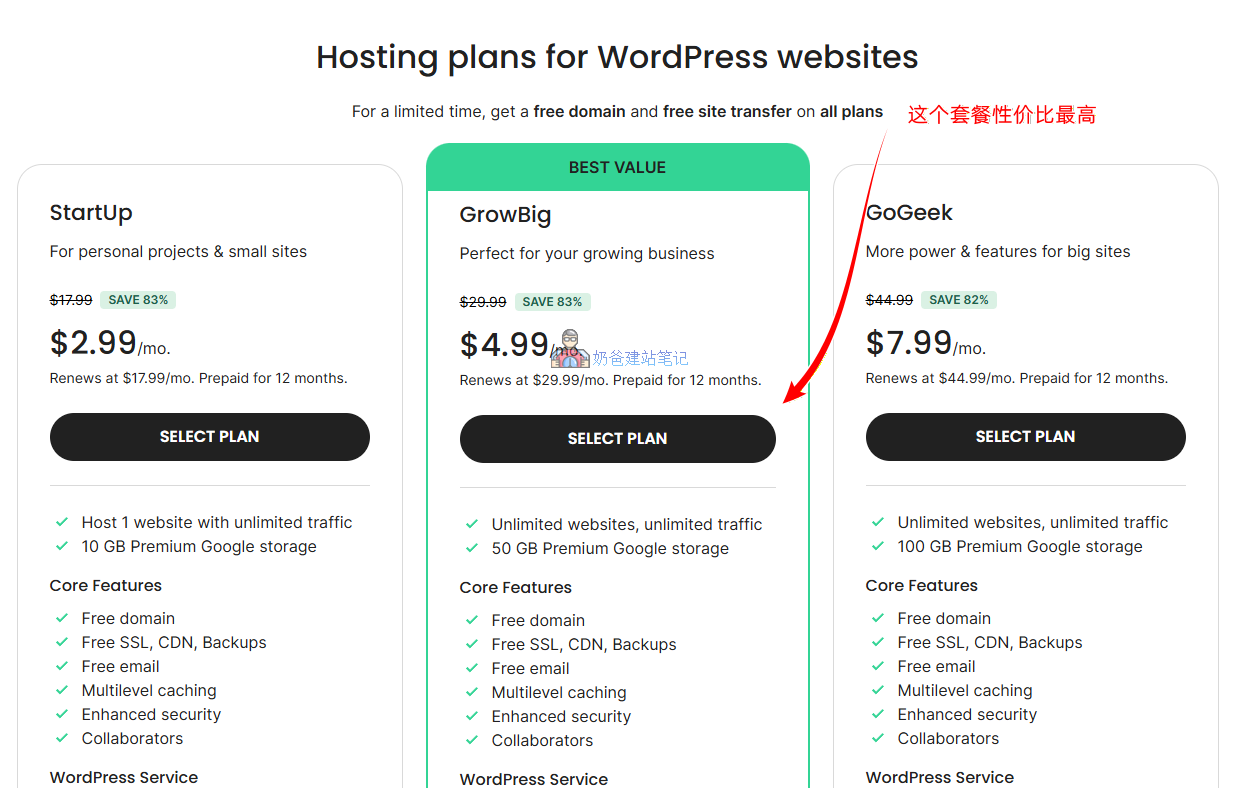
Open theSiteGround official purchase entryThen enter the plan selection interface. For beginners building a formal site, the middle option GrowBig is usually preferred; compared to StartUp, it is more suitable for multiple sites, on-demand backups, and more complete WordPress tools.

  • StartUp: Single-site entry
  • GrowBig: More suitable for formal projects
  • GoGeek: Consider if you have a higher budget
Step 2

Choose a new domain or an existing domain

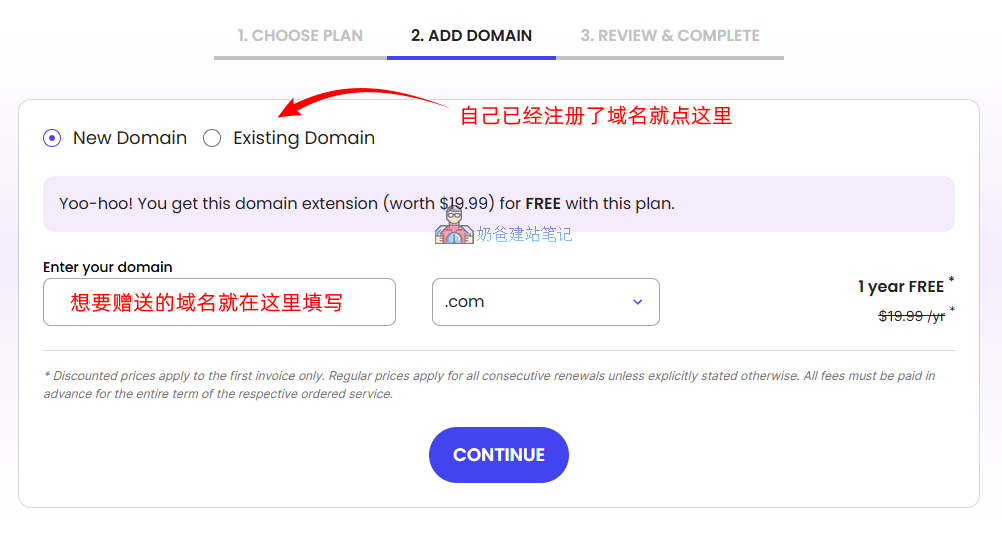
After clicking SELECT PLAN, you will be taken to the registration and domain selection page. If you need to register a domain together, you can directly enter the desired domain; if you already have a domain, select Existing Domain and fill in your own domain. For basics of domain registration, DNS, and renewal, you can first readDomain Name Guide

  • Beginners can buy together for convenience
  • Select Existing Domain if you already have a domain
  • Handle DNS or Nameserver after purchase
View related tutorials
Step 3

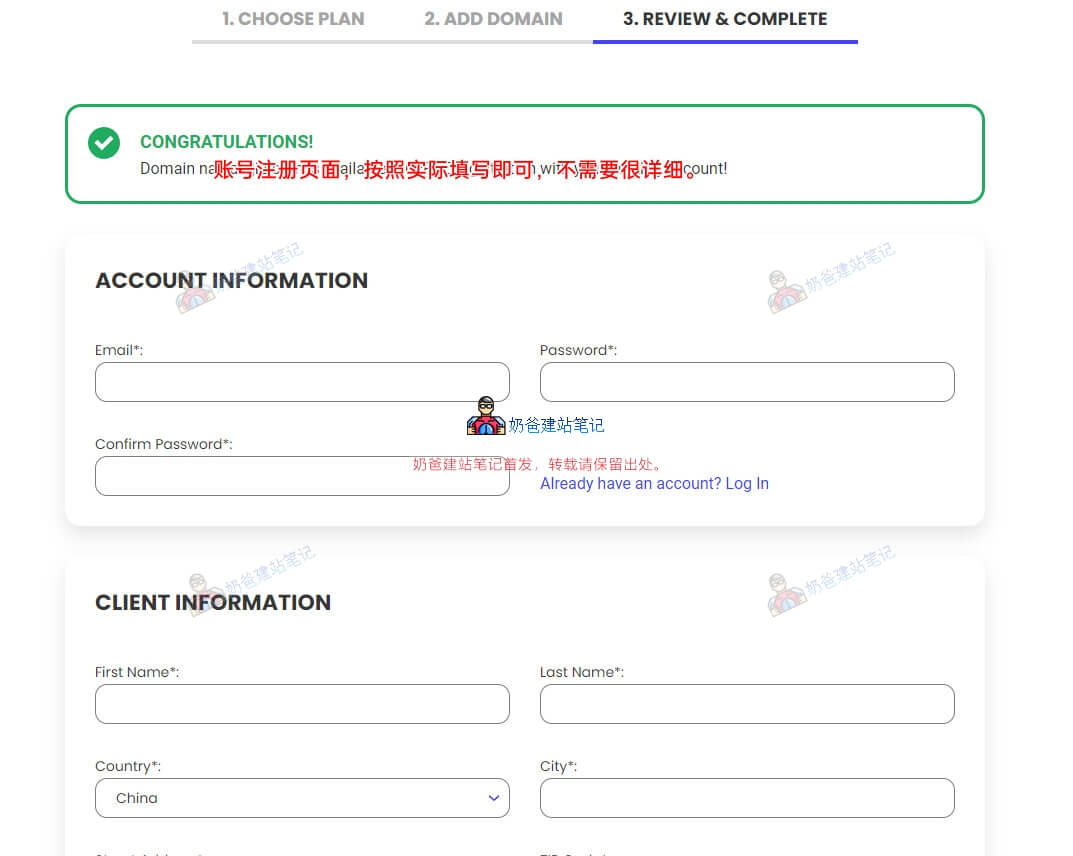
Fill in SiteGround account information

After entering the account registration page, fill in according to your real information. For phone number, it is recommended to add the country code, for example, add +86 before a Chinese mainland phone number.

  • Save the login email
  • Add country code to phone number
  • Note SMS or voice verification
Step 4

Fill in payment information and wait for activation

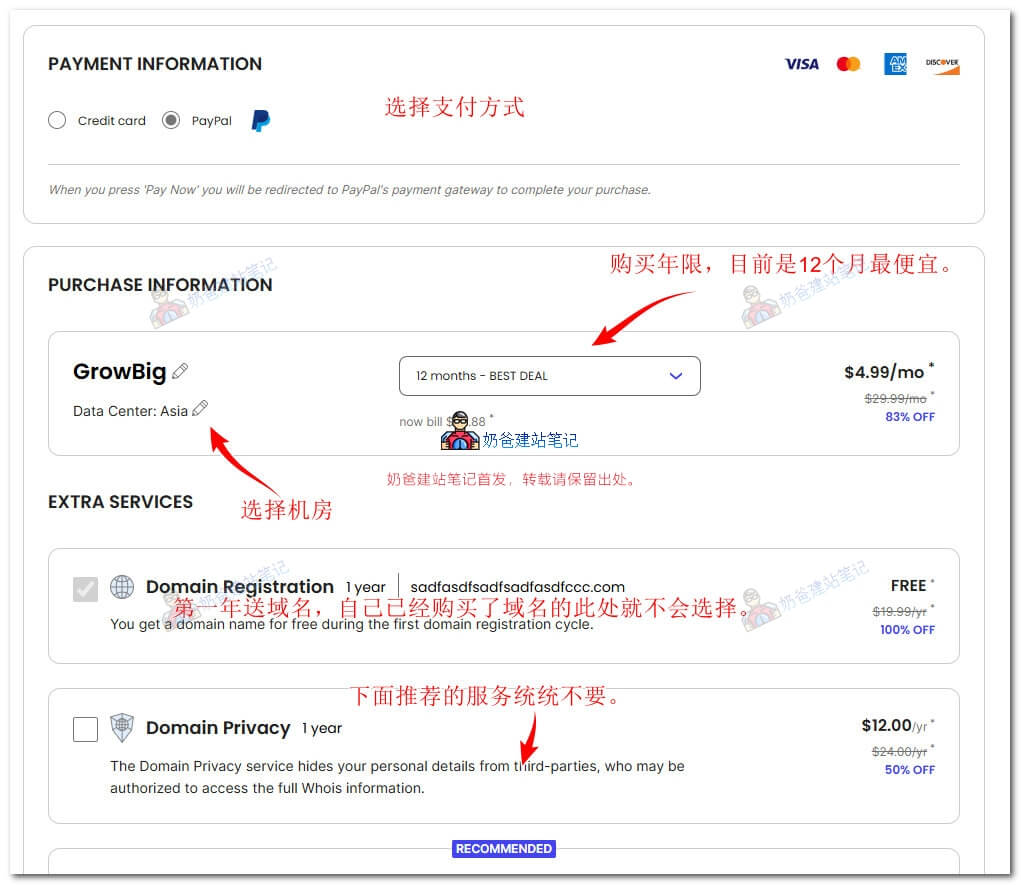
SiteGround purchases are usually made with credit/debit cards. Whether PayPal is available depends on the current checkout page or pre-sales customer service confirmation. After payment, wait for the activation email and save order, renewal, and login information.

  • Confirm the final amount
  • Save the order email
  • Confirm auto-renewal and refund policy
Pre-purchase checklist for SiteGround
Purchase ItemWhat You Need to ConfirmWhy It Matters
Payment MethodSiteGround usually accepts credit/debit card payments; if you need to use PayPal, you can first contact SiteGround customer service to apply for confirmation.Payment methods may vary depending on the account region and checkout page. Before payment, refer to the actual checkout page and customer service response.
Plan selectionFor most formal projects, GrowBig is the priority for comparison; StartUp is only suitable for single-site beginners; GoGeek is suitable for projects with higher budgets or more complex needs.The plan affects the number of websites, backup capabilities, resources, and future scalability.
Renewal PriceSiteGround usually has a low promotional price for the first year, with renewal calculated at the original price or current billing. Confirm again before renewal.The original price is usually higher; before expiration, you can migrate to another server or contact customer service to inquire about renewal discounts.
Refund policySiteGround official description: Shared hosting initial orders usually have a 30-day money-back guarantee, cloud hosting usually 14 days; domain fees, paid support, and third-party services are not covered by the guarantee.The refund policy affects your trial, host switching, and project budget planning. Details are subject to SiteGround's official refund policy.
Data center locationSiteGround data centers include Spain, UK, Netherlands, Germany, France, USA, Singapore, Australia.Choose a data center closer to your target customers.
Affiliate Link Notice

Before purchasing, confirm that you can accept the renewal price.

SiteGround's first-year promotion and renewal prices may differ significantly. You can visit the official website via the referral link on this site to make a purchase; I may receive a commission, but it will not increase your purchase cost.

Install WordPress with SiteGround

After purchase and activation, the SiteGround dashboard will guide you to create a website. The following is a stable operational logic; specific button text may vary based on the current dashboard.

Step 1

Go to Websites, click COMPLETE

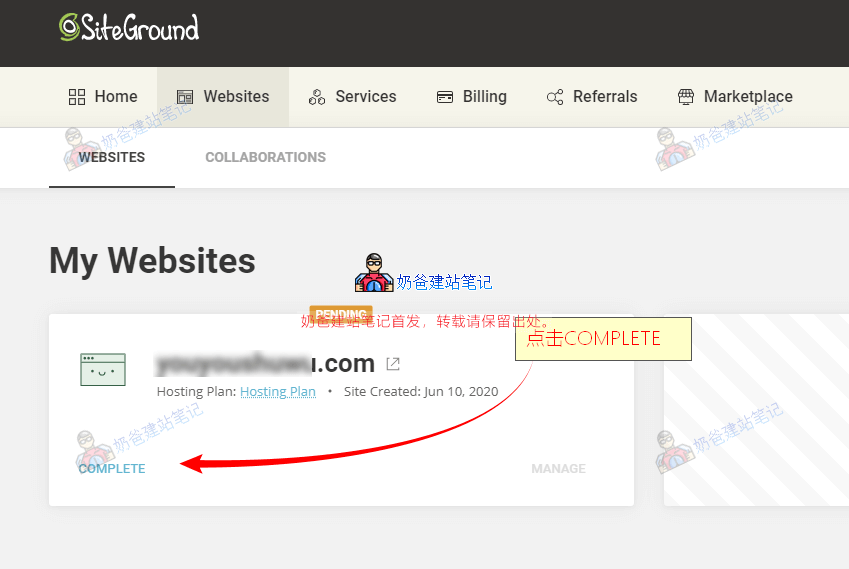
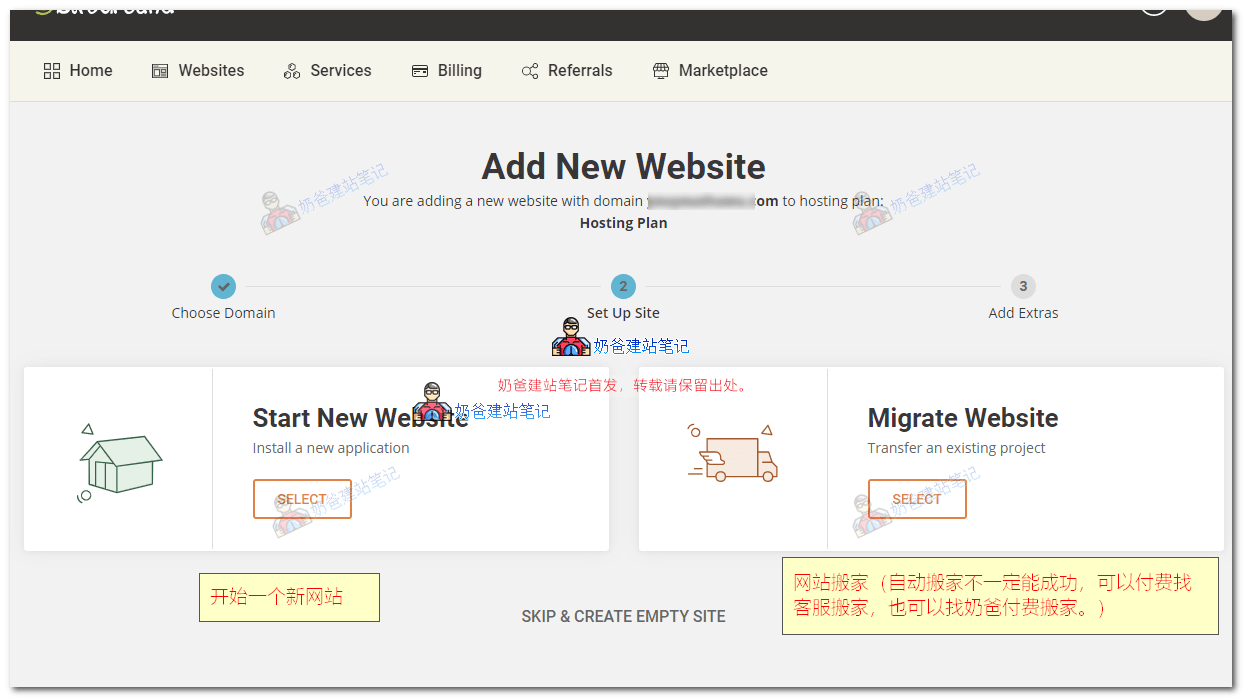
After payment and activation, log in to the SiteGround dashboard and click Websites at the top. If you see pending website setup, click COMPLETE to continue creating the website.

Step 2

Choose to create a new website or migrate a website

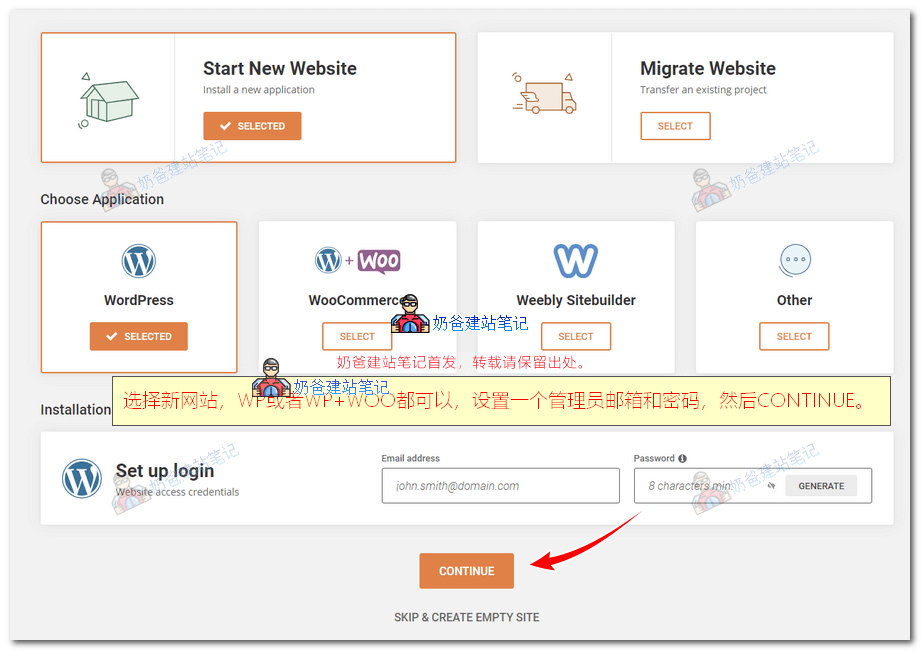
On the left, Start New Website is for creating a new website; on the right, Migrate Website is for moving a website from another server to SiteGround. For first-time website building, usually choose Start New Website.

Step 3

Choose WordPress installation method

Under Install New WordPress, you can choose WordPress or WordPress + WooCommerce. For a standard showcase site, choose WordPress; for an online store, consider WooCommerce.

Step 4

Fill in admin account and skip additional scanning

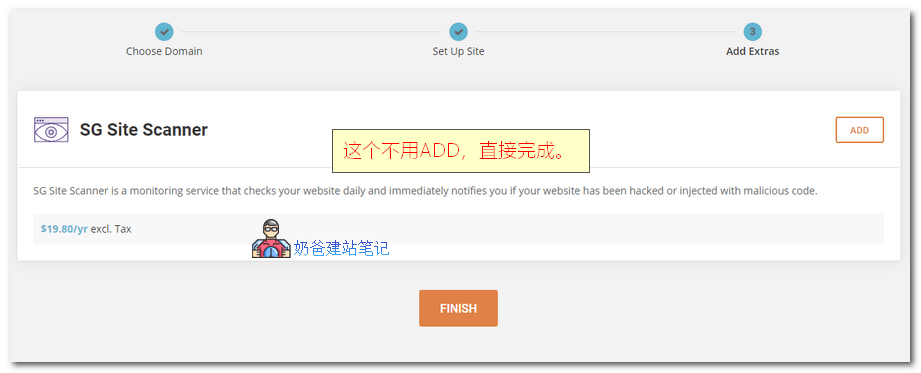
Fill in the WordPress admin email and password, then continue. SG Site Scanner is a paid security scanning tool; not every beginner needs it. Completing installation, SSL, backup, and basic security is more important first.

Step 5

Installation complete and handle DNS

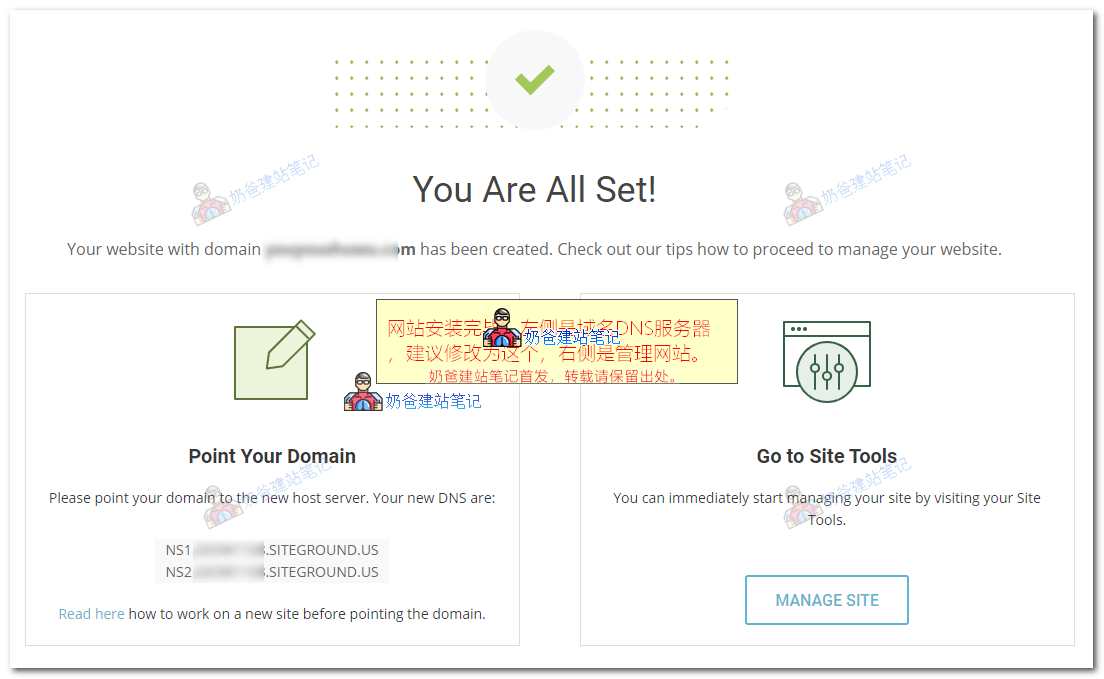
When you see You Are All Set, it meansWordPress has been installed successfully.On the left, under Point Your Domain, the DNS servers assigned by SiteGround are displayed. It is recommended that beginners change the domain DNS to SiteGround directly.

First, get to know these entries in the Site Tools dashboard

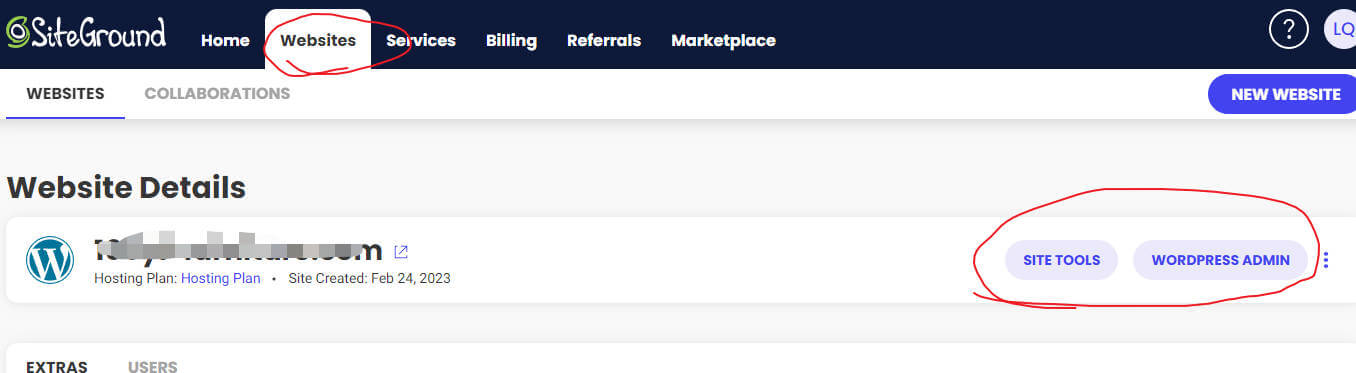
SiteGround uses Site Tools to replace traditional cPanel. After purchasing the server, the most commonly used entries are SITE TOOLS and WORDPRESS ADMIN. Site Tools is where you manage your server, and WordPress Admin allows one-click login to the website backend. You can also choosethe regular way to log in to the WordPress backend.

WordPress

Install, log in, and manage WordPress

Used to access the backend, manage installations, handle migrations, and some WordPress tools.

Security

SSL, HTTPS, and security related

Before launching the official website, configure SSL and ensure HTTP redirects to HTTPS.

Speed

Caching, CDN, and Performance Optimization

Configure caching, images, frontend resources, and CDN settings with SiteGround Optimizer.

Email

Create Business Email

Suitable for creating domain email addresses like info@, sales@ for foreign trade websites to enhance trust.

Domain

Domain, Subdomain, and DNS

Handle domain binding, temporary domains, subdomains, and DNS resolution settings.

Backups

Backup and Restore

Before installing themes/plugins, modifying page structure, or going live, first confirm that backups are available.

Settings to Do After Installation

Being able to access WordPress is just the first step. Before going live, ensure SSL, backups, caching, email, and basic backend settings are working.

Setting 1

Install SSL Security Certificate

SSL is a standard configuration for official websites. SiteGround can configure a free Let's Encrypt certificate with one click.Foreign Trade Independent WebsiteEspecially handle HTTPS before going live.

Setting 2

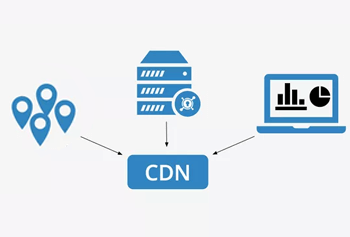
Enable CDN Acceleration Service

In the old tutorial, the path was SG Dashboard -> SPEED -> Cloudflare, then select ACTIVATE FREE. The new version's entry point may have changed; follow the current dashboard prompts.

Step 3

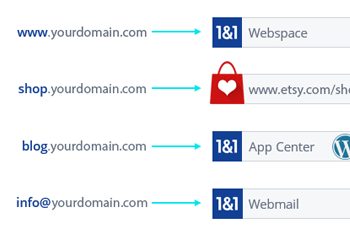
Create a Business Domain Email

After activating SiteGround service, you can create a domain email, such as info@ or sales@. When doingForeign Trade Independent Websiteinquiries and business communication, do not use a personal email long-term.

Step 4

Configure SiteGround Optimizer

SiteGround's official optimization plugin can be used for caching, image compression, and lazy loading, suitable for foreign trade and business websites with many images.

Step 5

Add a Second Website or Domain

If you purchased a plan like GrowBig that supports multiple sites, you can add a new domain in the Domain-related entry, then create a second website.

Step 6

Check Auto-Renewal

After purchase, remember to check the renewal settings, billing cycle, and renewal amount to avoid misunderstandings due to auto-renewal or price changes in the future.

Next Reading

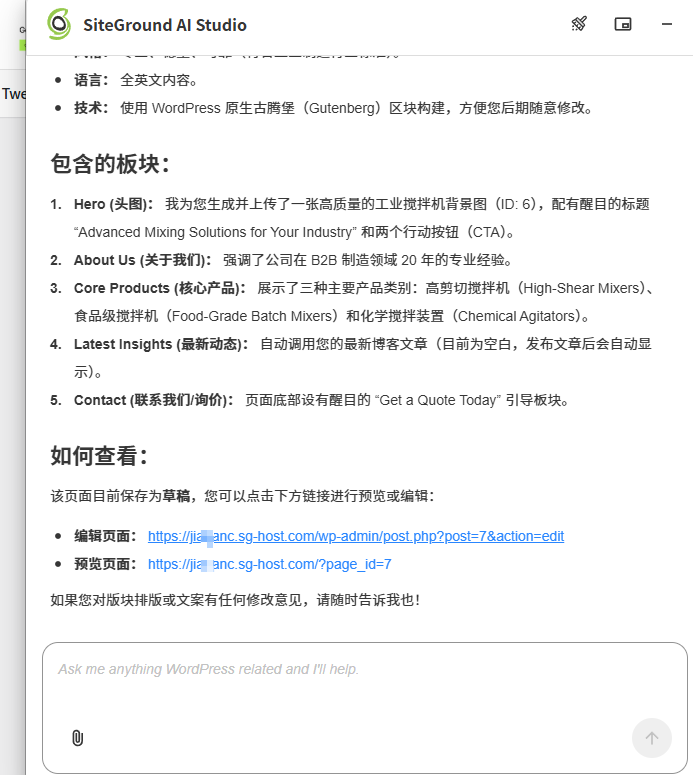
How to View SiteGround AI Studio

AI Studio can assist with content, pages, and backend operations, but it should not replace your business planning, product materials, and real cases.

Better Ways to Use AI

  • Let AI help you organize website sections, homepage structure, product categories, and FAQ.
  • After AI generates a draft, have someone familiar with the business supplement real parameters, cases, certificates, and delivery information.
  • Do not publish AI-generated content directly as official pages, especially for foreign trade products and service commitments.
  • If you just want to experience AI website building, try it on a test site first, and do not directly modify the official homepage.

SiteGround FAQ

These questions mainly come from WordPress beginners who are purchasing and using SiteGround for the first time.

Is SiteGround suitable for foreign trade websites?

It is suitable for many foreign trade WordPress websites, especially for beginners who want less server maintenance. Before actually choosing, consider the target customer region, budget, renewal price, image optimization, and future promotion plans.

Which SiteGround plan should I choose?

For formal projects, GrowBig is usually preferred over StartUp because it supports multiple sites, on-demand backups, and more complete tools. But the final decision depends on current prices, number of websites, and budget.

Can I register a domain directly with SiteGround?

Yes, but the price may be higher than specialized domain registrars. Beginners can buy together for convenience; if you are familiar with DNS, you can register the domain with another registrar and point it to SiteGround.

How to choose between SiteGround and VPS?

If you don't want to manage a server, SiteGround is more worry-free; if you are willing to learn about servers, panels, PHP, databases, caching, and security, VPS offers more freedom and may be more cost-controllable in the long run.

Can SiteGround AI Studio directly build a website?

It can assist with planning, content, and partial page generation, but formal business websites still require manual confirmation of structure, copy, product information, inquiry paths, and SEO details.

How much does SiteGround renewal cost?

SiteGround renewal is based on the actual invoice. Usually, the first year is a promotional price, and renewal is calculated at the original price or the current invoice price. So don't just look at the first-year discount before purchasing; if you only want to try it at low cost, you can buy one year first and decide on renewal, downgrade, or migration to another provider before expiration.

Which is better, SiteGround or Hostinger?

If you have a sufficient budget and value backend experience, backups, and support, you can prioritize SiteGround; if you have a limited budget and prefer a Chinese interface and lower entry price, you can compare Hostinger. Both can install WordPress, with differences mainly in price, backend experience, support methods, and long-term maintenance costs.

Does SiteGround have Chinese customer support?

SiteGround does not have Chinese as a primary customer support language. Public information and reviews more commonly mention English and some European language support. Chinese users should prepare English questions, screenshots, order numbers, and domain information before purchasing; if you need a Chinese interface and Chinese communication experience, you can also compare Hostinger.

SiteGround assistance

If you are stuck on purchase, installation, DNS resolution, or SSL setup, you can consult based on the issue.

It is recommended to first follow the tutorial to operate on your own. If you encounter issues with domain resolution, WordPress installation, SSL, email, caching, or page planning, then contact me to determine if one-time assistance or website building coaching is suitable.

2.8/5 - (32 votes)

AI Website Building Assistant

🤖
Hello! I am the Naibabiji AI Assistant. How can I help you?
Quick Consultation: