
I believeusers who build websites with WordPress, especially those whoPurchase VPStheninstall Baota Paneland set up WordPress, have definitely encountered situations where CPU usage accidentally hits 100%. Then the entire server becomes laggy, and the website becomes inaccessible. If you analyze the website logs at this point, you might find a large number of suspicious access records. For example, as shown in the image below:
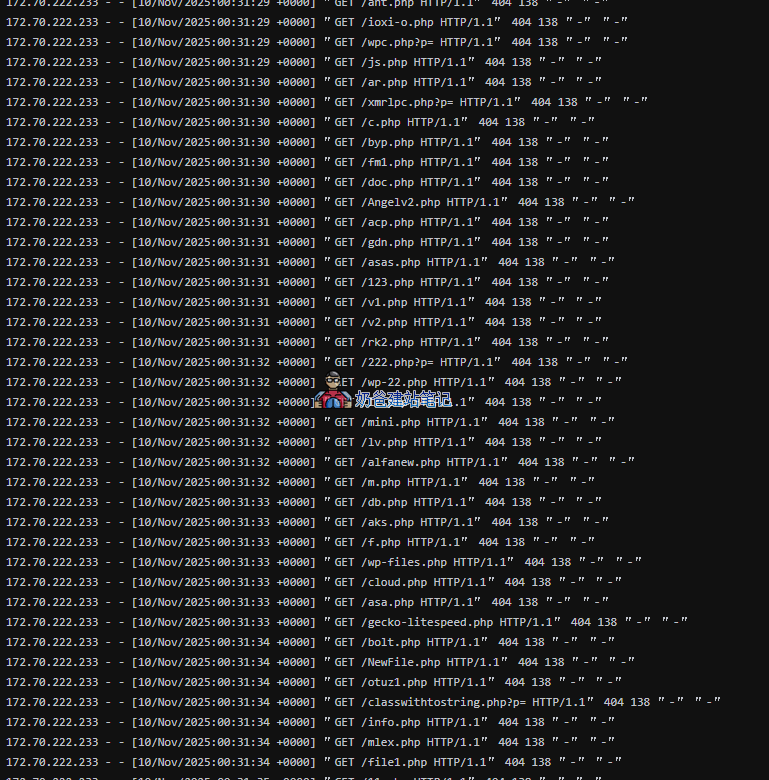
From the log above, we can see that the user (bot) with IP 172.70.222.233 initiated many requests for non-existent PHP files on the website at 00:31.
Launching so many requests simultaneously is something the performance of a VPS purchased by ordinary users like us simply cannot withstand, so the CPU instantly spikes to 100%, and the website becomes inaccessible.
What is the harm of this scanning behavior?
- Consumes server resources: Each request consumes server CPU and I/O resources. Massive scanning requests unnecessarily consume bandwidth and computing power that should be used to serve real users, potentially causing the website to respond slower or even crash.
- Probing for Vulnerabilities: Attackers attempt to access common script file paths to probe whether your website has known security vulnerabilities. Once an exploitable file is discovered, they will launch further attacks.
- Generating Spam Logs: A large number of 404 error logs can overwhelm normal access records, making log analysis and troubleshooting difficult.
How to block it? Solution approach
To solve this problem, if you happen to use Cloudflare's CDN service, we can efficiently block these illegal requests through Cloudflare's custom security rules, protecting server resources and improving website security and access speed.
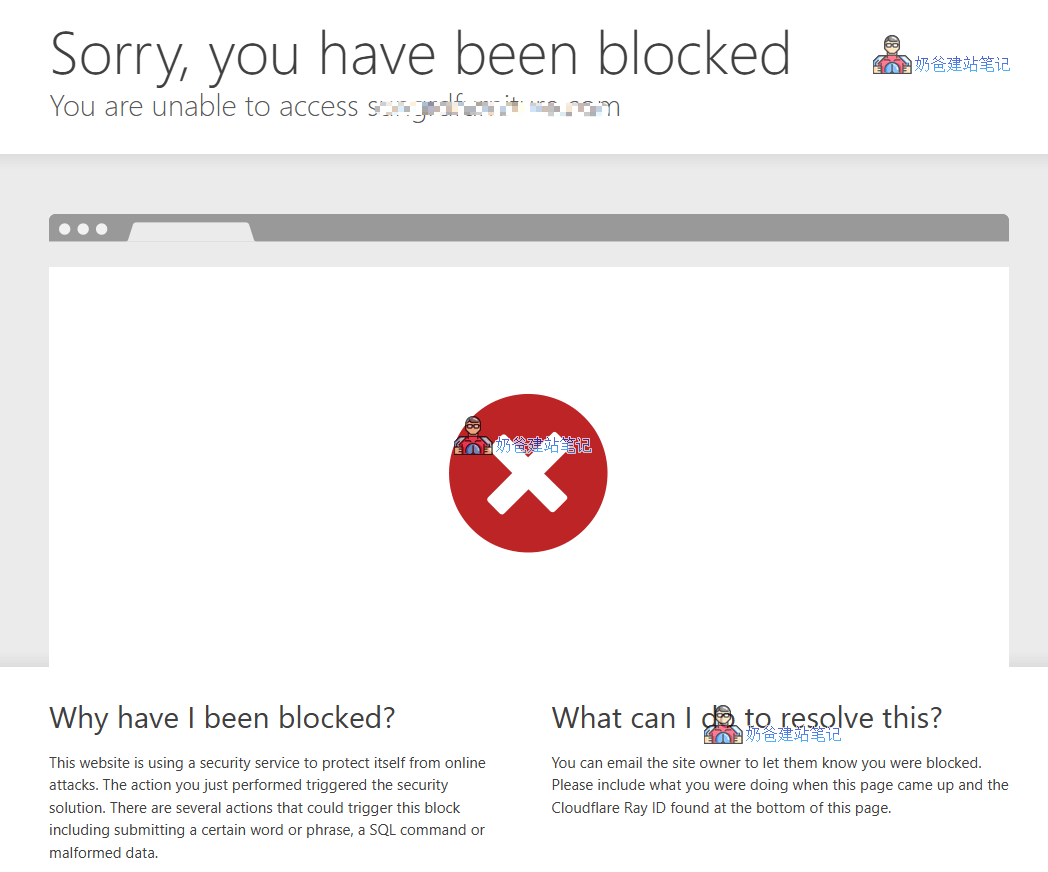
Cloudflare„s “Custom Rules„ feature allows us to set complex conditions to determine if a request is malicious. When a request triggers a rule, Cloudflare directly returns a block page, and the request never reaches your server, fundamentally solving the resource consumption problem.
As shown in the figure below:
Practical Tutorial: Creating Custom Security Rules
Next, let„s create this “firewall„ rule step by step.
Step 1: Go to the Custom Rules settings page
- Log in to your Cloudflare Dashboard and select the website you want to protect.
- In the left navigation bar, go toSecurity> Security Rules。
- In the top tabs, selectCustom Rules。
- ClickCreate Rule> Custom Rules, enter the rule editing interface.
Step 2: Configure rule conditions and actions
Now you will see an interface similar to the screenshot below (the screenshot shows a rule that has already been added):
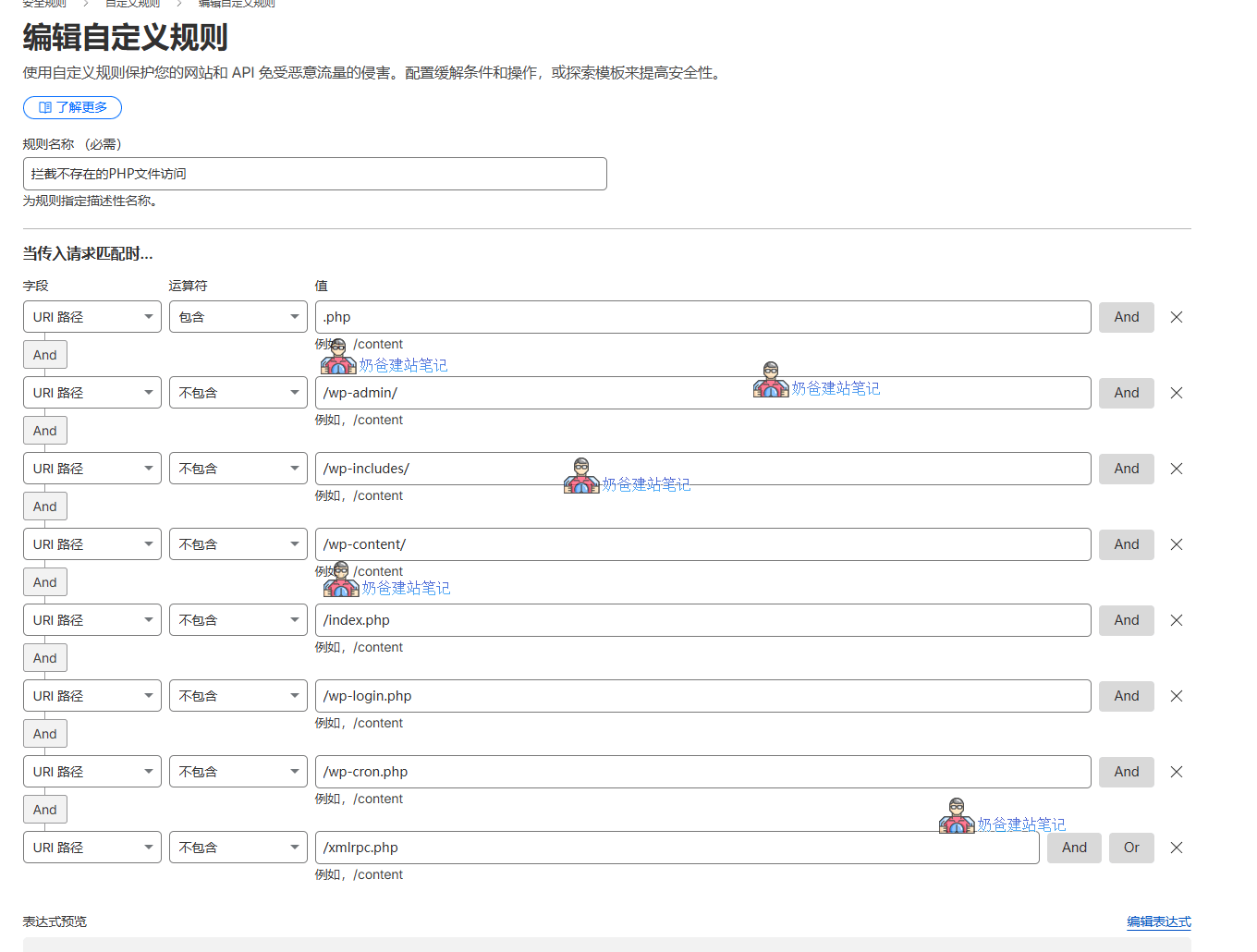
Rule Name: Fill in a clear and easy-to-understand name, such as „Block Access to Non-existent PHP Files“.
Rule Configuration: This is the core of our rule. You can manually enter it as shown in the screenshot, or directly click „Edit Expression“ and then copy and paste the following command into the edit box.
(http.request.uri.path contains ".php" and not http.request.uri.path contains "/wp-admin/" and not http.request.uri.path contains "/wp-includes/" and not http.request.uri.path contains "/wp-content/" and not http.request.uri.path contains "/index.php" and not http.request.uri.path contains "/wp-login.php" and not http.request.uri.path contains "/wp-cron.php" and not http.request.uri.path contains "/xmlrpc.php")The meaning of this rule is:
http.request.uri.path contains ".php": Match all requests whose request path contains.php.not http.request.uri.path contains "/wp-admin/"etc.: Exclude the legitimate PHP files and directory pathsessentialfor the normal operation of WordPress. This is a crucial step to ensure normal access is not mistakenly blocked./wp-admin/: WordPress Admin Dashboard directory./wp-includes/: WordPress core function library directory./wp-content/: Theme, Plugin, and upload file directories./index.php,/wp-login.php,/wp-cron.php,/xmlrpc.php: WordPress core files.
In simple terms, the meaning of this rule is: „Block all requests to access PHP files, except for the legitimate PHP files required by the WordPress system itself.“
Then take action... select „Block", and finally clickDeployButton.
Effect Verification
After configuring the security rules, you can open your website in a browser, click on multiple pages to ensure all pages open normally.
Then, access a non-existent PHP page on your website (add any alphanumeric characters after the URL ending with .php), and the Cloudflare blocking page will appear.
Summary:
After deploying this way, it reduces the server pressure. Abnormal PHP requests will not be passed to the server. Even if hundreds or thousands of IPs scan for non-existent PHP files on your server daily, it will not cause the server to crash. The key point is that this operation is free, requiring no extra cost—cheap and effective, and you've gained another benefit.