If you purchased a domain from Namecheap and don't know how to resolve it, please follow the steps below.
1. Log in to theNamecheapAdmin Dashboard, click on Domain List on the left:
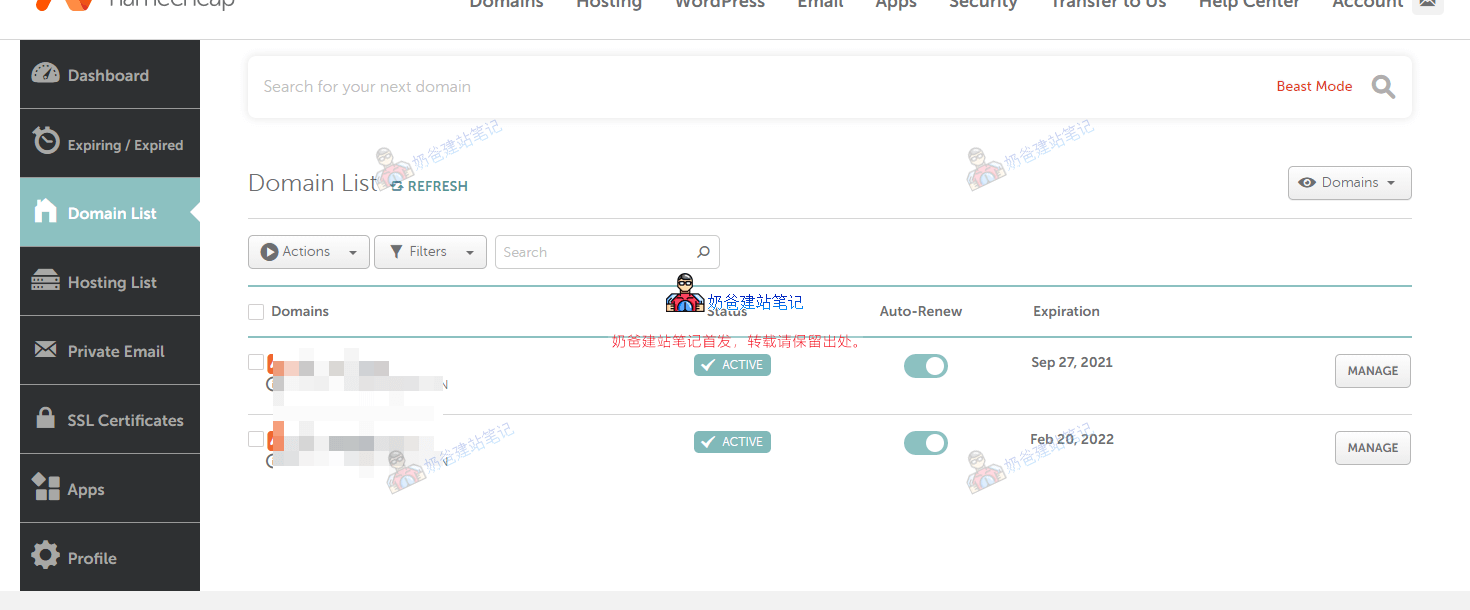
2. Click the 【Manage】 button behind the domain name you need to modify the resolution for.
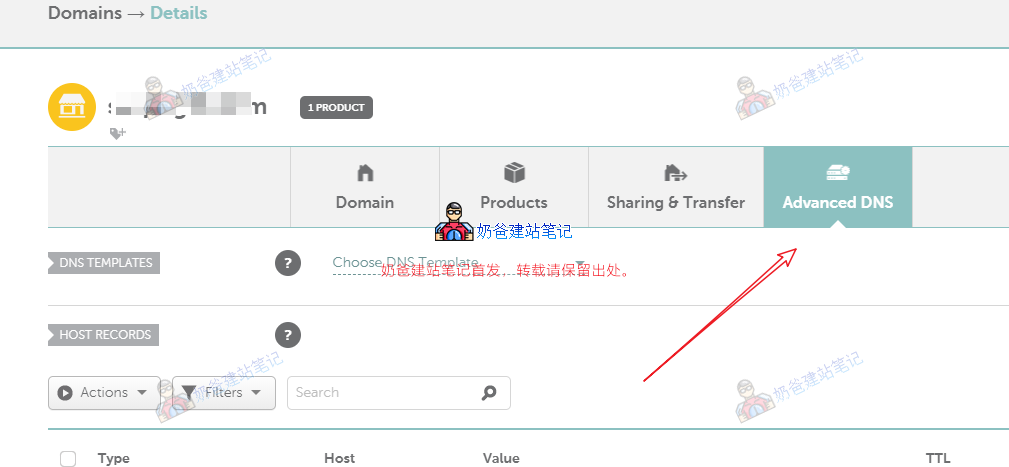
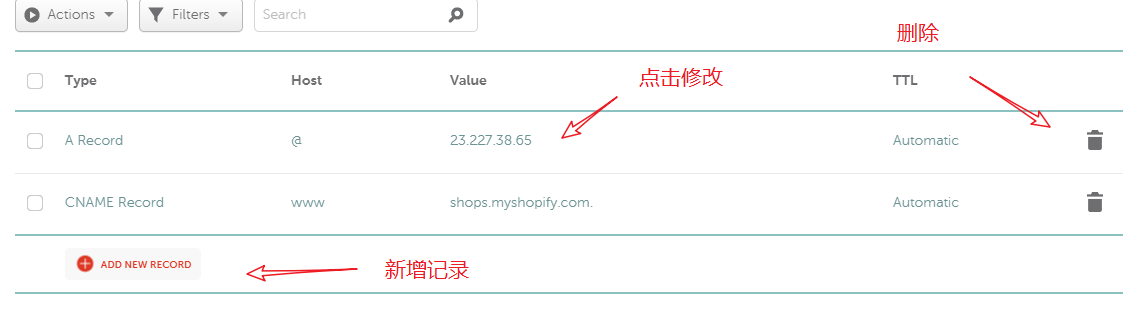
3. Modify, delete, or add resolution records as needed.
Modify DNS Servers
If you purchased other Shared Hosting and are asked to modify the DNS servers to those of the Shared Hosting, you can modify them using the method below.
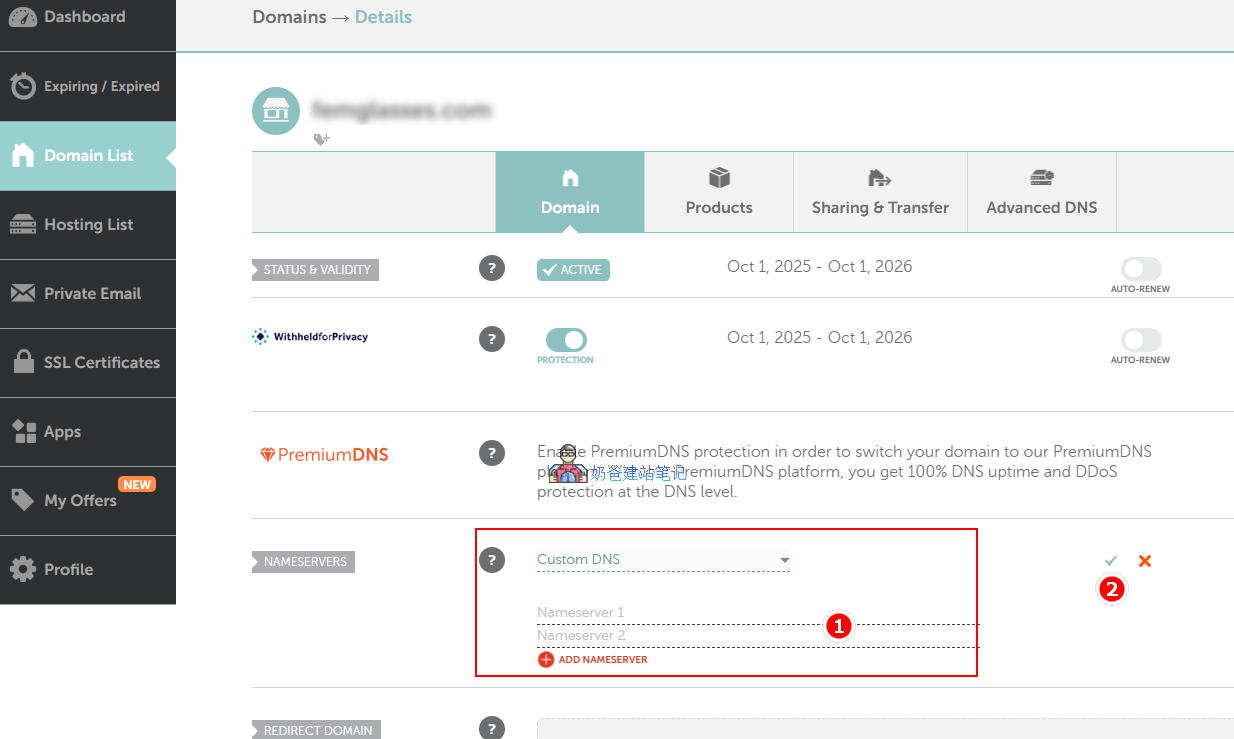
Also in the domain management interface, select Custom DNS after NAMESEVERS, then fill in the DNS addresses of your Shared Hosting below, and click the √ checkmark to save.
If the Custom DNS option does not appear, it is because you have not verified your email account. You need to verify your email account first before you can set it up.