When searching for WordPress using Google, it defaults to jumping to wordpress.com, but for building independent websites, we use wordpress.org — the former is WP's official hosting service (hassle-free but with many limitations), while the latter is a downloadable installation package for a fully controllable website building version. The core differences between the two are significant. 👉Click to View Detailed Differences
WordPress Website Building TutorialAI-Powered
Zero-Basics Launch in 30 Minutes, Naiba will guide you step-by-step to build a professional official website.
WordPress is the choice for 43% of websites globally. Whether you are a complete beginner with no coding knowledge or a developer looking to accelerate website building with AI, this tutorial can help you quickly master WordPress.
- 60,000+ Free Plugins
- 20 Years of Continuous Maintenance
- Global Community Support

- Core Steps:Domain Registration → Hosting Purchase → File Upload → 5-Minute Wizard Installation.
- Essential Environment:Recommend PHP 8.3 + MySQL 8.0.
- AI Efficiency:It is recommended to use AI tools like DeepSeek/Doubao to assist in planning the website sitemap and copywriting.
📌 Preface, Supplementary Knowledge Points
Naiba often receives questions from everyone about WordPress website building and finds that many beginners are prone to pitfalls. Let's clarify these 3 frequently asked questions first to help you avoid detours:
This article covers two core scenarios: 「Installing WordPress on Shared Hosting」 and 「Installing WordPress on a VPS」 (the operational logic is completely different). Moreover, the installation processes for different brands of shared hosting also vary. It is recommended to directly click on the dedicated tutorial for the corresponding hosting, without needing to read the general WordPress installation steps later in the article.
Before installing WordPress, you must prepare the two core components: 「Domain Name」 and 「Server.」 WordPress is deployed on a server (not on a personal computer). Once prepared, you can log in to the Admin Dashboard to manage the website just through a browser. (If you only want to experience it locally, you can refer to 👉Local Installation Tutorial)
🚀 Preparation Work: Domain and Server Configuration
The first step in installing a WordPress website is to prepare a 「Domain」 and a 「Server」 — these are the two core foundations for building a website, and neither can be omitted.
🌐 Domain Registration
A domain is the „web address“ of a website (e.g., baidu.com). It is paid for annually. A .com domain costs less than a hundred yuan per year. Beginners should prioritize choosing such mainstream suffixes.
🖥️ Server Selection
A server is the „network space“ where website files are stored, with annual costs ranging from a few hundred to a thousand yuan. Beginners should prioritize these two types:
Shared Hosting:No technical maintenance required, one-click WordPress installation, suitable for beginners/enterprise websites/blogs;
VPS:Better performance, highly customizable, suitable for users with some technical foundation or high-traffic websites.
🔗 Domain and Server Binding (DNS Resolution)
Simply put, this means pointing the „domain name“ to the „server IP“ so users can find your website when they enter the domain. It typically takes effect within minutes to hours.
VPS:After installing Baota Panel, add the website and configure DNS resolution within the panel;
Shared Hosting:Fill in the DNS records as prompted by your hosting provider; most hosts support one-click resolution.
⚡ Installation Tutorial: Complete Process for WordPress Manual/One-Click Installation
Once you have your domain and server ready and have configured DNS resolution, we can officially begin installing WordPress.
📥 Core Step 1: Obtain the Latest WordPress Installation Package
🌐 English Version (Recommended)
Official latest stable version, with optional Chinese language pack.
Official Download🇨🇳 Chinese Version
Official Chinese stable version, occasionally updated slower than the English version.
Chinese Download🔄 Alternative Download
Use when domestic users cannot access the official website
Local installation package download⚠️ Important Notice
If your server is located in China, you need to complete ICP filing first. Proceed with the installation only after the filing is approved. Alternatively, refer to:How to Access a Website via IP During Tencent Cloud ICP Filing
If your server usesSiteGround、Hostingerthis type ofWordPress Hosting, you can install WordPress with one click directly in the hosting control panel, and do not need to follow the steps below.
📋 Core Step 2: Detailed Graphical Installation Guide
Upload WordPress Installation Package
- Download the latest WP installation package
- Upload to the server root directory
- Extract files to the current directory
- Confirm file permissions are correct
Upload the downloaded program package to the space'sroot directoryand extract it. Usually it is thepublic_html、wwwrootorwwwdirectory.
If your VPS has Baota Panel installed, you can directly download the WP installation package online via the „Upload/Download“ feature in Baota„s file manager. Refer to:Baota Panel WordPress Installation Tutorial。
Upload and Extract WordPress Program FilesAccess Installation Wizard in Browser
- Visit your domain in a browser
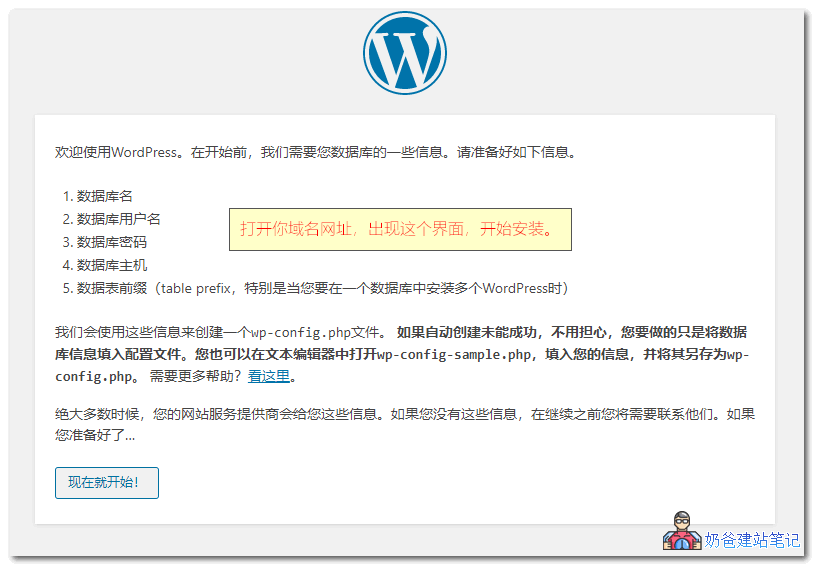
- See the program's installation preparation prompt
- Click „Let“s go!„
Enter your domain in the browser's address bar. The system will automatically guide you to the WordPress installation program. Follow the prompts step by step to fill in the corresponding information to install the WordPress program.
💡 If the website cannot be opened, please check if the domain name resolution is correct or if the firewall is blocking access.
WordPress Installation Welcome Screen
Database Information Configuration GuideSet Basic Website Information
- Fill in Database Connection Information
- Set Site Title
- Set Administrator Account Password
Fill in basic website information, paying special attention to the security of the administrator password. The default generated strong password is difficult for hackers to crack.
💡 Before the website is completed, it is recommended to check „Discourage search engines from indexing this site“ to prevent search engines from indexing the unfinished website.
Installation Confirmation Screen
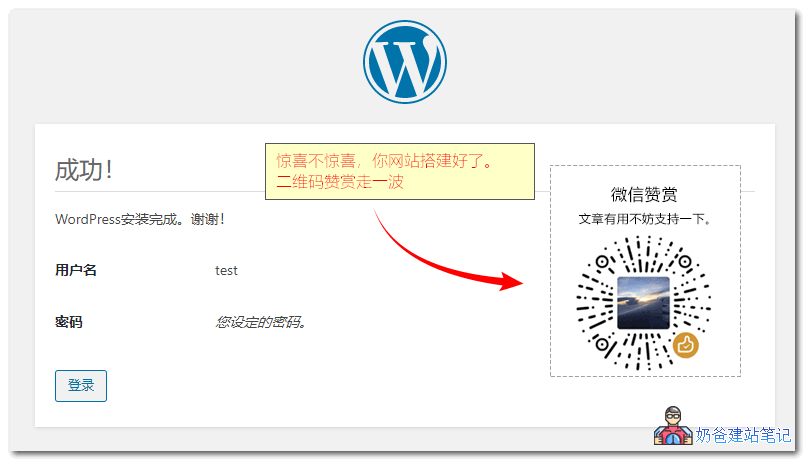
Website Information and Administrator SettingsInstallation Successful
Congratulations! WordPress has been successfully installed.
Click the login button to enter the Admin Dashboard with the account and password you just set and start managing your website.
WordPress Installation Successful Preview❓ Common WordPress Installation Error Issues
Although the WordPress installation process is simple, technical issues are occasionally encountered. The following are the most common error types and their solutions.
Database Connection Failed
+This is the most common error during WordPress installation, usually caused by incorrect database configuration information.
Database Connection Failure Error ExampleSolutions:
- Check if the database name, username, and password are correct
- Confirm the database host address (VPS usually uses localhost)
- Verify if the database service is running normally
- Check database user permission settings
File Permission Issues
+When installing a Theme or Plugin, the prompt „Could not create directory“ is a typical file permission issue.
Solutions:
- Baota Panel:File Management → Set permissions to 755, change owner to www
- Command Line:
chmod -R 755 * && chown -R www:www * - Ensure
wp-contentThe directory has write permissions
🔗 Detailed tutorial reference: Resolving WordPress FTP Requirement Issues
Theme and Plugin Installation Errors
+Theme and plugin installation failures are usually related to network connection, server environment, or compatibility issues.
Solutions:
- Check if the PHP version meets the requirements
- Increase the server memory limit (Memory Limit)
- Delete problematic folders via FTP when the website crashes
- Use the manual upload method for installation
🛡️ WordPress Security Precautions and Best Practices
Before installing a new theme or plugin, be sure to back up your website data and database.
Test new features on a local or test server first, and deploy only after confirming they work correctly.
Save important configuration information such as database connection details and FTP account credentials.
Regularly update the WordPress core, themes, and plugins to the latest versions.
🎯 How to Use WordPress
After WordPress installation is complete, let's learn how to use this powerful content management system together.
🚀 Basic Operational Workflow After Setting Up a WordPress Website
Considering many friends are using WordPress for the first time, here we share the basic operational workflow to help you get started quickly.
Set up SSL Security Certificate
Set up the website SSL security certificate(Some hosts set this up automatically; it is recommended to complete this first to avoid security warnings).
Set Permalinks
Go to Settings to set Permalinks, optimize URL structure to make URLs more SEO-friendly.
Basic Settings Configuration
Go to „Settings“ to configure core basic options such as website title, subtitle, timezone, language, etc.
Set Up Post Categories
Go to „Posts – Categories“ to create sections, preparing for subsequent content organization and navigation display.
Choose a Theme
Go to „Appearance – Themes“ to install your preferred template. Recommended for foreign trade:ThemeForest 或 Linghang Theme。
Install Core Plugins
Install essential plugins, such as page builders (Elementor), SEO, caching, and security plugins.
Publish Core Content
Publish the first batch of posts or products, fill pages to avoid the website appearing „empty,“ which could affect visitor trust.
Design and Decorate Pages
It is recommended to use theElementorbuilder to create beautiful page layouts through drag-and-drop.
SEO Advanced Optimization
Learn basic SEO knowledge, improve website ranking on search platforms like Google through content optimization.
Establish a backup mechanism
Usebackup pluginto regularly export data, ensuring quick recovery in case of unexpected events.
AI-Assisted Website Building: Website Decoration Planner
Naiba has noticed that most friends have no ideas for website decoration after installing WordPress. For this, we can use AI to assist in website building. Copy the following instructions toDeepSeek 或 Doubao, and let AI help you complete professional planning.
Website Sitemap Planning
Based on business type, automatically generate suggestions for a well-structured page architecture that is beneficial for SEO.
Page Layout Expert
For specific pages, guide on how to scientifically arrange content blocks to improve conversion. Recommended to use with Elementor.
High-Conversion Brand Slogans
Generate highly impactful, professional, and minimalist brand copy for your Hero area or buttons.
🔑 How to log in to the WordPress Admin Dashboard?
Add/wp-adminafter your domain name to access the WP Admin Dashboard. In the image below, the topmost bar ① is called the admin bar, which provides quick access to create new content; the left side ② is called the menu bar, containing all WordPress function entries and Plugin settings entries.
WordPress Standard Admin Dashboard Preview🎨 How to install Themes and Plugins?
Installing WordPress Themes and Plugins is done within the left-side menu of the Admin Dashboard. You can search and install online via the official marketplace, or upload a downloaded ZIP package for manual installation.
- Theme Installation:Appearance → Themes → Add New Theme
- Plugin Installation:Plugins → Add New Plugin → Search/Upload Plugin
🎨 WordPress Theme Template Knowledge
Choosing the right Theme is key to building a professional website. Let's learn about acquiring and using Themes through the following guide.
📥 Ways to Acquire WordPress Theme Templates
🏪 Official Theme Directory
Search and install directly from „Appearance → Themes“ in the Admin Dashboard. It„s safe, reliable, and completely free.
🌐 Third-party Downloads
Download free or purchase premium Themes, offering richer features and designs better suited for professional business needs.
🎯 Custom Development
Pure code customization for specific requirements, perfectly matching brand identity, but with a long development cycle and high cost.
🔍 Where can I find high-quality themes online?
🆓 Official RepositoryFree
WordPress.org official marketplace, the safe and preferred choice.
Visit Official Site Recommendation💎 ThemeForestRecommended for Foreign Trade
The world's largest premium theme forest, a must-visit for foreign trade enterprises.
Visit Theme Center🎨 Professional StoresOthers
Diverse commercial designs to meet the style needs of different vertical industries.
Visit TemplateMonster🔌 Popular WordPress Plugin Recommendations
Select and install essential plugins based on your actual needs to significantly enhance your website's core performance and functionality.
SEO Optimization Plugins
Rank Math Free
The most popular SEO plugin today, with comprehensive features and an extremely user-friendly interface, perfectly replacing older plugins.
The SEO Framework Free
Extremely lightweight, pursuing ultimate speed. No ads, no distractions, suitable for users seeking peak performance.
Yoast SEO Free
The most senior SEO plugin, comprehensive and stable, a standard for millions of users worldwide.
All in One SEO Free
Supports a complete Chinese interface, simple configuration. Very friendly to the Chinese website environment.
Caching & Speed Optimization
WP Rocket Paid
Universally recognized as the strongest paid optimization plugin. Not only caching, but also includes lazy loading, CDN, database cleanup, and other all-in-one features.
WP Super Cache Free
A free static caching plugin from the official team, simple and effective settings. Greatly alleviates server query pressure.
Asset CleanUp Free
Precisely control which CSS/JS loads on each page. Prevents loading of unnecessary scripts, improving mobile performance scores.
Security and Backup
Defender Security Free
One-click security hardening. Includes features such as brute force protection, hotlink protection, and spam comment blocking.
Wordfence Free
The most professional firewall plugin, monitors and blocks malicious attacks in real-time, protecting core files from tampering.
UpdraftPlus Backup Free
Be prepared for any eventuality. Regularly backs up the entire website to remote cloud storage, allowing for one-click restoration in case of issues.
Utility Plugins
Elementor Builder Master Recommended
An essential visual tool for beginners building websites. Works best when paired withElementor Pro 及 ElementsKitfor enhanced results.
B2B Product Showcase Plugin Free
A self-developed plugin by Naiba, designed specifically for foreign trade enterprises as a minimalist product management solution. Showcases products without requiring WooCommerce.
🎓 WordPress Advanced Content Tutorial
From basics to professional, master the advanced core skills of appearance customization and product management.
Website Appearance Editing
After installing WordPress, the default theme is used (Figure 1 below). We can change the theme according to our needs (Figure 2 below).
Figure 2 shows the default interface after installing the Astra theme. To make it more professional, we still need to perform page design.


✏️ Elementor Hands-on:
Using Elementor is simple; you can adjust page layouts by dragging and dropping with the mouse. For detailed operation tutorials, refer to:Elementor Usage Tutorial
- ClickEdit with ElementorEnable Visual Editing
- Drag Widgets on the left, preview changes in real-time on the right
- Precisely control spacing, colors, and fonts via the Style tab


Product Management Solutions
There are multiple ways to manage and display products using WordPress. You can choose the most suitable WordPress product management method based on your business scale and functional requirements.
1. WooCommerce (Professional E-commerce)
Most Suitable For:B2C websites with a large number of products requiring online sales, or B2B websites for catalog/quote requests (Catalog Mode).
2. Portfolio (Portfolio Preview)
Most Suitable For:A moderate number of products, focusing on minimalist visual presentation, often for case studies. (Portfolio functionality can be achieved via the theme's built-in features or by installing a plugin, offering an aesthetically pleasing interface and fast loading speeds.)
3. B2B Product Management Plugin (Self-developed by Naiba)
Most Suitable For:Lightweight requirements, quick to get started, better performance. (Search for "Naibabiji B2B Product Showcase" directly in the WordPress admin plugin directory to obtain it.)
4. Custom Pages
Most Suitable For:Websites with a small number of products, where each product page requires a special layout design.
5. Using ACF Custom Fields
Most Suitable For:Websites requiring flexible customization of product fields and with high performance demands; involves a certain level of technical difficulty.
| Solution | Difficulty | Main Drawback |
|---|---|---|
| WooCommerce | Medium | Relatively bloated, demanding on server configuration |
| Portfolio | Simple | Design is limited, low flexibility, more oriented towards case presentation |
| B2B Product Management Plugin | Simple | Conventional B2B product showcase interface, low design flexibility |
| Custom Page | Medium | Each product is a separate page, making management inconvenient |
| ACF + Elementor | Relatively high | Steep learning curve |

Scan the QR code to follow the official account
Follow Naibabiji, and you will get:
Latest tutorial updates
Get in-depth hands-on tutorials on WordPress website building, optimization, and AI empowerment as soon as they are released.
Experience sharing on avoiding pitfalls
A collection of years of website building pitfall avoidance guides to help you save significant trial-and-error costs and overcome technical bottlenecks.
Exclusive resource downloads
Regularly share essential advanced tools, plugin libraries, and internal SEO documents for website building.
🌐 WordPress FAQ
What is WordPress?
+WordPress is an open-source content management system (CMS) that powers over one-third of the world's websites. Whether it's a blog, corporate site, or e-commerce store, it can handle it perfectly.
How to use WordPress?
+Simply install the program and log in to the Admin Dashboard. You can publish content, change Themes, and install extensions through intuitive menus. The learning curve is low, allowing you to get started quickly even without programming experience.
Why use WordPress to build a website?
+1. Rich ecosystem:Has tens of thousands of ready-made Themes and Plugins.
2. SEO-friendly:Superior structure, more favored by Google.
3. Full control:Your data belongs entirely to you, free from platform restrictions.
🚀 2026 AI Empowerment: Naibabiji WordPress Website Building Coaching Service + In-depth Support
Not just website building, but comprehensive AI digital transformation support. Say goodbye to trial and error and launch quickly. Includes AI search optimization (SGE) and 1-on-1 expert outline planning.
Consult on the AI coaching plan now →


I encountered a problem: after uploading all the program files to the root directory and installing via the browser, when entering the database account and password, this text appeared: ‚Unknown column ‘wp_‚ in ‘field list‚ error occurred in the WordPress database when querying SELECT wp_‘.
How to solve this?
I looked it up online, and it said it might be a file permission issue. I changed the file permissions, but it still doesn't work.
How to fix this? It's such a headache.
This is likely an issue with your database configuration, possibly related to permissions, version, etc. The simplest solution is to reinstall your website server system and follow the tutorial again from the beginning.
I still have a question. When modifying the theme and uploading an avatar, I always upload it at 512*512 pixels, but it says, „The server cannot process the image. This can happen if the server is busy or does not have enough resources to complete the task. Uploading a smaller image may help. The recommended maximum size is 2560 pixels.“
Is there a problem with my server? Why does it fail every time I upload? I've tried many times, and it doesn't work.
What should I do about this? Help, please!
Whining...
What is your server configuration and environment? There is currently no 100% guaranteed solution for your problem online.
I have uploaded everything, but when I enter my domain name, it shows this:
Welcome to nginx!
If you see this page, the nginx web server is successfully installed and working. Further configuration is required.
For online documentation and support please refer to nginx.org.
Commercial support is available at nginx.com.
Thank you for using nginx.
The domain name resolution hasn't taken effect yet, or you haven't correctly bound the domain name to the server, or the Baota Panel installation on your server is incorrect. Please troubleshoot it yourself.
Hello Naiba, how do you add the icon at the beginning of each line in the article?
Edited with Elementor.
I couldn't find it in the text editor. How is it done? Could you tell me the method?
In the Elementor editor page, you can insert an image or insert an icon.
To the website owner: Actually, your explanation is quite rough. For complete beginners, it's confusing; for those familiar with the related technology, it feels like there's a lot of redundant information. Charging 200 yuan to help a newbie set it up seems a bit excessive, to be precise, it only takes a few minutes to deploy.
This is too much, it's simply shameless, they should actually pay you 200.
Reading it once was quite informative, hope Naiba shares more high-quality tutorials.
Hello Naiba!
Since you started building websites, whenever it involves WordPress setup, I always habitually check your solutions first. I've benefited a lot, thank you very much!
Now I have a question I'd like to ask you. I plan to create a community-style foreign trade website. I have an idea where user data is the same, but different countries would switch to different local languages. The finished website would have different URLs or prefixes for each country. How should this be solved?
Looking forward to your reply.
Thank you very much!
Just buy a paid multilingual plugin.
Clicking on the product preview leads to a 404 page, it was normal before, how to fix this?
A 404 is either a pseudo-static issue or a conflict with some setting.
Hello, may I ask how to solve this? I'm a beginner just starting with WordPress and haven't figured it out yet.
Are you using shared hosting or a VPS? If it's a VPS, you generally need to set up pseudo-static yourself. If using Baota Panel, go to Baota backend, Websites, Settings, Pseudo-static, and select WordPress.
Excuse me, may I ask, it's shared hosting, how do I modify it?
For shared hosting, it's usually set in the WordPress backend; just save the pseudo-static rules. If it doesn't work, contact your hosting provider's customer service.
Why is it that after uploading the WordPress installation files via Baota, opening the domain in the browser still shows the 'site created successfully' page and doesn't display the WordPress installation page?
That proves you uploaded to the wrong location.
After installing the theme, why do all the links on the homepage show 404 errors? I checked and found that the corresponding directories were not created in the website directory. For example, the folder 'product-category' does not exist in the root directory for a path like '../product-category/cactus/'.
No pseudo-static rules configured.
Hello Naiba,
When a perfectionist sees „...两则不一样...“ in the „Preliminary Notes, Knowledge Point Supplement“ section, they just want to correct the wording~
A very helpful article, thank you for the generous and selfless sharing!
I don't understand what you mean by 'different'.
两则不一样 vs 两者不一样
Hello Naiba,
I created a new page in WP, but after a while, the page automatically moves to the Drafts and Trash, and it's random, happening to different pages each time. Help~
I haven't encountered this situation before. If it's not your own misoperation, I suggest reinstalling WP directly.
May I ask, how can I use Elementor to create a product details page where the product details and reviews are in the same row, and clicking the corresponding text can switch to the content from the corresponding backend?
Isn't that the default after installing WooCommerce?
Hello, after I installed the theme, the entire website layout is messed up. What could be the reason? The template was normal at first, but after I switched to other templates, it became messy. Even reverting to the very first template is still messy.
Installing different themes is like renovating your house. If the renovation doesn't look good and you want to change the style, won't the house retain traces of the previous renovation? To have no traces, you can only repaint the walls and start over.
Did you click on the WordPress editor? You need to edit and save it again using the visual editor.
When I first started building websites, the introductory tutorials I read were from Naibabiji's articles. They are full of practical insights, highly recommended.
Testing to see if comments work.
When I search using 'site+URL' on Google, it always shows a URL like preview-domain.com. My website was fully built before I changed the site title. preview-domain.com was the default title in WordPress before. How can I modify it so that the homepage's preview-domain.com is changed to the current title?
This is likely because you opened your site to search engine indexing before it was completed. After finishing the site and making the corrections, Google will update it over time.
Expert, I'd like to ask, how can I create a loop in WordPress to output post thumbnails + post titles to make a category page?
Don't themes come with category pages by default? If using a page builder, there are also specific components to achieve this.
Hello teacher, may I ask if it's possible to enter the webpage design interface before purchasing a domain and server? Because designing and creating image resources takes some time, and if it's done and then launched immediately, it could save some money.
The money you save won't make up for the time you waste.
Expert, I'd like to ask, how can I create a loop in WordPress to output post thumbnails + post titles to make a category page?https://cn.wordpress.org
Mainstream page builders come with post components; just add and configure them directly.
WordPress beginner here to learn, thanks for sharing. 🐶