
Previously, we sharedWordPress Plugin Installation Tutorial, next, we will introducehow to install a WordPress Theme, and also tell you where to download WordPress themes and the pitfalls to watch out for when installing WordPress.
There are two methods for the WordPress theme installation tutorial: online installation and upload installation. Below are the detailed steps for installing a theme.
Online Installation via Admin Dashboard
Installing a theme online from the theme interface in the Admin Dashboard is the most convenient WordPress theme installation method. The steps are as follows:
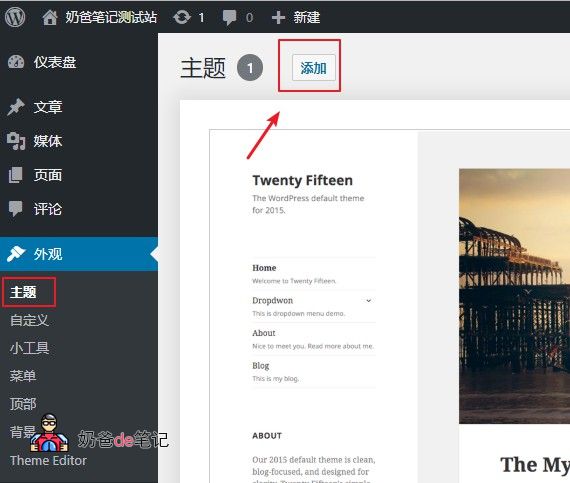
- 在WordPressIn the Admin Dashboard, go to Appearance → Themes
- Click the „Add New“ button to access the WordPress theme directory.
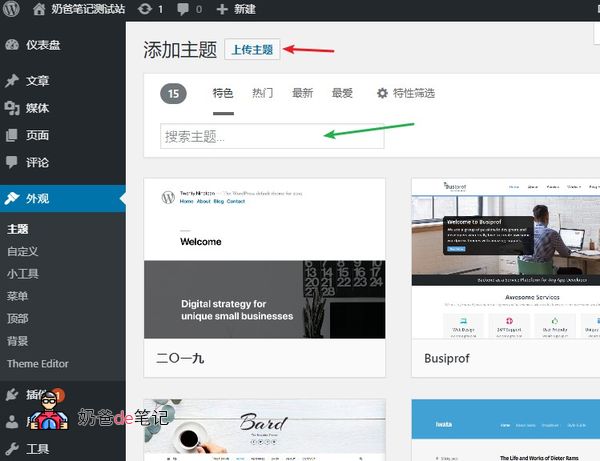
3. Continue searching for the desired theme. You can browse the „Feature Filter“ option, which allows you to filter your search by theme, features, and layout. Additionally,if you know the name of the desired theme, you can directly search for the theme you want to install.。
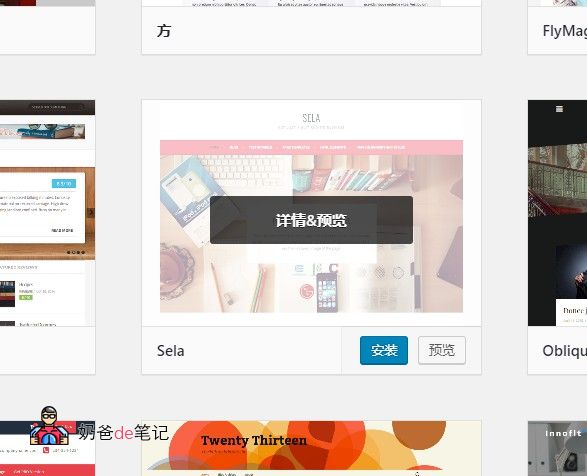
4. After finding the selected theme, click the „Install“ button to start the theme installation.
5. After successful installation, click the „Activate“ button to set it as the default theme. You can also preview how the theme looks on your site via live preview.
That's it! Your theme has been successfully installed and activated.
Tip: Due to network issues, this method of installing themes on domestic servers is prone to failure.
Installation via Admin Upload
The method of installing a theme via Admin Upload is suitable for installing themes you have downloaded from a website or purchased that are not available in the built-in search. The specific steps are as follows:
- Go to the „Appearance“ section in the WordPress Dashboard.
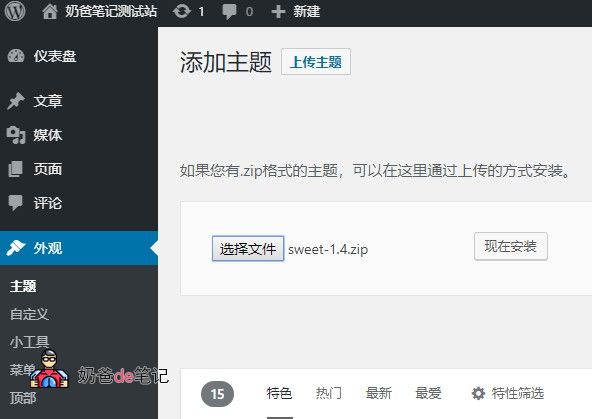
- Click the Add New button, then select the Upload Theme button.
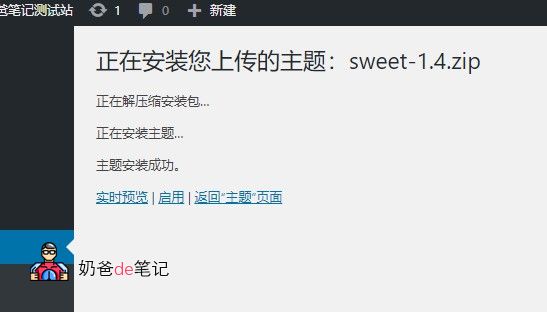
- Click the „Choose File“ button to select the .zip file of the chosen theme, then click „Install Now“.
4. After installing the theme, you can activate it by clicking the „Enable“ button.
Installation via FTP Upload
FTP is not suitable for beginners. The effect achieved by FTP upload is the same as uploading the theme from the backend.
Before uploading the theme via FTP, remember to unzip the theme.
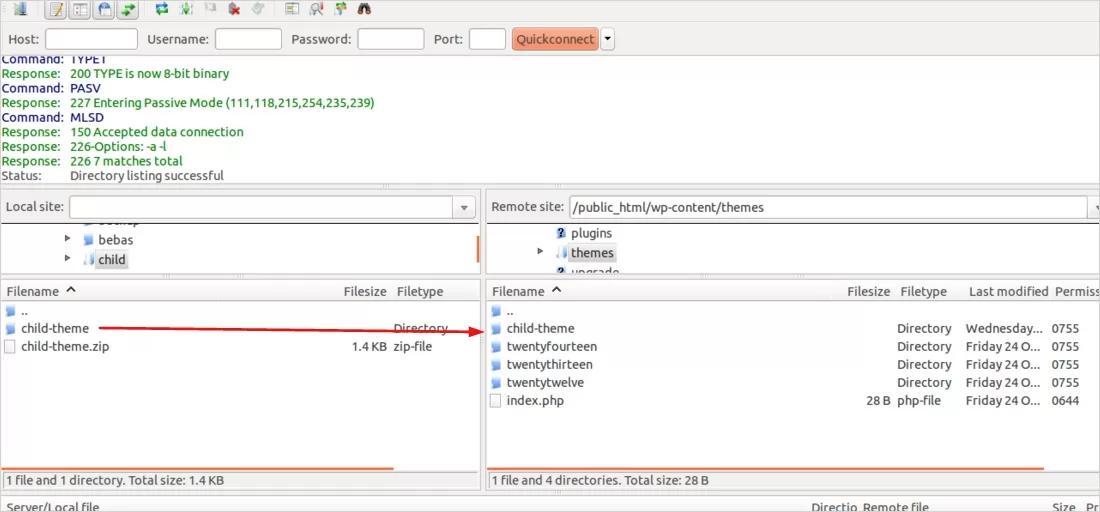
- Use FTP to log in to your server and navigate to the wp-content/themes/ folder in the remote site column.
- Find your theme folder in the left window, right-click, and upload it to the server's theme folder.
- Once uploaded, you can see the new theme in the WP Appearance interface.
After uploading the theme, visit your WordPress admin area to activate the theme.
4. In the WordPress admin area, navigate to Appearance → Themes.
5. Find the theme you just uploaded and click the „Activate“ button. You can also do a live preview.
Where to Download WordPress Themes
Downloading WordPress themes, since it's downloading, you definitely go to the internet to download.
1. The first recommended URL isWordPress official theme directoryhttps://cn.wordpress.org/themes/
That is, in the theme section of the WP admin panel, it's more convenient to view on the website than in the blog admin panel. You can connect to the page published by the theme author to view the Demo.
2.Another recommendation is those found via Baidu searchDedicated WordPress theme sharing websites
However, be cautious: these are just for sharing; go to those sites to find attractive themes, but it's recommended to locate the corresponding theme and then download it from the theme author's website to ensure theme security.
3.ThemeforestWebsites dedicated to selling paid WordPress themeshttps://1.envato.market/We2DO
ThemeForest, a platform with many excellent paid themes. If you have a commercial website, you can find many outstanding themes there, ready to use upon installation. A small amount of money saves the cost of custom theme development, offering high cost-effectiveness.
Precautions for Installing WordPress Themes
1. Do not install cracked WordPress themes
Unless you are 100% certain that thecracked WordPress themeyou downloaded is safe, do not install it. For website security, it's better to forgo that theme than to install a cracked one downloaded from the internet.
2. Read the theme instructions before installation
Different themes may have varying requirements, such as PHP version, necessary plugins, and initial setup steps. Review these carefully; otherwise, the website might not open or display a white screen after installation, causing trouble.
3. Read theme prompts carefully; do not click buttons randomly
This mainly applies to online installation from the WordPress admin panel. Many fancy foreign WordPress themes will prompt you to install corresponding plugins and import data to achieve the full theme effect after installation. However, these prompts are in English. If you don't understand English, don't click randomly. First, use translation software to translate them, otherwise, it might mess up your website data (data won't be lost, but it will add a lot of English content that can be manually deleted).
Finally, for beginners, consider purchasing a paid theme within your budget. It can save you a lot of time and allow you to focus on building blog content.
4. For English themes, pay attention to font modifications and blocking
Foreign themes often reference Google Fonts, which are unusable in China, causing the website to fail to open or load slowly. Therefore, you need to disable Google Fonts to ensure domestic access is unaffected. If you can't modify the code, simply install a plugin. Disable Google FontsWordPress Plugin Installation Tutorial
The above is the WordPress theme installation tutorial and precautions shared by Naiba.
How to Delete a WordPress Theme?
If you have tested many themes and don't like them, how do you delete them? There are two methods to delete a WordPress theme.
Method 1: Directly in the WordPress admin panel, move your mouse over the theme you want to delete, click Details, and then click Delete.
Method 2: Delete directly via FTP in the theme directory. (Method 1 is recommended.)
The above content isHow to install WordPress themesMethods for installing and uninstalling WordPress Themes.
What to Do If WordPress Theme Installation Fails
You may encounterWordPress Theme installation failureThe general causes and solutions are as follows:
- Environment does not meet requirements, e.g., PHP version is too low;
- Theme download is incomplete;
- Theme uploaded to the wrong location;
- Incorrect Theme folder permissions;
- Issues with the Theme itself;
- The Theme requires companion Plugins to function.
The points above are common scenarios for WordPress Theme installation failure; you just need to diagnose and resolve them one by one.