
Recently, webmasters who have installed WordPress on domestic servers in China must have encountered429 Too Many Requests error, resulting in the inability to open the WordPress website.
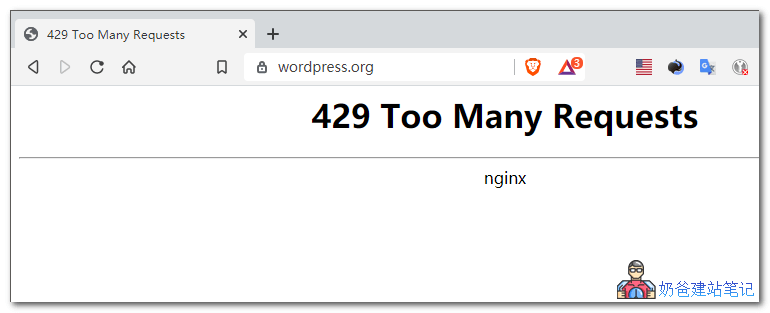
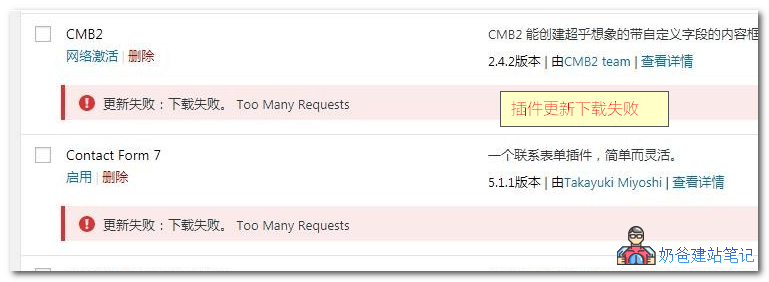
Installation failed: Download failed. too many requestsUnable to open WordPress sites, you cannot normally update WordPress versions through the backend, nor download and update WordPress themes and plugins.
This article will share with youmethods for updating and downloading WordPress after encountering the 429 Too Many Requests error。
If you want to learn about aWordPress installationfrom scratch, please refer to:WordPress Installation Tutorial_Server Environment Configuration Requirements_Failure Reasons
Causes of 429 Too Many Requests
In the HTTP protocol, the response status code 429 Too Many Requests indicates that the user has sent too many requests within a certain period, exceeding the „rate limit“.
A user asked on the WordPress forum whether the official blocked access from China. The official reply was that there is no block, but it triggered Nginx's rate limiting module.
Original link:https://wordpress.org/support/topic/is-wordpress-org-restricting-visits-from-china-region/
Unofficial rumors suggest that some traffic from China may have been attacking WordPress servers recently, triggering the CDN system's protection measures, resulting in the 429 Too Many Requests error limiting request frequency.
How to Update WordPress Version Under 429 Error
So, does that mean we have no way to update WordPress versions until the 429 Too Many Requests error ends?
Of course not, we can also use the followingtwo methods to update the WordPress version。
Method 1: Download offline package for manual update
You can download the latest version of the WordPress installation package and manually update it yourself.
For downloading the latest version of the WordPress offline installation package, refer to this article:WordPress New Version Chinese Simplified Local Download
After downloading, the method for manually updating WordPress is::
- ①. Extract the downloaded installation package and delete the wp-content folder inside;
- ②. Use FTP to delete the wp-admin and wp-includes folders on the server;
- ③. Upload the remaining local files to the server, overwriting all files;
- ④. Log in to your WordPress website's Admin Dashboard to see if there is a request to update the database. If yes, update it; if not, the update is already complete.
Detailed upgrade methods can be found at:Several Methods for Automatic and Manual WordPress Updates
Method 2: Update using a Plugin
Update:Plugins can be directly usedWP Downgrade, you can arbitrarilyinstall old or new versions of WP。
The blogger of I Love Water Boiled Fish wrote a plugin for Chinese download mirror. The plugin will automatically switch the download mirror to the URL specified in the plugin when you upgrade the Chinese version of WordPress. After the upgrade is complete, disable the plugin.
The plugin code is as follows:
<?php
/*
Plugin Name: WPJAM 中文下载镜像
Plugin URI: https://blog.wpjam.com/project/wpjam-basic/
Description: WPJAM 中文下载镜像
Version: 1.0
Author: Denis
Author URI: http://blog.wpjam.com/
*/
add_filter('site_transient_update_core', function($value){
	foreach ($value->updates as &$update) {
		if($update->locale == 'zh_CN'){
			$update->download	= 'http://www.xintheme.cn/download/wordpress-zh_CN.zip';
			$update->packages->full	= 'http://www.xintheme.cn/download/wordpress-zh_CN.zip';
		}
	}

	return $value;
});
Plugin Usage Method:
Save the above code as a PHP file, then upload it to the wp-content/plugins directory on the server. Enable the plugin in the backend and then click the update button.
You can also directlyclick here to downloadthe plugin file saved by Naiba, and directly upload the zip archive via the website backend to install, enable, and update the plugin.
Plugin Notes:
The download address provided in the plugin is not fast (it may time out during updates, causing failure). You can upload the installation package to your own server and modify the link to achieve fast downloads.
Method 3: Update using Code + Compressed Package
This method comes from the Long Xiao Tian Xia blog and is similar to method two, appearing even simpler and more convenient. It can alsoresolve429 Too Many Requests error,The specific usage method is as follows:
- Download the WordPress installation package file and rename it to wordpress.zip
- Upload wordpress.zip to your website's root directory
- Copy the code below into the theme's functions file
- Click update in the Admin Dashboard
- After the update is complete, delete the function code
/**
 * 临时更改WordPress程序包地址以便WP在线更新成功 - 龙笑天下
 * https://www.ilxtx.com/how-to-update-wordpress-successfully.html
 */
function lxtx_site_transient_update_core( $value ){
    foreach ($value->updates as &$update) {
        $update->download = home_url( 'wordpress.zip' );
        $update->packages->full = home_url( 'wordpress.zip' );
    }
    return $value;
}
add_filter('site_transient_update_core', 'lxtx_site_transient_update_core');
If you don't know how to add code to the theme's functions file, you can use the following plugin for assistance.
Safe Method to Add Code to the functions.php File: Code Snippets
How to Update Themes and Plugins Under 429 Error
429 Too Many RequestsThe error also prevents you from normally installing and updating themes and plugins from the website backend. Similarly, you can use manual update methods to update themes and plugins.
Method for Manually Updating WordPress Themes:
If a theme prompts you to update, download the new version of the theme's compressed package yourself and overwrite the original theme files via FTP. (You can also delete the old version of the theme first, then re-upload and install the new version via the backend.) When updating themes, remember to back up to avoid overwriting modified files.
Method for Manually Updating WordPress Plugins:
- ①. Find a way to download the new version of the plugin installation package from the WordPress official website (use a proxy or a foreign server).
- ②. Deactivate and delete the old version of the plugin from the backend (note if there is an option in the plugin settings to clear data upon deactivation).
- ③. Upload and install the new version of the plugin via the backend (you can also consider directly overwriting via FTP; Naiba always uploads via the backend).
For detailed upgrade methods, please refer to:Manual Plugin Update_Methods for Manually Upgrading WordPress Plugins
Additionally, during the update process, you may encounter situations where the update fails and the website becomes inaccessible. In this case, you only need to delete the .maintenance file in the website's root directory. Refer to:Solutions for Failed WordPress Version or Plugin Upgrades
A More Perfect Solution for the 429 Error

1. Domestic users can directly installkill 429This plugin solves the 429 error when installing plugins.
2. UseEasy Theme and Plugin Upgradesthis plugin
3. Added a better plugin:WP China Yes
Proxy Download Service for New WP Theme/Plugin Installation Packages
If you cannot download the latest version of the WordPress installation package from the official WordPress website yourself, you can ask Naiba to help you download it. Join the group 774633089 and contact the group owner.
The above isResolve the 429 Too Many Requests ErrorSolutions for manually updating the version when the WordPress website cannot be opened. If you still have questions, you can join the group to discuss and exchange with more website administrators.