If you find the latest version of WordPress unfamiliar or encounter bugs after upgrading, how do youdowngrade to an older version? This article introducesthe method for installing an older version of WordPress.。
Tutorial for installing any older version of WordPress using WP Downgrade
WP Downgrade is a fantastic tool that can help you install previous versions of WordPress. Let's see how to operate it.
1. Install WP Downgrade | Specific Core Version
You can search and install it from the WordPress backend, or download it from the link below and upload it for installation. (WordPress Plugin Installation Tutorial_Complete Guide to Popular Essential Plugins )
Official Download Cloud Storage Download
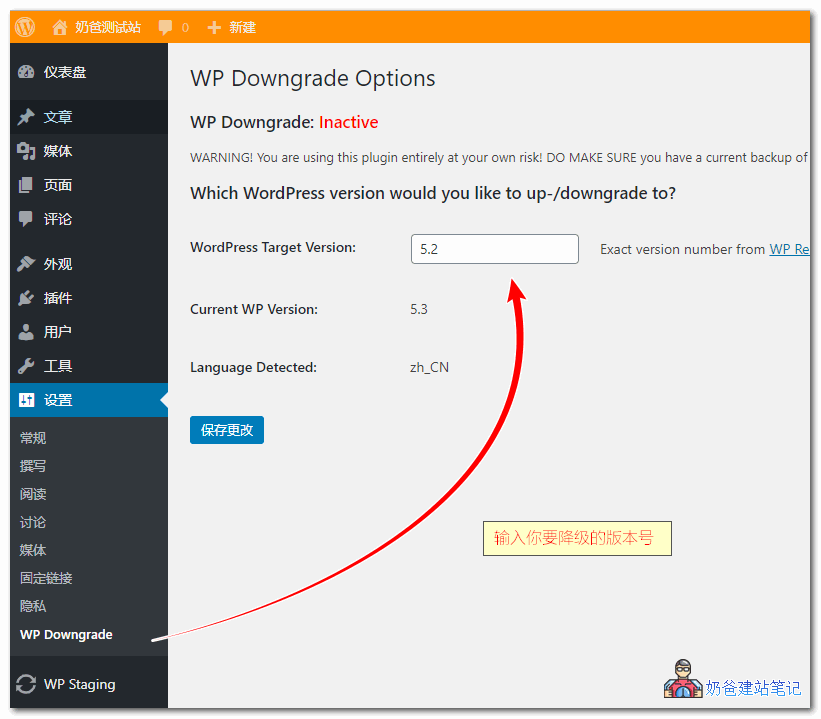
2. After installing the plugin, go to WP Downgrade in the settings, then enter the version you want to downgrade to, such as 5.2 (for supported downgrade versions, you canview here.)
Tip: For safety,it is recommended to back up your website data before proceeding. If you don't know how, refer to ????:Automatically backup WordPress websites using plugins
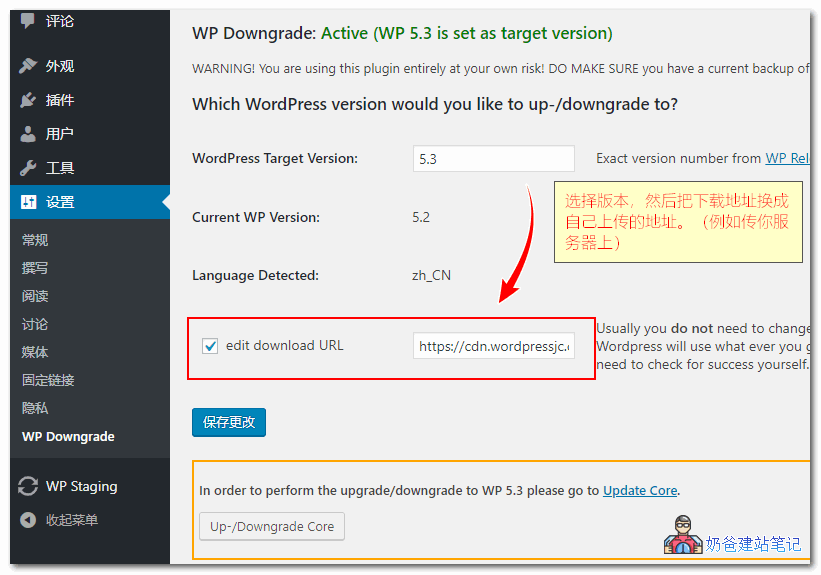
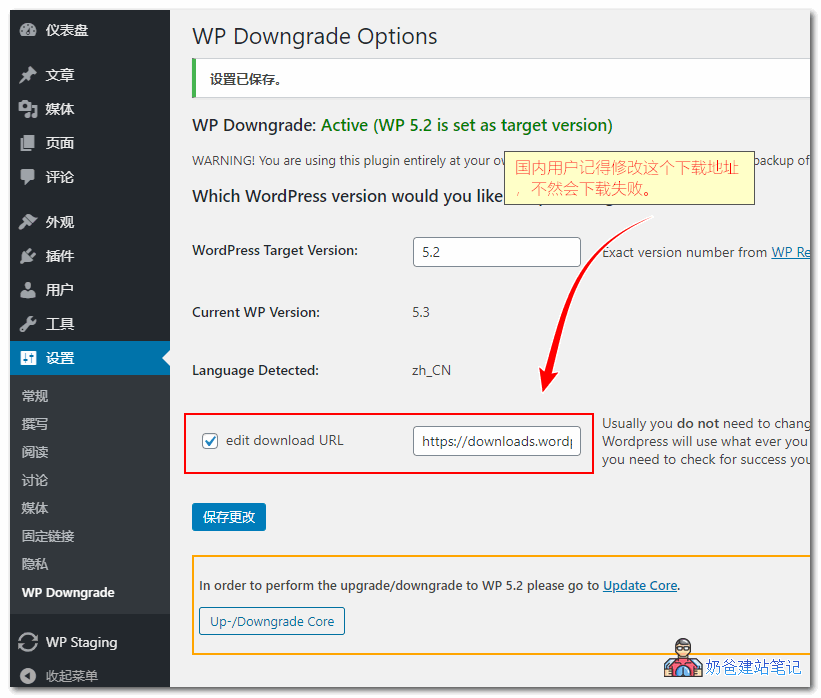
3. After clicking the save button, an option to edit the download URL will appear. Domestic users should check it and enter a URL that can be smoothly downloaded from a domestic server, such as your own server.
4. Go to the WordPressUpdateinterface, clickReinstall NowButton.
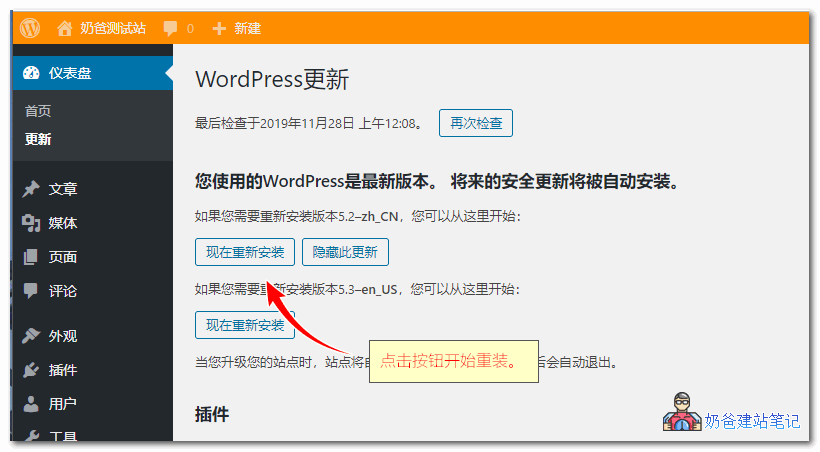
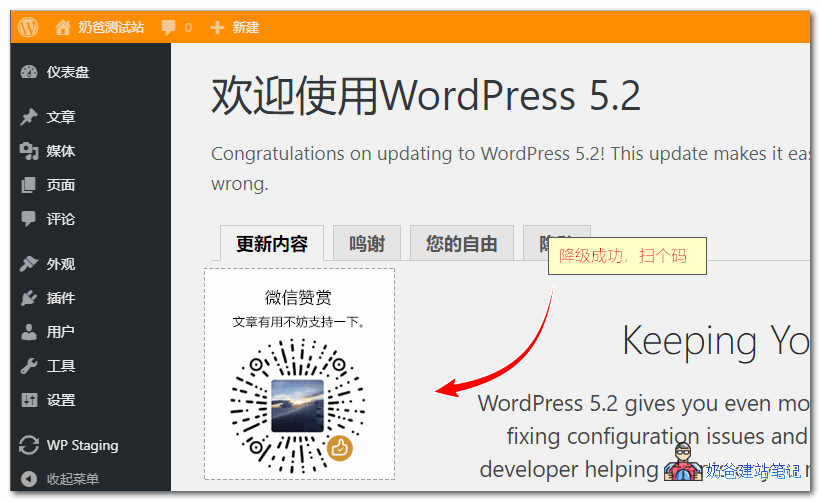
5. If everything goes smoothly, the downgrade to the older version is successful.
Clever Trick: Using WP Downgrade to Install the Latest WordPress Version
That's right, besides installing older versions, you can also use WP Downgrade to install the latest WordPress, solving the issue where domestic servers fail to auto-update due toWordPress 429 Too Many Requestsfailure issue.
Download the latest version of WordPress installation files from the internet, upload them to your server, then change the website URL to your server's. Then update, and it will succeed.