Naiba has shared someWordPress code, most of which need to be added to the theme's functions.php file. For beginners, directly modifying the theme's functions file carries risks, so here we recommend aWordPress PluginCode Snippets.
Code Snippets Plugin Introduction
Code Snippets is a plugin that allows you to easily, cleanly, and safely add PHP code to your website, just like writing directly into the functions.php file.
But it is more suitable for novice users, with a graphical interface for adding code, so you don't have to worry about where to add the code in the theme file; it automatically checks the code format and gives error prompts.
Another advantage of using Code Snippets to add code is that the added code will not be lost when you upgrade your theme file, whereas writing directly into functions.php will be overwritten during upgrades, requiring manual backup.
Extension Download Address:https://tw.wordpress.org/plugins/code-snippets/
Code Snippets Plugin Usage Demo
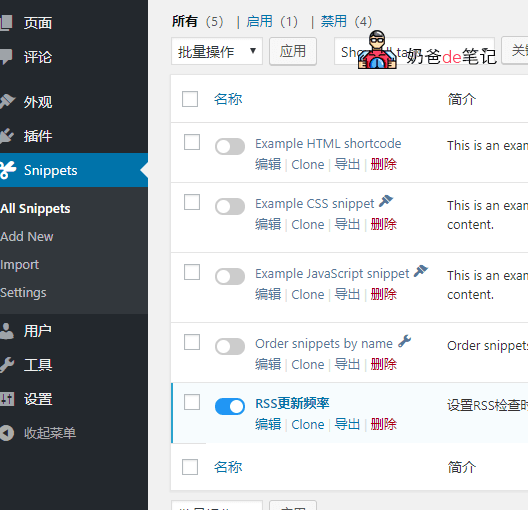
After installing the plugin, you can directly add code snippets in the website backend. Here, we will demonstrate using the previously mentionedcode for delaying RSS output.
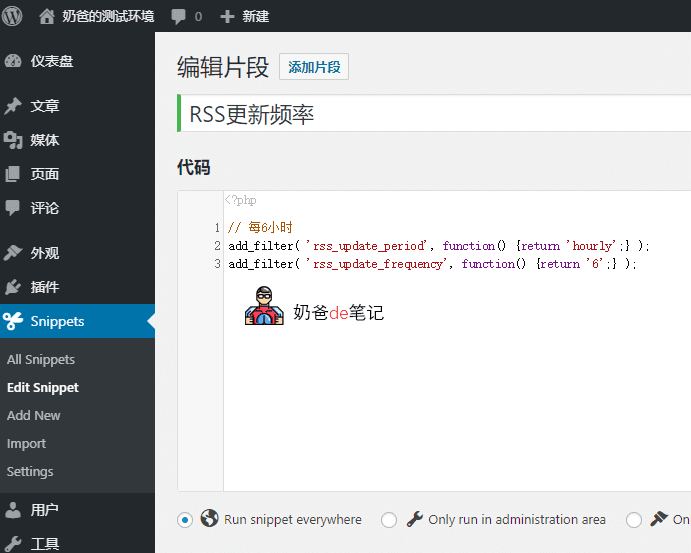
After adding the RSS frequency code, it is enabled by default. Then we return to the website frontend to check the RSS information.
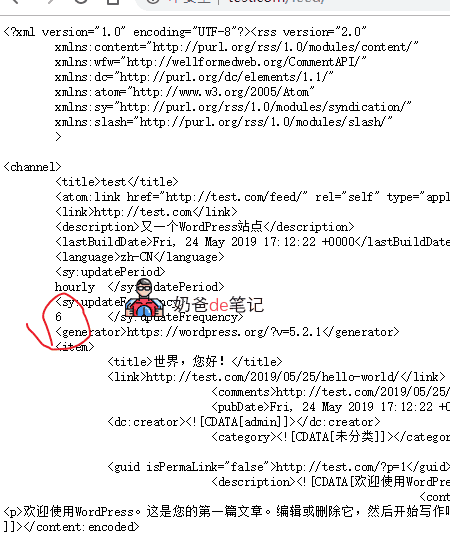
You can see that the RSS update frequency check has been set to 6 hours.
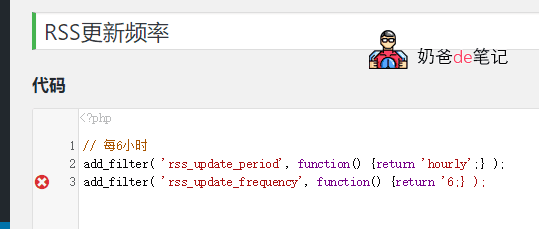
If the format of the code you want to add is incorrect, a cross icon will appear to remind you.
Code Snippets allows you to choose which code snippets to enable, simply by toggling them on/off in the backend. The plugin itself is also lightweight and does not significantly impact server performance, making it very suitable for beginners.
Extension Download Address:https://tw.wordpress.org/plugins/code-snippets/
Purpose of the functions.php File
functions.php is a core file of WordPress themes, called the theme functions file.
functions.php is mainly used to define the function files and some necessary code for the corresponding theme. If the function file has a format error, it can cause your entire website to go blank. Therefore, you should always back up before modifying the functions file, and replace it with the backup if problems occur.
Manually Adding Code to the functions.php File
Although manual addition is not very user-friendly for beginners, it is not difficult. You just need to back up the file.
Paste the required code at the end of the functions.php file, save it, and if there is a problem, replace it with the backup file.
Note that the functions.php file will lose your modifications every time you upgrade the theme file, so using a plugin or child theme to add code is a good choice.