
Beginners, afterbuilding a website using WordPress, will encounter theWordPress permalink, also known asWordPress pseudo-static settings。
WordPress permalinks are divided into Plain, Day and name, Month and name, Numeric, Post name, and Custom structure. Sowhich permalink method is the best WordPress permalink setting??
The answer is as follows::
WordPress Best Permalink Settings Options
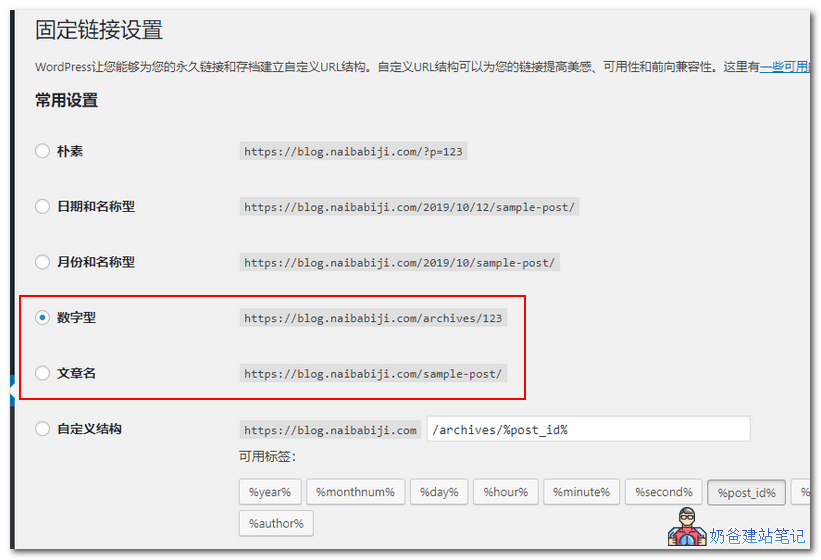
The best WordPress permalink can be either Numeric or Post Name.If you are detail-oriented and willing to modify the post name for each article, then Post Name is recommended. Otherwise, just choose Numeric.
The permalink format you currently see onNaibabijichooses the Numeric type. For example, the link for this article „WordPress Best Permalink Setting Suggestions_Which Permalink to Set" is:
https://blog.naibabiji.com/tutorial/wordpress-gu-ding-lian-jie.html
Note: Choosing the Post Name format is beneficial for SEO, but it requires you to set a post name for each article. It's best to modify this name to English or pinyin. If not modified, the URL will become your website address + the Chinese title, which is long and unsightly, like this:

Additionally, if you prefer a more personalized permalink method,you can also choose a custom format。
like the image below:
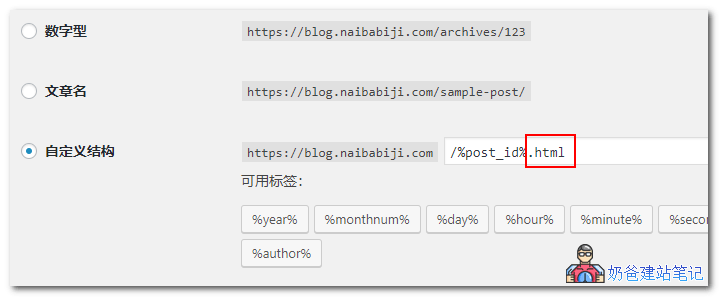
For example, choose a custom structure and add .html at the end (if you need toinstall the open-source version of the WordPress mini-program, then you need to add .html to enable link redirection within the mini-program articles). Then the URL for this article would become
https://blog.naibabiji.com/2626.html
Of course, you can freely combine them. The available tags are as follows, with their meanings:
%year% Year
%monthnum% Month
%day% Day
%hour% Hour
%minute% Minute
%second% Second
%post_id% Post ID (auto-generated)
%postname% Post name (needs to be modified manually; if not, the post title is used)
%category% Category
%author% Author
You can write anything after .html, such as .love or anything you like.
WordPress Permalink 404 Error
After you finish setting the WordPress permalink settings, if the homepage loads fine but article pages show a404 errorand won't open, it's becausethe pseudo-static rules on your server are not properly configured.。
Pseudo-Static Rule Settings
Currently, the common environments found online are Baota Panel or LNMP one-click packages, corresponding toPermalink pseudo-staticrules are as follows:
Baota Panel Pseudo-Static Rule Settings
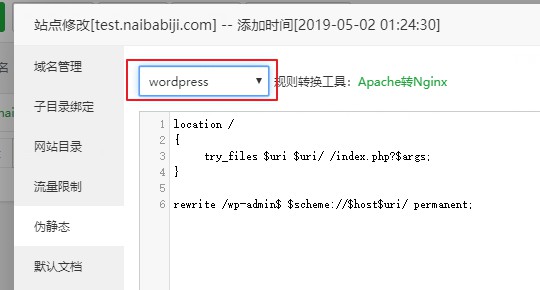
Baota PanelIf using Baota Panel, go to the backend of Baota Panel, then in yourWebsite的SettingsselectPseudo-staticand choose WordPress to save.
LNMP One-Click Package Pseudo-Static Settings Rules
For LNMP one-click packages, pseudo-static rules can be set when adding a virtual host. Specifically, during the virtual host addition process, when asked whether to use pseudo-static, enter y, then input WordPress.

Whether to enable pseudo-static, enter y and press Enter.

Enter the rewrite rules here. For installing WordPress, simply enter <code>wordpress</code>. If WordPress is installed in a subdirectory, enter <code>wp2</code>.
If you arehave already added the websiteand realizeforgot to add pseudo-static rulesthere aretwo methods to resolve:
- lnmp vhost del to delete the added virtual host configuration file, then lnmp vhost add to re-add.
- Configure the virtual host's conf file by adding the pseudo-static rule: include rewrite/wordpress.conf;
Self-compiled nginx configuration for pseudo-static
If you are not using a one-click package or Baota Panel for the website environment, but have compiled nginx yourself, then manually add the following content to the virtual host configuration information and restart nginx.
location /
{
	 try_files $uri $uri/ /index.php?$args;
}

rewrite /wp-admin$ $scheme://$host$uri/ permanent;
nginx subdirectory pseudo-static rules
Change 'blog' below to your subdirectory name and add it to the virtual host configuration file.
location /blog/ {
	index index.html index.php;
	if (-f $request_filename/index.html){
		rewrite (.*) $1/index.html break;
	}
	if (-f $request_filename/index.php){
		rewrite (.*) $1/index.php;
	}
	if (!-f $request_filename){
		rewrite (.*) /blog/index.php;
	}
}

rewrite /blog/wp-admin$ $scheme://$host$uri/ permanent;
apache wordpress pseudo-static rules
Insert the following code into the .htaccess file in the website root directory to enable WordPress pseudo-static rules under Apache.
<ifmodule mod_rewrite.c>
RewriteEngine On
RewriteBase /
RewriteRule ^index\.php$ - [L]
RewriteCond %{REQUEST_FILENAME} !-f
RewriteCond %{REQUEST_FILENAME} !-d
RewriteRule . /index.php [L]
</ifmodule>
Notes
It is particularly important to note that fromwebsite SEOa long-term perspective, determine which permalink setting to use from the start. Once the website is officially launched and operational, do not easily change the form of permalinks, as it may lead to SEO disadvantages such as loss of website rankings.