
WP Super Cache is a WordPress caching plugin. Is it necessary to use WP Super Cache when building your own website? The answer is yes. Installing a caching plugin can help the website run faster and use fewer server resources, so a caching plugin should be considered a must-have plugin for WordPress.
WP Super Cache Introduction
WP Super Cache helps dynamic WordPress blogs generate static HTML files. After generating HTML files, it avoids fetching data via PHP every time the website is accessed, instead directly reading the cached HTML files, which helps improve website access speed and reduce server resource usage.
Static cache files can be provided to the following users:
- Users who are not logged in.
- Users who have not commented on your blog.
- Or users who have not yet viewed password-protected posts.
After enabling caching, 99% of your website visitors will access static HTML files. A cached file can be accessed multiple times.
WP Super Cache serves cached files in 3 ways (sorted by speed):
- Expert. The fastest method uses Apache mod_rewrite (or any similar module supported by the web server) to serve „super cache“ static HTML files. This completely bypasses PHP and is very fast. However, this method requires you to have server administration permissions and know how to make the modifications.
- Simple. PHP can serve WP Super Cache„s static files; this is the recommended method for using the plugin. When enabled, the plugin generates “supercached„ files, which are almost as fast as the mod_rewrite method. Configuration is easier because no changes to the .htaccess file are needed. You still need a custom permalink. You can keep certain parts of the page dynamic in this caching mode.
- WP-Cache caching. This is mainly used to cache pages for known users, URLs with parameters, and feeds. Known users are logged-in users, visitors who have commented, or visitors for whom custom per-user data should be displayed. This is the most flexible caching method and is slightly slower. If super caching is disabled, WP-Cache caching will also cache visits from unknown users. You can also include dynamic parts in pages in this mode. This mode is always enabled, but caching for known users, URLs with parameters, or feeds can be disabled. If you only want to use WP-Cache caching, set the constant „DISABLE_SUPERCACHE“ to 1 in wp-config.php.
If you are not comfortable editing PHP files, use Simple mode. Easy to set up and very fast.
WP Super Cache Recommended Settings
- Use Simple mode caching.
- Compress pages (do not select if the server itself has compression enabled).
- Do not cache pages for known users.
- Cache rebuild.
- CDN support.
- Additional homepage check.
Garbage collection is the act of cleaning up expired and outdated cache files. There is no fixed value for the expiration time; input according to your actual situation, recommended to be above 1800 seconds.
Consider deleting the content of the „Rejected User Agents“ text box and allow search engines to cache files for you.
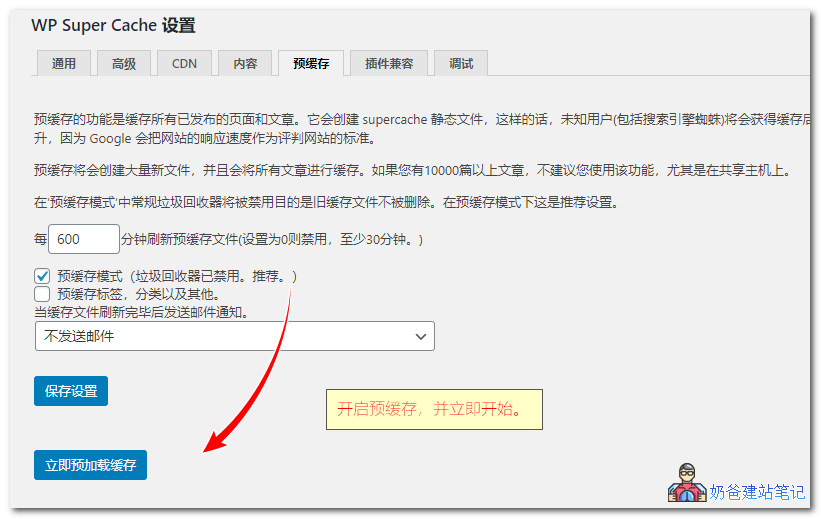
Preload as many posts as possible and enable „Preload Mode“. Garbage collection of old cache files will be disabled. If you are not concerned about updates to sidebar widgets, typically set the preload interval to 2880 minutes (2 days), so that all posts are not frequently re-cached. When preloading occurs, the cache files for posts to be refreshed will be deleted and then regenerated. Afterwards, garbage collection will be performed on all old files to clear stale cache files.
Even with Preload Mode enabled, cache files will still be deleted when a post is modified or a comment is posted.
WP Super Cache Setup Tutorial
1. After installing WP Super Cache, enable the caching feature.
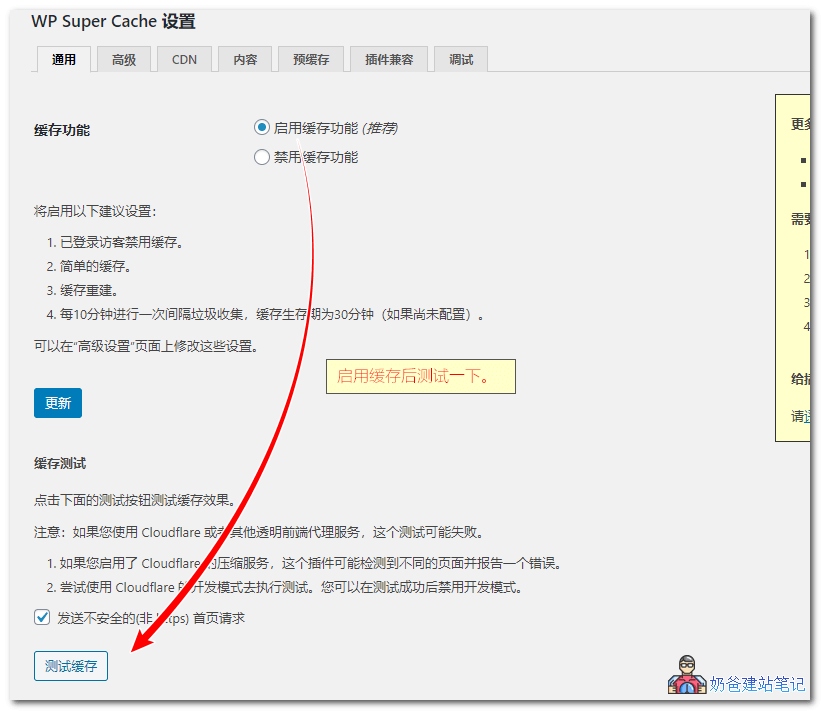
After enabling, you can test whether it generates successfully. If it fails, it is likely due to incorrect folder permissions. Please set them to 755.
2. In Advanced, select Simple mode, check the extra homepage check, and choose other options based on your actual situation. Then test the website using the browser's private mode. If there are no issues, it's OK.
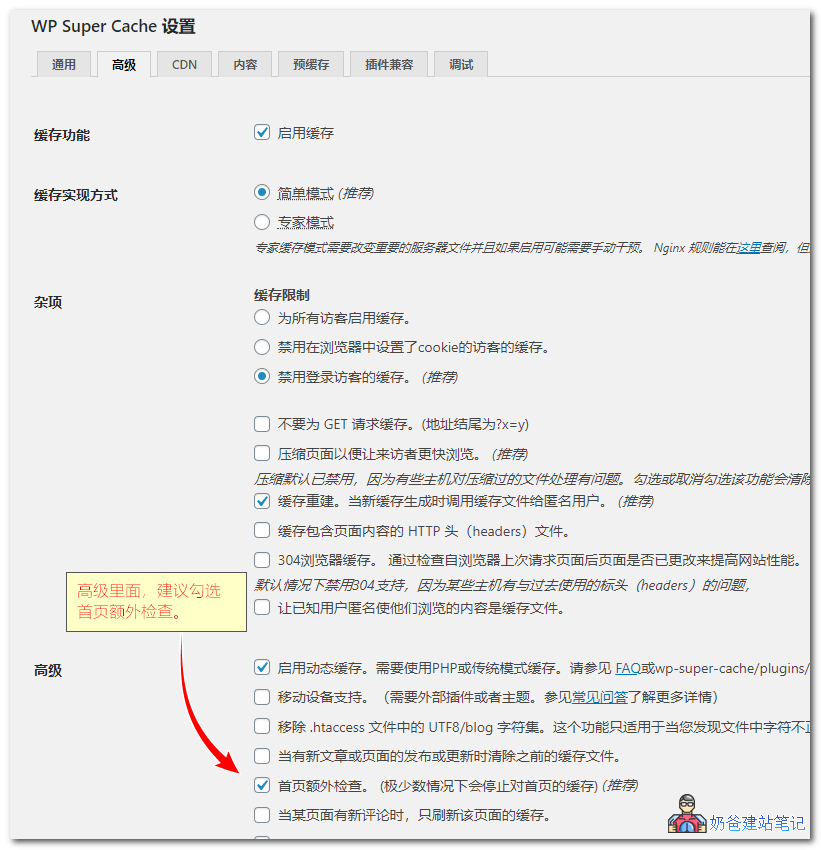
3. It is recommended to enable the pre-caching feature.
4. Visit the website and view the page source code. If the page is successfully cached, there will be a prompt, as shown in the image below.

After enabling WP Super Cache for your website, you may not experience a significant speed improvement yourself because caching is not enabled for logged-in users by default. You can use a browser's private/incognito mode to test the speed difference between having caching enabled and disabled.
WP Super Cache Download Address
If you are using a foreign server, you can directly access the backend and search for WP Super Cache in the plugin library to install it. If you are a domestic user in China, you can visit the link below to download the installation package and upload it for installation.