Tiny Tiny RSSis a free, open-source RSS aggregator reader based on PHP. It is currently one of the more popular choices for self-hosting an RSS subscription service. Naibabiji previously shared a method to install Tiny Tiny RSS via source code. Recently, it was discovered that the official version only supports installing TTRSS via docker, so
this tutorial has been updatedon how to install Awesome TTRSS using docker.
Awesome TTRSS aims to provide an 「all-in-one containerized」solution for Tiny Tiny RSS, offering an easy deployment method and some additional plugins to enhance the user experience. (Naiba hasn't figured out how to install the official Tiny Tiny RSS version, ( ╯□╰ ))
Preparation Before Self-hosting Tiny Tiny RSS
To successfully self-host a Tiny Tiny RSS service, we need to prepare the following:
- A VPS server. If you want to subscribe to foreign sources, it is recommended to choose a foreign VPS;
- A domain name. If you plan to access it directly via the server IP, this is optional.
The server can be domestic or foreign. If you have many subscription sources from foreign websites, it is recommended to use a foreign server for better network connectivity. As for the domain, registering one can cost anywhere from a few yuan to tens of yuan per year. If you already have a domain, you can also use a subdomain directly. Refer to
Domain Name Guide。
Steps to Self-host Tiny Tiny RSS
Create a VPS Server
For the server, it is recommended to choose a
foreign VPS. Naiba here chooses
Vultr, where you can purchase a server starting at $2.5 per month, but it is recommended to start with the $5 plan for better performance, which also allows you to host websites.
Vultr Server Purchase Tutorial 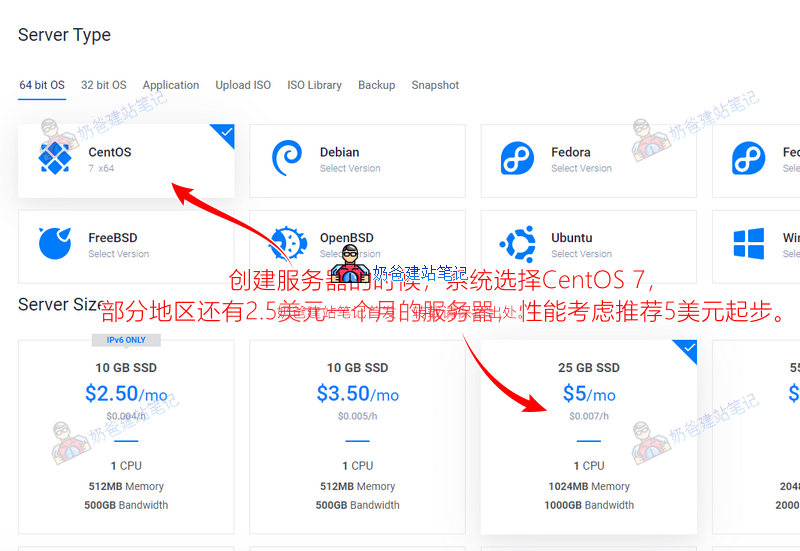
For the operating system, choose the CentOS 7 version. It is recommended to select at least the $5 configuration for better performance, and you can also
build a website。
install Baota Panel
on this server. After the server is created, we will install Baota Panel on it.
Baota Panel is a server operation and maintenance panel that can help us visualize many operations that require entering Linux command lines, a boon for beginners.
Naibabiji previously published a dedicated tutorial on installing Baota Panel, please refer to:
2021 Baota Panel Installation Tutorial (Updated with Installation Video Tutorial)Install docker and docker-compose
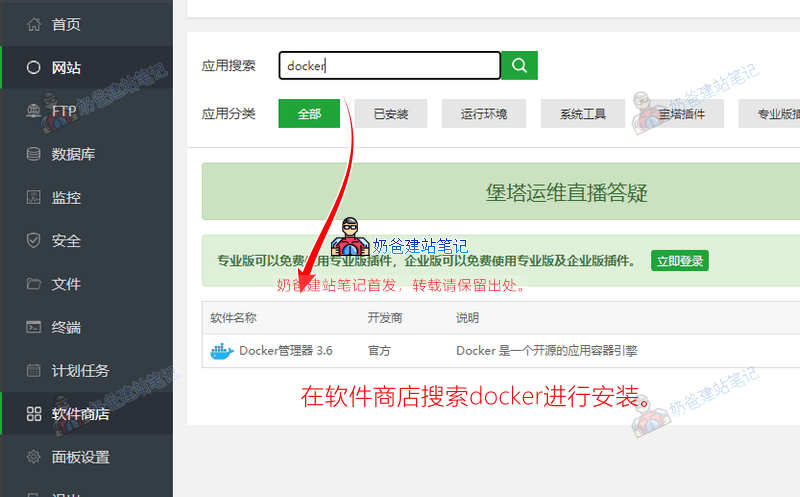
After Baota Panel installation is complete, select Software Store on the left, then search for docker to install.
If you want to manually install docker using the terminal, the command is as follows:
curl -sSL https://get.docker.com/ | sh
systemctl enable --now docker
After the Docker Manager installation is complete, we also need to manually install docker-compose.
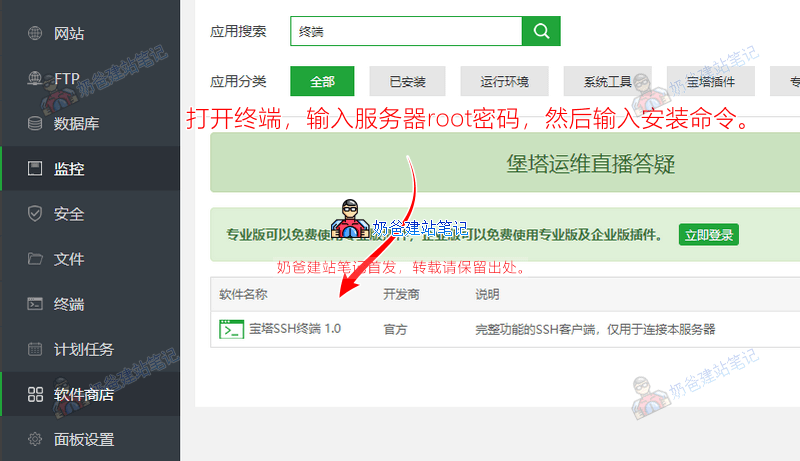
You can use the terminal in Baota Panel, or enter the following command in xShell to install docker-compose (the latest version at the time of this tutorial's release is 1.29.2).
curl -L https://github.com/docker/compose/releases/download/1.29.2/docker-compose-`uname -s`-`uname -m` -o /usr/local/bin/docker-compose
chmod +x /usr/local/bin/docker-compose
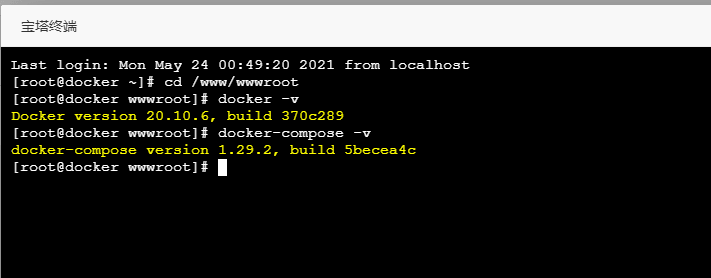
After installation, enter the following command to check if the installation was successful.
docker -v
docker-compose -v
Install Awesome TTRSS
Awesome TTRSS can be installed via docker or docker-compose. Here we will use the docker-compose method for installation. 1、Download
docker-compose.ymlthis file to any folder on the server. Open Baota Panel, click Files on the left, which will default to navigating to /www/wwwroot. The tutorial saves it to this folder.
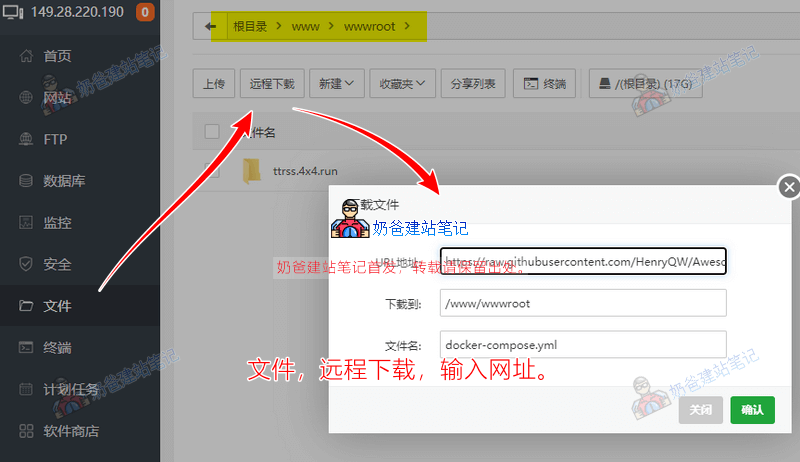
Click Remote Download, enter the URL https://raw.githubusercontent.com/HenryQW/Awesome-TTRSS/main/docker-compose.yml, then confirm. Next, in Baota Panel's File Manager, click to edit this docker-compose.yml file and modify the following 3 parameters.
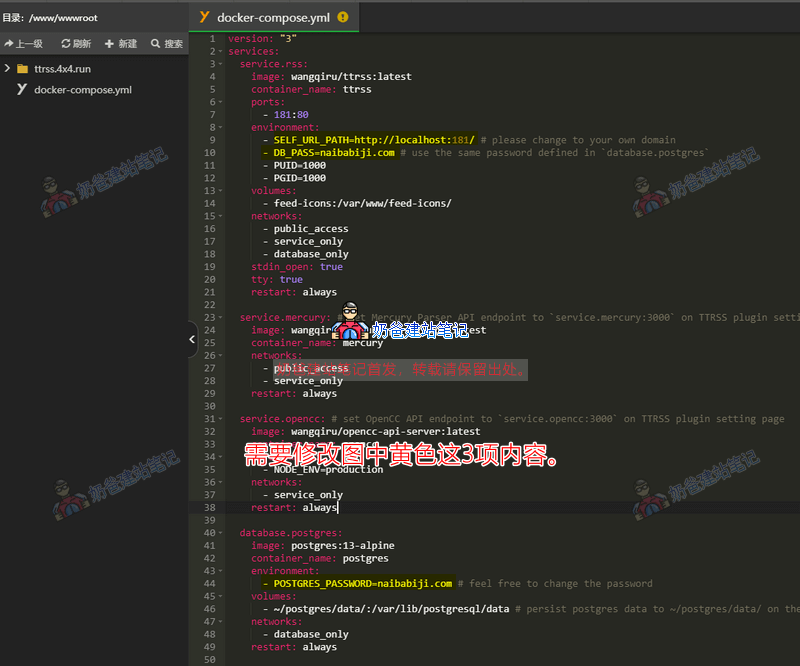
SELF_URL_PATH=http://localhost:181/ # 把localhost修改为你自己服务器的IP,便于待会儿通过IP访问查看是否正常工作。
DB_PASS=ttrss # 把ttrss改成和下面参数一样的值。
POSTGRES_PASSWORD=ttrss # 把ttrss改成和上面一样的值,就是说这两个参数用同一个密码。
After making the modifications, save the file, then click Terminal.

Enter docker-compose up -d, and when prompted with 'done', it means the service deployment and startup were successful.
Modify Tiny Tiny RSS Configuration
After starting TTRSS with the above command, we can access the Tiny Tiny RSS login interface by opening your VPS's IP address plus port 181 in a browser.
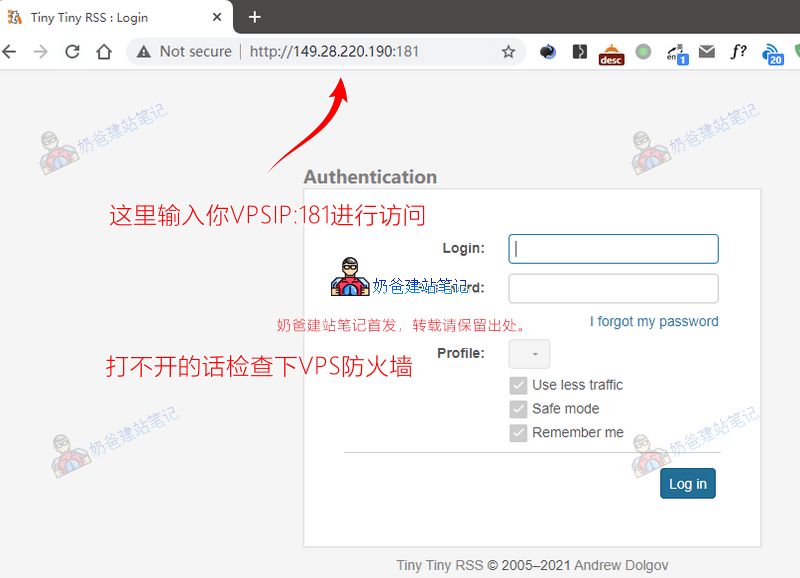
If you find that entering VPSIP:181 does not open TTRSS, first check if port 181 is not opened in the firewall. Search for 'firewall' in Baota Panel's App Store, then go to the firewall and add a TCP rule for port 181.

Enter the default username
adminand password
passwordto log in.
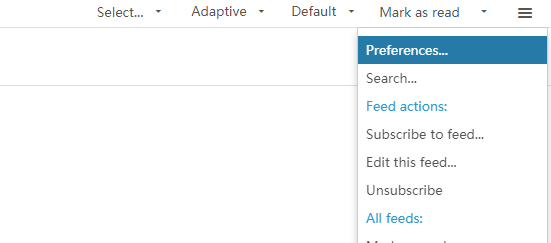
In the top right corner of the screen, click the three bars, select Preferences to enter settings. Under the Language item, select Simplified Chinese and save, and the interface will change to Simplified Chinese.
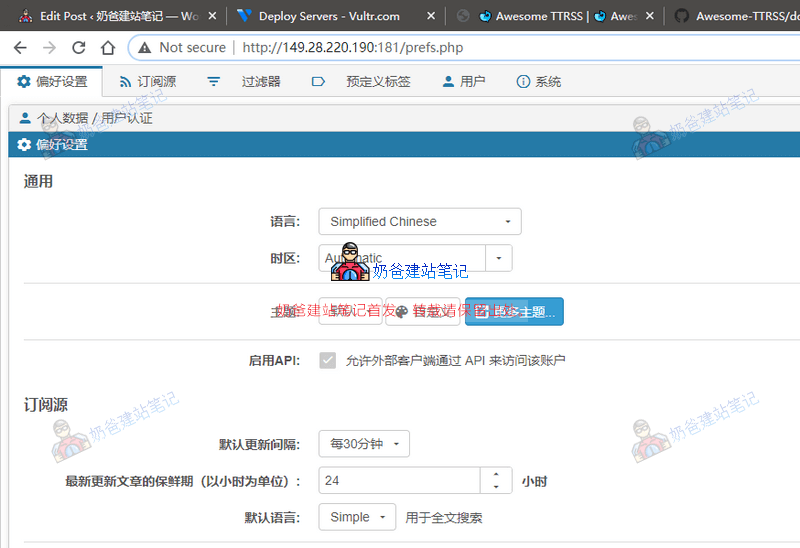
You can configure the remaining settings according to your actual situation.
Bind a Domain to Tiny Tiny RSS
Accessing Tiny Tiny RSS via IP+port is ultimately not very convenient. Next, let's bind a domain name to Tiny Tiny RSS.
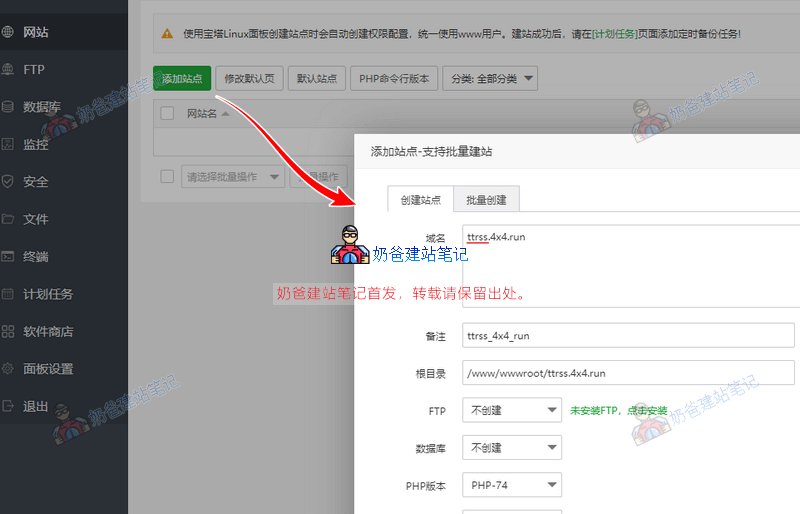
In the Websites section of Baota Panel, add a website. There is no need to create FTP or a database, just fill in the domain name and confirm.
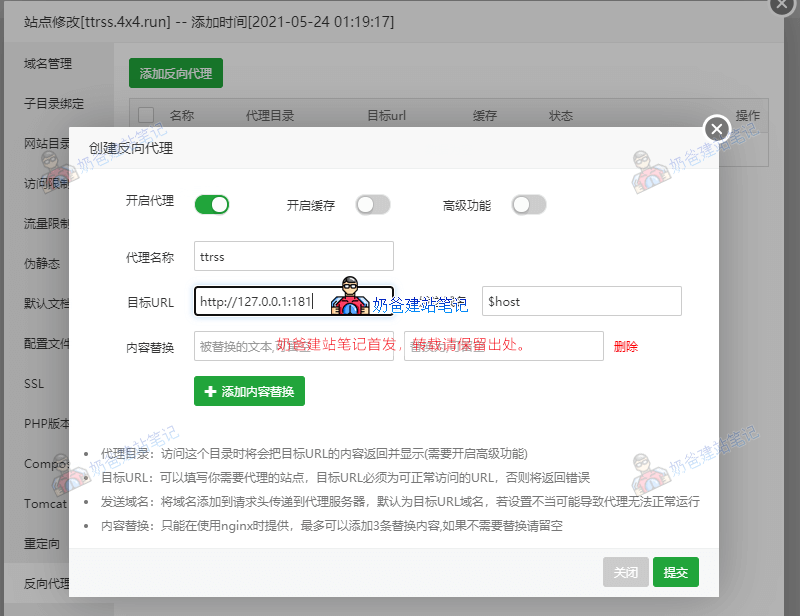
Then click the Settings button next to the website, and on the left side of the settings interface, select Reverse Proxy. Fill in any proxy name, target URL as http://127.0.0.1:181, and submit. Then go back to the File Manager, edit the docker-compose.yml file, change the URL after SELF_URL_PATH= to your bound domain name URL, and save. Open the terminal, enter docker-compose up -d to deploy again. Then you can open Tiny Tiny RSS by accessing the domain name.
Acknowledgments
At this point, the Tiny Tiny RSS installation tutorial is complete. Thanks to
imhu和
Big Bird Blogfor sharing. Naiba also learned and figured out this tutorial by searching for their articles. Also, thanks to
Awesome TTRSSThe project author's efforts have brought us a Tiny Tiny RSS reader project with a better user experience for novices like us.

Modified the docker-compose.yml file, changed SELF_URL_PATH= to a domain starting with https, and redeployed. It's accessible via https, but an error occurs when logging into the account: Error: Browser check failed: window.requestIdleCallback not found. Stack trace. I'm stuck. Environment details: ttrss is deployed in a Docker environment on server B, using server A to reverse proxy server B.
First, test if the functionality works normally using the IP. If it does, then use a regular HTTP domain for reverse proxy. If it still works normally, then the issue lies in the SSL configuration. Focus on checking the SSL configuration part.
Me too. I can open it on Chrome and Firefox on Windows, but it won't open on iOS and iPad.
After setting up reverse proxy, what's the situation where the domain name won't open? It was fine and could be opened using the VPS's IP initially, but after changing to the domain name, it won't open. The domain name has already been resolved to the VPS's IP.
Check to see if the domain name resolution has taken effect.
May I ask if the domain name bound to Tiny Tiny RSS must be registered (ICP备案)?
It is not mandatory.
Always
Operation timed out
Operation timed out
Operation timed out
Operation timed out
You might be using a domestic server, and then the network is poor.
Hello, I followed your tutorial, and then encountered a problem with setting the domain name: Setting it to https://domain, Baota Panel has the certificate installed and HTTPS forced, but the page prompts that the domain should be set to http://domain; After setting the domain to http://domain, it can be opened using https://domain, but after logging in, it gets stuck at 30% and a pop-up prompts that it should be set to https://domain, finally unable to enter the system. Seeking advice from experts on how to solve this.
In your case, do not force SSL in the Baota Panel backend yet, but install the certificate first. Then set access via HTTPS in RSS, test normal access, and then enable forced redirection.
What should I fill in for OTP login verification? It still shows authentication required after reinstallation.
I haven't encountered this before; it might be caused by some security settings you made yourself.
Yes. Also, I followed the process to install it, but when accessing the domain, it shows the tt-rss login interface. After logging in, it displays '404 not found nginx'. Could you please advise?
A 404 error is usually a problem with the pseudo-static settings. See if you can figure it out; if not, the best solution is to reinstall the system and start over.
Okay. Thank you very much.
Awesome, it worked