When building your own website, the preferred server is definitely a VPS. However, many people find VPS operation too complex and not suitable for beginners. Today, Naiba recommends a foreign trade VPS that is even simpler to use than Shared Hosting: Scala Hosting. This article will also explain how to install a website on Scala Hosting's VPS.
Scala Hosting Introduction

Scala Hosting is a VPS provider founded in 2007. There are almost zero articles introducing it in China, mainly because
their network is not friendly to mainland China(Foreign trade website users are overseas, so it doesn't matter), but this does not affect Scala Hosting's reputation abroad.

Scala Hosting has high ratings on some specialized server review websites abroad (similar to public reviews). You can click on the rating images on their official website to view specific details. Scala Hosting's services include domain registration, email, Shared Hosting, and VPS. However, they themselves recommend using VPS services. Naiba's view is also to suggest choosing a VPS to build a website. The price is indeed a bit higher, but the performance, security, and customizability are incomparable to Shared Hosting.
Advantages of Scala Hosting:
- 7×24-hour customer service online for timely communication (Pre-sales may be off-duty, but technical support is 24/7; Naiba has contacted them);
- Provides fully managed VPS services, easier to use than Shared Hosting;
- Reasonable pricing, supports monthly payments. The official site even suggests you pay monthly, as they are confident you will keep renewing;
- Provides domain email, optimized for WordPress performance;
- Provides free migration, free SSL, daily automatic backups, and other features (meaning you don't have to worry about website data security; just install the website and use it);
Disadvantages of Scala Hosting:
- The network is not friendly to mainland China, access from China is relatively slow, so it's best to use your own VPN;
- Fewer network data centers, only two: Dallas, USA, and Bulgaria, Europe;
In simple terms,
Scala Hosting is suitable for those who don't know how to use a VPS but understand the benefits of VPS for website building; can accept slow access from China and manage the website using their own VPN; the main customer group is foreign trade entrepreneurs targeting the US or Europe.Its VPS is really simple to use, even simpler than Shared Hosting or a VPS with Baota Panel installed.
Scala Hosting Purchase
1. Click the button below to enter the Scala Hosting official website.
Scala Hosting Official Website Small advertisement: If the tutorial makes you dizzy, you can also consider asking Naiba to help you buy the server and install WordPress.On their official website, you can see the difference between Shared Hosting and VPS. The differences introduced on their official website are realistic, with no exaggeration. Naiba has also introduced these contents in the article
The Difference Between Shared Hosting and VPS. 2. Select MANAGED CLOUD VPS from the top menu.

Scala Hosting's VPS is divided into two types: Managed VPS and Self-managed VPS. The difference is that for Managed VPS, environment installation, system security, data backups, one-click software installation, SSL certificate configuration, etc., are all handled by Scala Hosting for you. You only need to install the website and handle website-related matters. Self-managed VPS is our ordinary VPS, giving you a root account and password. You need to install the environment yourself (e.g.,
Baota Panel), and then slowly handle operations like data backups and adding SSL certificates yourself. Therefore,
it is recommended to purchase MANAGED CLOUD VPS.3. Choose a suitable MANAGED CLOUD VPS plan and click GET STARTED.

Scala Hosting's basic plan has a 1-core, 2GB configuration, which meets
Installing a WordPress WebsiteThe basic hardware requirements, so you can directly choose the Start plan to begin. When purchasing, select the service duration yourself, supporting payment cycles of 1 month, 3 months, 6 months, 12 months, 24 months, and 36 months. Buying for 3 years at once is the cheapest option. Choose the duration based on your actual situation; the monthly cost difference is not significant.

Managed and SPanel are recommended options; otherwise, you'll end up buying a self-managed VPS. 4. Choose the data center during purchase.

Scala Hosting's data centers are only available in the United States and Europe. Choose based on your customer distribution. Of course, if your customers experience slow access to your website, you can use CDN acceleration services later to improve it. Other configurations can be left as default. If you feel the hardware configuration is insufficient, you can pay extra to add more. 5. Domain selection.

If you already have a domain, for example, purchased from places like following Naibabiji's tutorial at
Namesilothen simply choose the third option. 6. Register an account and make payment.

After selecting your VPS configuration, the registration and payment interface will appear. The top section is for registering an account, and the bottom section is for payment information.

Payment supports PayPal, so there shouldn't be any issues. Reminder: PayPal uses subscription payment, meaning it will automatically deduct fees every month. If you no longer plan to use Scala Hosting's services, remember to: 1. Click cancel on the product you don't want to use in Scala Hosting's user center; 2. Go into PayPal settings and cancel the automatic payment setting for Scala Hosting.
Manage Purchased VPS
7. After successful payment, enter the user center.

8. In My Services, you'll find the services you've purchased and activated.

9. Create an SPanel control panel admin account.

After clicking the 【Manage Server】 button under Manage in the image above, the following screen will appear.

Click the Manage Admin Account button to create an administrator account.
What is SPanel?Scala Hosting's managed VPS does not provide root access. Instead, it installs an SPanel control panel by default. If you've used other shared hosting before, it's similar to those shared hosting panels. You install websites and set up FTP, SSL, etc., all within the SPanel control panel. This means you're using the hardware configuration of a VPS while enjoying the quick operational experience of shared hosting.
10. Log in to the SPanel control panel to create a website account. After modifying the admin account password, return to the product details page and click 【Login to SPanel】, as shown below:

Enter your account and password (Webmail Login is for logging into domain email).

After successful login, click the 【Create an Account】 button.

Fill in the domain and user information you want to add, as shown in the figure below:

This account is specifically for installing websites. The previous admin account is used to manage the SPanel control panel and cannot directly install websites. If your VPS is shared with multiple people, the other party can log in using the account you created for them. If you are the sole user, after creation, click 【List Accounts】 to list the users.

Find the user you just created, click the Actions button behind it, and select Login to access their panel backend.

After logging in, the interface is as shown in the figure below:

The Shared IP address in the upper right corner of the figure above is your server IP. Add two A record resolutions for your website domain to the server IP: one for www and one without www. (If you don't have a domain or don't know how to resolve a domain, please refer to
Domain Topicthe articles inside.)
Installing a WordPress Website
Next, we will start installing WordPress to build a Foreign Trade Independent Website.
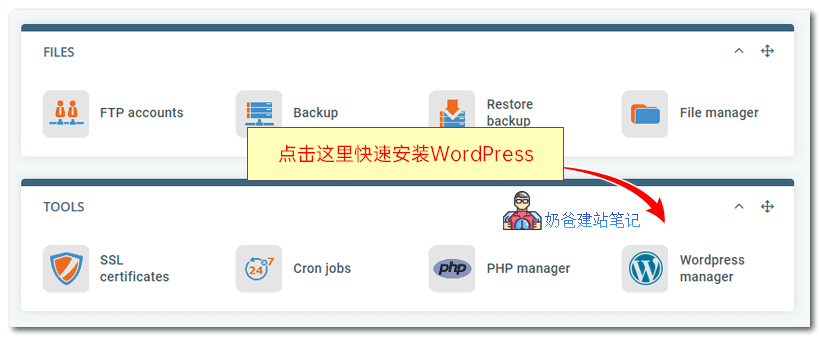
Then click WordPress manager at the bottom of the page to quickly install WordPress.
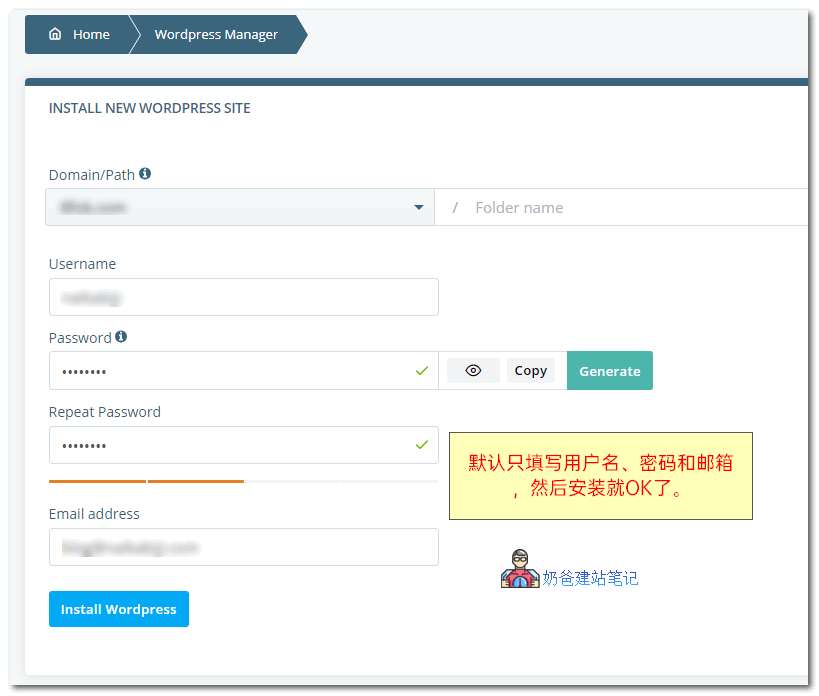
Fill in the username, password, and email, then start the installation. Your website will be installed quickly, and an email will be sent to your inbox. Once your domain's DNS propagation is complete, you can access your website via the URL, and an SSL certificate will already be automatically configured. Next, you just need to log in to the WordPress Admin Dashboard, then install the required Theme (for example, install the one used by Naibabiji
Astra Theme), Plugins, and then you can start adding content, updating the website, and other operations. Pretty simple, right? Installed WordPress but don't know how to use it? Please refer to
the usage section of the Install WordPress page。
 Scala Hosting is a VPS provider founded in 2007. There are almost zero articles introducing it in China, mainly becausetheir network is not friendly to mainland China(Foreign trade website users are overseas, so it doesn't matter), but this does not affect Scala Hosting's reputation abroad.
 Scala Hosting has high ratings on some specialized server review websites abroad (similar to public reviews). You can click on the rating images on their official website to view specific details. Scala Hosting's services include domain registration, email, Shared Hosting, and VPS. However, they themselves recommend using VPS services. Naiba's view is also to suggest choosing a VPS to build a website. The price is indeed a bit higher, but the performance, security, and customizability are incomparable to Shared Hosting.
 Scala Hosting's VPS is divided into two types: Managed VPS and Self-managed VPS. The difference is that for Managed VPS, environment installation, system security, data backups, one-click software installation, SSL certificate configuration, etc., are all handled by Scala Hosting for you. You only need to install the website and handle website-related matters. Self-managed VPS is our ordinary VPS, giving you a root account and password. You need to install the environment yourself (e.g.,Baota Panel), and then slowly handle operations like data backups and adding SSL certificates yourself. Therefore,it is recommended to purchase MANAGED CLOUD VPS.3. Choose a suitable MANAGED CLOUD VPS plan and click GET STARTED.
 Scala Hosting's basic plan has a 1-core, 2GB configuration, which meetsInstalling a WordPress WebsiteThe basic hardware requirements, so you can directly choose the Start plan to begin. When purchasing, select the service duration yourself, supporting payment cycles of 1 month, 3 months, 6 months, 12 months, 24 months, and 36 months. Buying for 3 years at once is the cheapest option. Choose the duration based on your actual situation; the monthly cost difference is not significant.
 Managed and SPanel are recommended options; otherwise, you'll end up buying a self-managed VPS. 4. Choose the data center during purchase.
 Scala Hosting's data centers are only available in the United States and Europe. Choose based on your customer distribution. Of course, if your customers experience slow access to your website, you can use CDN acceleration services later to improve it. Other configurations can be left as default. If you feel the hardware configuration is insufficient, you can pay extra to add more. 5. Domain selection.
 If you already have a domain, for example, purchased from places like following Naibabiji's tutorial atNamesilothen simply choose the third option. 6. Register an account and make payment.
 Payment supports PayPal, so there shouldn't be any issues. Reminder: PayPal uses subscription payment, meaning it will automatically deduct fees every month. If you no longer plan to use Scala Hosting's services, remember to: 1. Click cancel on the product you don't want to use in Scala Hosting's user center; 2. Go into PayPal settings and cancel the automatic payment setting for Scala Hosting.
 8. In My Services, you'll find the services you've purchased and activated.
 9. Create an SPanel control panel admin account.
 Then click WordPress manager at the bottom of the page to quickly install WordPress.
 Fill in the username, password, and email, then start the installation. Your website will be installed quickly, and an email will be sent to your inbox. Once your domain's DNS propagation is complete, you can access your website via the URL, and an SSL certificate will already be automatically configured. Next, you just need to log in to the WordPress Admin Dashboard, then install the required Theme (for example, install the one used by NaibabijiAstra Theme), Plugins, and then you can start adding content, updating the website, and other operations. Pretty simple, right? Installed WordPress but don't know how to use it? Please refer tothe usage section of the Install WordPress page。
My website was indeed created successfully, but I cannot access the WordPress Admin Dashboard. What should I do?
This situation is usually a DNS resolution issue.
If I want to create two websites, how should I proceed? Should I create two accounts?
Just create two accounts in the Admin Dashboard.
Took a look, it's not simple. The tutorial itself is not simple.