What problems can this article help you solve?
- ✅ First time using Baota Panel and don't know how to install WordPress
- ✅ Want to quickly set up your own website/blog
- ✅ The one-click deployed WordPress version is too old, want to install the latest version
- ✅ Website links don't open after installation, need to configure pseudo-static rules
- ✅ Encounter various errors during installation and don't know how to resolve them
Estimated Completion Time: 10-15 minutes
Difficulty Level: ⭐☆☆☆☆ (Beginner Friendly)
Preparations
Before starting, please ensure you have completed the following steps:
- Baota Panel is installed(If not installed yet, first read Baota Panel Installation Tutorial)
- Domain purchased and DNS resolution completed(Domain points to your server IP, refer to Domain DNS Configuration Tutorial)
This article uses Installing WordPress with Baota as an example to introduce the specific method. For other website building programs, please adapt this tutorial accordingly.
Step 1: Deploy WordPress Program on Baota Panel
Method 1: Baota One-Click Deployment of WordPress (Recommended for Beginners)
Baota Panel supports one-click deployment of several popular website building programs like WordPress, which is relatively simple for beginners to operate.
1. Go to Baota backend - Website - Add Website - One-click Deployment - Select WordPress - Fill in the domain - Confirm
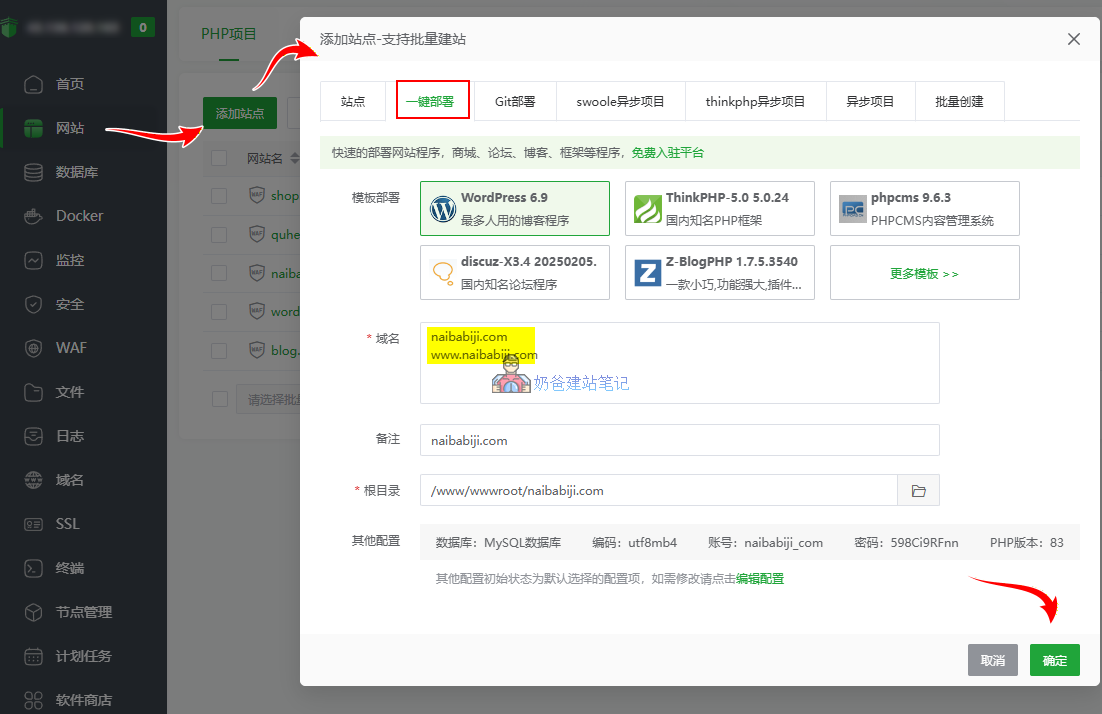
After clicking confirm, wait a moment. It will automatically add the website, download WordPress installation files, and create a database for you.
After successful deployment, deployment information will pop up, including database details and the website URL. You can save it, or later view the account password directly from the database.
Then wait for the website setup and proceed to install WordPress. See the following tutorial.
Method 2: Manually Install the Latest Version of WordPress
Although one-click deployment is convenient, domestic servers sometimes encounter network issues causing the installation package download to fail; or the one-click deployment might not use the latest installation package, requiring a manual update after installation. Therefore, learning to manually install WordPress is also essential.
Step 1: Add Website to Baota Panel
For manual WordPress installation, it won't handle everything for you like one-click deployment does. First, we need to create the website ourselves.
Baota Panel - Website - Add a website
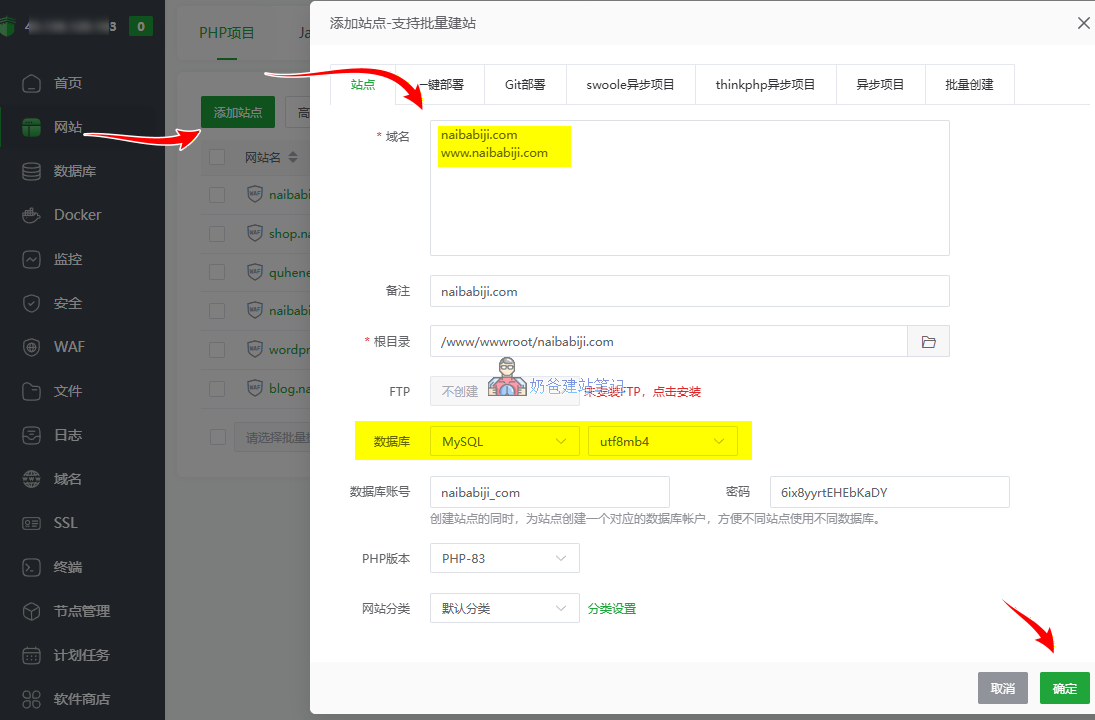
Fill in the domain name, select 'Create Database', leave other settings as default, and then click the Confirm button.
Step 2: Download/Upload the latest WordPress installation package
There are two ways to upload the WordPress installation package: one is local upload, and the other is direct server download.
If your domestic server fails to download remotely, you can download the installation package from the link below and upload it to the website root directory.
Download link for the new version of WordPress installation package:Local download of the new WordPress Simplified Chinese version

For remote server download, click in the Baota Panel:Website→ Website root directory folder → URL link download, then fill in the URL below and click OK.
https://cn.wordpress.org/latest-zh_CN.zip

After uploading or downloading the WordPress installation package, move the mouse to the row of the installation package and click the Extract button. As shown in the figure below:

In the extraction window, directly click „Extract“.
The extraction will complete quickly, and a folder named WordPress will appear. Click to enter this folder.

After entering the WordPress folder, click the checkbox in front of the file name to select all folders and files.
Then click the Cut button in the upper right corner. The steps are shown in the figure below:

Next, click your website's folder to return to the root directory, and click the Paste All button in the upper right corner, as shown in the figure below:

Finally, your Baota Panel file interface will look like the figure below.
The WordPress folder and installation package files can be deleted; 404.html and index.html can also be deleted. It's fine if you don't delete them.

Next, we can start building the website.
After opening this access address, you will see the interface for Step 2, building the WordPress program website. Just follow the steps.
Step 2: Configure WordPress Pseudo-Static Rules and SSL Certificate
In the previous step, we have uploaded the WordPress installation program files to the website root directory. Next, we can use a browser to open the URL and install WordPress. However, to avoid future hassles, Naiba suggests configuring the pseudo-static rules and SSL security certificate in Step 2 first.
Note: The security certificate can only be successfully applied for if the domain name has already been resolved to the server.
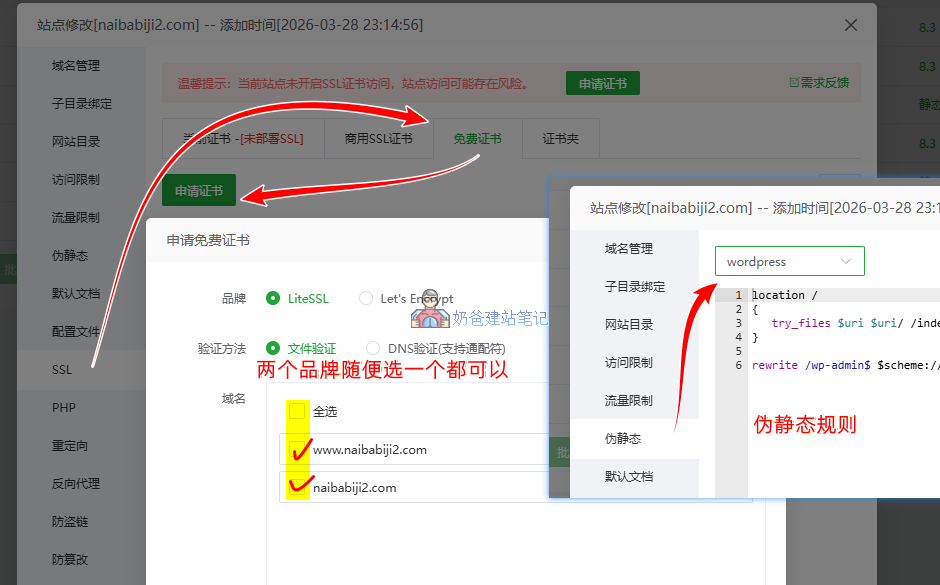
Setup method:
ClickWebsite listthe followingSettingsbutton, the pop-up interface:
- Pseudo-static, select WordPress, save;
- SSL, free certificate, choose either LiteSSL or Let's Encrypt, select all domains, and click the Apply button.
After the SSL certificate is successfully applied, you can enableForce HTTPS。
Step 3: Run the Installation Wizard to Install the WordPress Website
Now open the domain name you have bound, and the following interface will appear. Click „Start Now“

In the following interface, enter the corresponding database name, database username, and database password (if you have forgotten the database, you can check it in the database page of the Baota Panel backend), then click Submit.

If the database information is correct, the following interface will appear. Click Install Now.

Soon the following interface will appear, asking you to set the site title, username, password, and email information. After setting, click „Install WordPress“

Success, you can now log in.

Frequently Asked Questions (FAQ)
What if the WordPress version deployed with one-click is not the latest?
Log in to the WordPress Admin Dashboard. If there is an update, you will be prompted. Click to update. Alternatively, use the manual installation method described in Method Two.
What should I do if I get the prompt "Connection information is needed for the server" during installation?
This is caused by incorrect folder permissions. FromBaota Panelenter yourwebsite root directory,Select Allfiles and folders, on the right side, under theMoremenu, selectPermissions. In the pop-up interface, set the permissions to755和www, then click OK to fix the issue.
What should I do if the website is very slow after installation?
A newly installed WordPress website being slow is usually not related to the website itself. Either your network speed to access your server is slow, or your server configuration is too poor. You can refer toVPS Recommendationsan article to choose a better server.
How to use WordPress after installation? What settings are there?
For how to use WordPress after installation, such as system settings, installing Themes and Plugins, please refer toWordPress Tutorialsthe content of the article.

Thanks, the tutorial is very detailed, even beginners can follow it to set up successfully.
After one-click deployment, the website link doesn't open.
Probably you haven't set up DNS resolution.
After one-click deployment, database creation failed. What's going on?
Just create the database manually.
Why didn't you mention ICP filing... it's driving people crazy.
The article about purchasing servers mentions ICP filing.
One thing I don't understand: what is a database, and where do I get it?
You can create a database within Baota Panel.
In the one-click deployment step, your domain is test.xxxx.com instead of the previous xxx.com. Do I also need to set up DNS resolution for test.xxxx.com? But aren't all the files already under the root directory of xxxx.com?
I followed the steps one by one, but the one-click deployment always reminds me that the xxxx.com domain already exists. However, I have already deleted all the data.
Please clarify, thank you.
That domain is just the demo domain in my tutorial. Fill in your own accurate domain. If it prompts that it already exists, then go to the website list, delete it, and start over. If there are still issues, it's recommended not to use one-click deployment.
I used my own domain. If I delete it from the website list, won't that also delete the WordPress installation package from earlier?
What I mean is, for example, my domain is 123.com. Following the tutorial, I downloaded the WP installation package under the root directory of this 123.com. Why is test.123.com needed when deploying the website?
I'm stuck here. Thanks for clarifying.
If you used one-click deployment, then you need to first delete the contents inside the website because one-click deployment will automatically add the domain and installation package. In the tutorial, the domain I used is a test domain; you don't need to add it that way.
Hello, previously all pages of my website were accessed via IP. Later, after domain resolution, only the homepage is accessed via the domain, while other pages are still accessed via IP. I directly modified the URL and site domain in the WordPress admin dashboard, and now the admin dashboard is inaccessible (data was backed up using a WordPress plugin). How can I make all pages be accessed using the domain plus the page name?
Go to the database and replace the IP with the domain. For searching, you can Google 'wordpress change domain'.