
After installing WordPress, there are default settings for thumbnail generation (Settings > Media), but setting them here does not guarantee that thumbnails will not be automatically generated. There are other hidden settings that, if not configured, will still cause the site to generate thumbnails.
This article explains how todisable thumbnail generation in WordPress 5.3。
Why disable automatic thumbnail generation?
Why disable automatic thumbnail generation in WordPress?
The main reasons are to save server space and reduce page size. Many people might think that smaller cropped images take up less space and load faster, right?
Is that really the case? You can check your server's attachment folder yourself. Below are two thumbnails automatically cropped by Naiba's site.
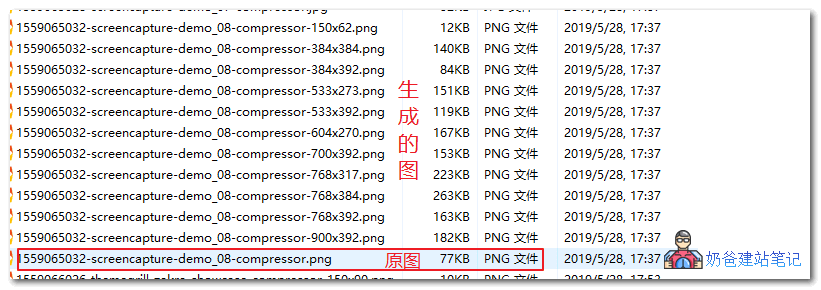
As shown in the image above, a single 77KB original image was automatically cropped by WordPress to generate 11 thumbnails of different sizes, with the largest one being 263KB.

The image above shows that after setting the backend to generate medium and large thumbnails, only a 150px thumbnail and a 768px large image (used as the featured image) were generated. However, the original image was only 4KB, but after generation, it ballooned to 60KB.
So, WordPress's automatic cropping and thumbnail generation feature is quite useless. Besides wasting space and bandwidth, it has no practical value. That's why Naiba chose to disable automatic thumbnail generation in WordPress.
Code Method to Disable WordPress Automatic Thumbnail Generation
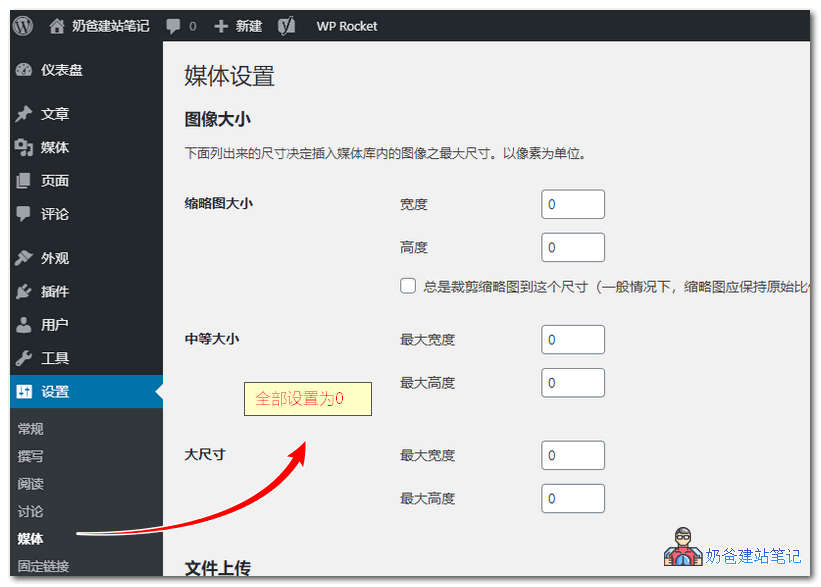
Step 1: In Settings > Media, set the dimensions for large, medium, and small thumbnails to 0
 Step 2: Enter WordPress God Mode (the all settings page) at http://yourdomain.com/wp-admin/options.php
Search for medium_large_size_w and change it to 0
Step 3: Search the theme's functions.php file to see if there is any code specifically setting thumbnails (use CTRL + F in the code editor)
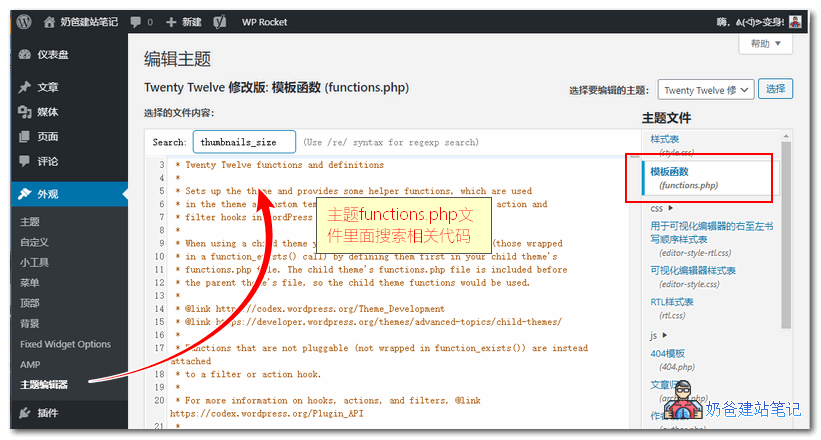
Search code
add_image_size
thumbnails_size
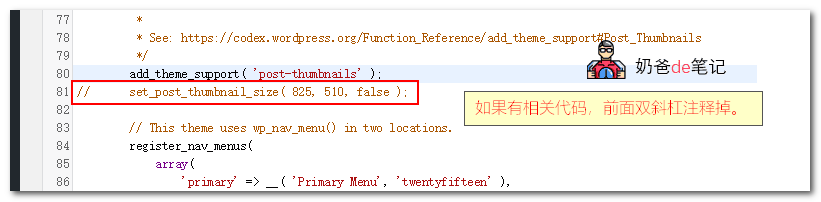
If related code is found after searching, comment it out. If not, leave it as is. (This step carries risks; be sure to back up the file. If something goes wrong, use FTP software to upload the backed-up functions.php file to overwrite the current one.)
Naiba Tip:
How to backup and restore the functions.php file?
UseFTP softwareConnect to your website server, then navigate to wp-content > themes > your theme folder > functions.php (download it)
If something goes wrong after modification, upload the backup using FTP to overwrite.
A relatively safer method:
Besides manually deleting the theme's code as above, you can also try the following code, which is also added to the theme's functions. If you don't know how to modify the theme's functions, you can useSafe Method to Add Code to the functions.php File: Code Snippets
function wcr_remove_intermediate_image_sizes($sizes, $metadata) {
    $disabled_sizes = array(
        'thumbnail', // 150x150 image
        'medium', // max 300x300 image
        'large'   // max 1024x1024 image
    );

    // unset disabled sizes
    foreach ($disabled_sizes as $size) {
        if (!isset($sizes[$size])) {
            continue;
        }

        unset($sizes[$size]);
    }

    return $sizes;
}

add_filter('intermediate_image_sizes_advanced', 'wcr_remove_intermediate_image_sizes', 10, 2);
Plugin Method to Disable WordPress Automatic Thumbnail Generation
There is another plugin that Naiba hasn't tested. If the above methods don't work or you prefer to use a plugin to disable thumbnail generation, you can try this.
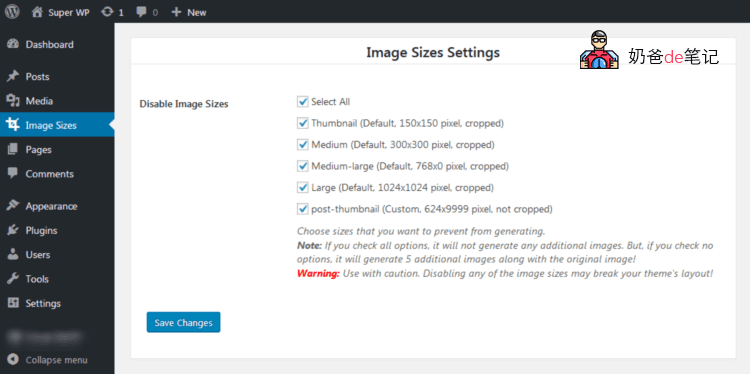
This plugin claims to support any theme and plugin, is compatible with WooCommerce, and works immediately after installation and configuration.
Extension Download Address:Stop Generating Image Sizes
Finally, if you find that images are not displayed on the frontend after insertion, you may also need toDisable WordPress Responsive Image Code
Clean up already generated thumbnail files
Once the settings are configured, WordPress will no longer automatically generate thumbnails for images you upload later. However, previously generated thumbnails still remain on your server. You can use the following methods to batch delete the already generated thumbnail files.
Related Articles:
- Several Methods to Optimize WordPress Image Upload Speed and Reduce Database Queries
- WordPress Image Auto-Rename Plugin Unique Rename Image File Upload
- How to Set Image Link to Media File When Publishing a Post in WordPress 5.3
- Summary of Methods to Automatically Add Watermarks to WordPress Uploaded Images