
Hello everyone, I am Brother Leifeng. Today, I will introduce some methods to optimize image uploads in the WordPress backend. Previously, when uploading images in the WordPress backend, Brother Leifeng sometimes encountered errors, especially when uploading multiple images at once, which could easily cause high database load. Below, I will explain how to optimize WordPress image upload speed and reduce database queries.
Do not name WordPress uploaded images as '1', otherwise it will increase database queries:
Some people are too lazy to name images and just use something like 1.jpg. When uploading such images in the WordPress backend, it checks if 1.jpg already exists, then automatically renames it to 1-2.jpg. If 1-2.jpg also exists, it continues renaming in a loop, putting heavy pressure on database queries.
If you're really lazy, you can refer to the method below.
Automatic Renaming of Chinese Named Images in WordPress / Reduce SQL Queries:
Situation 1: If you are on a Windows server, uploading images with Chinese names will result in an error, prompting„An error occurred during upload. Please try again later.“Although you can use a plugin to automatically convert to pinyin/English, it affects performance during image upload. Here, a piece of code can automatically rename images upon upload.
Case 2: Too many duplicate image names during WordPress upload. WordPress needs to query the database to rename images. If there are too many images, it may even cause the database to crash.
The solution is simple: add the following code to functions.php:
add_filter('wp_handle_upload_prefilter', 'custom_upload_filter' );
function custom_upload_filter( $file ){
    $info = pathinfo($file['name']);
    $ext = $info['extension'];
    $filedate = date('YmdHis').rand(10,99);
    $file['name'] = $filedate.'.'.$ext;
    return $file;
}
The principle is to rename images based on upload time, for example: 2019092010182810.jpeg
If you don't know how to add code, refer to:Safe Method to Add Code to the functions.php File: Code Snippets
Of course, you can also directly use this plugin:WordPress Image Auto-Rename Plugin Unique Rename Image File Upload
Automatic Compression of JPG Format Images Uploaded to WordPress:
Compressing images can save bandwidth and speed up website loading. WordPress provides a default image compression function. You can set the compression rate. Note that it only supports JPEG format images.
Add the following code to functions.php:
add_filter( 'jpeg_quality', create_function( '', 'return 90;' ) );
The 90 in the code is the compression rate. Adjust it according to your needs.
For other image compression needs, you can use the 「EWWW Image Optimizer「 plugin, which supports JPG, PNG, and even GIF. It also provides the functionality to convert image formats during compression, such as converting to WebP format, as well as converting between JPG and PNG.
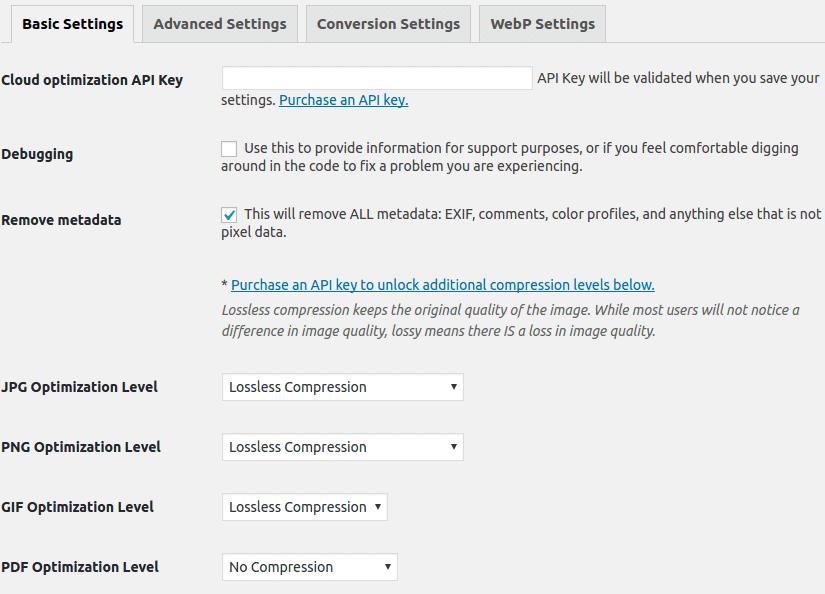
There are many similar image compression plugins; you can choose one that you find convenient to install and use.
Reduce Thumbnails for WordPress Uploaded Images:
When uploading images, WordPress automatically generates thumbnails in three sizes. This can affect performance on virtual hosts or low-memory VPS. You can disable this or generate only one size of thumbnail.
In the WordPress backend, go to Settings → Media → Image sizes, and set the dimensions of thumbnails you don't need to 0.
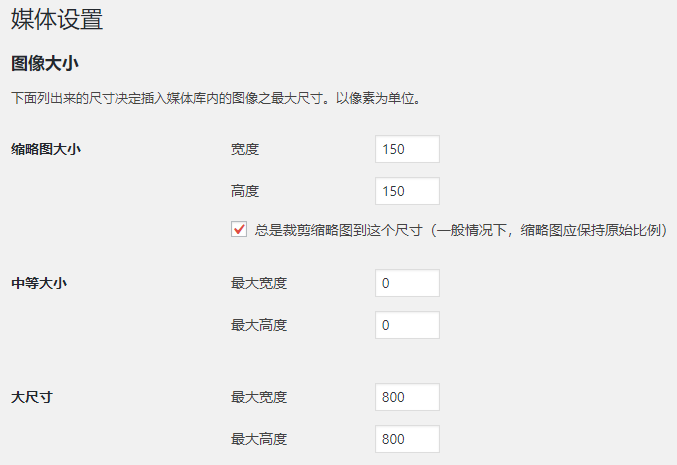
If you really don't need thumbnails, disable them completely.
Add the following code to functions.php:
//彻底禁止WordPress缩略图
add_filter( 'add_image_size', create_function( '', 'return 1;' ) );
Related articles:Disable WordPress 5.2.1 automatic thumbnail cropping feature
Clean Up Unused WordPress Thumbnails:
As mentioned above, disabling thumbnails means previously generated thumbnails take up space. Manually cleaning them would be a nightmare, so we'll use a plugin.
「Delete not used imageA plugin that can automatically search for unused thumbnails.
1. Before using Delete not used image, it will prompt you to back up (it「s recommended to back up). You can back up in the 」options「 under Backup system / Create backup folder, or use other methods to back up.
2. In the 「options」 under _ Show, set original, then click directly. This ensures the original image is not lost.
3. Click 「Images」 to start searching for thumbnails, then 「Delete all」 to delete them all.
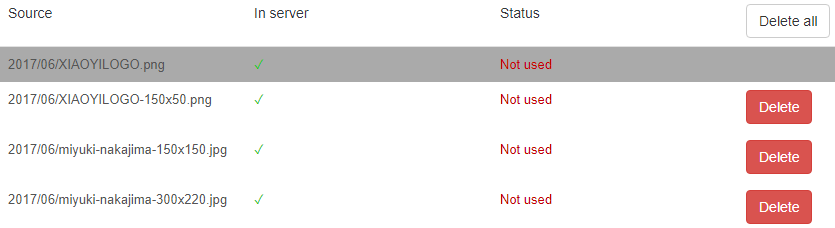
If you have too many thumbnail files, it may take a long time and show a "Fetching server…" status. Be patient.
Through the above optimization settings, you'll find that uploading images in the backend becomes much faster. Now you can upload images with confidence, without worrying about excessive database queries causing crashes.
Related Articles:
What to do if website images load slowly_3 methods for website image acceleration
How to count the number, formats, and sizes of images on a WordPress website
Modify WordPress website login interface LOGO and images without code
Automatically Add ALT and Title Names to Images in WordPress