
After running a website for a long time, the server space may be heavily used. Perhaps you want to know how much hard disk space the images on your server occupy. What should you do?
On a Windows computer, you can right-click on the folder, select Properties, and view the folder size.
On a Linux system, you can also use the du command to view the folder size, for example, the following command:
Display the disk usage of a directory tree and each of its subtrees in MB.
du -m /home/linux
This shows the MB disk blocks in the /home/linux directory and each of its subdirectories.
But what if I only want to know the total capacity of uploaded image files on the website server, and how much each image format occupies? Is there a simple and quick method?
Of course there is.
Introduction to WP Media Assistant
WP Media Assistant is a plugin used to count the total number of images uploaded to a WordPress website, how many of each different image format there are, and the total disk space used by the images.
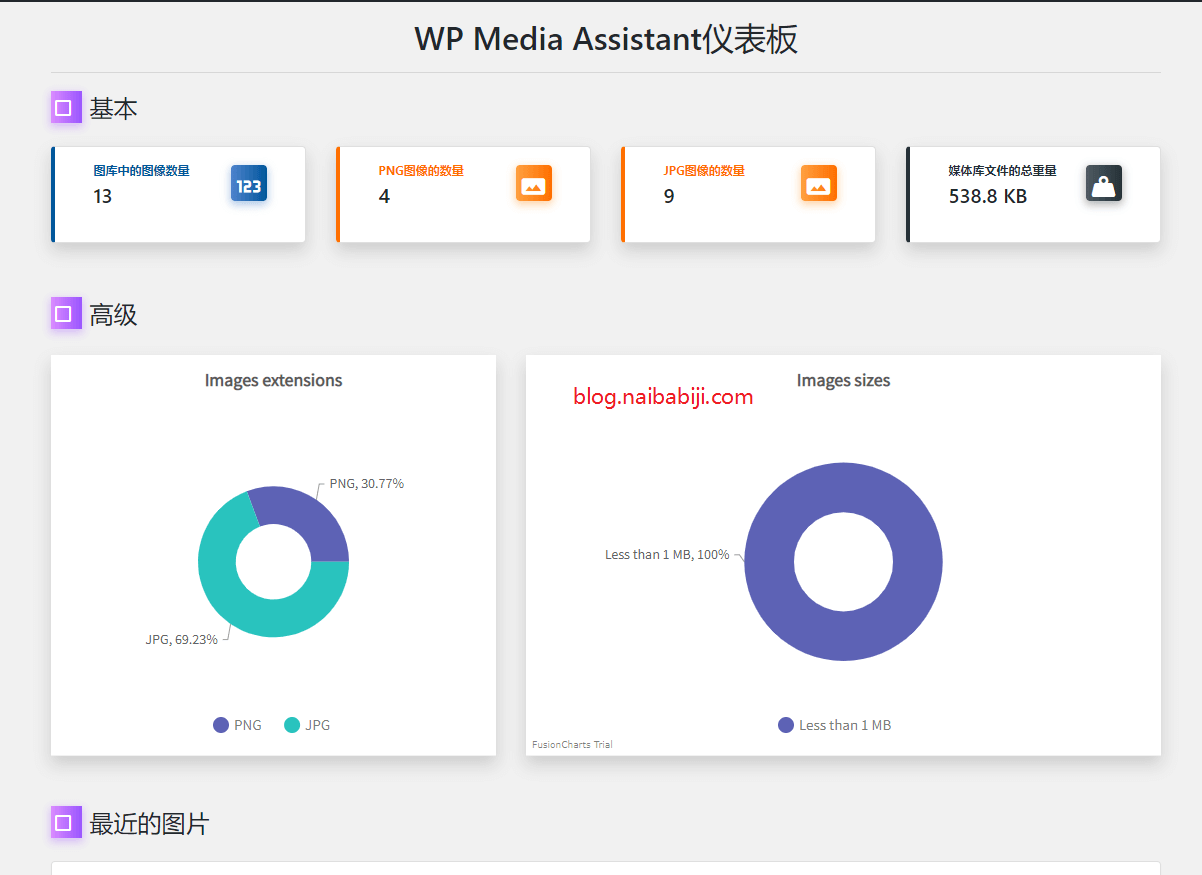
This type of plugin is typically for one-time use. Install it when you need to run statistics, and uninstall it when you don't, so there's no need to worry about it occupying system resources.
Plugin Usage Method
Download the plugin from the link at the end of this article, upload it to your website, and activate the plugin.
Then, a WPMA link will appear at the bottom of the left navigation bar. Click to enter and you will see the statistics.
Plugin Download
You can download it from the link below and upload it for use, or you can directly search for the plugin name in the WordPress backend to install and use it.