
If you want to customize the logo and background image of the WordPress login page, you can find many code modification methods online. However, the code method is quite troublesome for novice users, and you have to redo it every time you change the theme. Therefore, here is a very clean WordPress plugin for modifying the WordPress login page logo and background imageWordPress Plugin: Custom WP Admin Login
Plugin Introduction
Custom WP Admin Login is a simple way to change the background of the WordPress admin login. The Custom WP Admin Login plugin allows you to customize your WordPress admin login page. The plugin allows changing the background color, background image, custom logo, and logo title text.
The Custom WP Admin Login plugin supports the following features:
- Add custom logo
- Add custom logo title text
- Select background color
- Add background image
- Backup background style settings
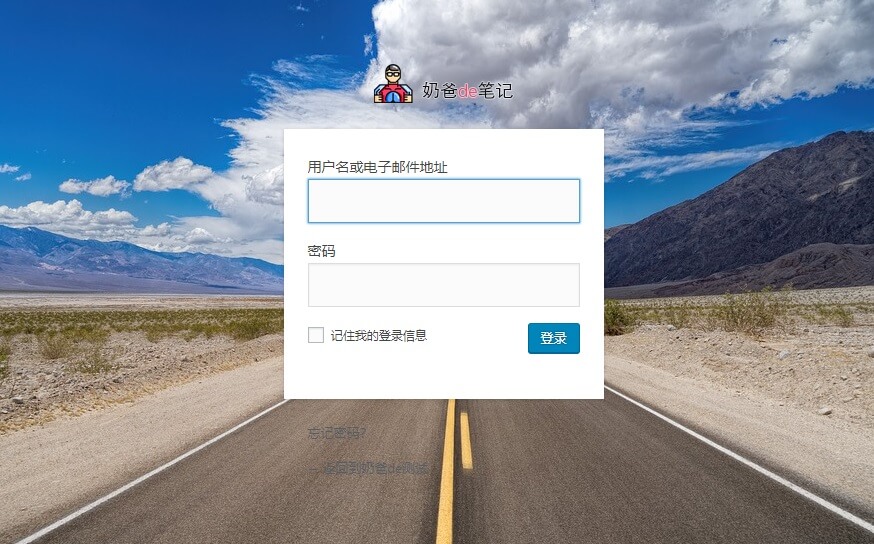
Plugin Usage and Download
1. Download the plugin and upload it for installation, or search for Custom WP Admin Login in the backend and install it.
2. Activate the plugin.
3. In the plugin settings, upload the logo and background image and save.
4. Preview the effect on the frontend.
Extension Download Address:
A More Direct Method
Of course, if you think it's a waste of resources to install a separate plugin just to modify a logo image URL, you can also directly replace the image.
Just replace the two files in your website directory with the ones you want. However, note that you need to replace them again after a WP version update.
wp-admin/images/w-logo-blue.png

wp-admin/images/wordpress-logo.svg?ver=20131107
If you want a permanent solution and don't want to use a plugin, then you can only modify it with code.
The code is as follows:
/images/custom-logo.pngis the location of the logo image you want to replace, under the images folder in your theme directory. Upload it yourself.
add_action('admin_head', 'my_custom_logo');
function my_custom_logo() {
   echo '
      <style type="text/css">
         #header-logo { background-image: url('.get_bloginfo('template_directory').'/images/custom-logo.png) !important; }
      </style>
   ';
}