
Users who build websites with WordPressoften encounter a rather awkward problem: after uploading many images to the media library, finding a specific previous image can be very troublesome, unless your image names are meaningful English or pinyin. If you use aplugin that automatically renames imagesor feature, then you cannot search for images.
So Naiba is sharing aWordPress Media Library EnhancementPlugin: Mediamatic
Plugin Introduction
Mediamatic is a plugin that adds folder categorization to the WordPress Media Library, helping you quickly and conveniently manage hundreds or thousands of files and folders within the media library. For example:
- Save all media files in folders and subfolders, including photos, videos, and music. You can also place media in multiple subfolders, such as images used on different pages.
- Blogger: Easily manage your own content with this file manager plugin. Never get confused again – organize photos and content by theme, category, and/or date.
Using Mediamatic to enhance the WordPress Media Library does not change image links, so you can use it with confidence. Free users can create up to 12 folders; upgrading to Pro unlocks unlimited folder categorization.
Plugin features
- Create New Folder
- Create and Organize Subfolders
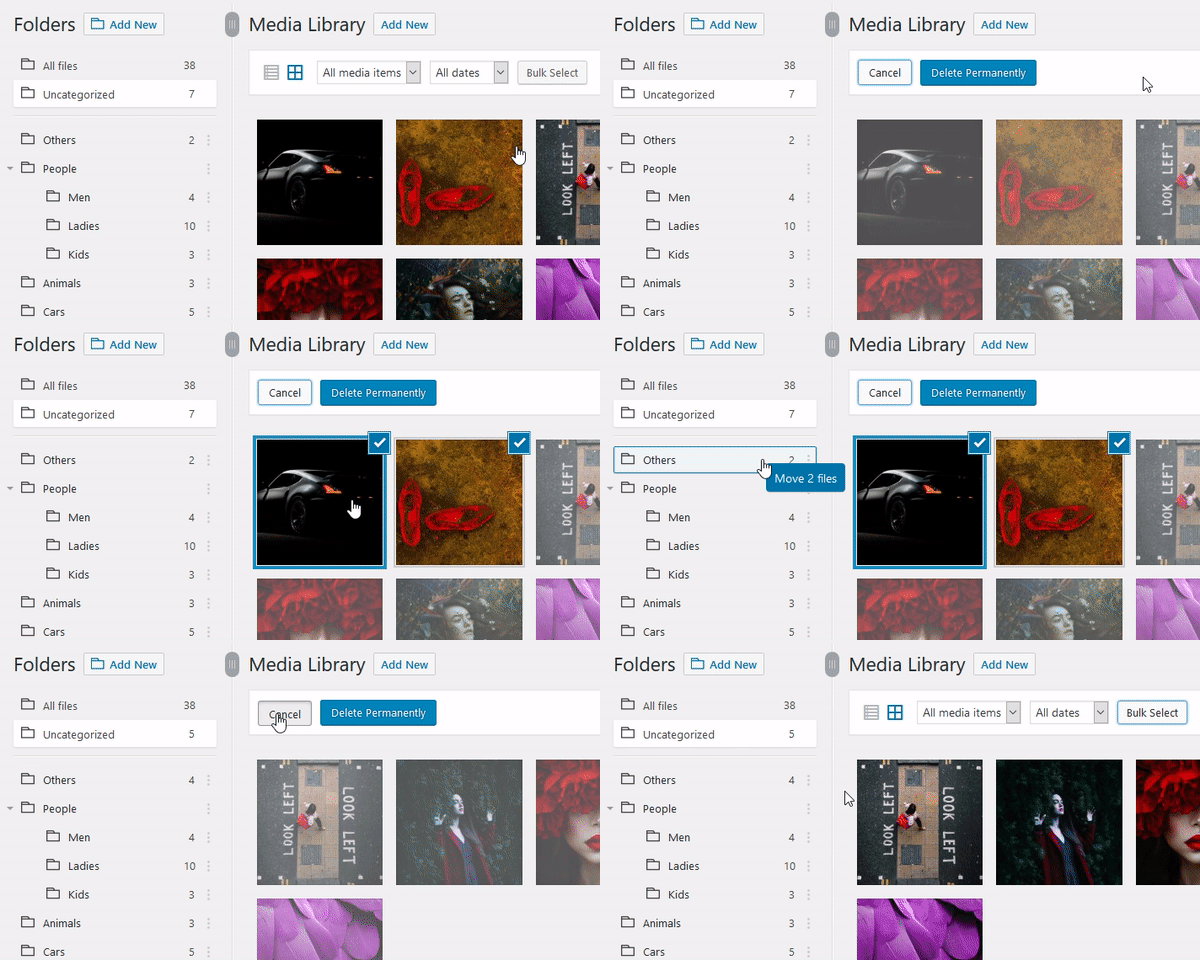
- Drag and Drop Media
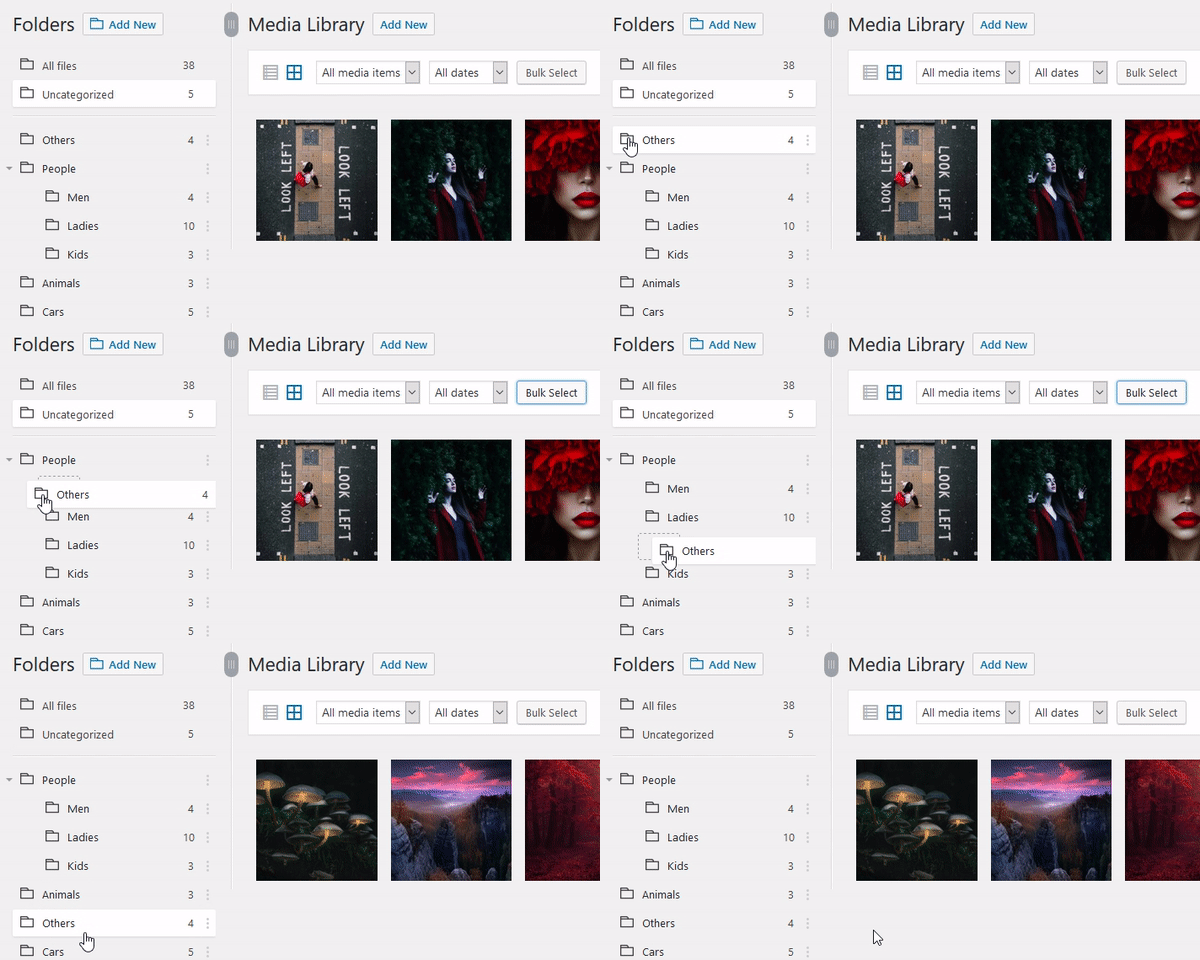
- Drag and Drop Folders, Change Order and Hierarchy
- Batch Select Images and Media Files and Drag Them to Any Folder
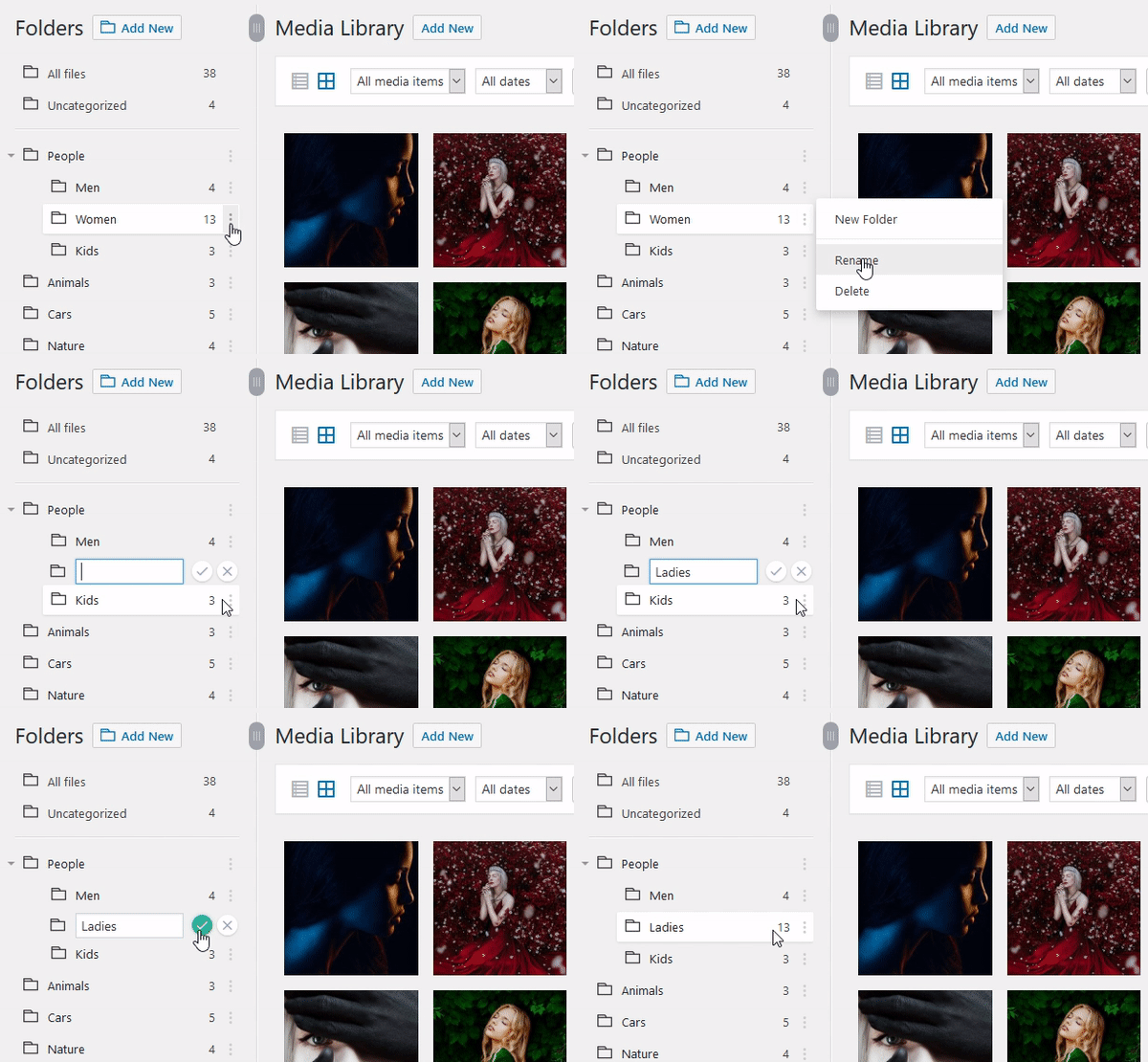
- Rename Folder
- Easily View Subfolders Within Each File
- Resize Folder Menu
How to Use
1. Download the plugin via the download link in this article and upload and install it.
2. Activate the plugin.
3. Go to the WordPress media library interface, where category folder options appear. Create new folders yourself.
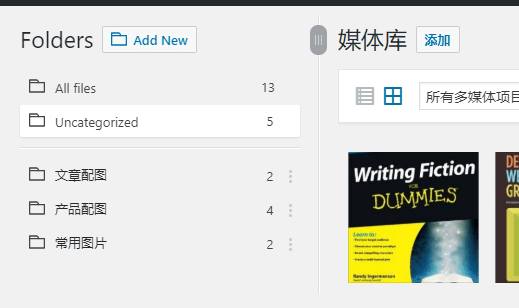
4. Simply drag and drop the images that need to be categorized into the corresponding folder to complete categorization.
5. When inserting media while writing a post, you can filter media by folder.
 Animated Demo
WordPress Media Library Enhancement PluginMediamatic GIF demo. The image is large, please be patient.
Plugin Download
You can download it via the link below and upload it to your server for use, or you can directly search for the plugin name in the backend. However, new plugins may not rank well, so you might search for a long time.
So, after seeing this plugin, does it solve the problem of disorganized image management on your website? Go ahead and install one, then organize your images properly.
Other WordPress Media Library Enhancement Plugins
Besides Mediamatic, here are a few other WordPress Media Library enhancement plugins to share with you; you can also give them a try.
①、FileBird – WordPress Media Library Folders
Similar in functionality to Mediamatic, the free version supports 10 folders.
②、WordPress Media Library Folders
The most popular among similar plugins, though Naiba personally feels its features might be too extensive for domestic users.
③、Folders – Organize Media Library Folders, Pages, Posts And Media Categories with Drag & Drop
Similarly functional, the free version supports 10 folders.
④、FileBase – Media Library Folders
Although this one has similar functionality, the free version only supports 5 folders.
Above, including Mediamatic, a total of 5 have been shared.WordPress Media Library Enhancement PluginIf you find one that works well for you, you can choose a reasonably priced option to purchase the Pro version for unlimited folder permissions.
⑤、Paid WP Media Folder(Cracked)
See introduction at:https://blog.naibabiji.com/files/wp-media-folder.html