
Many corporate websites lack dedicated security personnel and have insufficient awareness of website security. What to do if the website is hacked and redirects to other sites? Naiba shares here basic troubleshooting methods after a website is hacked.
Our websites are harassed by malicious crawlers almost every day, but you don't notice because they haven't been hacked. So if your website gets hacked, don't panic, just follow the steps below to troubleshoot and resolve.
Step 1: Request help from the hosting provider
For example, those commonly used by foreign trade professionalsSiteGround, or Bluehost, etc., the plans include security items like malware scanning.
You can directly submit a ticket to ask customer service for help.
If the service you purchased does not include this item, you'll have to troubleshoot yourself.
Step 2: Check Server Files
Log in to the server and check the website directory for unknown files or folders. Usually, files with messy names are very suspicious.
You can also judge by file creation time. If you haven't uploaded files to the server recently, the most recent files are highly suspicious.
The most reliable method is to find an experienced technician to analyze it for you. If you can't find one, you can compare with the default WordPress directory list for a simple judgment (but you may not be able to tell which files are generated by normal plugins).
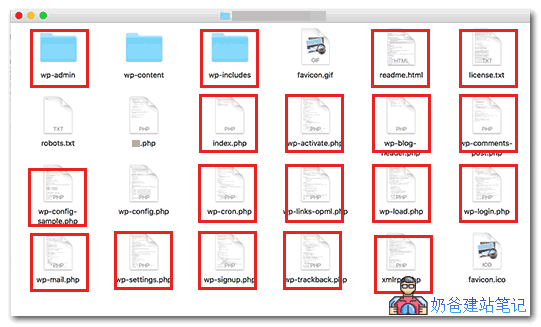
The red boxes in the image above are WordPress core files.
The wp-content folder contains folders uploaded to the website, such as themes and plugins.
wp-config.php is the website configuration file, generated when installing the website.
Step 3: Reinstall WordPress
You can first back up your website, then reinstall WordPress.
Note that when reinstalling, except for uploaded image files, do not re-upload any other files to the server.
Download themes and plugins from the official website and then upload them to avoid unknowingly including malicious code.
Step 4: Install a Security Plugin
At this point, the Trojan files are usually gone, but to prevent malicious code from hiding in your posts, you can install security software to help.
Related articles:
- WordPress Security Plugin Recommendations: Defender Security_Malware Scanning_Firewall
- Protect WordPress Website Security_Wordfence Firewall Professional Edition Download
- 6 Popular WordPress Security Plugins
After completing the above steps, if your website hasn't been hit by a particularly troublesome hacker intrusion, the Trojan files should be cleared.
Next, you need to enhance the server's security features.
For example, set a complex server password, upgrade the server system and components, and update the website version and plugins.
For more about WordPress security, please visitthe corresponding topic。