After building an e-commerce website using WordPress and WooCommerce, the default product detail page will have related products below, and these related products are automatically recommended based on categories. If you want to set which related products to recommend yourself, we have the following two plugins to achieve this.
Plugin One: WPC Custom Related Products for WooCommerce WooCommerce WPC Custom Related Products allows you to select related products for specific products. Plugin features:- Add custom related products.
- Display the selected related products on the product details page instead of showing products from the same category.
This plugin also has a Pro version with the following features:- Main Features of Woo Custom Related Products Pro
- Select custom related products.
- Select related products from specific categories.
- Select related products from specific tags.
- Set the number of related products to display.
Download LinkPlugin Two: Related Products for WooCommerce
WooCommerce Related Products allows you to select related products for specific products. Few of us dare to buy a new product without consulting someone who has used it before or is familiar with it. Recommendations play a significant role in sales. People always tend to buy products that someone strongly recommends. It has been proven that adapting this simple yet effective consumer behavior to online platforms brings huge sales revenue. Adding related products to the product or shopping cart page increases the chance of customers making a purchase. With this plugin, you can
- Disable the default related products section
- Related products you select (currently limited to 3)
Download Link Usage method:The usage methods for both plugins are the same, and the steps are as follows:
- Download and install the plugin, and activate it;
- Go to edit the product details page;
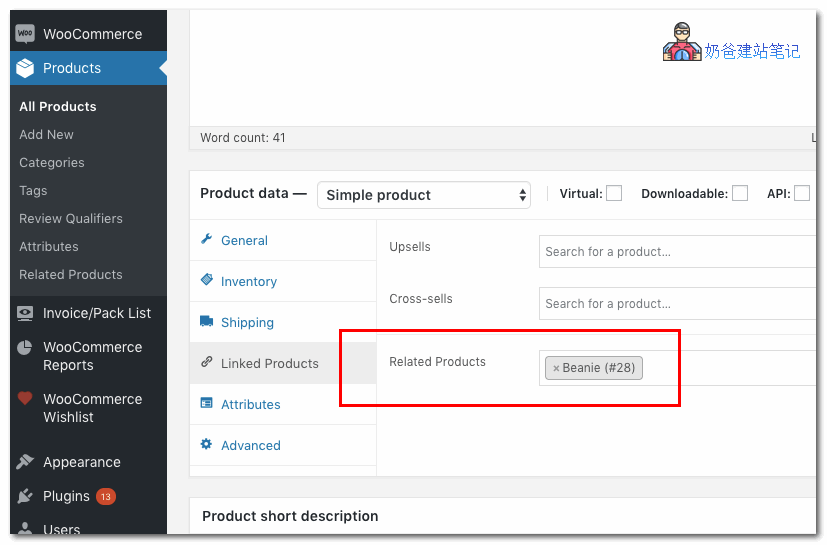
- Fill in the custom products in the Related Products interface under Linked Products.


Comments are closed
The comment function for this article is closed. If you have any questions, please feel free to contact us through other channels.