Hostinger was founded in 2004. Naiba first came into contact with their services in 2015 (by getting a free xyz domain). New and old internet users may not be very familiar with Hostinger, but many old netizens should know about their free hosting service 000webhost (which ceased service on October 14, 2024). Hostinger focuses on affordable Shared Hosting and VPS (to put it bluntly, it's cheap). Since SiteGround raised its prices, many users building Foreign Trade Independent Websites have started looking for cheaper Shared Hosting.Hostinger is the service provider you need. Although it's cheap, it's completely sufficient for building a simple corporate website.
Hostinger Tutorials
Step-by-step guide on how to build a WordPress website using Hostinger.
Naiba has been familiar with this service provider since 2015. It offers Shared Hosting with better cost-performance than SiteGround. Fast, secure, guaranteed 99.99% uptime, a powerful and feature-rich WordPress hosting solution.
Use the promo code BLACKFRIDAY from October 20th to November 10th to get a 10% discount.

📚 Tutorial Index
🚀 Introduction to Hostinger
💡 How is Hostinger?
Speaking solely from Naiba getting a free domain on their website in 2015 to now, it's been 10 years. It can be seen that Hostinger's services have grown larger and larger, without going bankrupt or disappearing, proving the company has strength. Moreover, the cheapest pricing for their Shared Hosting is 4.75 yuan/month (the price for buying 4 years at once). With a large user base, this price doesn't mean they are losing money, so there's no need to worry about buying a product today and not being able to find them tomorrow.
However, it must be said that for things like servers, prices are relatively transparent.You get what you pay for, the price is cheap, and some aspects are definitely not as good as more expensive options. For example, SiteGround is best known for their service, while Hostinger is best known for its cheap price.
⚖️ Which is better, Hostinger or SiteGround?
Let's compare the intermediate WordPress hosting plans from both companies:
| Purchase Term | Hostinger (Business Plan) | SiteGround (GrowBig Plan) |
|---|---|---|
| One Year | ¥36.99/month | $4.99/mo |
| Two Years | ¥32.99/month | $12.49/mo |
| Long-term Purchase | Approx. ¥30/month (4 years) | $12.49/mo (2 years) |
| Purchase Link | Click to Purchase | Click to Purchase |
From the price comparison, we can see that for the intermediate plan, SiteGround offers better value for a one-year purchase, while Hostinger is more cost-effective for purchases of two years or more.It's important to note that the renewal price for both companies is the original price upon expiration(you can try to negotiate with customer service for a discount; how much you can get depends on your skill).
Typically, many people consideringbuild my own websiteFor foreign trade friends, you only need to build one website, so we can opt for an entry-level WordPress hosting plan. Let's compare the prices.
🎯 Entry-Level Plan Comparison
| Purchase Term | Hostinger (Premium Plan) | SiteGround (StartUp Plan) |
|---|---|---|
| One Year | ¥29.99/month | $2.99/mo |
| Two Years | ¥25.99/month | $7.49/mo |
| Long-term Purchase | ¥21.99/month (4 years) | $7.49/mo (2 years) |
| Purchase Link | Click to Purchase | Click to Purchase |
Doesn't Hostinger's price seem much more attractive? The key point is that Hostinger's Premium plan also allows you to build multiple websites (limited to 25). Doesn't that feel like better value for money?
So, if you wantNaiba to seriously discuss which is better between Hostinger and SiteGround, I can only summarize it like this:
ThroughNaibabijithis website, Naiba has interacted with many people in foreign trade, whether SOHO or from foreign trade companies. Regarding foreign trade websites, 99% of people don't need to worry about which specific server to use because if you're learning website building on your own, the road ahead is still long. The server is just a foundation. Hostinger, SiteGround, or any other server on the market can meet your needs. Once you're familiar with foreign trade website building, you can change servers anytime if you're unsatisfied later; these are not issues.
If you must choose,:considering price, choose Hostinger's 4-year plan, it's cheap.Considering service, SiteGround, SiteGround has online live chat support, while Hostinger currently only uses tickets and email for after-sales service.Considering Chinese support, choose Hostinger, Hostinger has Chinese customer service and an official Chinese website, which is more advantageous for many novice users.
🛒 Hostinger Purchase Tutorial
First, click the button below to enter Hostinger's official website. (Special note: Accessing the Hostinger official website from within China may be slow; it is recommended to use a proxy accelerator.)
If the purchase page differs from this tutorial, pleasecontact Naibato update the tutorial.
Hostinger Official WebsiteSmall Advertisement: If you don't know how to purchase a server, domain, and install a website, Naiba offers paid setup services (Contact Me).
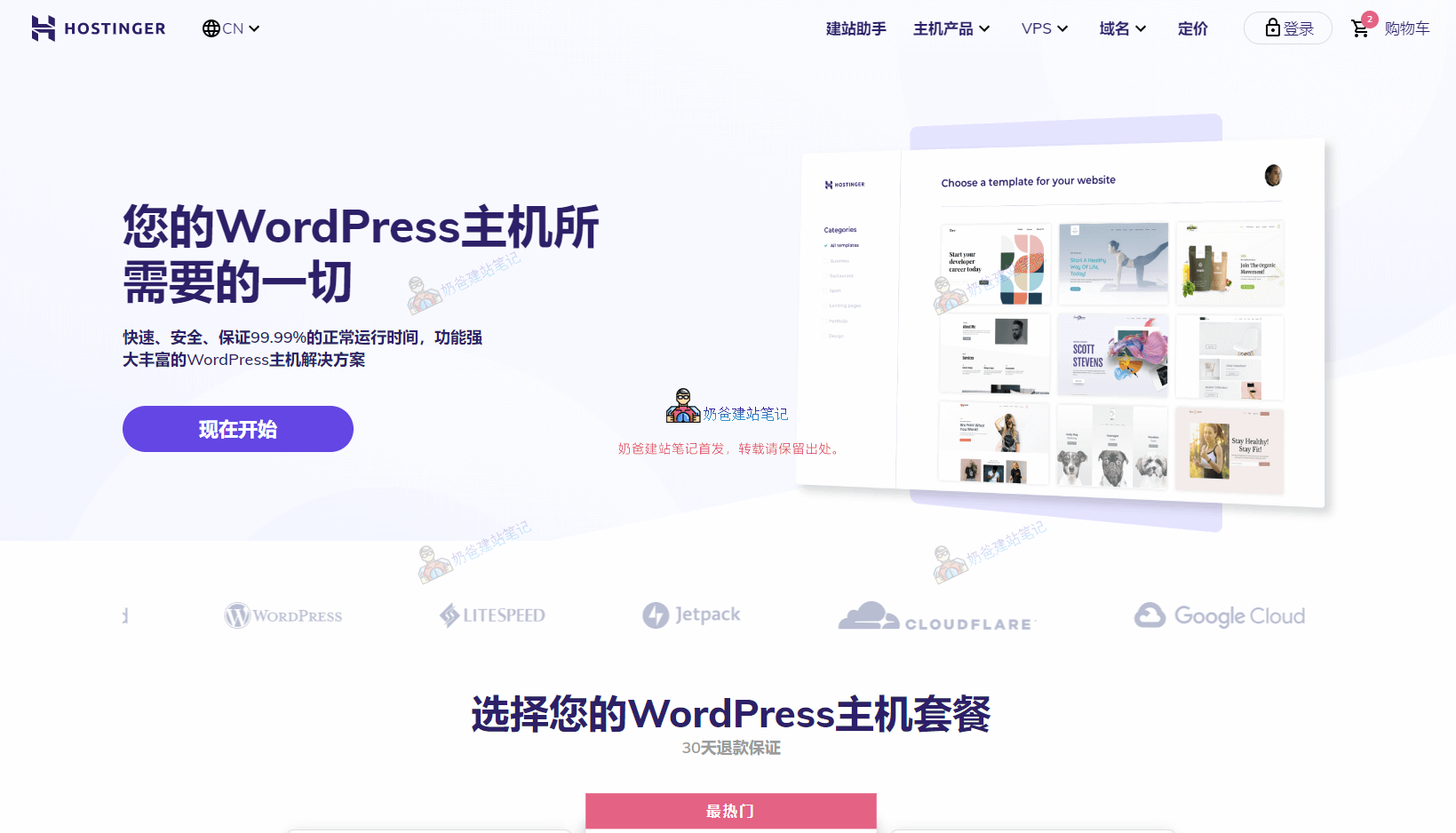
After clicking the button above to enter the Hostinger official website, you will see the plan selection interface, as shown in the figure below:

If your budget is not tight, it is recommended to purchase the most popular middle Business plan, which offers the best value for money. You can view the specific feature comparisons on the official website.

After adding to the cart, select the purchase duration. It must be said that Hostinger's pricing is quite tricky; buying for 4 years works out to be the cheapest, but paying upfront for that long might be a lot. So, consider whether to purchase for 1 year, 2 years, or 4 years. The likelihood of the service provider shutting down is relatively small; your only concern should be whether your website can last for 4 years.

After selecting the purchase duration, click the Continue button. You will see an account registration or login interface.

After creating your account, you will receive a verification link in your email; remember to verify your email address.

Hostinger supports Alipay payment, so it is very convenient for domestic users in China to purchase. Please note: after payment, wait for the webpage to automatically redirect; if the network speed is slow, wait a bit longer.

After payment is complete, remember to save the website URL for easy login next time.

⚙️ Installing a WordPress Foreign Trade Independent Website on Hostinger
After your payment is successful, the system will activate your service. Log in to the Hostinger Admin Dashboard, and you will see an interface like the one below (since Hostinger periodically updates its website interface, what you see may differ from this tutorial; please adapt accordingly.)

Click Setup to proceed with the configuration.

The guide interface asks 'Who is this website for?' Simply click to skip.

It asks if you are building a new website or migrating an existing one. We choose to create a new website. (If you are moving a website from another server, you can select 'migrate a website' below, but automatic migration often fails. For safety, it's also recommended to create a new website first and then migrate manually.)

For the website platform, select WordPress.

Fill in the email and password you want to use for the website administrator.

Do not choose to use AI website building; AI is not yet that versatile. Choose 'website and themes' instead.

Select 'use a theme instead' in the bottom right corner.

Just choose the default first Theme. After installing WordPress, you can switch Themes at any time, so there's no need to worry about which Theme to use here.

Do not select any of the recommended Plugins.。

Enter the domain name you have already registered in advance. If not registered, consider registering it first (Domain Registration Tutorial), or register directly with Hostinger (your purchased plan may also include one year free).

Since we have already registered this domain name in advance, there will be a prompt; simply click the Confirm button.

Next, you will be prompted to select the server location; generally, choose a location closer to your customers.

🌐 Hostinger DNS Configuration Tutorial
In the previous step, we have already installed the WordPress website. Now, we need to configure DNS resolution so that others can access the website we built via the domain name.

At the top of the Hostinger Admin Dashboard, select Websites, then click the Dashboard button next to your website list.

On the Dashboard interface, there is a red notification message at the top. Click 'Check guide' to view DNS resolution help.

This guide instructs you to directly change your domain's DNS to Hostinger's.For beginners, changing DNS servers only needs to be done once; afterwards, Hostinger will handle all resolution for you. It is recommended to make this change.
If you prefer to modify DNS resolution by adding an A record yourself, fill in the A record value with the IP address found after 'website ip address' (you can find this on the product details page; if you cannot find it, contact Naiba for assistance).
Related DNS Configuration Tutorials:GoDaddy DNS Configuration Tutorial、Namesilo DNS Configuration Tutorial、Alibaba Cloud DNS Configuration Tutorial、Tencent Cloud DNS Configuration Tutorial
🔒 Hostinger SSL Certificate Installation Tutorial
Hostinger supports one-click SSL certificate installation, but you must wait for DNS resolution to take effect before installing. If you purchased a paid SSL certificate yourself, you will need to manually upload and install the certificate.

Click Setup, then select 'Activate' in the pop-up interface.

After successfully activating the SSL certificate, return to the WordPress menu below and enable the HTTPS redirect function, as shown in the image below:

After enabling it, reopen your website, and you will see it is accessed via HTTPS. Enter the Admin Dashboard (add /wp-admin to the end of your website URL; for details, refer to theWordPress Login Tutorial), and set the website URL to start with https.

At this point, we have purchased a domain and server on Hostinger and installed a WordPress Foreign Trade Independent Website from scratch. It is recommended that beginner friends go toWordPress Tutorial Websiteto learn the basic operational methods to avoid not knowing how to use WordPress.

Why has the Hostinger Admin Dashboard been stuck loading since yesterday?
You can try accessing it via a proxy; it's likely a network connectivity issue.
Naiba, how is Bluehost?
Based on the experience of clients I've interacted with, it's not that great.
It really isn't that great; I've had a site crash on it.
Does purchasing a hosting plan on the Hostinger store page count as a renewal? If I renew myself, it's over 4200+ for 48 months, but buying the same Shared Hosting for 48 months on the Hostinger store page is 1200+, with the same discount as the initial sign-up. However, after purchase, does it equal a renewal?
A new purchase is definitely not a renewal. If renewal is expensive, you can buy a new one and then migrate your website over.
How can I contact you? I'd like to inquire about paid website building.
There is a WeChat icon in the bottom right corner of the website, or an About page in the top right corner.
Is the Starter plan now 51.35 yuan per month? Or is that the price for a 4-year purchase?
Black Friday just ended, so prices have certainly gone back up.
After the website is built, can the [Hostinger] plugin in the backend plugins be deleted? Will deleting it have any impact on the website or the products purchased on Hostinger? Thank you.
It can be deleted; it won't have any impact.
SiteGround pricing has been updated, your information is outdated!
Thanks for the reminder
I'm just starting an independent website and don't know if I'll sell a lot later. Is it okay to just use the starter server?
For e-commerce, don't buy a server that's too cheap.
If I initially bought Hostinger for 4 years and want to upgrade my plan midway, how is it calculated?
Contact customer service to pay the price difference.
Naiba, I'm preparing to do cross-border e-commerce. Besides the WordPress plan, Hostinger also has a WooCommerce plan. Is it worth buying? Or should I install WordPress first and then find and install WooCommerce myself?
It's just the difference of a plugin.
In the text above, is Hostinger (Business plan) a shared WordPress hosting or a WordPress VPS hosting? Do I need to configure Baota Panel myself?
Shared hosting, no need to install Baota.