If you are new to WordPress or other website platforms, you may encounter some website issues. For example,503 Service Unavailable。Website 503 error. Here, Naiba shares the causes and troubleshooting methods for 503 errors on WordPress websites for beginners.
What is a 503 Error?
503 Service Unavailable literally means the service is unavailable. It is just an HTTP status code indicating that the server is temporarily unable to handle your request.
This may be due to server overload or downtime for maintenance. This error is not specific to WordPress sites; it can occur on any website running on any browser or operating system.
There are many issues that can cause a „503 Service Unavailable“ error. They can be related to the server or the content management system (e.g., WordPress). So before discussing how to fix or avoid this error, let„s look at the causes on WordPress sites:
Common Scenarios for WordPress Showing 503 Error
There are various reasons for the 503 Service Unavailable error in WordPress. Typically, the most common situations are the following:
1. Insufficient server performance or shutdown
If you are using shared hosting, a 503 error may occur when your website has high traffic or high server resource usage. If the server is under maintenance, a 503 error may also appear.
2. Incorrect PHP script
This situation usually occurs when you modifyWordPress ThemesorWordPress Plugin. Incorrect code format may cause a website 503 error.
3. Custom script
If you have recently added custom scripts to your WordPress website, this could also be the reason for returning a 503 error.
4. Website under DDoS attack
If your website becomes a victim of a DDoS attack and is flooded with traffic, it will make your website inaccessible for a period of time.
How to fix WordPress website 503 error
Now that we have analyzed the possible causes of the 503 error, we just need to apply the right solution to fix the problem.
Before performing the following operations, remember to back up your website data to avoid accidental data loss.
1. Deactivate plugin
If you just installed a plugin and suddenly got a 503 error, it is very likely caused by the newly installed plugin. You just need to deactivate the plugin.
You may wonder, since you can't access the website backend due to the 503 error, how can you deactivate the plugin?
Don't worry. In this case, you can use FTP software like FileZilla to delete or rename the plugin folder you just uploaded, thus deactivating the plugin.
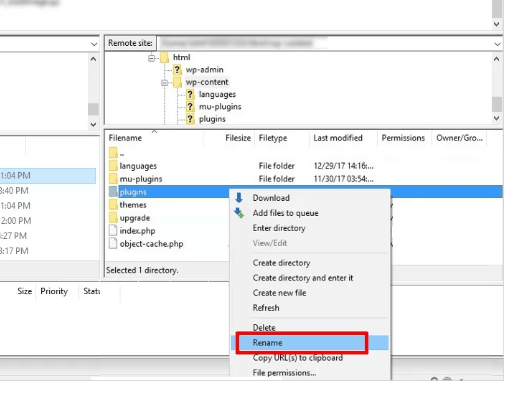
Simply rename the plugins folder under the wp-content folder in your website root directory.
If you know the name of the plugin you just uploaded, go into the plugins folder, find the plugin folder, and delete or rename it.
2. Disable current WordPress theme
If the 503 error is caused by changing the theme, then just like disabling the plugin, directly disable the current theme.
Again, use FTP software to log in to the website folder and findwp-content/themesfolder, then delete or rename the theme folder you just uploaded.
Then WordPress will use a default theme. If you don't have a default theme installed, manually upload one.
3. Debug WordPress custom code
If the 503 error is caused by adding custom code, either delete the added code via FTP software or add debug information to the website configuration file to see where the problem lies.
To add debug information in WordPress, open the wp-config.php file in the website root directory and add the following code above the line „That“s all, stop editing! Happy blogging near the end of the file.„
@ini_set( ‘display_errors’, 1);
Save the file and upload it to the server to replace the original file.
Then refresh the webpage. The frontend of the website will display a specific error report. You just need to fix the error based on the error message.
After fixing, remember to delete the code added in wp-config.php.
4. Contact server provider
If the 503 error is caused by an attack on your website, you just need to contact your service provider to upgrade the configuration or protection to solve the problem.
Of course, you can also do nothing and wait for the attack to end; it will naturally recover.
The above are some common troubleshooting ideas for 503 errors encountered by Naiba when using WordPress. If your website still shows 503, feel free to contact Naiba to discuss and find the root cause.
If you are also interested inHow to Build a Website, click here to viewWebsite Building Tutorial from Scratch