
WordPress is a powerful website building system. Naibabiji has writtena detailed WordPress website installation tutorialMany people now use WordPress to build resource sites or membership sites.
Naiba previously introducedplugins for requiring login to view content和A plugin that displays or hides content based on specific conditionsToday, I will share two more plugins that display or hide menus based on conditionsWordPress Plugin: If Menu and Nav Menu Roles.
Introduction to If Menu
If Menu is a WordPress plugin, so you need a website built with WordPress to use it. If you haven't set up a website yet, please refer toNaibabijithe relevant tutorials to build one.
The main function of If Menu is to display or hide menu content based on different conditions. For example, you can refer to the following plugin screenshot:
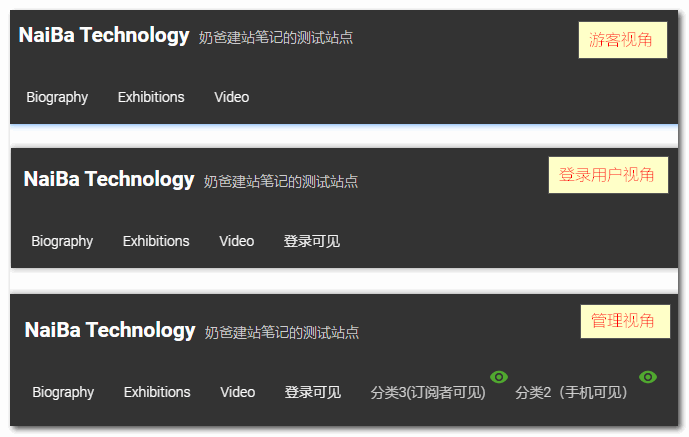
In the menu shown in the screenshot above, the 'Login Required' menu is only visible after logging in.
Category 3 is only visible to subscribers (a default user group in WordPress), while Category 2 is only visible via mobile access (visible to administrators in debug mode).
Features Supported by If Menu
If Menu uses if conditions to display or hide menu items. You can set multiple conditions at once and use „AND“ or „OR“ to evaluate them.
Supported conditions include:
- Based on user group
- Based on page type
- Based on user status
- Based on visitor device
- Based on visitor location (country/region)
- Based on browser language
- Supports WooCommerce plugin conditions
How to Use If Menu
The usage of If Menu is very simple. After installation and activation, go to WordPress Appearance Settings > Menus, find the menu item you need to set, check „Enable Menu Filtering“, and then options to add conditional rules will appear as shown in the image below. Add them according to your actual needs.
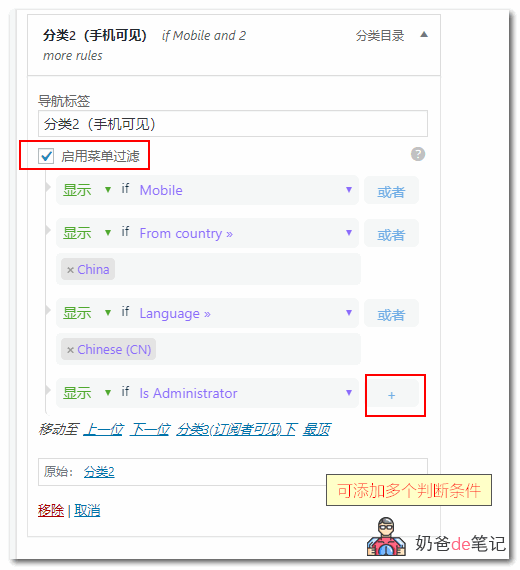
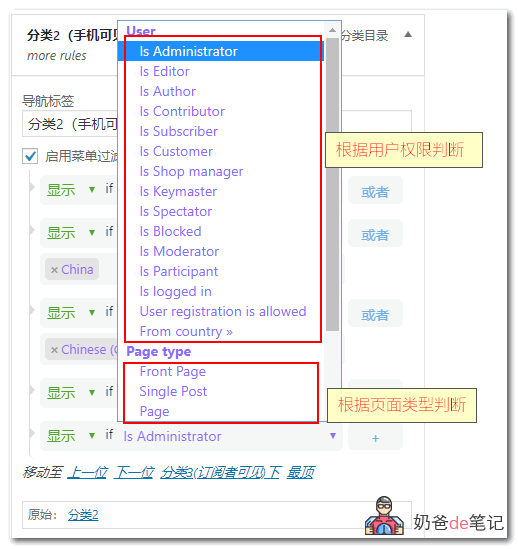
When adding, you can add based on user permissions or page type.
If you don't understand English, you can translate it yourself.
If Menu Download Link
You can directly search for If Menu in the WordPress Admin Dashboard to install it, or download it via the link below and install it manually. If you don't know how to install a plugin, please refer to:WordPress Plugin Installation Tutorial
If Menu is in English by default, and language/region-based filtering is a premium feature. Naiba has localized and specially processed it. If needed, you canFollow Naiba„s WeChat Official Account and reply with “If Menu" to get it.。

Nav Menu Roles Introduction
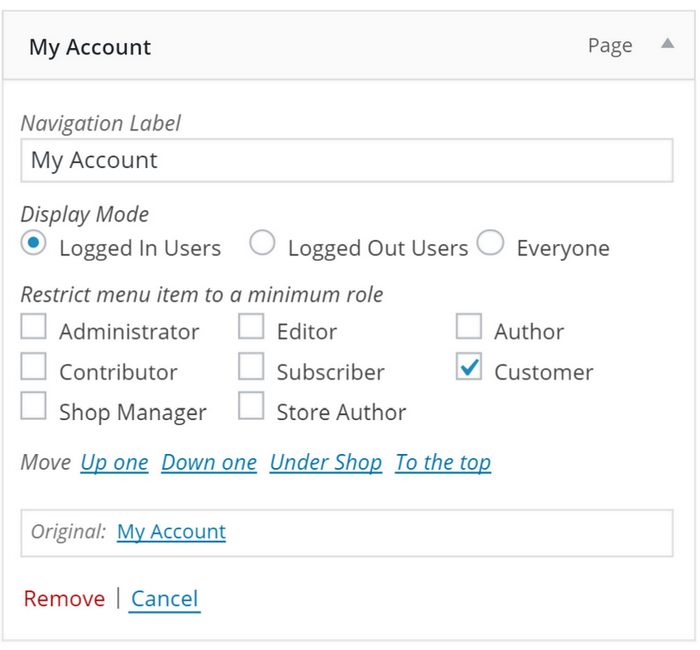
Nav Menu Roles can also achieve different menu content displayed based on user identity. For example, certain menus are only shown to logged-in users, while others are only shown to logged-out users.
Nav Menu Roles role control is very flexible. In addition to standard user roles, you can use the nav_menu_roles filter to add checkboxes with custom labels, and then use the nav_menu_roles_item_visibility filter to check required conditions, thereby customizing functionality. You can check any user meta value (such as capabilities) and any custom attributes added by other plugins.
Important Note
In WordPress menus, items and pages are completely separate entities. Nav Menu Roles does not restrict access to content. Nav Menu Roles is仅used to show/hidenavigation menuitems. If you wish to restrict content, you also need to use a membership plugin.
Nav Menu Roles Usage
- Go to Appearance > Menus.
- Set the „Display Mode“ to „Logged-in Users“, „Logged-out Users“, or „Everyone“. The default is „Everyone“.
- If you want to customize by role, set the „Display Mode“ to „Logged-in Users“, then under „Restrict menu item to minimum role“, check the box next to the desired role.Remember, roles are not exclusive to that role only, but apply to everyone with that role's capabilities.For example: An item set to „Subscriber“ will be visible to Subscribers和and Administrators. Think of this more as the minimum role required to view the item.
Nav Menu Roles Download Link
Nav Menu Roles is a free plugin. You can install it directly by searching in the WordPress Admin Dashboard's plugin section, or manually download the installation package and upload it for installation.