
Naibabiji Last TimeReplace WP Super Cache Plugin with WP RocketAfterwards, the results have been quite satisfactory, with webpage loading speeds basically within 2 seconds.Build a WebsiteAfterwards, website speed is also a very important part, and using this Hummingbird plugin was discovered while researching Gravatar avatar caching. Hummingbird can not only cache Gravatar avatars but also supports WordPress speed optimization.
Hummingbird Introduction
The Chinese meaning of Hummingbird is '蜂鸟' (hummingbird). Hummingbirds are small in size and can hover in the air by rapidly flapping their wings. This Hummingbird plugin is a WordPress optimization and acceleration plugin that also supports page caching functionality, similar to the familiar WP Super Cache, W3 TOTAL CACHE, etc.WordPress PluginDifferent from them, the main function of Hummingbird is not caching, butWordPress speed optimization。
Hummingbird supports regular file compression, minification, merging, etc. Its special feature is targeted performance optimization for WordPress. Previously shared by Naiba:GTmetrixAfter optimizing WordPress, the test results were B and C. After using Hummingbird for optimization, the test results were both A.
Hummingbird Feature Demo
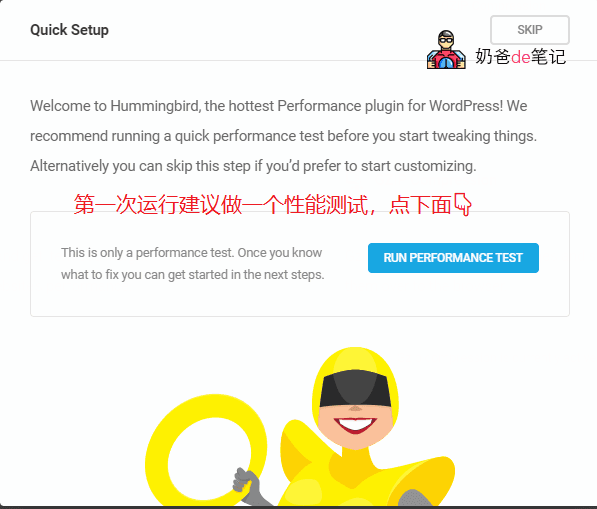
The first time you run Hummingbird after installation, a performance test interface will pop up. You can choose SKIP to skip it, but it is recommended to RUN the test once. Without testing, Hummingbird won't know which areas of your WordPress need optimization.
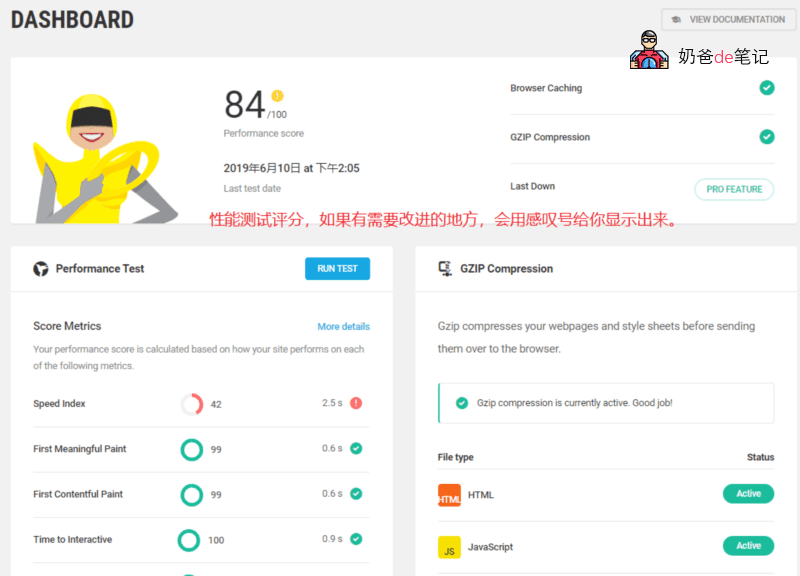
After the performance test is completed, it will list the items that need optimization for you and give a reference score. The content that needs optimization varies for each website, so Naiba won't go into too much detail here.
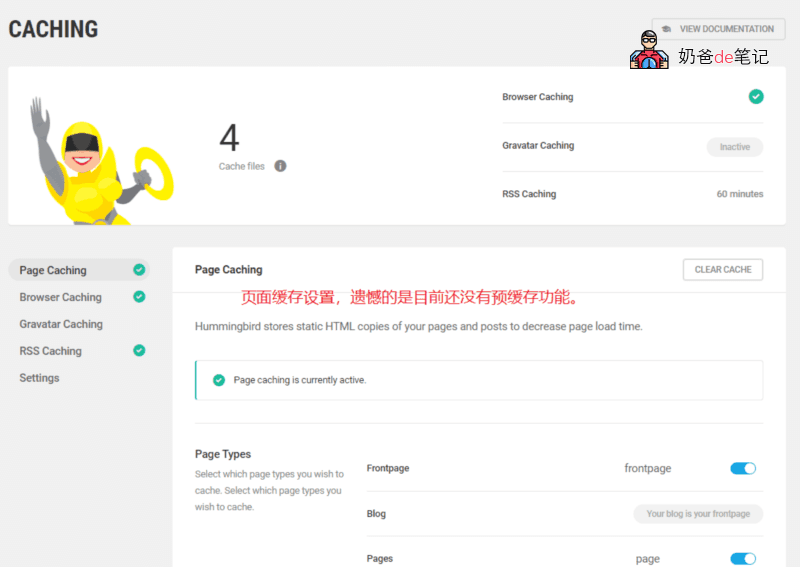
The CACHING interface is divided into Page Caching, Browser Caching, Gravatar Caching, and RSS Caching.
Page Caching caches posts as static HTML to reduce page load time.
Browser Caching sets an expiration time for browser cache of static resources on your site. The recommended time is 8 days. Hummingbird automatically generates a configuration file based on your server's web environment, which you can add to your website configuration.
Gravatar Caching caches Gravatar avatars locally. By default, WordPress calls Gravatar avatars. Although Gravatar is now accessible in China, loading speeds in some regions are still slow. This feature enables local Gravatar avatar caching.
RSS Caching allows you to set an RSS cache time to reduce server resource usage. Not sure if it's the same as previously shared:Delay RSS Updatefeature.
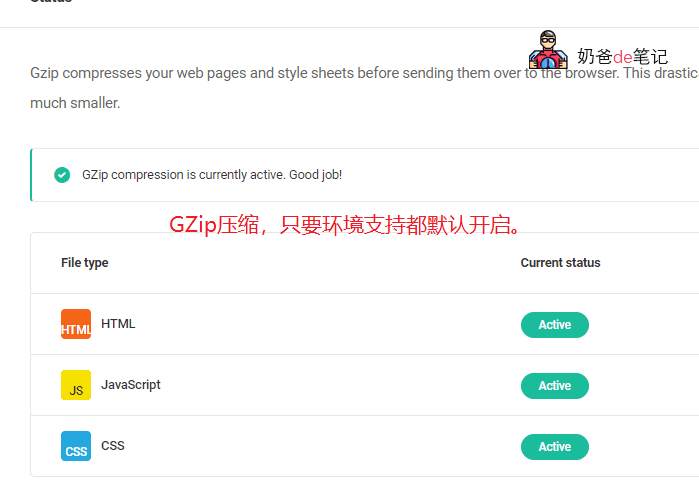
GZIP COMPRESSION enables GZip compression on the server.
GZip compression should be enabled by default on most servers. If not, Hummingbird will provide a web environment configuration file that you can add to your web environment configuration.
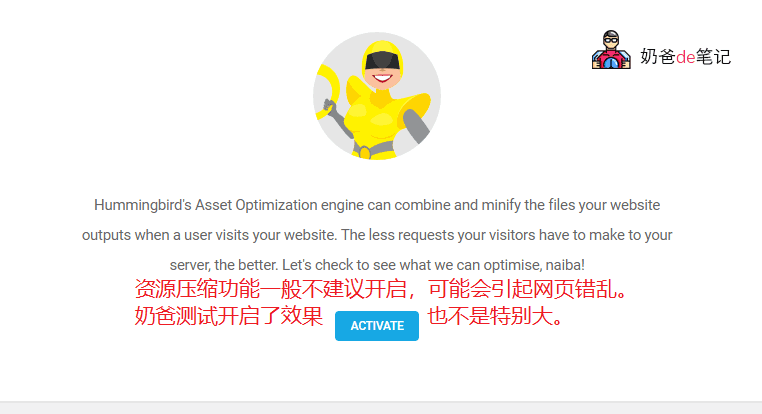
ASSET OPTIMIZATION mainly compresses, merges, defers, or blocks CSS and JS files on your website.
Naiba's test results are average. Hummingbird also indicates that if your server has HTTP/2 enabled, this feature may not necessarily be useful.
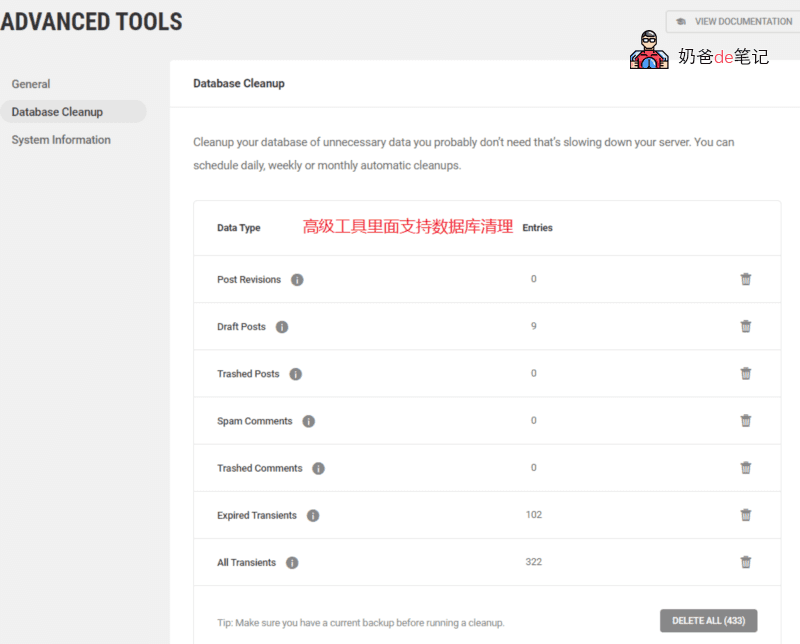
In the advanced tools, you can remove query strings from URLs, disable Emojis, and prefetch DNS requests.
It also supports cleaning up database junk, similar toWP-Optimize. The advanced version also supports scheduled tasks for regular database cleaning.
Hummingbird Download Link
You can directly search for and install the Hummingbird – Speed Up WordPress plugin in the WordPress backend plugins, or install it from the URL below.
https://wordpress.org/plugins/hummingbird-performance/
Hummingbird's Shortcomings
Hummingbird, this WordPress optimization plugin looks promising, but it still has some shortcomings.
Using Hummingbird toOptimize WordPressspeed is completely fine; it is the most intuitive optimization plugin Naiba has encountered so far.
However, if you use Hummingbird as a caching plugin, it is still somewhat weak, mainly reflected in the following points.
Does not support preloading. All pages need to be visited by a user on the frontend once before cached pages are generated.
Does not support updating cache files individually. That's right, when you modify a specific article, you need to clear all caches to update the page cache, which is an unfriendly aspect of Hummingbird.
How to Modify the Configuration File Provided by Hummingbird
The optimization configurations provided by Hummingbird are for IIS, Apache, and Nginx. Modifying these configurations requires server management permissions. If you are using shared hosting, you may not be able to make changes.
If you have server control permissions, simply add the configuration information provided by the plugin to your corresponding web environment configuration file, then restart the process.
If you want to have a server with your own control permissions, refer to:Recommended VPS that is stable and suitable for beginners
How to Enable HTTP 2
When integrating resources, the Hummingbird plugin prompts: „Your server is running the HTTP/2 protocol which automatically optimizes the delivery of your assets for you. You can still combine, and move your files, though this may not always improve performance.“
Translated:
Your server is running the HTTP/2 protocol, which automatically optimizes resource delivery for you. You can still combine and move files, but this may not always improve performance.
So if you are also using HTTP/2.0, you can ignore this resource optimization interface.
The prerequisite for enabling HTTP 2.0 is that your website has SSL access enabled.
If you are usingLNMP-built website environmentIf you are using the LNMP environment, when you enable SSL, HTTP/2.0 will be automatically enabled. If not using LNMP, modify the nginx configuration file, change spdy in the HTTPS configuration to http2, and restart nginx.
Apache and IIS have not been used, so please search on Baidu.