1. What is CyberPanel? Is it suitable for domestic webmasters?
CyberPanelis a free, open-source server management panel based on OpenLiteSpeed, designed specifically for webmasters pursuing website performance. Unlike traditional cPanel and Baota Panel, CyberPanel adopts a lightweight architecture and is deeply optimized for WordPress websites.
Naiba used it many years ago, then switched toBaota Panel. Today, I purchased a new VPS and plan to use CyberPanel again to manage websites. I'll take this opportunity to write a CyberPanel usage tutorial and compare it with Baota Panel to help everyone choose the right VPS management panel.
The Relationship Between CyberPanel and OpenLiteSpeed
Before starting the tutorial, it's necessary to introduce OpenLiteSpeed.OpenLiteSpeed is the open-source version of LiteSpeed(Hostingerand some other WordPress hosting providers use LiteSpeed by default), renowned for its exceptional performance and caching mechanisms. CyberPanel is a web management panel developed based on OpenLiteSpeed, allowing webmasters to enjoy the powerful features of OpenLiteSpeed without command-line operations.
Core Highlights
- Completely Free and Open Source: No commercial licensing fees
- Ultra-Lightweight Architecture: Low resource consumption
- Deep WordPress Optimization: Built-in LSCache plugin, no complex configuration required
- One-Click Deployment: Supports quick installation of WordPress, Joomla, and other CMS (requires additional purchase of add-ons)
- Supports multiple users: Can create separate accounts for website users to log into the CyberPanel admin dashboard
Target Audience
✅ Individual Website Owners – Need to build 1-5 websites, cost-effective
✅ Multiple WordPress Site Networks – Manage a large number of WordPress sites, need unified management
✅ Users Pursuing Speed – Website loading speed directly affects SEO and user experience
Not Suitable For
❌ Novice Users – Know nothing about Linux and servers, few Chinese resources, no one to ask for help
❌ Users with Servers in Mainland China– Installation may fail due to network issues, or the admin panel may lag
2. Detailed Steps to Install CyberPanel
Hardware Requirements
Recommended operating systems are Ubuntu 22.04, Ubuntu 20.04, or Ubuntu 18.04.. Naiba tested Ubuntu 24.04 and 20.04, both failed; installation succeeded smoothly on 20.04.
RAM greater than 1GB, storage greater than 10GB.
Installation Script
Use an SSH client to connect to your VPS server, then use the following script command to update the system:
sudo apt update && sudo apt upgrade -yThen copy the following installation script to proceed with installation:
sh <(curl https://cyberpanel.net/install.sh || wget -O - https://cyberpanel.net/install.sh)If you are not logged in as the root account, use the following installation script:
sudo su - -c "sh <(curl https://cyberpanel.net/install.sh || wget -O - https://cyberpanel.net/install.sh)"Installation Process
After entering the installation script, several options will appear; follow the prompts to make selections and complete the installation.
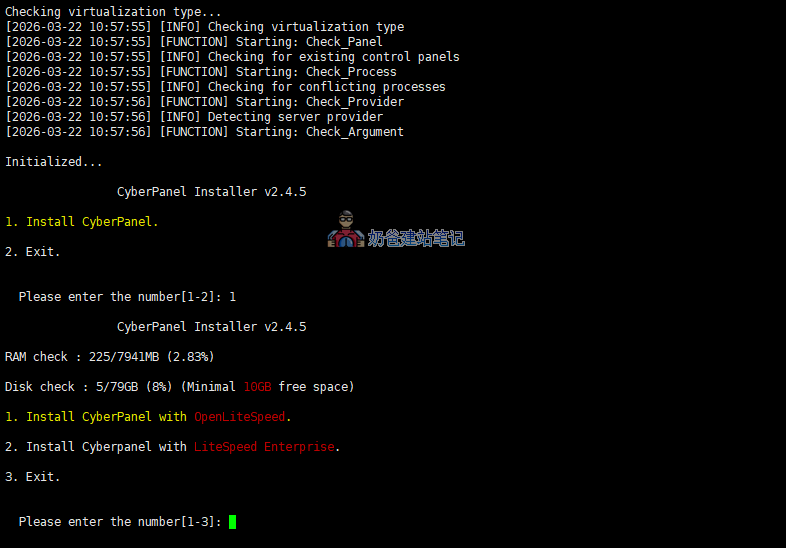
The first option is definitely to install CyberPanel, enter 1 and press Enter.
Next, it will ask which version to install, select CyberPanel with OpenLiteSpeed (1, press Enter)
The LiteSpeed Enterprise version (option 2) requires a paid license to use.
Next, it will ask if you want a full installation of all components or not; it is recommended to enter 'n' here for a partial installation.
You will encounter a sequence of prompts offering various options and add-ons for selection.
– Full Service (default Y):(It is not recommended to install all of them. Enter n, and when prompted for the following three software, enter n each time to skip the installation.)
PowerDNS – an open-source DNS server
Postfix – open-source mail transfer agent
Pure-FTPd – open-source FTP server
We basically have no use for the three software above. DNS resolution is handled by the domain name, so there's no need for server-side resolution; installing a mail system will just land emails in the spam folder, which is pointless; FTP software is somewhat redundant, as you can directly use SFTP or upload via the web interface.
For the following options, follow the prompts and select the default options by pressing Enter all the way, then wait for the installation to complete.
For a detailed step-by-step guide, you can refer to the official help documentation:Installing CyberPanel – Knowledge Base
After the installation is complete, the installation results will be output, including the admin login username and password. Remember to save them locally.
3. CyberPanel Usage Tutorial
Modify Administrator Account Password
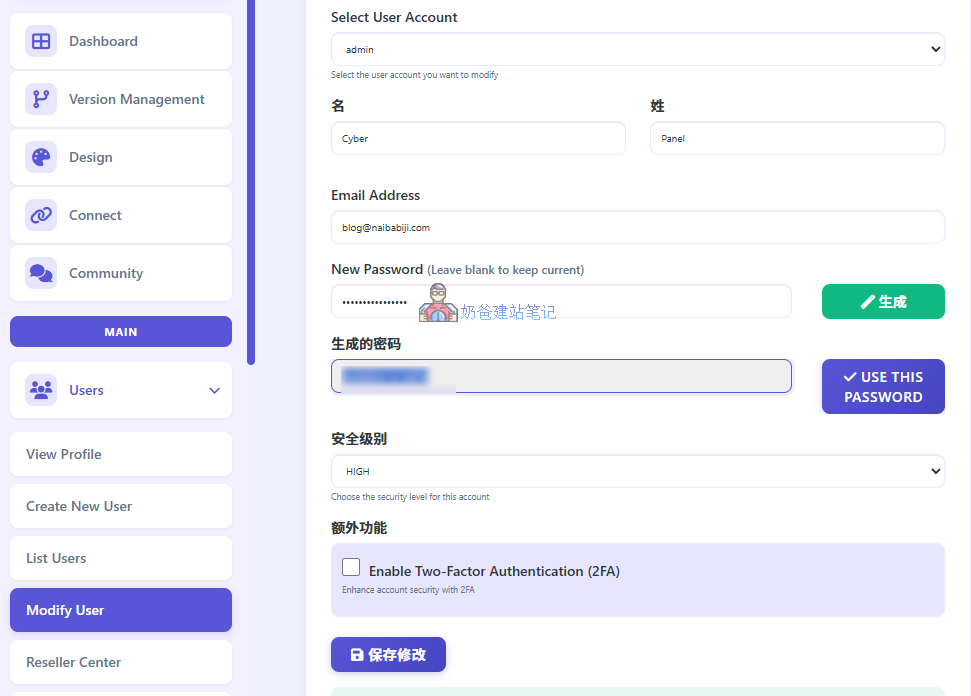
After logging into the admin dashboard using the login information output from the previous installation, go to the Users menu, select Modify User, then choose admin to change the password.
Modify Website Packages
CyberPanel supports multiple users and allows setting different resource limits for each user, so we first need to modify the limits for each Package.
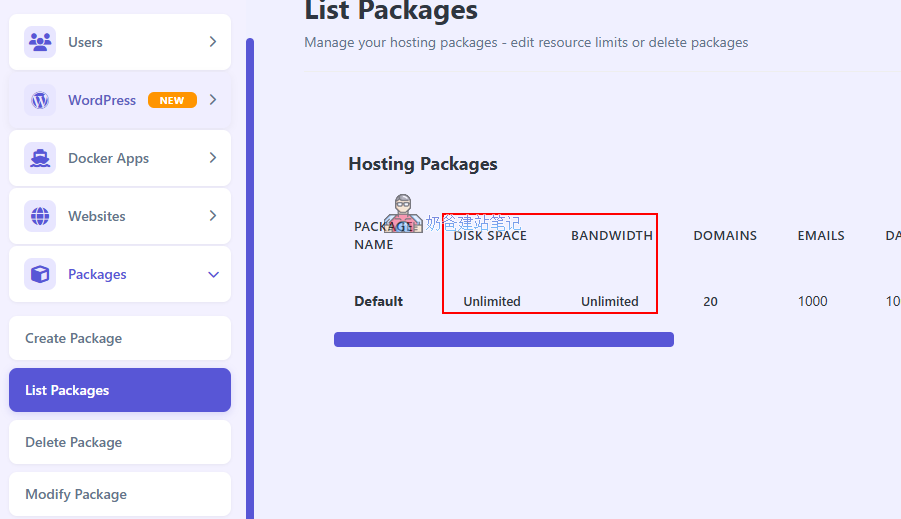
Packages – List Packages– Direct EditDefaultPackage Information
(If you are considering multi-user usage, you can create a new Package.)
Main modificationsDisk Space 和 BandwidthFor both options, set them to 0 to impose no limits on disk space and traffic.
Add Website
In the CyberPanel admin menu, go to Websites – Create Website to create a website.
It is recommended to set up DNS resolution for the domain before creating the website, so that the SSL security certificate can be installed directly during website creation.
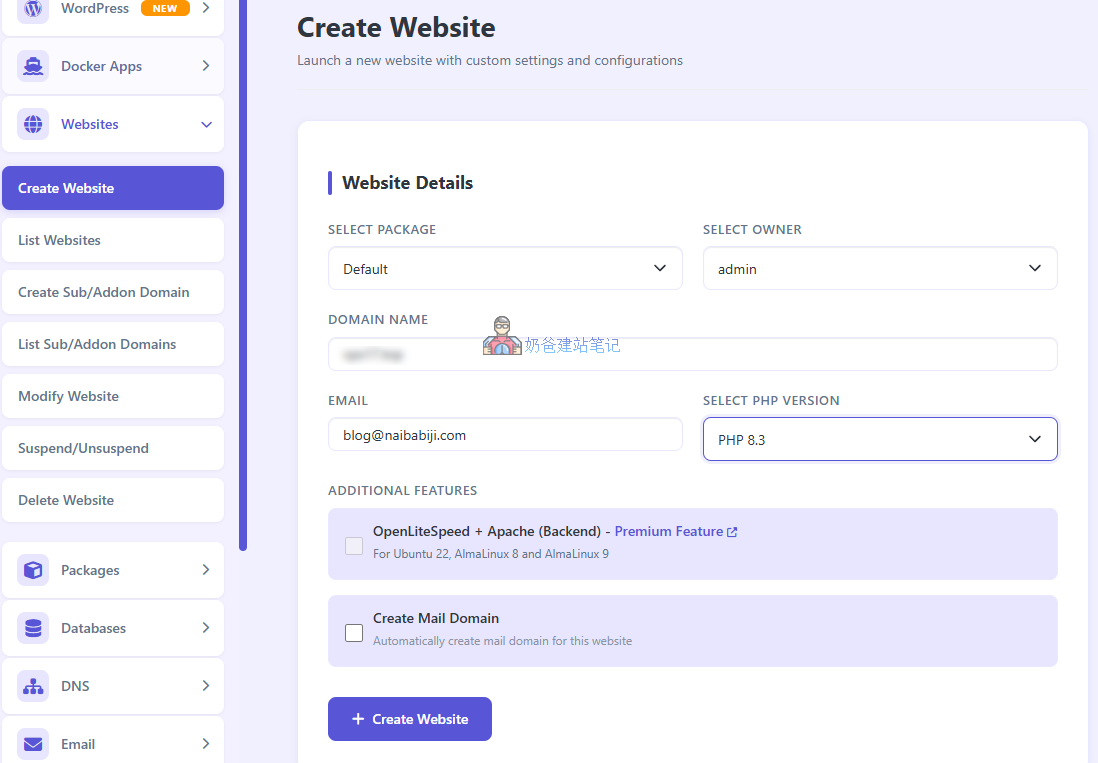
For SELECT PACKAGE, directly choose the Default package we modified above. For SELECT OWNER, choose admin. The PHP version is recommended to be 8.3.
Then click the Create Website button.
Install WordPress
Under the WordPress menu in the CyberPanel admin dashboard, you can deploy WordPress with one click, but this is a paid component, so we choose to install WordPress manually.
1. Under the Websites menu, select List Websites. You can see the website you just added. Select the Filemanager option next to it to enter the file management interface.
2. Double-click to enter the public_html folder, then select Upload in the top-left corner to uploadWordPress Installation Packageup.
3. Select the installation package file, right-click, choose Extract, then click the Extract button again to decompress.
4. Double-click the extracted WordPress folder to enter, then click Select All.
5. Click Move in the top menu, in the pop-up interface under Move To, delete the wordpress from the address, then click the Move button.
6. Return to the CyberPanel admin dashboard, click Create Database under the Databases menu, select the website you just added, and create a database. (Save the database information.)
7. Open your website URL to enter the WordPress installation wizard interface and follow the steps to install. If you have any questions, please refer to theWordPress Installation Tutorial。
WordPress-Compatible Caching Plugin
LSCache is the official WordPress caching plugin provided by LiteSpeed, perfectly compatible with OpenLiteSpeed.
Installation and Configuration:
- Install the LSCache Plugin:
- WordPress admin → Plugins → Search for "Litespeed Cache"
- Install and Activate
- Basic Optimization Settings:
- Go to LSCache Settings → Cache
- Enable "Enable Cache"
- Enable "Enable Login Cookie"
- Set "Cache Public Posts" to "Enable"
- Advanced Optimization (Optional):
- Enable "Cache Mobile" – Independent mobile cache
- Enable "Cache Query Strings" – Cache URLs with parameters
- Enable "Object Cache" – Use Redis object cache
CyberPanel vs Baota Panel: Which is Better to Use?
Many people don't want to use Baota Panel and have been looking for alternatives. Naiba has used CyberPanel intermittently over the years.
In summary:Baota Panel is easier to use.
Comparing CyberPanel and Baota Panel, the advantages are:
- It uses several dozen megabytes less memory than Baota Panel.
- The combination of OpenLiteSpeed + LSCache runs WordPress websites faster than Baota's Nginx/Opcache.
Comparing CyberPanel and Baota Panel, the disadvantages are:
- No Chinese support, including panel language packs and Chinese documentation. There is basically no reliable Chinese content online, so you have to figure things out yourself.
- Some operations are not user-friendly. For example, when adding a website, Baota Panel creates the database simultaneously during manual setup.
- Server management features are not as comprehensive as Baota Panel.
- Not stable enough. Naiba had to change the system several times to successfully install it on officially supported Ubuntu versions.
Summary
If youdo not have strong self-learning abilities, it is not recommended to use CyberPanel.If you encounter an error, you may not find the desired solution when searching, whereas for the domestic Baota Panel, there is a wealth of information available with a simple search.
If you have self-learning abilities and want to experience the charm of OpenLiteSpeed + LSCache caching, you can consider installing CyberPanel to try it out for a while. If it feels okay, then migrate your main website over (mainly regarding operational habits and whether you will encounter bugs. Naiba previously used a machine with CyberPanel for about a year but ultimately did not get used to the foreign operational style; using Baota is more efficient).