Elementor Template Kits are one of the most efficient and professional design solutions for WordPress website building in 2026. Developers create complete website design templates using Elementor and some other plugins, then package them into Template Kits files. Other users can directly import this design set onto their own websites to quickly build their sites.
Compared to other pre-made themes, Elementor Template Kits are more flexible and high-performance. They are not limited by specific themes; as long as a site can be edited with Elementor, they can be used, making it convenient for later website modifications and upgrades.
This article provides a complete tutorial on installing and using Elementor Template Kits on your own website.
Preparation
Before installing Elementor Template Kits, please ensure you have the following:
- A WordPress website that is already installed, refer toWordPress Installation Tutorial;
- The website has SSL security certificate and pseudo-static rules configured;
- If the website already has a design, please back it up first, refer to:WordPress Backup Tutorial;
- Elementor and the Hello Elementor theme are already installed (not mandatory but recommended; they can also be installed during the import process)
Steps to Import Kits
1. Install the Template Kit – Import Plugin
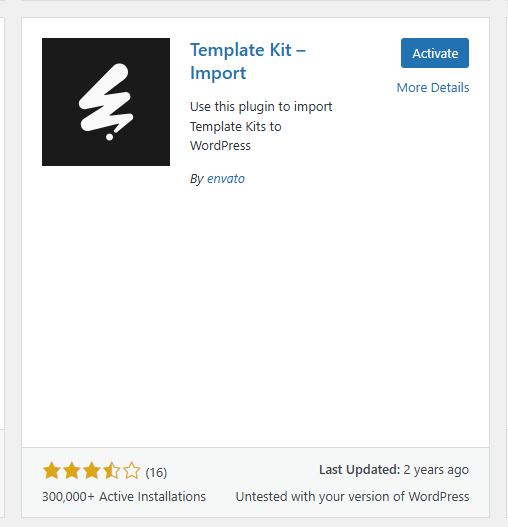
WordPress Admin Dashboard -Plugins – Install Plugin, search for „Template Kit – Import" to install and activate.
2. Upload the Elementor Template Kits compressed file
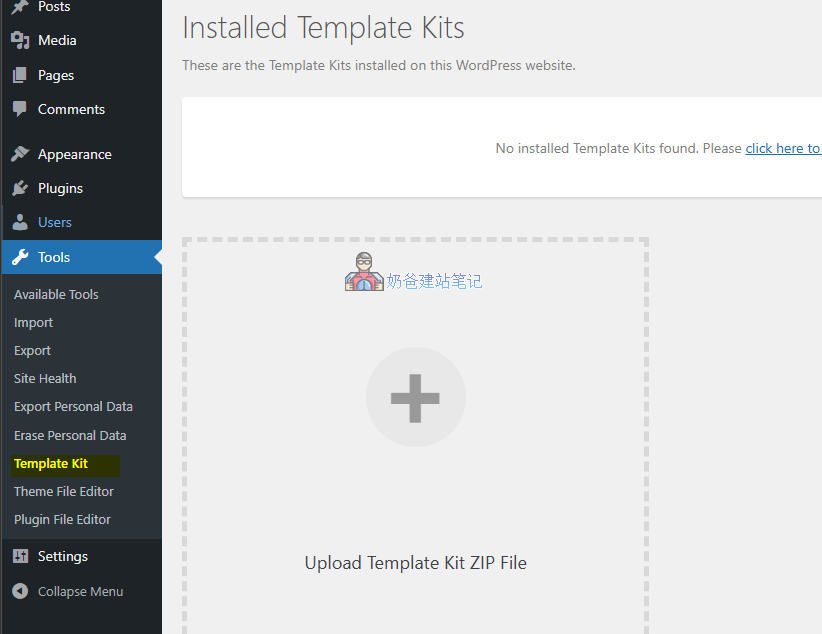
Backend Tools – Template Kit – Import, enter the plugin interface, and upload the Elementor Template Kits zip file you downloaded.
3. Perform necessary plugin installation and setup
After importing the kit package, there is usually a prompt requiring you to complete some necessary conditions. Click „Install Above Selected Requirements" to automatically install and set up.
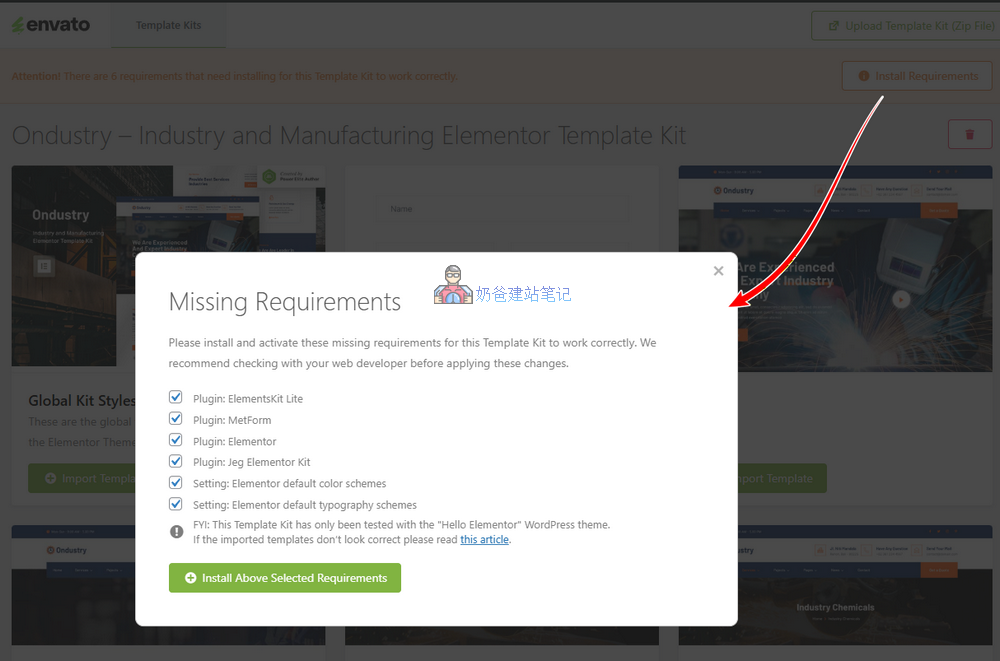
There is a tip on the import interface: FYI: This Template Kit has only been tested with the „Hello Elementor” WordPress theme. This means the kit was tested and created on the Hello Elementor theme. You may also consider installing and using the Hello Elementor theme.
4. Import styles and templates
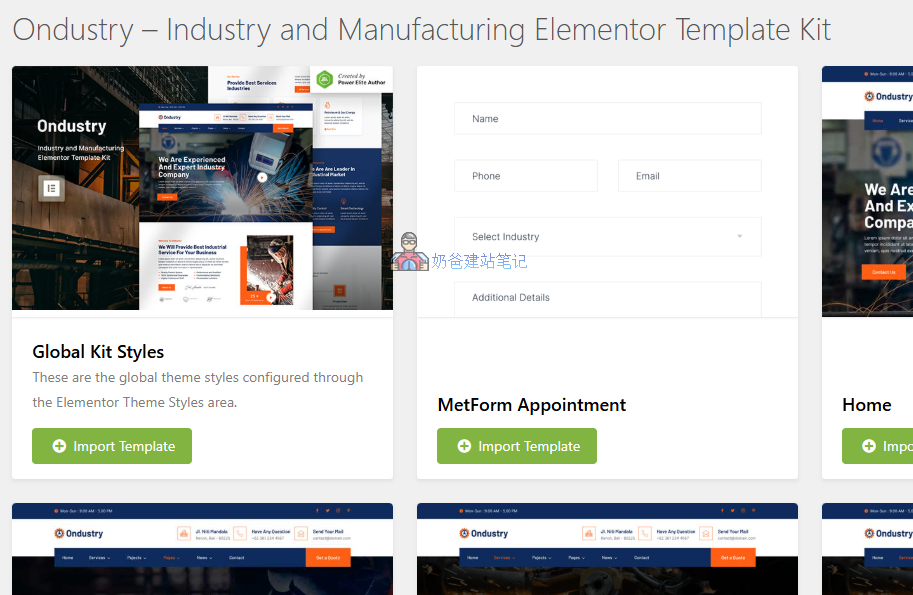
Import the template files sequentially. It is recommended to start with Global Kit Styles, importing only one at a time to avoid import conflicts.
5. Use templates to create headers and footers
Note: Different Elementor Templates Kits may use different plugins, and the methods for creating headers and footers may also vary.
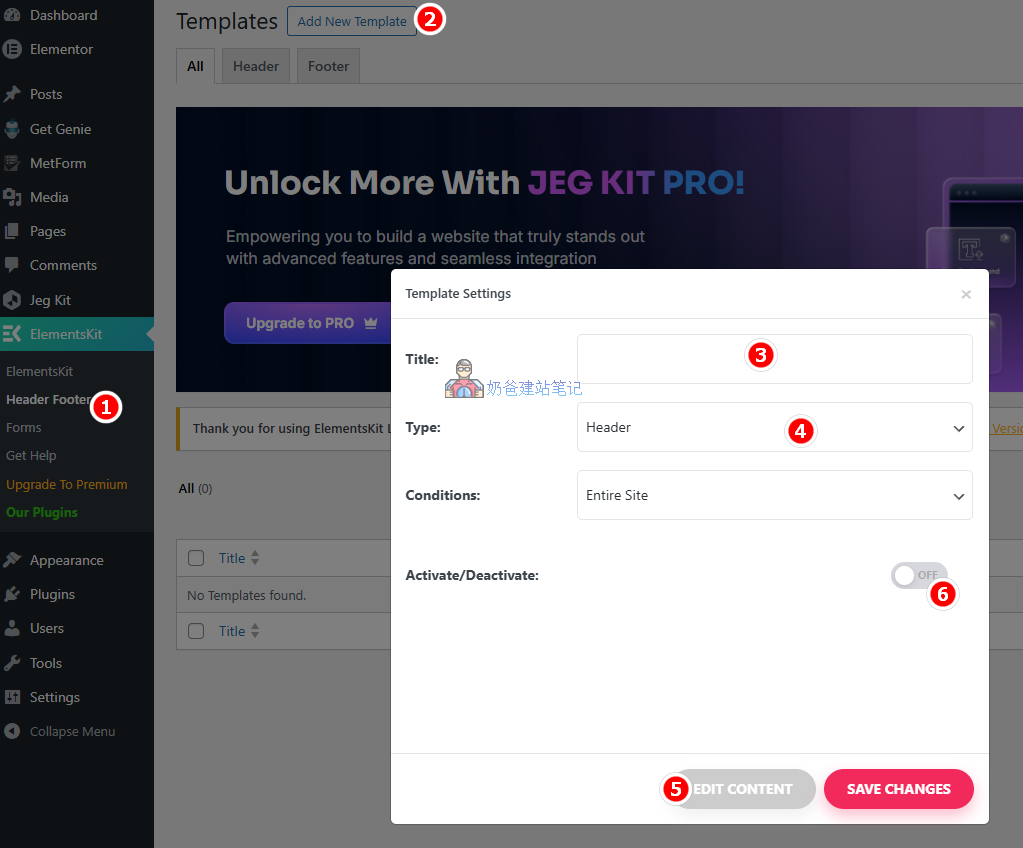
- Navigate to the Header Footer menu under the ElementsKit plugin and select Add New Template;
- In the pop-up interface, fill in the title and select the type as Header or Footer;
- Conditions determine the scope of application; the default is Entire Site, meaning it will be used across the whole website;
- Click Edit Content to edit, which will take you to the Elementor editing interface;
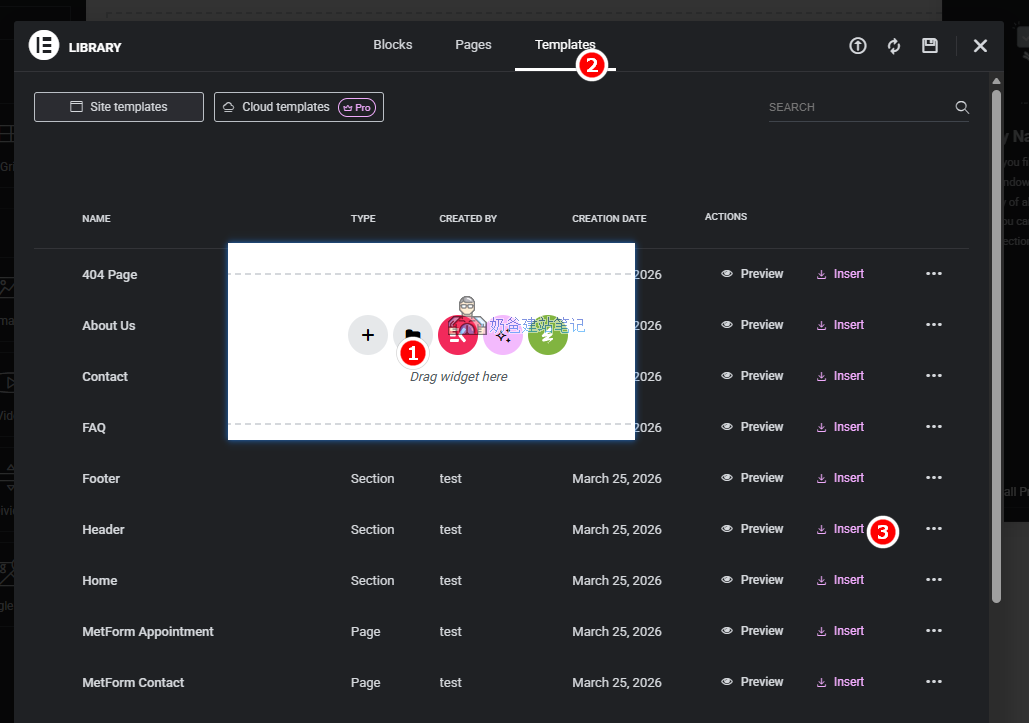
- Click the folder icon, select the Templates tab, choose Header to import Insert, and in the pop-up interface, select Apply; (see Figure 2 below)
- You can modify and adjust the imported content, then click the Publish button in the top right corner;
- Return to the WordPress Admin Dashboard, go back to the Header Footer menu under the ElementsKit menu, edit the content you just created, and select Activate (Step 6 in Figure 1)
- The method for importing the footer is the same.
6. Use templates to create other pages
The overall steps are similar to importing headers and footers as described above.
- In the WordPress backend, select Pages – Add New Page;
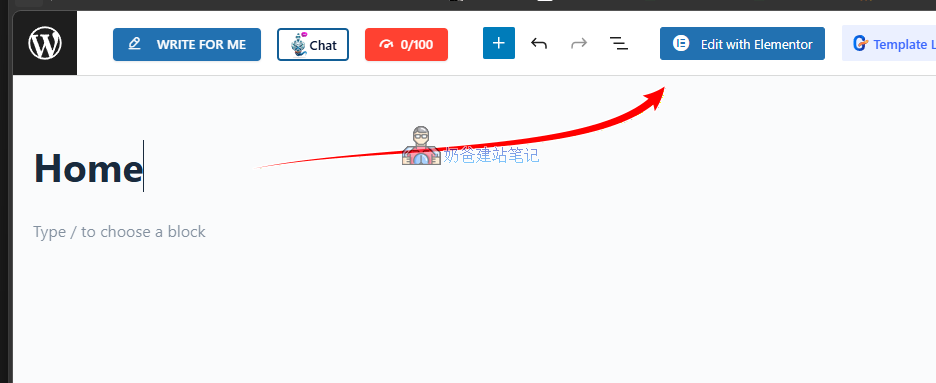
- Enter the page title, for example, Home, then click Edit with Elementor;
- Click the folder icon – Templates – select the corresponding page template to import;
- Modify the page content, or simply publish it and make changes later;
Frequently Asked Questions
Why does the Elementor Template Kits import fail?
Import failures are usually due to insufficient server performance or network issues causing timeouts when downloading some resources from the template. Adjust server configurations, such as increasing memory limits and execution time, and try again.
Why are there no changes on the frontend after import?
If the Kits import successfully but there are no changes on the Frontend, it could be due to cache not being updated yet, or you have not activated the Hello Elementor theme.
Why is the navigation menu empty after import?
This is because you haven't created menu content yet. In the WP Admin Dashboard, under Appearance, Menus, create a new menu and add content to it. Then go back to edit the header template, click on the menu, select the menu you just created, and after updating, you should see the menu content displayed correctly.