
Beginners are afraid of technical difficulties and complex processes when building a website. After reading the sharing on Naibabiji's website building notes,WordPress Tutorialsthey are still confused and don't know where to start. Hiring a company for outsourcing feels too expensive. In that case, you can try the SiteGround Website Builder.
SiteGround Website Builder (SiteGround's self-developed no-code tool, included for free in all hosting plans) requires no code, features drag-and-drop operation, AI assistance, built-in SEO, and is suitable for beginners/SMEs/foreign trade scenarios. Paired with SiteGround's high-speed hosting, it balances stability and speed.
This article provides a hands-on, step-by-step guide on how to use the SiteGround Website Builder to build your own corporate website.
Preparations
Before using the SiteGround Website Builder to build a website, you first need to purchase a SiteGround hosting plan.
SiteGround includes 3 plans: Startup (suitable for individuals/single sites), GrowBig (suitable for SMEs/multiple sites), and GoGeek (suitable for large sites). All include the Website Builder feature for free.
For specific purchase steps, please refer tothe first step of the SiteGround tutorial. Or click the button below to go directly to the official website to purchase.
Website Building Process
After purchasing hosting, we can proceed to use the SiteGround Website Builder to build the website.
1. Create a Website
LoginSiteGround Admin Dashboard, click on theWebsitespanel, and selectNew Website(If a domain was bound during new registration, a website is added by default. Click the Finish button to continue with the setup.)
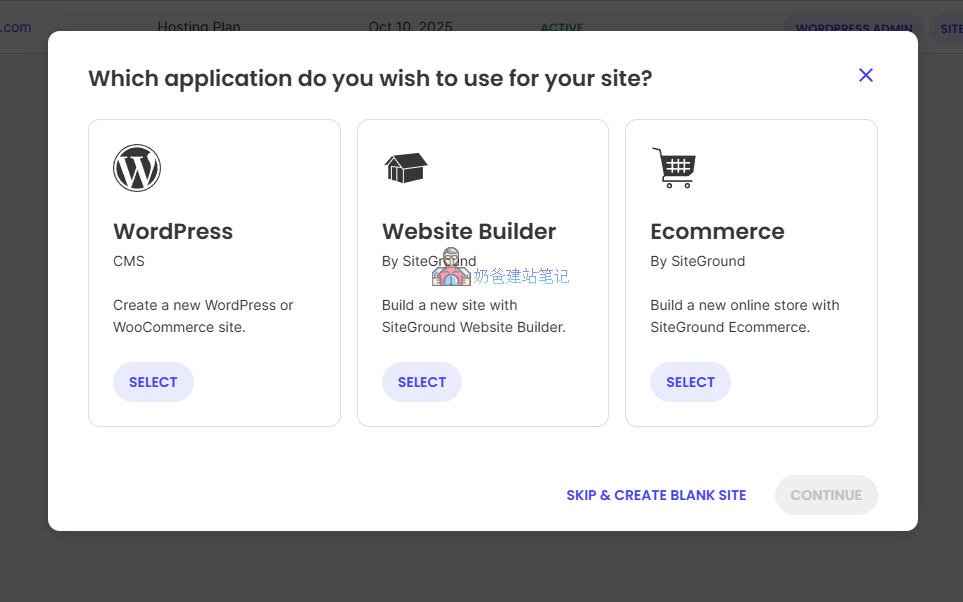
In the pop-up interface, we selectWebsite Builder, then Continue.
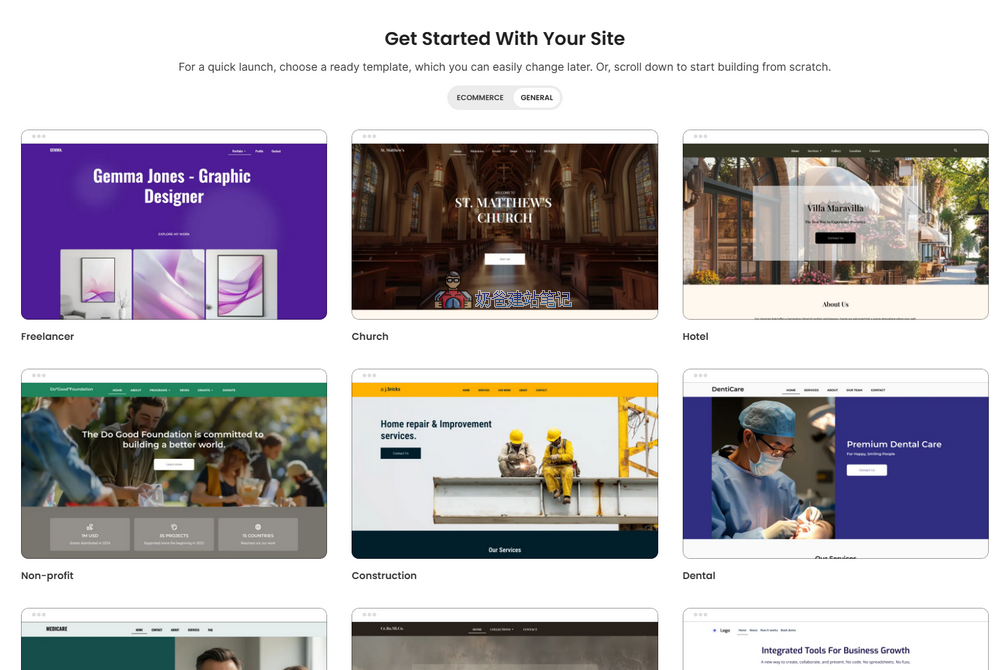
Next, many website templates will pop up for you to choose from. Select and import a template with a design close to your company's business.
Note: If operations like domain name resolution are needed during the process, please refer to theDomain Name Resolution Topic。
2. Modify Website Content
After the website template is imported, you will enter the website backend by default. If not, you can also manually click theEDIT WEBSITEbutton from the website list to enter.
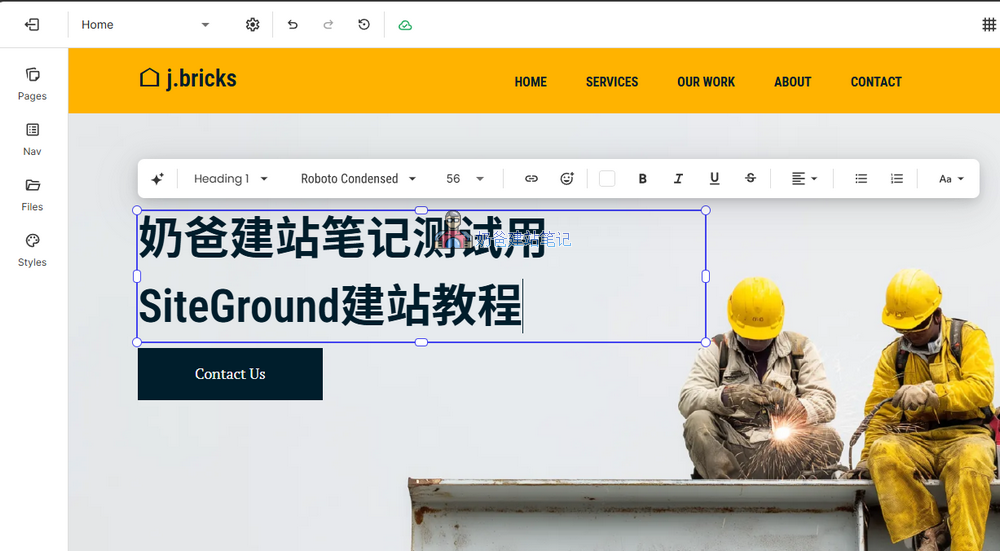
The operation of the SiteGround Website Builder is similar to Elementor; you can click wherever you want to modify.
3. Add Pages
By default, only the homepage is imported for us; other pages need to be created and then imported again by clicking.
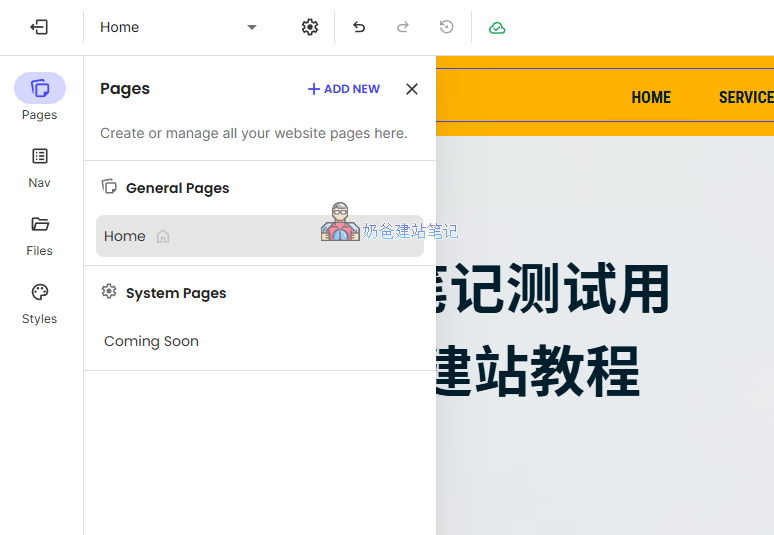
Click onPagesin the left menu bar, then clickADD NEWto add a page.
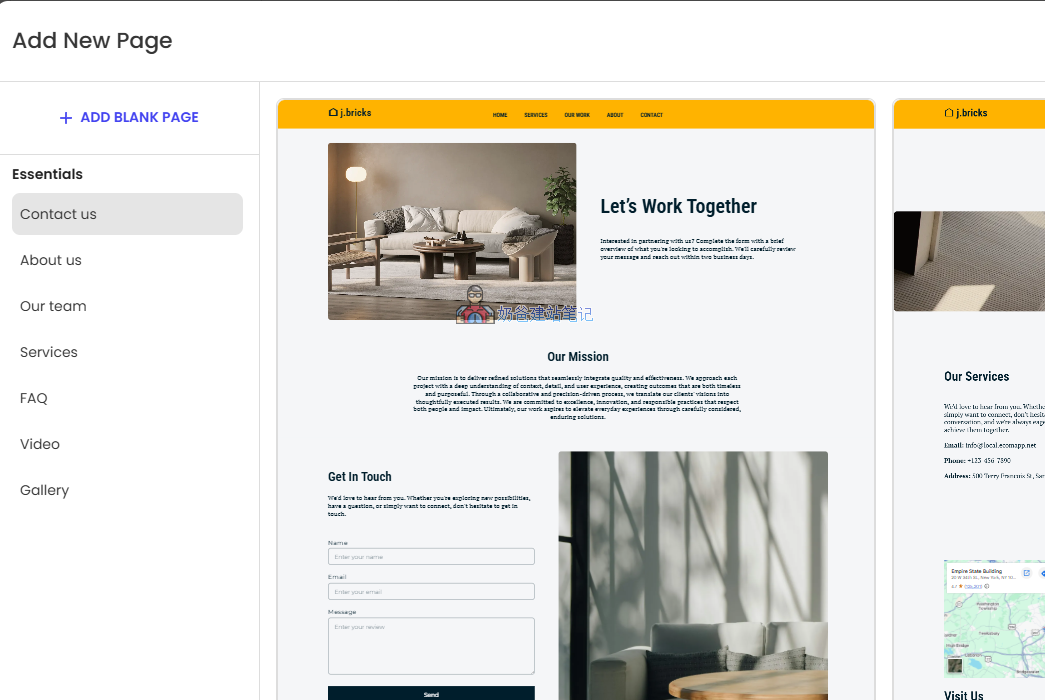
The pop-up interface allows you to select some built-in pages from this website template, such as Contact, About, Team, Services, etc. (If you don't want the existing pages, you can directly click ADD BLANK PAGE).
Choose the page you want; the right side includes multiple layout designs to choose from. Select your favorite and import it.
Then modify the content of this page again, add new pages, modify content, and repeat this process until all website pages are created and modified.
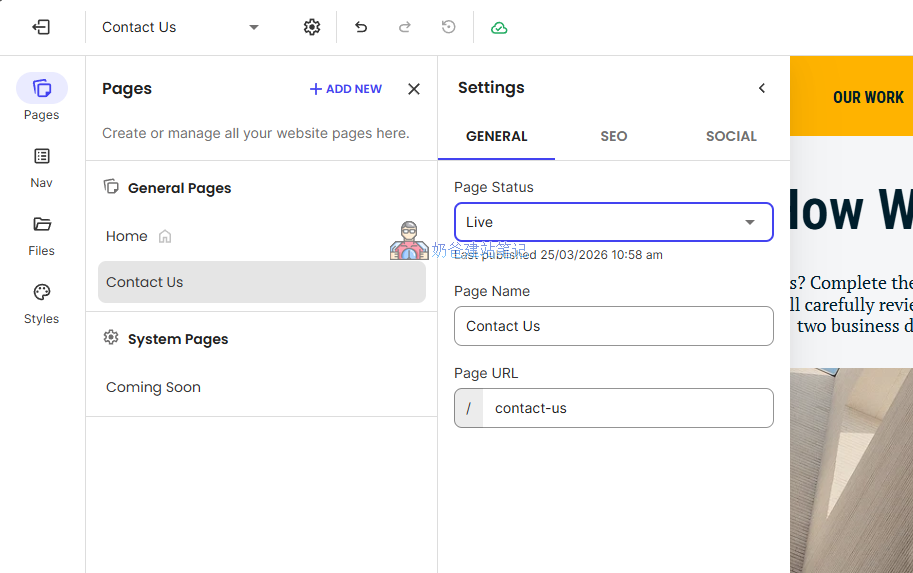
After modification, publish it. If you haven't made any changes and only imported the template, you will notice a closed eye icon next to the page title. After clicking on the page, in the Settings interface, change the Page Status to Live to set it to the published state.
4. Add New Content and Layout
If the imported template layout lacks the elements you need and you want to add some layout and content yourself, move the mouse to the desired location and click the + sign.
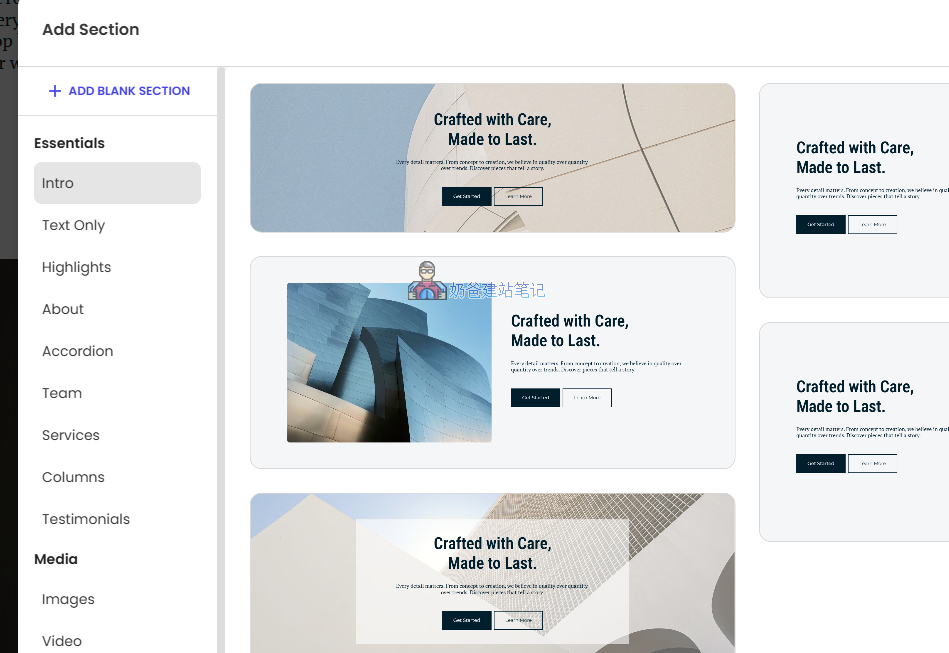
The pop-up interface contains many pre-built Section blocks. Select the one you need, or create a blank block ADD BLANK SECTION.
5. Modify Navigation and Global Colors
After modifying all pages, when you visit the website frontend, you will find that the menu still cannot navigate to other pages. We need to manually modify the navigation links.
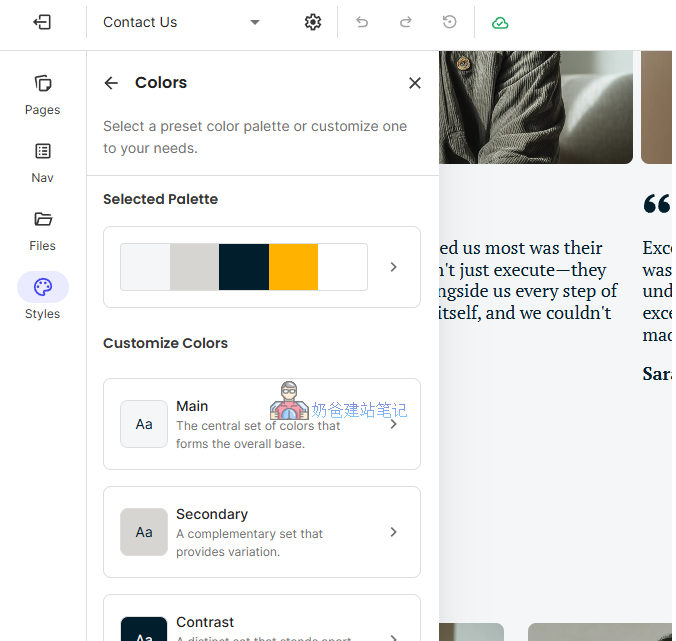
Click on the leftNav, after entering, click on the corresponding link, then set it to jump to the corresponding page to complete the modification of the navigation bar.
而Stylesinterface is where you set global colors, which is more convenient than modifying colors element by element.
6. Set Page SEO Information
By default, each of your pages has a fixed page title, not even a company name, so others cannot find you through search engines.
To avoid this issue, you need to manually modify the SEO information for each page.
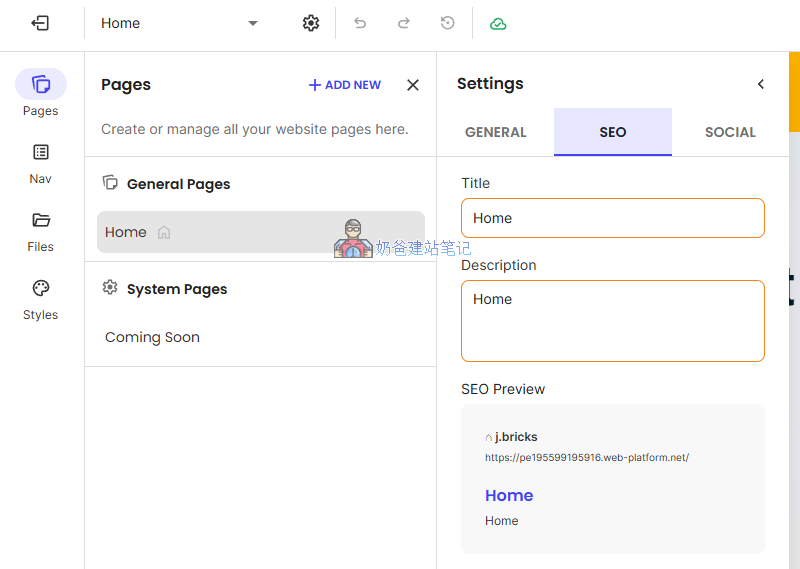
Click on Pages on the left, then select the page for which you need to set SEO information, click the three dots behind it to open the settings interface, and switch to theSEOtab to write the TITLE and Description information.
If you need to share the website on social media, such as Facebook, then theSocialinterface also needs to be set.
How to Build a Website with AI?
SiteGround hosting plans include a certain amount of AI tokens, which we can use to have AI help us analyze and plan page copywriting.
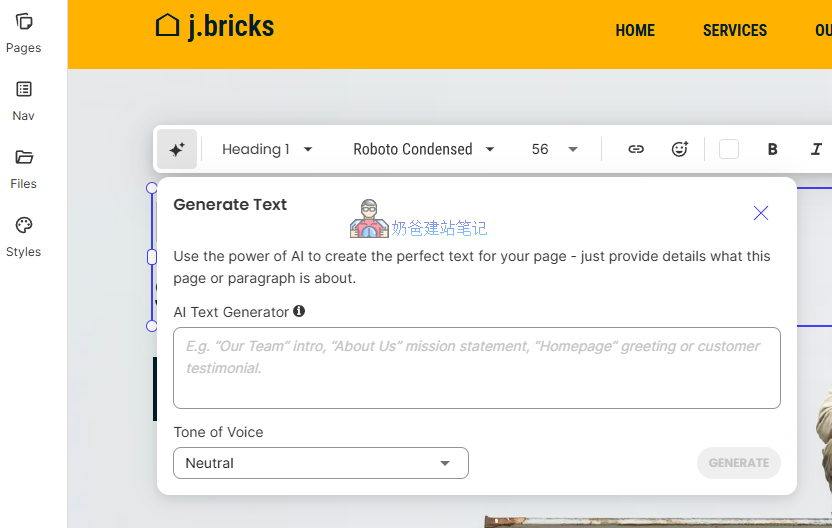
In every area where you need to input copy, click the star symbol at the beginning to open the AI interface. Enter your ideas in the description box, and the AI will automatically generate suitable content for you.
Try to make your prompts as detailed as possible. You can communicate in Chinese, but tell it to generate English copy.
Summary
Based on Naiba's hands-on experience, SiteGround Website Builder can indeed easily help us quickly build a corporate website, and the website loading speed performs excellently.If you want to quickly build a corporate website and have no plans for SEO optimization in the short term, then SiteGround Website Builder would be a good choice.
但If you plan to do SEO optimization later, or need to build an online store, even if you are a B2B enterprise needing to publish dozens of products, Naibadoes not recommend using SiteGround Website Builder to build the website. The reason is that SiteGround Website Builder itself has different versions. The standard version we are currently using does not have e-commerce functionality. If you need to add products, you can only manually create and design pages. Once the number of pages increases, management becomes very cumbersome. At the same time, this version lacks a Post management system, making it impossible to perform SEO optimization and ranking improvement by publishing Posts.
For friends with SEO needs, Naiba recommends that you followStep 2 of the SiteGround tutorialand install WordPress to build the website. If you really don't know how to operate, you can also consider Naiba'sWebsite Building Coachingservices to help everyone successfully complete the website building.