前面分享了对新手友好的VPS管理软件Xshell,这里再介绍一下怎么通过Xshell 8来管理你的VPS。(提示:如果你使用的是Mac电脑,那么不需要安装Xshell,直接使用终端直接使用终端输入 ssh root@你的IP 即可连接.)
一、准备工作(连接前必看)
在开始使用Xshell连接VPS之前,请确认你已准备好以下信息:
| 信息项 | 说明 | 获取方式 |
|---|---|---|
| 服务器IP地址 | VPS的公网IPv4地址 | 服务商控制台查看 |
| SSH端口 | 远程连接端口 | 默认是 22,部分服务商可能修改 |
| 用户名 | 登录账号 | 通常是 root |
| 密码 | 登录密码 | 购买VPS时设置,或通过控制台重置 |
| Xshell客户端 | SSH连接工具 | 官网下载免费版 |
如果你还没有VPS,可以参考VPS推荐一文先购买一台,最低不足100元就可以获得一年便宜VPS。
二、Xshell 8连接VPS详细步骤
1、运行Xshell
下载并且安装好Xshell8后运行,弹出窗口选择“新建”,“连接”选项卡里面填写对应内容就可以了,如下图:
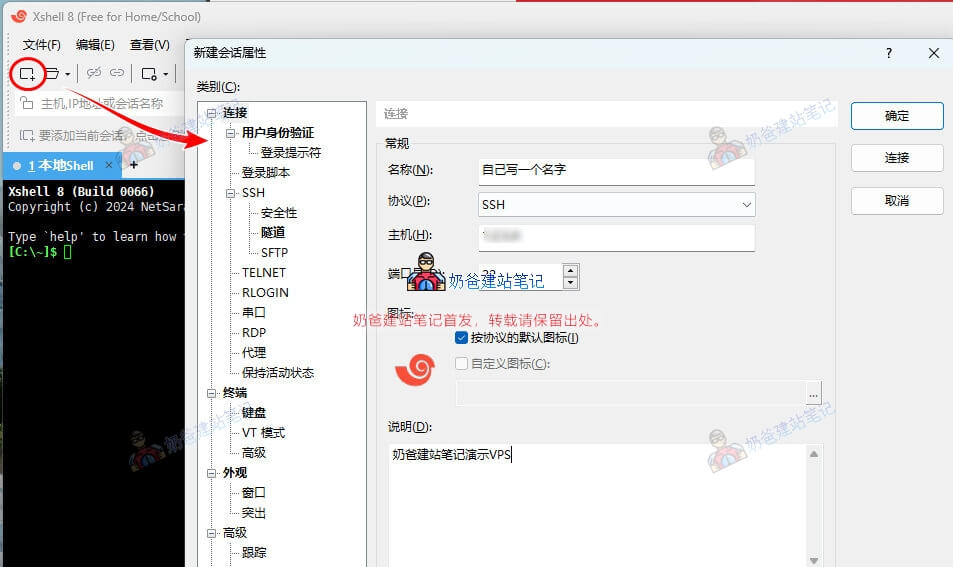
名称和说明可以自己随意填写,只需要确保协议选择的是SSH,主机填写的是服务器IP,端口是正确的SSH端口(默认端口是22)就行了。
2、切换到用户身份验证标签
默认的方法都是Password,通过账号密码的方式登录,这里只建议保存用户名,不要保存密码,当然,你对安全要求没那么高或者不在意,也可以把密码保存进去,这样就不用每次手动输入密码了。
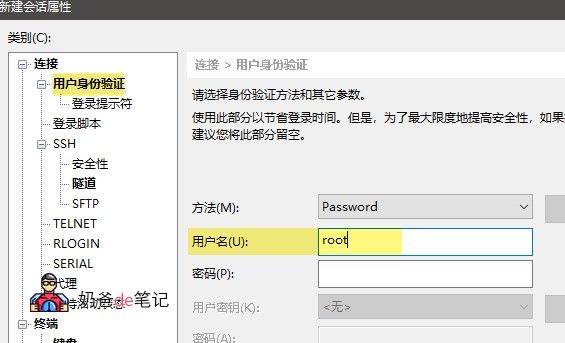
提示:部分商家购买的VPS默认用户名不是root,例如Ubuntu系统默认用户名是ubuntu。
3、点击连接并接受主机密钥
填写完毕后,点击连接按钮。第一次连接VPS会弹出SSH安全警告,未知主机密钥,点击“接受并保存”就可以了,如下图:
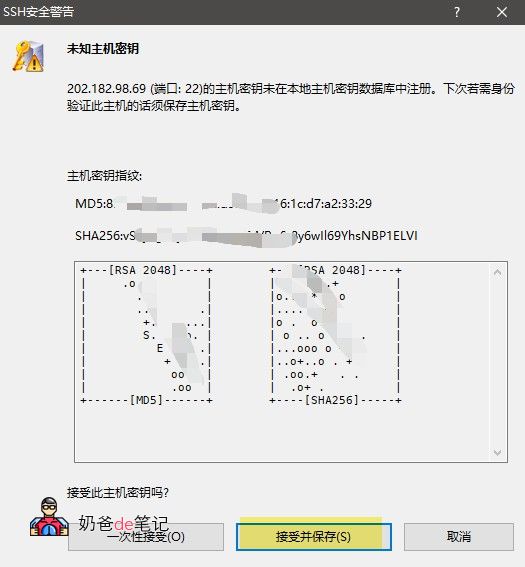
如果一直不出现这个提示,有两种情况:
- 你服务器ip填写错了;
- 你网站服务器没有被墙了,国内无法访问。
步骤4:输入密码并登录成功
如果前面没有保存密码的话,会弹出密码界面,输入密码然后确认就行了(密码输入时不会显示出来)。
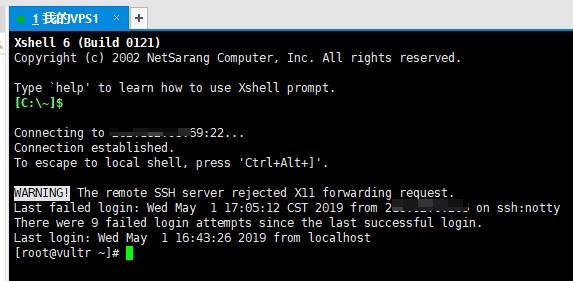
正确连接上VPS后会出现下面这样的图,看到 [root@英文 ~]# 或 [ubuntu@英文 ~]$类似的提示。
三、连接VPS后你可以做什么
现在你已经通过Xshell成功登录到远程Linux服务器,可以在命令行中执行各种管理操作:
- 更新系统:
yum update -y(CentOS)或apt update && apt upgrade -y(Ubuntu) - 安装LNMP环境:Nginx、MySQL、PHP 等网站运行环境
- 安装宝塔面板:实现可视化界面管理服务器,适合新手快速 搭建WordPress网站
- 配置防火墙:使用
firewalld或ufw管理端口开放
如果你打算建站,强烈建议先安装 宝塔面板,后续可以通过网页界面操作,无需记忆大量Linux命令。
四、进阶教程:使用SSH密钥登录(更安全)
上面的教程是教大家如何通过密码登录VPS,在一些VPS商家也要求通过SSH密钥登录,相对来说密钥登录会更加安全,但是对于小白用户来说会比密码登录更加复杂,你可以做一些了解,然后自己选择是否采用SSH密钥登录。
什么是密钥登录?
类似于两个人对暗号,你在自己电脑生成一个私钥,然后在服务器上上传一个公钥。连接时两个密钥能对上,才能让你登录VPS。
| 对比项 | 密码登录 ✅ 推荐新手 | 密钥登录 🔒 适合进阶 |
|---|---|---|
| 操作难度 | 简单,填用户名密码就行 | 较复杂,需要生成/管理密钥文件 |
| 安全性 | 一般,密码可能被暴力破解 | 更高,几乎无法被破解 |
| 登录体验 | 每次都要手动输入密码 | 免密码,一键连接 |
| 换电脑怎么办 | 不受影响,任何电脑都能登录 | 需要把私钥文件复制到新电脑,否则连不上 |
| 密钥丢了怎么办 | — | 很麻烦,需要通过VPS控制台重置,或保留备用登录方式 |
| 适用人群 | 新手、只有1-2台VPS | 长期管理多台服务器、对安全要求高的用户 |
对于新手来说,使用密码登录就够了(前提是你密码足够复杂,暴力破解也很难破开)
如果你想试试密钥登录,可以参考下面的步骤:
- 在Xshell里生成密钥对:工具 → 用户密钥管理者 → 生成(选RSA 4096)
- 把公钥上传到VPS:通过密码方式先登录VPS,将公钥内容放入
~/.ssh/authorized_keys文件 - 修改Xshell会话:将登录方式从 Password 改为 Public Key,选择你的私钥文件
- 测试连接:成功后即可免密码登录
⚠️ 重要提醒:如果你决定使用密钥登录,务必备份好私钥文件(建议存到云盘或U盘)。一旦私钥丢失且没有备用登录方式,你可能需要通过VPS服务商的控制台重置整个SSH配置才能重新登录。
五、Xshell连接VPS常见问题(FAQ)
Xshell提示”Connection failed”或”Could not connect to”?
出现这个提示通常是网络问题或者端口不对。默认的SSH端口都是22,不过一些厂家,例如搬瓦工,他为了安全默认会生成随机端口,需要填写正确的端口才能连接。
网络问题就可能是你本地网络连接不到服务器,或者说服务器被国内墙了,最好的方法是重新创建一台没被墙的服务器。
提示”Authentication failed, please try again”密码错误?
这个就是账号密码错误的提示,首先,你用户名是不是填写的root,密码是不是VPS的密码。一些人会填写自己购买VPS网站的用户名和密码,所以导致出错。
另外,如果你是安装的Ubuntu操作系统,那么默认用户名应该是ubuntu。
连接成功后中文显示乱码?
在教程“2、切换到用户身份验证标签”的那个界面,切换到终端标签,将编码改为UTF-8,保存后重新连接VPS就正常了。
Xshell 8免费版和付费版有什么区别?
付费版就是带有商业授权,不限制标签页数量。对于个人建站和学习来说,免费版功能完全够用。
Xshell 6/7/8的教程通用吗?
通用,最多就是软件界面发生变化,操作方法是一样的。
下面是你可能会需要用到的Xshell文章: