
When we are building foreign trade independent websites, we usually insert detailed product parameters on the product detail pages. Some companies choose to insert images, while others choose to insert tables. Most Themes installed with WordPress support image scaling to adapt to screen sizes, but tables copied directly from Excel cannot achieve responsive layout, making the table content incomplete when viewed on mobile phones. Naiba here introduces how to solve this problem.
5 WordPress Plugin Recommendations
Using WordPress table Plugins, we can insert tables with responsive layouts that automatically change table width based on the browser window. You can try any of the following 5 table Plugins and choose the one that feels most comfortable to use.
Ninja Tables

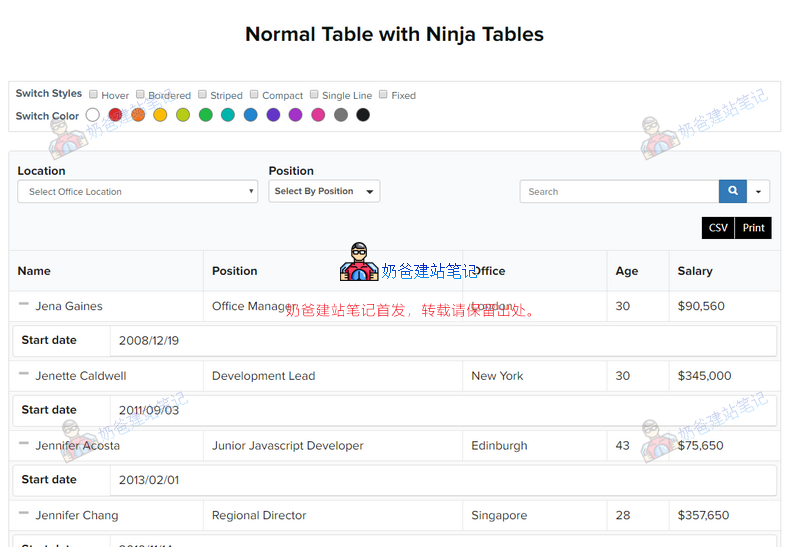
Ninja Tables is the most popular table Plugin on WordPress. Using it to create product tables is actually a bit of overkill. With Ninja Tables, you can accomplish whatever you think of without writing any code! The best part is, even if your table has thousands of data entries, Ninja Tables will not slow down your website! You can quickly, efficiently, and easily create and manage tables from the Admin Dashboard. Ninja Tables is very powerful, with free and pro versions. You can view demo effects on the download page.
Download LinkTablePress

TablePress is a free table Theme,
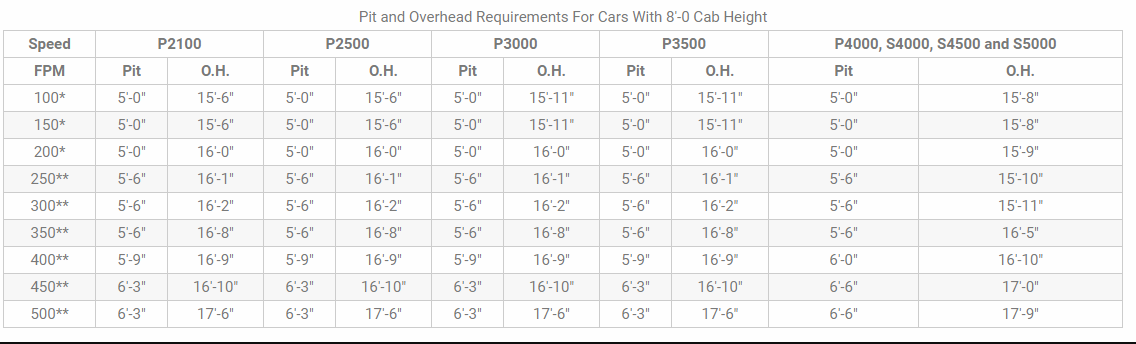
Previously, Naiba introducedTablePress is the most popular free WordPress table Plugin on the market. It allows you to easily create simple, beautiful tables. It has a spreadsheet-like interface in the backend, helping you add data without writing any code. You can use Shortcodes to add tables to Pages, Posts, and Widget areas. TablePress supports filters, pagination, and sorting. It allows you to import/export tables from Excel, CSV, HTML, and JSON files. For an example of TablePress in actual use, scroll up and look at the table in this article!
Download LinkCSS3 Responsive Tables

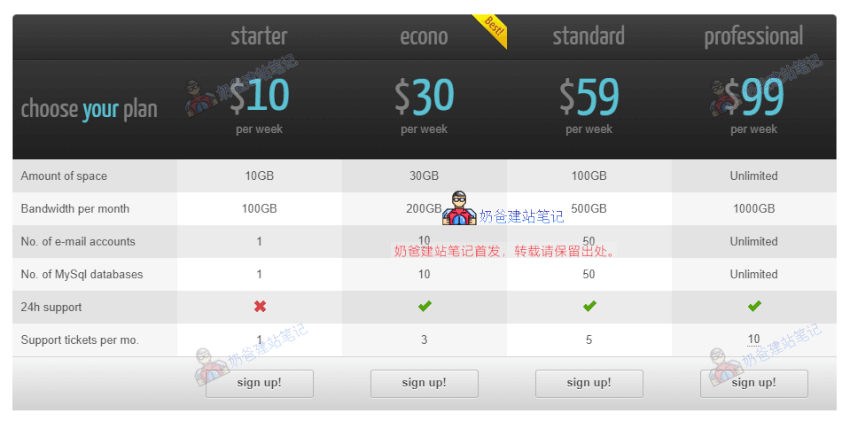
CSS3 Responsive Tables is a responsive WordPress table Plugin. If you want to create a price comparison table, this Plugin is very suitable. It offers over 20 color choices, 2 table styles, active columns, hover color styles, and more. The Plugin supports icons, tooltips, and ribbons. It also allows you to easily import/export data to/from other file formats.
Download LinkResponsive Data Table

Responsive Data Table is a Plugin for managing horizontal data tables in a responsive structure for both desktop and mobile devices. You can easily embed data tables into Pages, Posts, and Widgets using Shortcodes. You can split column headers into multiple sub-headers. Multiple tables with different color combinations can be used on a single Page. Table data can be easily edited in a table format within the WordPress Admin Dashboard.
Download LinkWP Table Builder

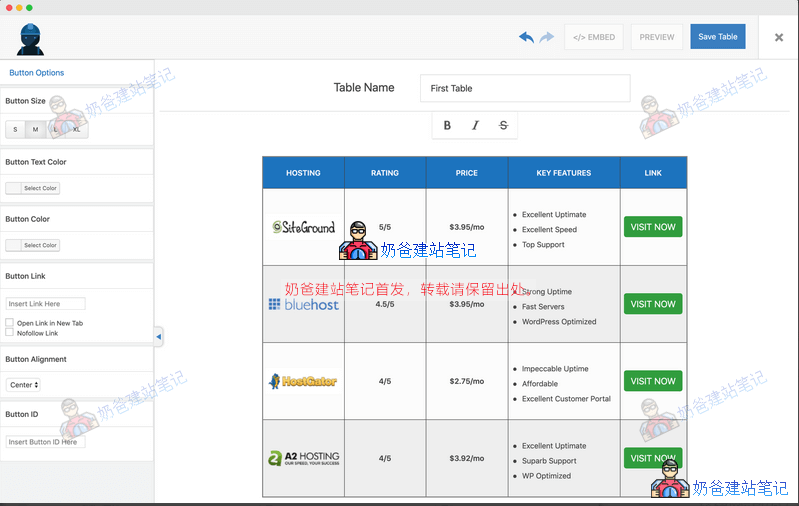
WP Table Builder is a drag-and-drop table builder Plugin for WordPress. Creating responsive tables with WP Table Builder is very easy. WP Table Builder is perfect for creating comparison tables, pricing tables, list tables, etc.
Download LinkModify Using Code
After trying the above table Plugins, you might find that copying and pasting tables directly from Excel is still faster and more convenient, and merging cells is also easier. Therefore, we can manually add CSS styles to the table, allowing it to be scrolled horizontally when accessed on mobile devices. The specific method is, after inserting the table, switch to HTML mode, and then add the `overflow:scroll;` property.
Definition and UsageThe overflow property specifies what happens if content overflows an element's box.
DescriptionThis property defines how content that overflows the element's content area is handled. If the value is scroll, the user agent provides a scrolling mechanism, whether needed or not. Therefore, scrollbars may appear even if all content fits within the element's box.
| Default value: | visible |
|---|
| Inherited: | no |
|---|
| Version: | CSS2 |
|---|
| JavaScript syntax: | object.style.overflow="scroll" |
|---|
Available values| 值 | Description |
|---|
| visible | Default value. Content is not clipped and may be rendered outside the element's box. |
| hidden | Content is clipped and no scrollbars are provided. |
| scroll | Content is clipped and scrollbars are added to see the rest of the content. |
| auto | If content is clipped, scrollbars are added to see the rest of the content. |
| inherit | Specifies that the value of the overflow property should be inherited from the parent element. |
Comments are closed
The comment function for this article is closed. If you have any questions, please feel free to contact us through other channels.