After tinkering with KeePass password synchronization across multiple browsers, I started transferring some passwords saved in browsers to KeePass. Then, on my phone, I previously used MiniKeePass but found it no longer supports KeePassXC databases.
The officially recommended iOS app is Strongbox Password Safe.
Strongbox is an app for securely storing and protecting all your passwords with one master password. Supports open-source password safe and KeePass formats. Strongbox is a freemium app that offers enhanced premium options and a super feature basic feature set.
Face ID and Touch ID or PIN code for ultimate convenience and speed.
Cloud support: even offline, you can access your cloud vault using iCloud, Dropbox, OneDrive, Google Drive, WebDAV, or SFTP. Use the built-in „Files“ app for many other storage options, or store it securely on the local device. You choose the storage.
Secure, time-tested industrial-strength password protection.
With deep search, instantly and powerfully search your entire set of passwords and secrets. Auto-fill new entries and auto-generate secure passwords.
Timed automatic clipboard clearing, input history, field references, placeholders, KeePass custom and FavIcon icon support, and two-factor authentication codes (TOTP).
Standards-compliant, uses time-tested Password Safe and KeePass formats, so you can import any existing secure passwords.
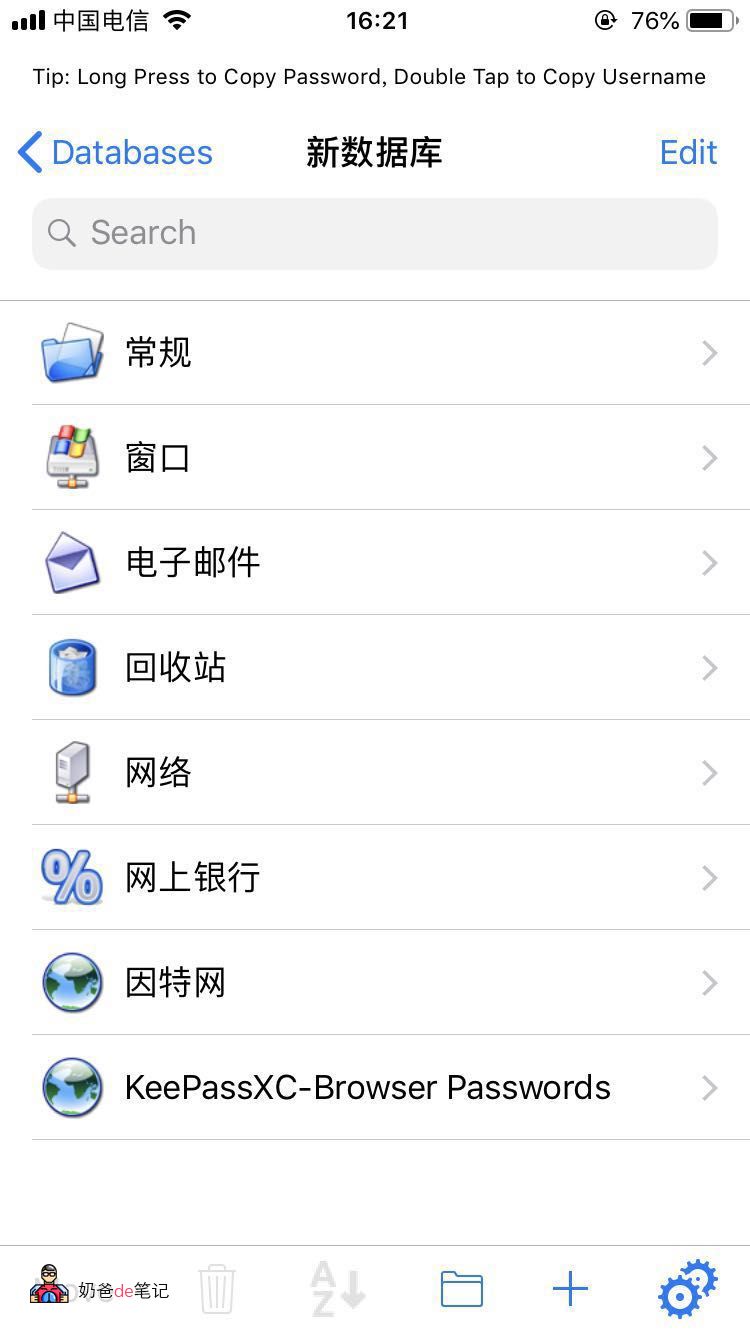
The software is in English, but MiniKeePass was also in English, so the usage is similar. You can directly send your KeePassXC database and key file to your phone via WeChat or sync cloud drive, then open them in Strongbox Password Safe using the share button.
Then select the key and enter the password. It will prompt you whether to use Touch ID to open. Yes.
You might also be interested in the following articles
Method One for KeePass to Automatically Fill Passwords in Chrome Browser
Method Two for KeePass to Automatically Fill Passwords in Chrome Browser