Previously, we sharedMethod One for KeePass to Automatically Fill Passwords in Chrome Browser, now I will continue to share the second method for implementing KeePass to automatically fill passwords in the Chrome browser, which also supports adding and modifying passwords.
Method Two for KeePass to Automatically Fill Passwords in Chrome Browser
Prepare software:KeePassXC, also known as KeePass Community Edition, supports Mac and Linux as well, and is open source, so security can be assured.
Required plugins:KeePassXC-Browser (offline download)
Why use KeePassXC instead of the official KeePass client?
Because KeePassXC has more powerful features, and more importantly, it can easily achieve the desired automatic filling of KeePass passwords in Chrome and can modify the KeePass database.
Many online tutorials using the original KeePass require a plugin called KeePassHttp.plgx, which has not been updated for a long time, and additional plugins are needed after using it. However, KeePassXC can handle the integration by itself.Chrome plugin functionality without needing KeePassHttp.plgx, so we use it.
Specific steps:
The installation of KeePassXC and importing your previous KeePass database are not covered here; it has a Chinese interface, so you can understand how to operate it.
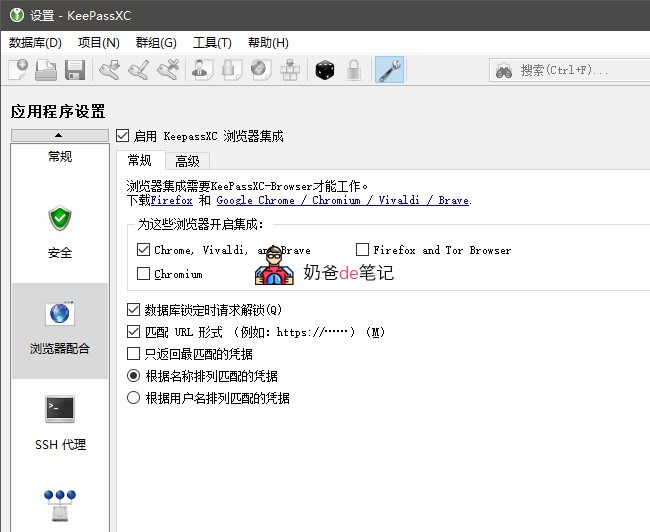
After installing KeePassXC, enter the settings interface, check „Enable KeePassXC browser integration“, and then check the browsers you need to integrate below.Brave browser also just check Chrome.
Then click the KeePassXC-Browser icon in the upper right corner of the browser, and click the link button below.
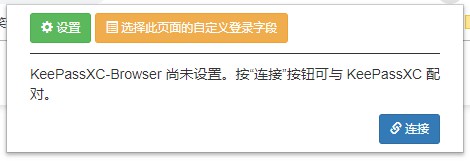
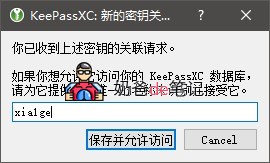
If connected, it will prompt you to enter an identifier; just enter any one. (If this dialog does not pop up, please run KeePassXC first and log into the database.)
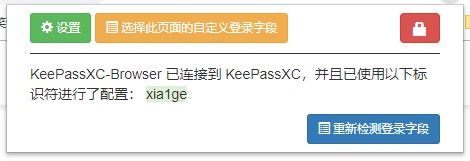
Then it will prompt that the connection was successful.
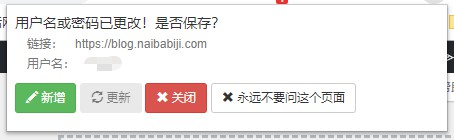
When you create a new account on a website or there are changes to an account, a prompt like the one below will appear, and the data will be directly written into your KeePass database.
In KeePassXC settings, you can set it to automatically save the database after external modifications, to avoid losing newly modified data due to an unexpected shutdown.
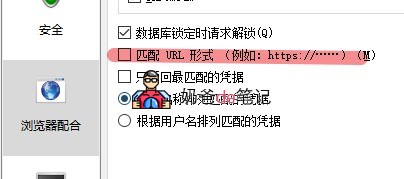
If you encounter a website where you have saved passwords but no prompt for automatic filling of account and password, please uncheck „Match URL form“ in the settings, because when you saved the password, the website was still accessed via HTTP, and in recent years HTTPS has become popular, and the website has been forced to redirect to HTTPS, so the software cannot match it.
Well, this is the second method to achieve automatic filling of KeePass saved account and password information in Chrome.The first methodThe advantage is that you can read and automatically fill in your account and password without installing and running the KeePass client, but you cannot add or modify.
The advantage of the second method introduced in this article is that you can add or modify your account and password information at any time, but the disadvantage is that you need to run the KeePassXC software.
Currently, Naiba uses both methods simultaneously; usually, I use KeePass Tusk from method one, and when I need to add or modify the database, I use method two.
If you have a better method, feel free to communicate with me.