
做Foreign Trade Independent Websitesoften involves multilingual issues, and the solution is to createmultilingual website, and Polylang is a free multilingualWordPress Plugin。
This article will introducehow to use Polylang to build a multilingual website。
Before reading this article, you need to have aWordPress installationwebsite, and then you can install Polylang.
Polylang Effect Demo
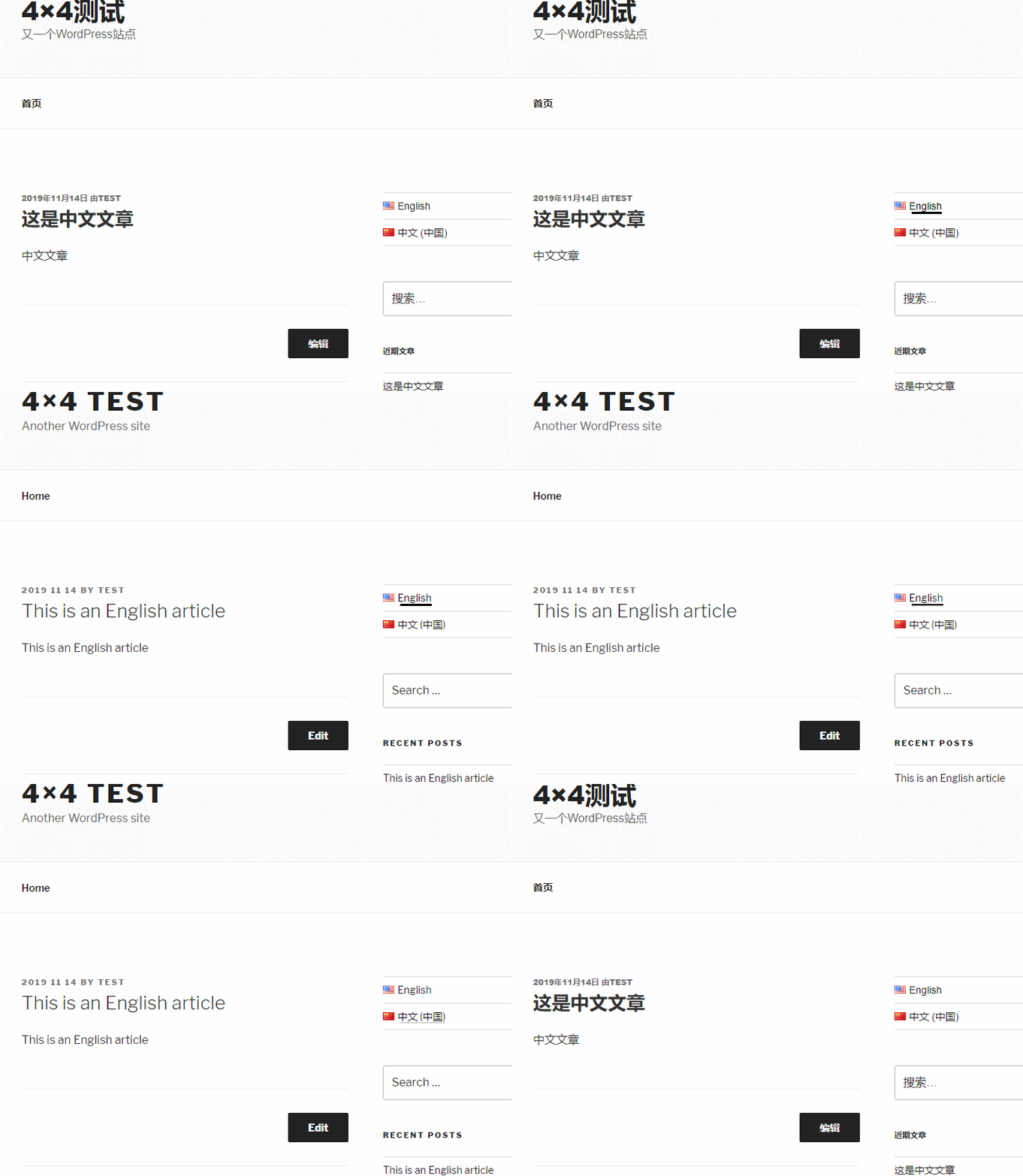
The effect shown in the image below was recorded by Naiba after testing on November 14th. On the same website, clicking the language switch icon automatically changes the website content to Chinese or English.
Polylang Introduction
Polylang is aWordPress Website BuildingplatformFreeplugin for creating multilingual website versions. It allows you to create bilingual or multilingual WordPress websites. After writing posts, pages, and creating categories and post tags normally, you can create content in another language for them.
If you don't have a WordPress website yet, you can follow the articles on Naibabiji tobuild a website yourself, which takes less than 3 hours.
You can use multiple languages as needed. Supports RTL language scripts. WordPress language packs are automatically downloaded and updated.
You can translate posts, pages, media, categories, post tags, menus, widgets...
Supports custom post types, custom taxonomies, sticky posts and post formats, RSS, and all default WordPress widgets.
Language can be set by content, or by language code in the URL, or you can use a different domain for each language.
When adding a new post or page translation, categories, post tags, and some other metadata are automatically copied.
Customizable language switcher available as a widget or in the navigation menu.
Polylang Download Address
You can directly search for Polylang in the WordPress admin dashboard's plugin interface to install it, or download and install it via the link below.

You may also want to check out the following articles:
- WordPress Plugin Installation Tutorial_Complete Guide to Popular Essential Plugins
- WordPress 429 Too Many Requests Error Method for Updating Themes and Plugins
Polylang Tutorial
①、After installingthe Polylang multilingual pluginAfter that, a new Language option will appear in the left menu of WP. After entering, we first add languages. Add whichever languages you need.
Naiba demonstrates adding English and Chinese here.
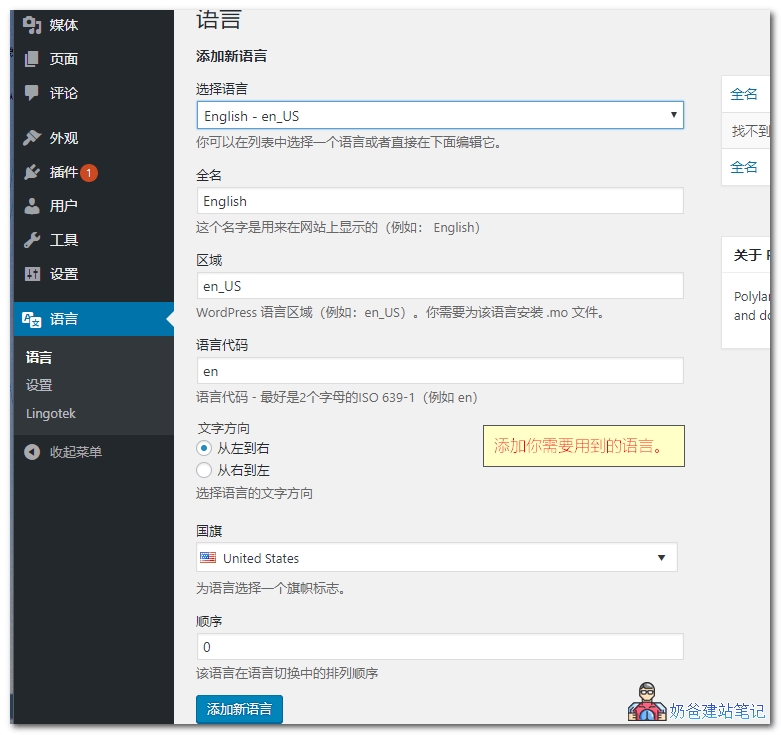
Tip: When you add multiple languages, click the ⭐ star icon in the multilingual list to set which language is the default language of the website.
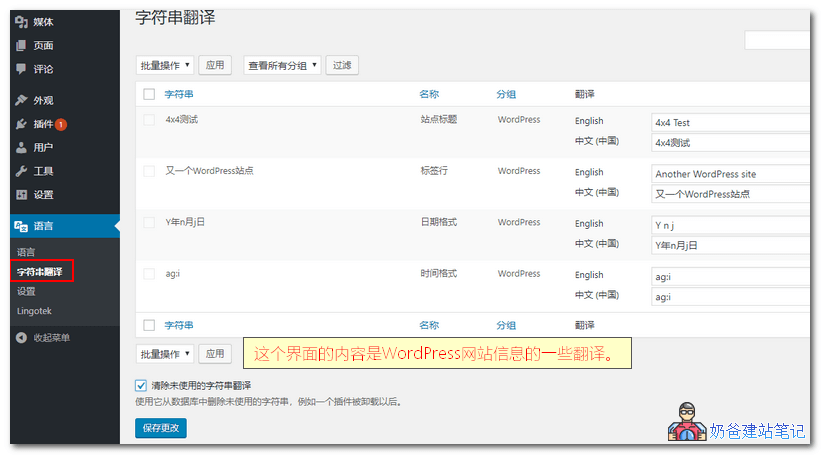
② After adding, switch to String Translation. You will see the default translation content for the selected language. Just translate the content into the corresponding display.
③ Set the URL form. Usually, the second option is recommended: language is set based on the directory name in the link. That is, adding en to the URL.
If you choose the domain form, remember to resolve the domain first.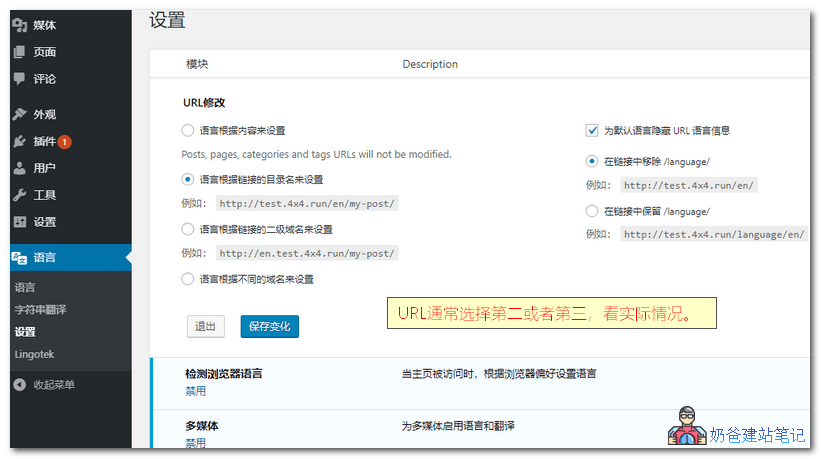
④ After setting, in the post list, page list, or tag list, you will see an interface like the one below.
The checkmark indicates that the post has been translated (default language). Clicking the plus sign will add a new translation post for the corresponding language. After adding, the plus sign will become a pen icon.
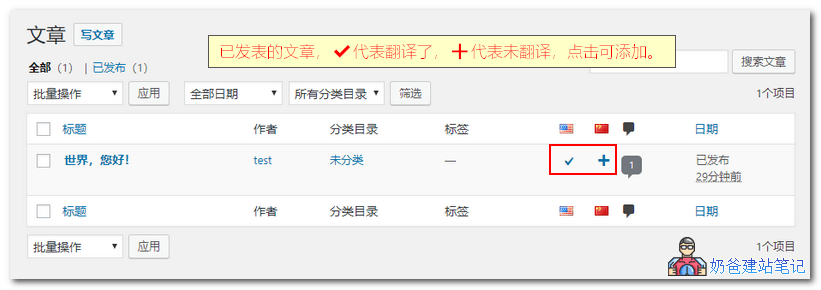
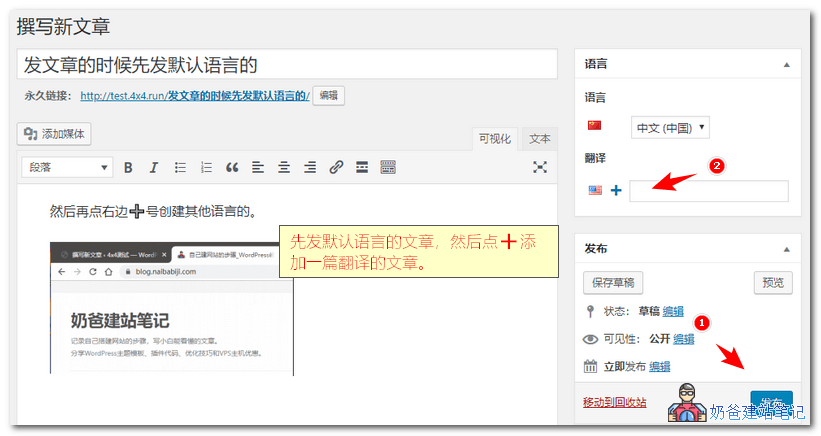
⑤、When publishing articles, first publish an article in the default language, then click the plus sign below the translation to create a new article in another language, and then publish it.
Polylang Menu Translation Method
Some friendsbuild a multilingual websiteand find thatPolylang does not translate menus. This is because you haven't set up the multilingual menu separately.
After installing Polylang, in the WP menu settings, you will see additional menu items for the selected multilingual languages. You need to create a separate menu for each language.
You can use the same menu name with the language suffix to distinguish which menu content each menu uses. As shown below:
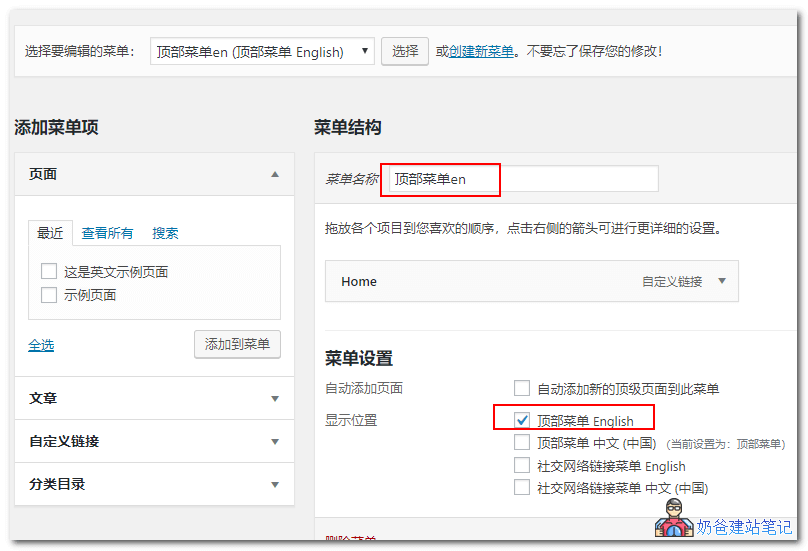
After setup, the menu will change accordingly when switching languages on the website frontend.
Polylang Language Switcher Not Displaying
After completing all multilingual translations, you may find when visiting the websitePolylang Language Switcher Not Displaying, this is because you haven't added the multilingual switch button option to the website.
The method to add the Polylang multilingual switch button is as follows:
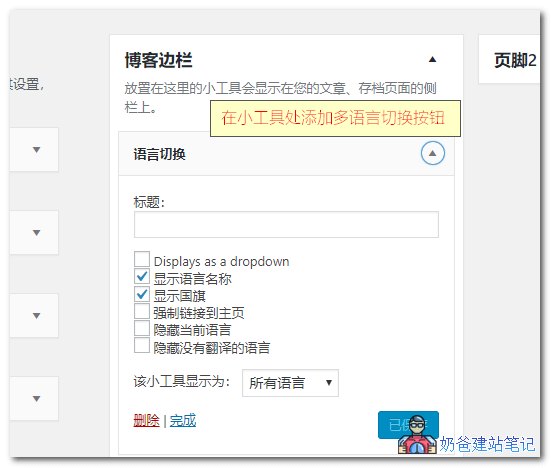
If you are using an WordPress ThemesIf there is no widget and you want to add the language switch button to the top of the website or anywhere else, you can use the following code to call and output it:
// 输出ul形式的多语言切换按钮
<?php pll_the_languages();?>
// 输出下拉选框的多语言切换按钮
<?php
    $array = array(
        'dropdown' => 1
    );
    pll_the_languages($array);
?>
$array可选参数 'dropdown'=>如果设置为0,则显示列表;如果设置为1,则显示下拉列表(默认值:0) 'show_names'=>如果设置为1,则显示语言名称(默认值:1) 'display_names_as'=>'name'或'slug'(默认:'name') 'show_flags'=>如果设置为1,则显示标志(默认值:0) 'hide_if_empty'=>如果设置为1,则隐藏没有帖子(或页面)的语言(默认值:1) 'force_home'=>强制链接到主页,如果设置为1(默认值:0) 'echo'=>回声如果设置为1,则返回一个字符串,如果设置为0(默认值:1) 'hide_if_no_translation'=>如果设置为1,则不存在翻译时隐藏语言(默认值:0) 'hide_current'=>如果设置为1,则隐藏当前语言(默认值:0) 'post_id'=> if set,显示由post_id定义的帖子(或页面)翻译的链接(默认值:空) 'raw'=>使用它来创建您自己的自定义语言切换器(默认值:0)
The above is all about building a multilingual foreign trade website using Polylang. If you want to translate every article with Polylang, it is recommended to find several editors to help; otherwise, for websites with many articles, the workload is too heavy.
Polylang also has an automatic translation extension, but the quality of automatic translation is definitely not as good as manual translation. For multilingual foreign trade corporate websites, it is better to be rigorous.
Related articles: