
After building your own website using the open-source program WordPress,WordPress Website BuildingWhat settings and optimizations should be performed to make the site better meet your needs? Let Naiba explain the settings and optimizations needed after the site is built.
If you haven't built one yet, please refer to the previous article:Basic Steps to Build a Website
Basic Website Settings
After you have built a WordPress website, log in to the WordPress website backend. On the left, you can see the Settings button; click it to perform some basic settings.
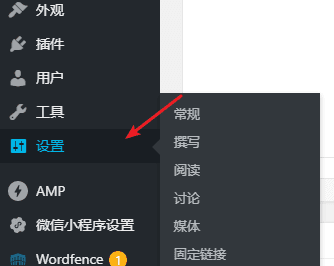
For detailed WordPress setup content, please refer to the previous article:WordPress Beginner Tutorial 1: Admin Dashboard Settings
Naiba suggests you configure the following content:
- General Site Title and Subtitle
- Discussion Comments must be manually approved
- Media All set to 0
- Permalinks Select custom structure, enter /%postname%.html or %post_id%.html (Deep Dive into Permalinks)
Website Theme Settings
Click on Appearance on the left side of the backend, then select Themes, and then choose Add.
 Here you can see many free WordPress themes, and you can directly click the install button.
For more articles about WordPress themes, please refer to:2019 WordPress Theme Installation Tutorial and Recommended WordPress Theme Download Sources
Additionally, Naiba has also shared some nice-lookingWordPress Themes, you can take a look to see if there are any you like.
Note that usually, you need to have some content before you can support complex themes. At the beginning, you can choose a simple theme to publish articles, and after you have a certain number of articles, switch to a theme with better features.
Website Plugin Recommendations
An important reason for recommending using WordPress to build a website is that WordPress's plugin ecosystem is very rich. Even if you completely don't understand programming or code, you can alsoWordPress PluginImplement many functions.
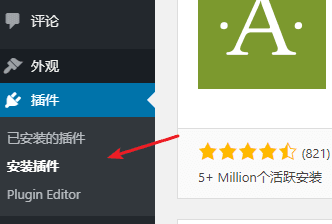
For more detailed plugin tutorials, please refer to:WordPress Plugin Installation Tutorial
Must-Install Plugins Recommended by Naiba
All in One SEO PackSEO optimization plugin, has been changed to Yoast SEO.- SMTP Email PluginUsually, your server is not allowed to send emails directly; it needs to rely on external plugins to achieve this.
- WP Database BackupDatabase Automatic Backup Plugin
WP Super CacheCaching plugin, has been changed toWP-Rocket。
For more fun, interesting, and useful WordPress plugins, please refer to some articles published by Naiba:WordPress Plugin
Website Performance Optimization
In the early stage, when the website has a small number of users, just install a caching plugin. When the user base grows, you can consider adding CDN services, installing database caching services, and other methods to optimize the loading speed of your WordPress site.
For performance optimization, you can refer to:WordPress optimizationThe articles below, of course, the most direct method is to upgrade the server, which yields immediate results.
Website Content Optimization
Website content is the soul of a site. Once you set the site title and description, try not to modify them, and publish articles around your site's positioning.
Remember to write content that is useful to users. Don't copy articles randomly; it's meaningless.
WordPress Basic Usage Tutorial
- WordPress backend settings
- how to install a WordPress Theme
- How to install plugins in WordPress
- How to publish articles in WordPress
- Automatically backup WordPress websites using plugins
- Implement Security Measures to Avoid WordPress Websites Being Hacked
Leave me a message
If you areBuilding a websiteIf you encounter any issues during the process, you can communicate with me. The QR code at the end of the article contains contact information.