NameSilo Domain Resolution, Changing DNS Servers, and 301 Redirect Tutorial
The previous article introduced the NameSilo domain registration tutorial. This article will explain how to modify domain resolution and DNS servers. After purchasing a domain, you need to add resolution to the domain so that the website can be accessed via the domain. This article covers how to set DNS on NameSilo. The setup methods for other domain registrars are similar and can be referenced. NameSil...
Updated on May 17, 2026About 8 minutes read
Page Operations
Due to browser security restrictions, the webpage cannot directly add bookmarks for you. You can manually bookmark the current page using the following methods:
Windows / Linux: Press Ctrl + D.
macOS: Press Command + D.
Mobile browser: Open the browser menu and select „Bookmark“, „Add Bookmark“, or „Add to Home Screen“.
Open WeChat, scan the QR code to view the current page.
After purchasing a domainYou need to add resolution to the domain so that your website can be accessed via the domain。
The content of this article isHow to set up DNS in NameSilo, the setup methods for other domain registrars are similar and can be used as a reference.
NameSilo Tutorial on Modifying Domain Resolution IP
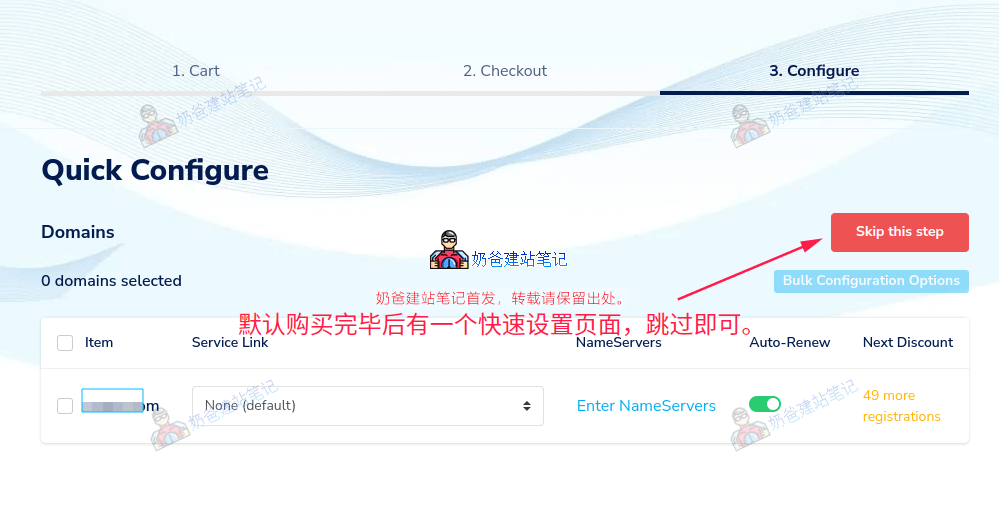
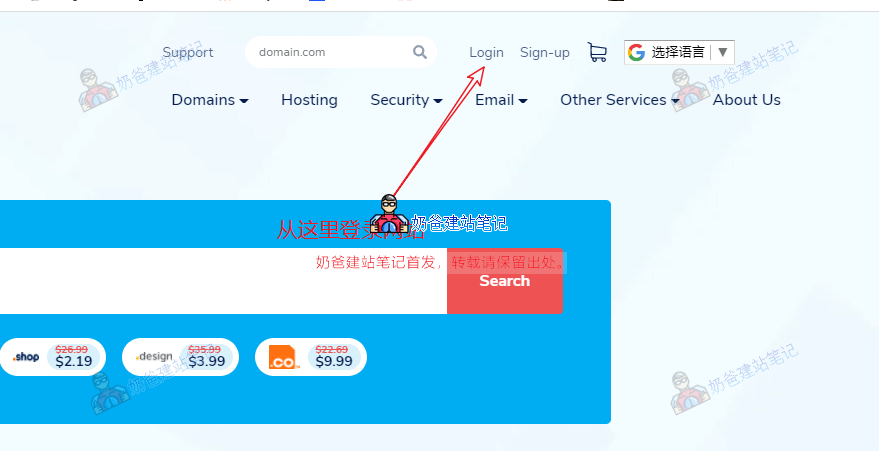
If you have just purchased a domain, you can choose to skip from the Quick Configure interface above. If you are not logged in, after openingNameSilothe website, log in first, then click on Domain Manager on the right.
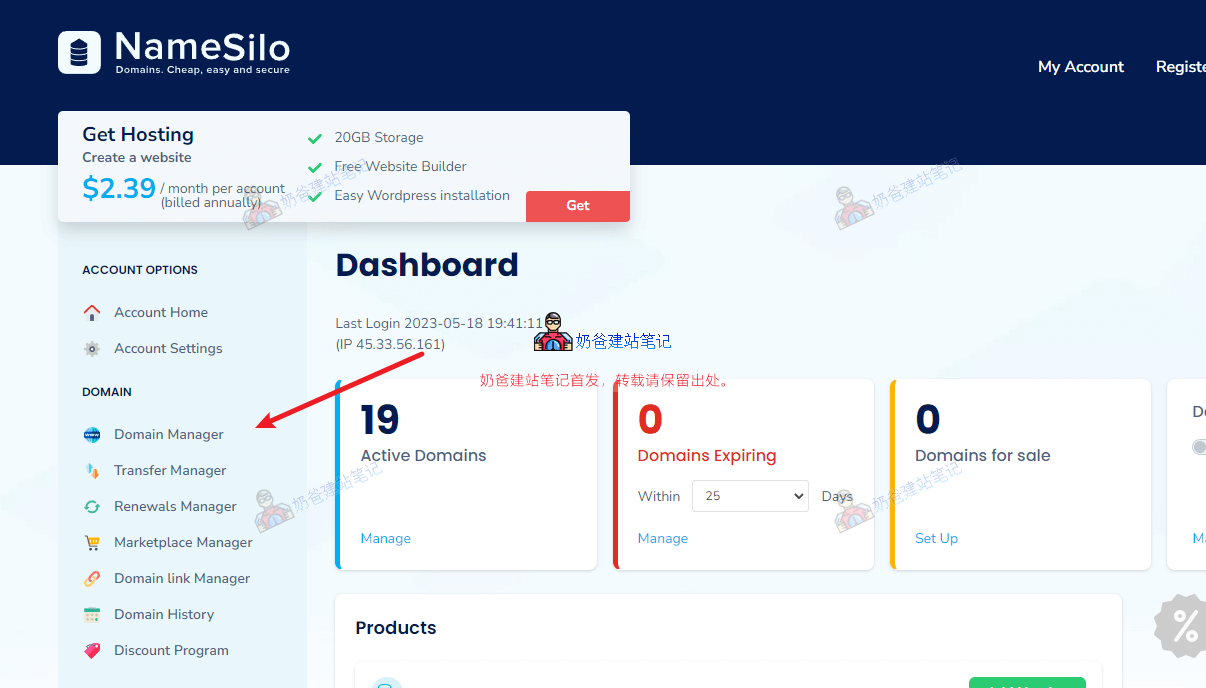
After logging in, once you enter the My Account interface, click on Domain Manager in the left menu.
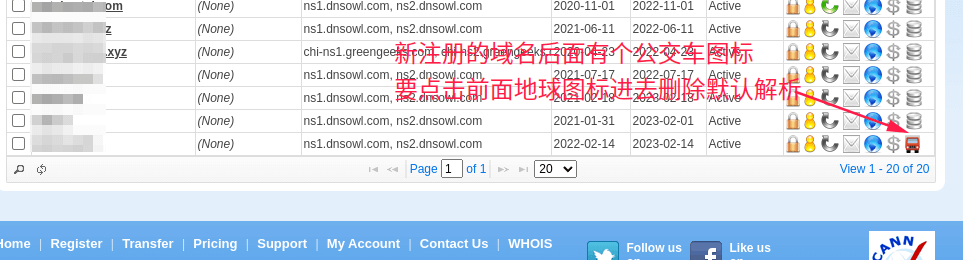
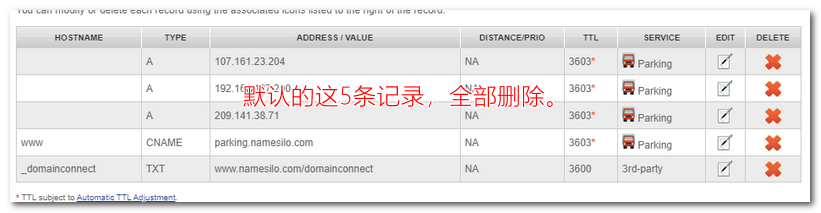
By default, newly registered domains automatically have several DNS records set up, which we need to delete. (From the domain list, you can see a bus icon at the end, indicating that the default DNS records are active. We need to delete them manually.)
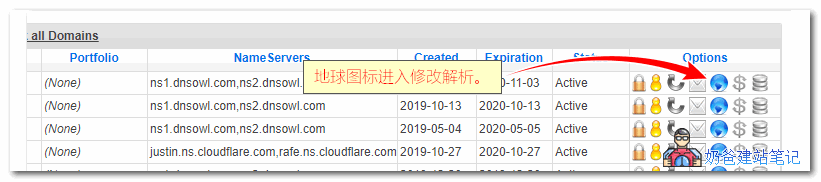
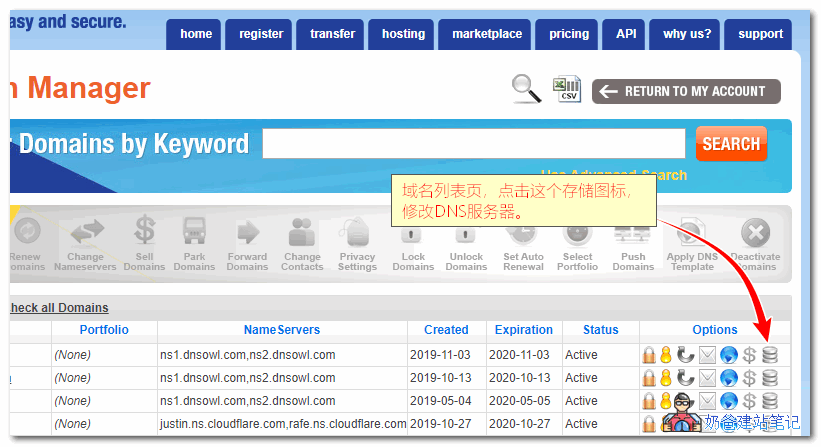
On the domain list interface, clicking the map icon allows you to modify domain DNS records.Clicking the storage icon allows you to modify the DNS servers.
Ifyou need to set up domain DNS records, click the blue globe, then enter the corresponding values in the DNS management interface.
Naiba Tip:
Newly registered domains automatically have 5 DNS records added; just delete them. (Some users get stuck thinking—they see only 3 records for their newly purchased domain and ask me what to do. What should you do? Delete them as well!)
Typically, you add an A record. Some service authentications require adding a CNAME record; just follow the prompts to add the corresponding values.
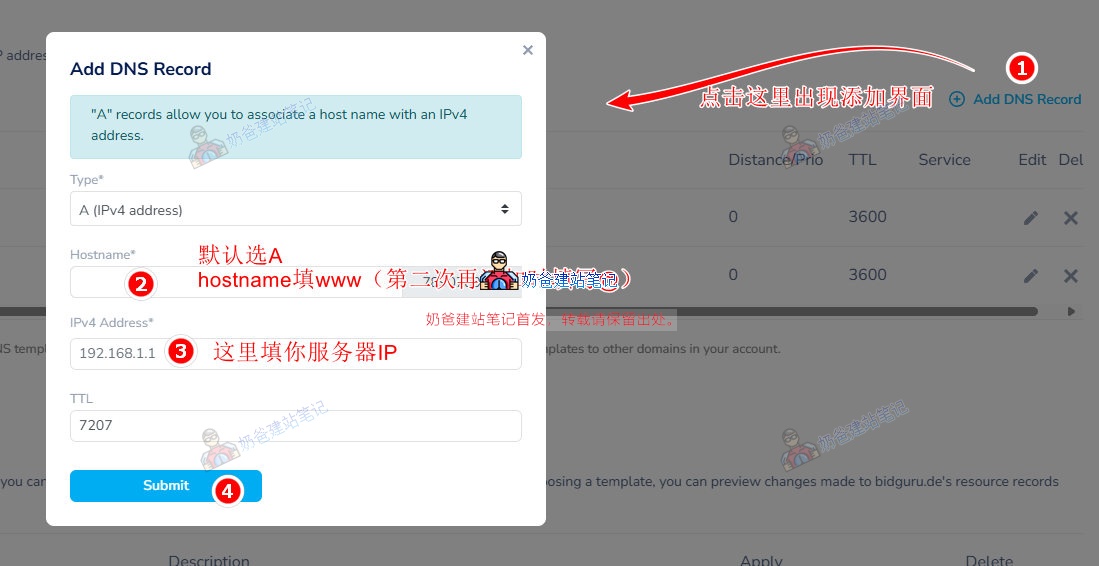
Detailed instructions for adding DNS records:
In the image above, section 1, 'Select the resource record type you want to create: A | AAAA | CNAME | MX | TXT/SPF | SRV | CAA' is where we choose the type of DNS record to add. Usually, you add an A record. In special cases, such as for business email, you may be required to add an MX record, so click MX.
Section 2, HOSTNAME, is where you fill in the subdomain. For a new website, we typically add two records: one for www and one for @. (Some domain registrars will default to @ if you leave it blank.)
Section 3 is where you fill in the server IP. You can find the corresponding IP in the server details page after purchasing a server or Shared Hosting.
For TTL, some special DNS records may require you to fill in a specific value. If there's no requirement, keep the default 7207.
Under what circumstances do you need to modify DNS servers?
Typically, we only need to keep the default DNS servers.
are onlyYou only need to modify DNS servers in the following situations:。
1. When using a third-party DNS service, such as DNSPod's service for DNS resolution.
DNSPod's DNS propagation time is faster than some default DNS servers, and paid plans support more personalized DNS configurations.
2. When using certain services that require you to change to their DNS servers.
For example, when using some CDN services, the CDN provider requires you to change your domain's DNS servers to theirs.
3. When changing to a hosting provider like SiteGround that includes domain management, DNS resolution will be handled automatically by the host, and you won't need to manually modify or add records.
After modifying the DNS servers, you can only manage domain DNS records on the corresponding website; DNS management on the purchase site will no longer take effect.
NameSilo Tutorial on Modifying Domain DNS Servers
1. After logging into NameSilo, go to the domain list page and click the storage icon next to the domain you want to modify, as shown in the image below:
Tip: If you don't see this icon but see a car icon instead, first click the blue globe icon to delete all DNS records, then you will see the DNS icon.(If you still don't see it after deletion, follow the steps in the image below.)
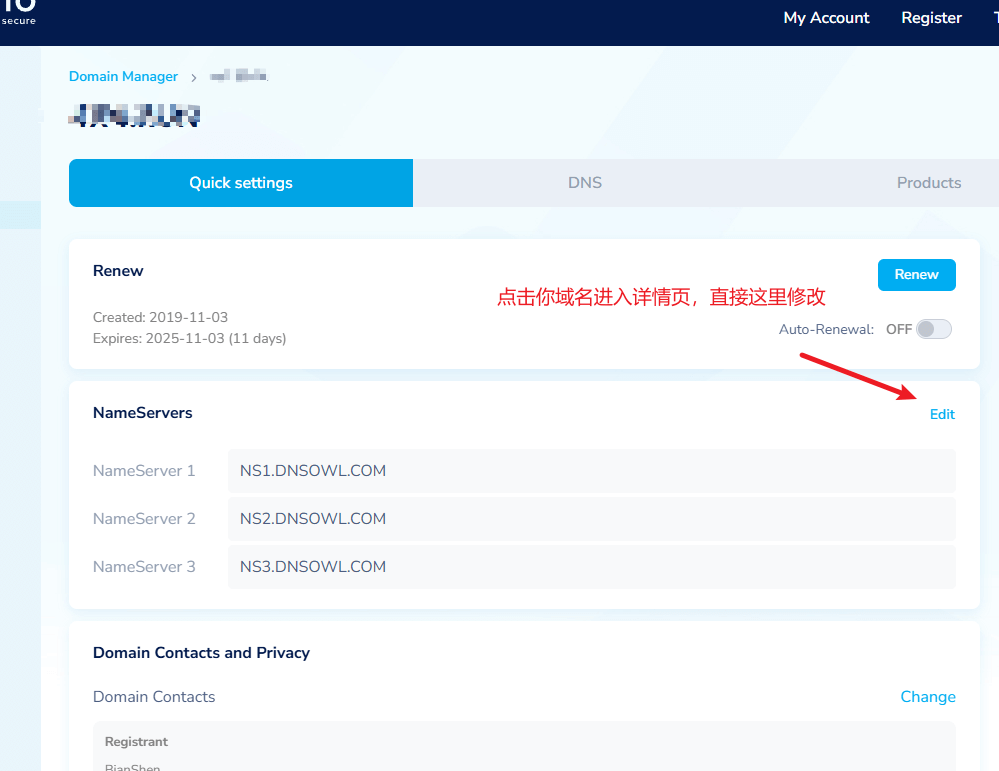
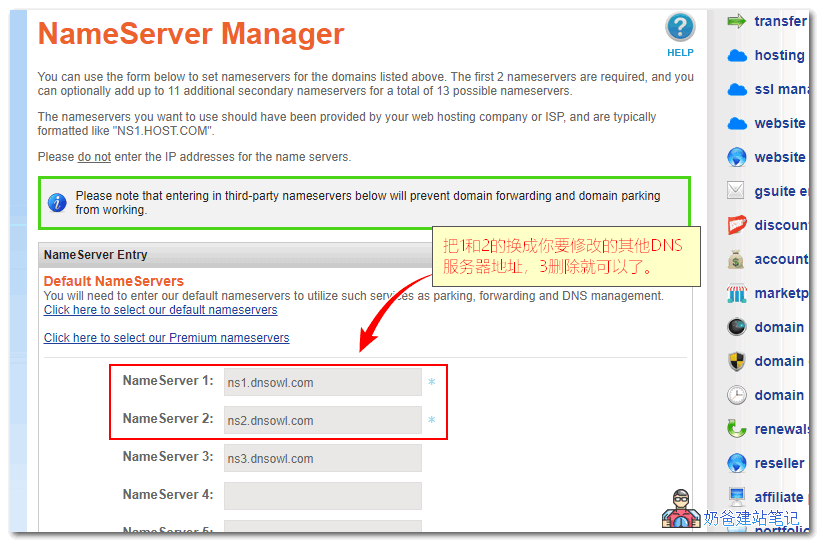
2. Click the storage icon to enter NameSilo's DNS modification interface, then delete the default 3 DNS servers and replace them with the new DNS servers before saving.
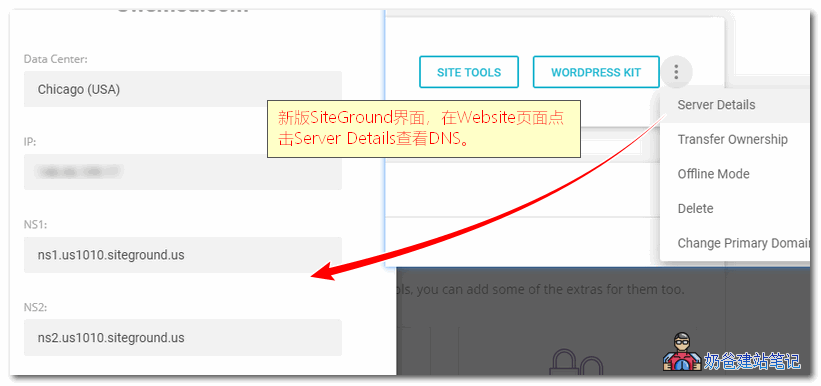
You must fill in at least two new DNS servers by default; the third one is optional. For example, if you want tochange the DNS servers to SiteGround's, then fill in the DNS server addresses provided in your SiteGround Admin Dashboard. The location to view them is shown in the image below:
NameSilo Domain 301 Redirect to Another Domain Tutorial
Sometimes we switch to a new domain, or a domain needs to point to another domain. You can directly perform a 301 redirect in the NameSilo backend without purchasing a server. The specific method is as follows:
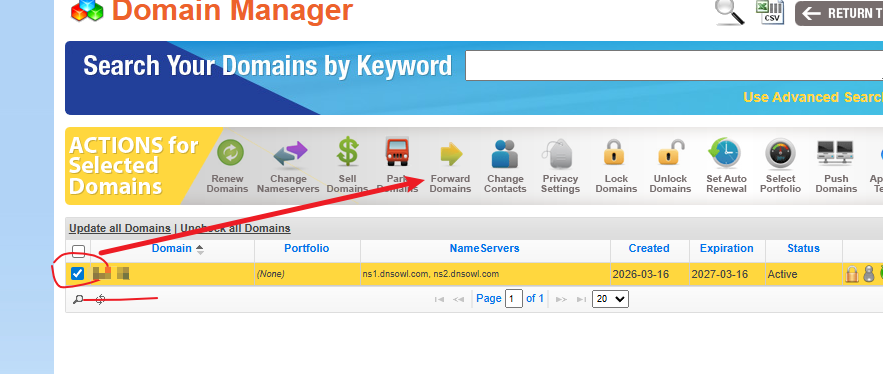
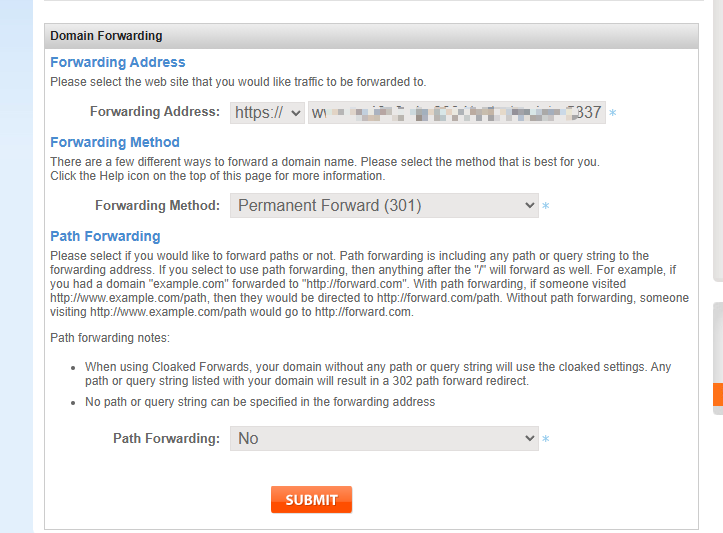
Go to the domain list, check the domain you want to redirect, and then select Forward Domains at the top.
In the new pop-up interface, fill in the Forwarding Address with the address you want the domain to redirect to, and save.
Note: If you have changed the DNS server, this redirect function will become invalid.
Website still inaccessible after modifying DNS pointing IP?
After modifying DNS resolution, there is a propagation time required for the changes to take effect. This propagation time varies depending on the DNS servers in different regions, typically ranging from a few hours to several days.
To speed up DNS propagation, you can use third-party public DNS servers. For reference, you can check the setup tutorial for Alibaba Public DNS.
How to determine if DNS resolution has taken effect
The simplest method is to open the domain name you added the resolution for. If it opens normally, it proves the resolution has taken effect; if it doesn't open, it hasn't taken effect.
You can also manually ping the domain name to check if it has taken effect. The specific method is as follows:
Start > Run > type cmd and press Enter (or directly press WIN + R, type cmd, and press Enter).
ping www.baidu.com
Replace www.baidu.com with your own domain name and press Enter.
Check if that IP is the IP you set. If not, it hasn't taken effect.
Of course, sometimes it could also be a DNS cache issue. Enter the following command to clear the DNS cache.
ipconfig /flushdns
Try again after clearing it.
The above isHow to set up DNS in NameSiloand all content related to domain name resolution. If you registered your domain with another service provider, the domain resolution method is largely similar—just add an A record pointing to your server's IP address.
How long does it take for NameSilo domain name resolution to take effect?
After adding domain name resolution in NameSilo, it usually takes effect within half an hour; faster DNS servers may take effect in just over ten minutes. If it hasn„t taken effect on your computer after more than half an hour, you can refer to the “Website still inaccessible after modifying DNS pointing IP?" section above to try modifying your computer's DNS server and checking the resolution status.
How to set up NameSilo domain name resolution with CloudFlare?
CloudFlare is a CDN service provider. To resolve a NameSilo domain name to CloudFlare, you first need to add your website in CloudFlare, then obtain the DNS servers provided by CloudFlare. Finally, go back to the domain DNS server settings on the NameSilo website and modify the DNS records to CloudFlare's.
How to resolve NameSilo to Vultr?
Go to your purchased VPS list in Vultr, find the IP record of the VPS you need to resolve, then return to the domain resolution list in NameSilo and add an A record, filling in the record value with Vultr's IP address.
NameSilo resolution is slow or not taking effect?
Domain name resolution does not take effect immediately after being added; it requires some reaction time to refresh the cache, usually taking effect within half an hour. If you find NameSilo's resolution slow, you can use third-party resolution services such as DNSPod or CloudFlare. Simply modify the DNS server records to the third-party's.
4.5/5 - (42 votes)
NB
Author of This Article
Author: Naiba
Since 2009, I have been using WordPress long-term, focusing on VPS, server maintenance, theme and plugin selection, Google SEO, and building foreign trade independent websites. The tutorials on this site are mainly derived from real-world experience in website building, migration, troubleshooting, and long-term maintenance.
There were problem(s) with your request: 我的域名 for CNAME record also has NS record(s) 我的域名 for CNAME record also has SOA record(s) Please make applicable changes and try again. What should I do?
Hello Naiba! The domain and server were originally on GoDaddy and GreenGeeks shared hosting. Now I'm transferring service providers. I purchased a VPS on AlphaVPS, successfully transferred the domain on NameSilo, and added the domain resolution. I have installed Baota Panel on the server and added the website for this domain after logging into Baota Panel. However, entering the domain shows the webpage cannot be opened, but pinging the domain is successful and displays the server's IP address. Downloading WordPress and extracting it into the website directory still results in the same issue. I'd like to ask what problem might be occurring in this situation.
If the ping result shows your new server's IP, then the issue is most likely with the configuration on the new server's Baota Panel. You can check it carefully.
Hello Naiba! I have a question. I followed your website building process and reached the server purchase step. On SiteGround, at the second step of selecting a domain, when I used an existing domain, it shows the domain is invalid. What's going on? Did I do something wrong?
Hello Naiba, I bought a domain from NameSilo last year and haven't used it. I bought another one this year. The server is from GreenGeeks. I've changed the DNS resolution and name servers, but it still can't be pinged. I also asked GreenGeeks to replace the domain associated with my server. Where else should I check for the problem?

There were problem(s) with your request:
我的域名 for CNAME record also has NS record(s)
我的域名 for CNAME record also has SOA record(s)
Please make applicable changes and try again.
What should I do?
There are conflicting DNS records. Delete the conflicting ones.
Hello Naiba!
The domain and server were originally on GoDaddy and GreenGeeks shared hosting. Now I'm transferring service providers.
I purchased a VPS on AlphaVPS, successfully transferred the domain on NameSilo, and added the domain resolution.
I have installed Baota Panel on the server and added the website for this domain after logging into Baota Panel.
However, entering the domain shows the webpage cannot be opened, but pinging the domain is successful and displays the server's IP address.
Downloading WordPress and extracting it into the website directory still results in the same issue.
I'd like to ask what problem might be occurring in this situation.
If the ping result shows your new server's IP, then the issue is most likely with the configuration on the new server's Baota Panel. You can check it carefully.
Hello Naiba, I've reached the 'decoration' step, but when I open the default WordPress interface, it shows a 404 error. What could be the issue?
A 404 error usually means either WordPress is not installed, or it's installed in the wrong location.
Hello Naiba! I have a question. I followed your website building process and reached the server purchase step. On SiteGround, at the second step of selecting a domain, when I used an existing domain, it shows the domain is invalid. What's going on? Did I do something wrong?
Check if there's a typo. If it keeps showing invalid, you can contact customer support.
Hello Naiba, I bought a domain from NameSilo last year and haven't used it. I bought another one this year. The server is from GreenGeeks. I've changed the DNS resolution and name servers, but it still can't be pinged. I also asked GreenGeeks to replace the domain associated with my server. Where else should I check for the problem?
If the operations were correct, it should work after waiting a few hours.