
🚀 Is building a website too difficult? Let me guide you step by step—Learn about the 「Naibabiji WordPress Website Building Coaching Service」 →

Cloudways Tutorial, Is Cloudways Good? Is It Worth Buying?

How is Cloudways?Is it suitable for building websites? Coincidentally, a Naiba client purchased a Cloudways server today. Taking this opportunity,Naiba will share a Cloudways tutorial and offer personal purchasing advice regarding Cloudways servers.

What is Cloudways?

Cloudways is a cloud server hosting platform. To put it plainly, they rent cloud servers from other cloud server providers, configure them for you, and then you use them. It feels a bit like a middleman making a profit. Of course, this middleman provides services; you don't have to manage OS installation, security, updates, or configuration of the server yourself. You can just buy and use it.

Is Cloudways Worth Buying?

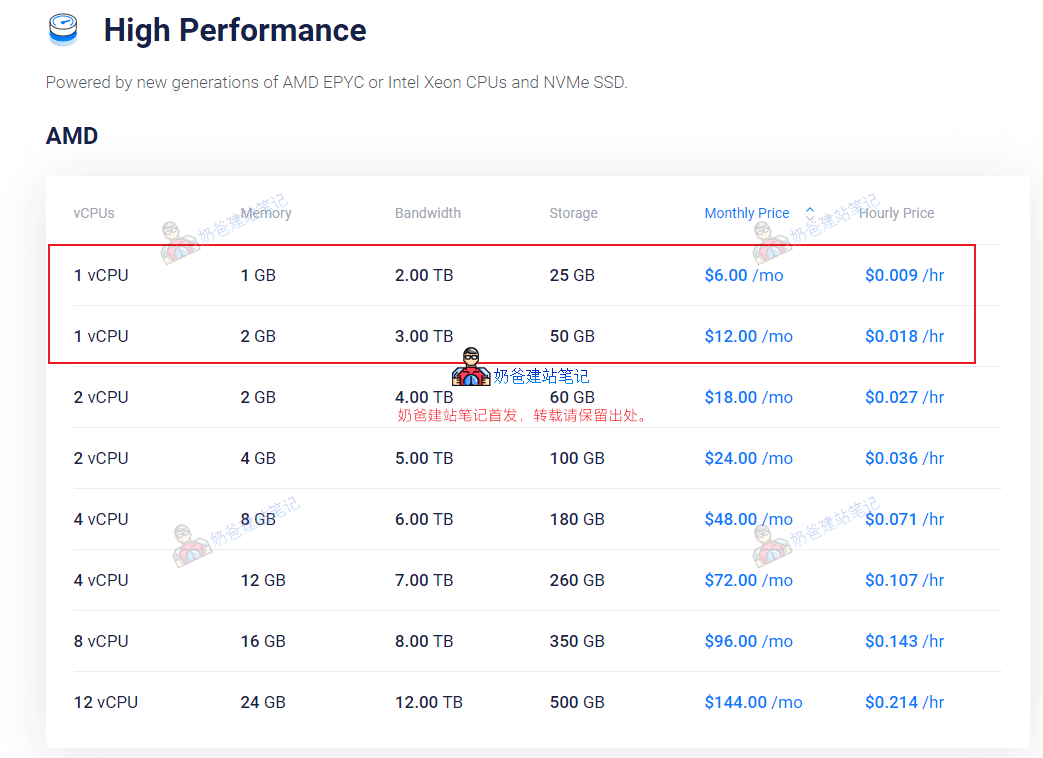
For friends learning website building on their own, is it necessary to purchase Cloudways? Let's first look at a comparison:cloudways报价From the above image, we can see that Cloudways hosting uses servers from DigitalOcean, Linode, Vultr, AWS, and Google Cloud. Now let's look at the Vultr configuration.Vultr的配置As can be seen, if we only consider CPU and RAM, ignoring traffic and storage size, on the Vultr official website, purchasing a 1H1G configuration costs $6 per month, and a 1H2G configuration costs $12 per month. However, the starting price on Cloudways is $13. This is equivalent to being twice as expensive. What services do you get for this extra cost?
  • Cloudflare Add-on NEW Built-in Cloudflare CDN acceleration
  • 24/7/365 Support Year-round after-sales support
  • Free SSL Free SSL certificate
  • Free Migration Free migration
  • Unlimited Application Installation Unlimited number of applications
  • Team Management Team management
  • Dedicated Firewalls Professional firewall
  • 24/7 Real-time Monitoring 7*24 real-time monitoring
  • Automated Backups Automated backups
  • Staging Environment Staging environment (used for building temporary websites for testing)
  • Optimized With Advanced Caches Optimized with advanced caching
  • Auto Healing Auto-healing (automatic recovery/backup restoration)
  • Regular Security Patching Regular security patching
  • HTTP/2 Enabled Servers HTTP/2 support
  • SSH and SFTP Access SSH and SFTP access
Among the features above, if you purchase on Vultr, automated backups would cost an extra $2 per month. Apart from after-sales support, most of the other features are essentially available when you buy a VPS anyway, so they shouldn't be counted as extra cost.In summary, by spending twice as much on Cloudways, what you gain is year-round after-sales support, automated backups, and a relatively easy-to-use VPS management system. Is it worth buying?First, a $13 per month server is not expensive. Even if you buy from Vultr yourself, Naiba also recommends starting with at least a $10/month configuration, although the specs would be one tier higher than Cloudways. However, because Cloudways has configured and managed the servers themselves, making VPS usage simpler,and the server optimization is definitely more thorough than what a VPS beginner could achieve,so the $13 server on Cloudways might actually run faster than the $12 server you buy yourself. Furthermore, since the VPS is configured by Cloudways, any issues related to the VPS will be handled by Cloudways' after-sales support, meaning you have access to their customer service.Cloudways Purchase Recommendation:If you have sufficient budget, lack technical knowledge, but still want to use a VPS for your website, buy it. If your budget is tight and you have decent self-learning ability, you can first buyShared HostingorVultrtheseVPSto build your website. When your website traffic grows to the point where you feel it's slow even after upgrading the VPS yourself, then consider switching to managed providers like Cloudways. Because a normal VPS, by installingBaota Panel, is also very simple to use. In all the years Naiba has been sharing website building tutorials, only one business owner in the B2C sector with high website traffic needed to upgrade their server. For other websites, there's basically no situation where the server can't handle the load. Moreover, for true beginners, using a VPS, including managed VPS like Cloudways, is still too complex. Shared Hosting might be more suitable for beginners. If your website traffic doesn't grow, even the best server won't be utilized. If your website traffic does grow, it's never too late to switch to a better server.

Cloudways Tutorial

After analyzing what Cloudways is like and whether it's worth buying, we will now officially begin the Cloudways tutorial.

First, registration.

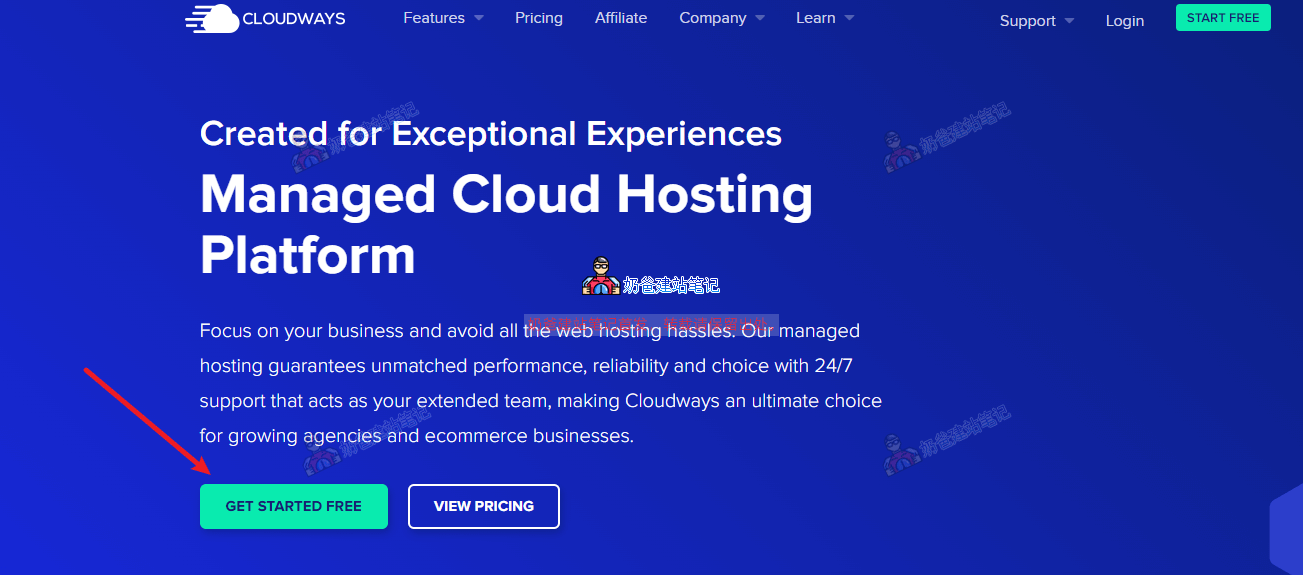
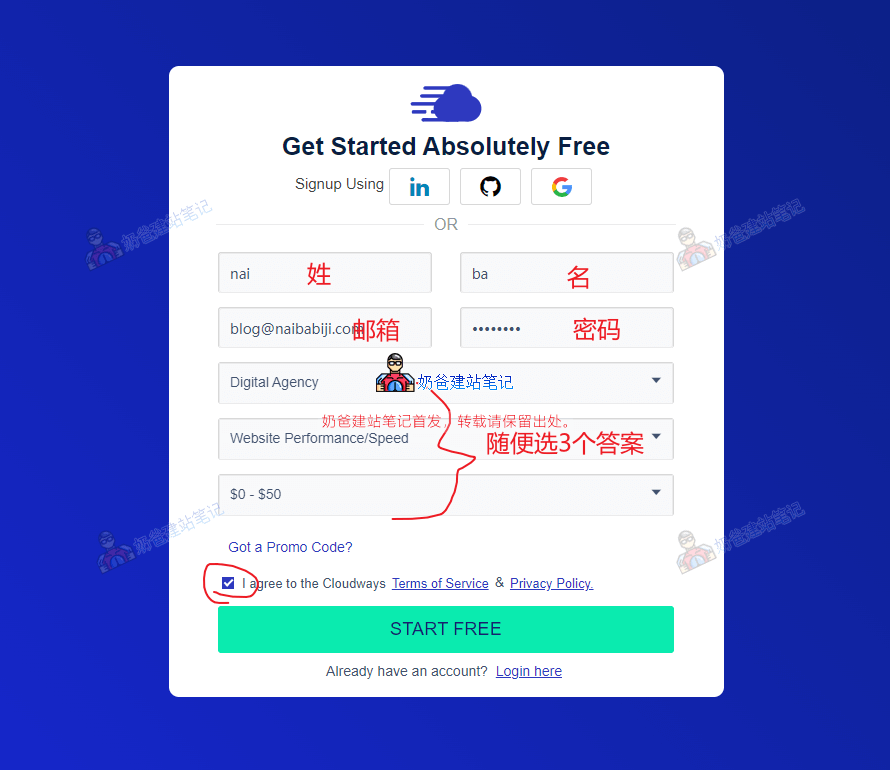
1. Openhttps://www.cloudways.com/Website, click the GET STARTED FREE button to register.Cloudways official website Click to register (free trial for 3 days) cloudways注册按钮Then fill in the registration information and submit.cloudways注册框After registration, a verification prompt may appear, such as the following:
Welcome To Cloudways To activate your account, please contact our verification team at av@cloudways.com. Once your account is activated, you'll be able to login and start your free trial.
At this point, we need to manually send an email to av@cloudways.com to verify the account (a reminder email will also be automatically sent to your registered email, and you can simply reply to it).
The email subject can be 'Account verification'. The email content can be: Hello, I am going to buy Cloudways services to build my own website, please help me to verify my account, my email is your email address. my facebook: your facebook address my twitter: your twitter address my linkedin: your linkedin address
Then wait for their reply and follow the instructions in their response email. Generally, they will ask you to provide proof of identity, including ID card, Facebook address, Twitter address, your own website, LinkedIn address, phone number.Select 2 pieces of information and send them.

Then, create a server.

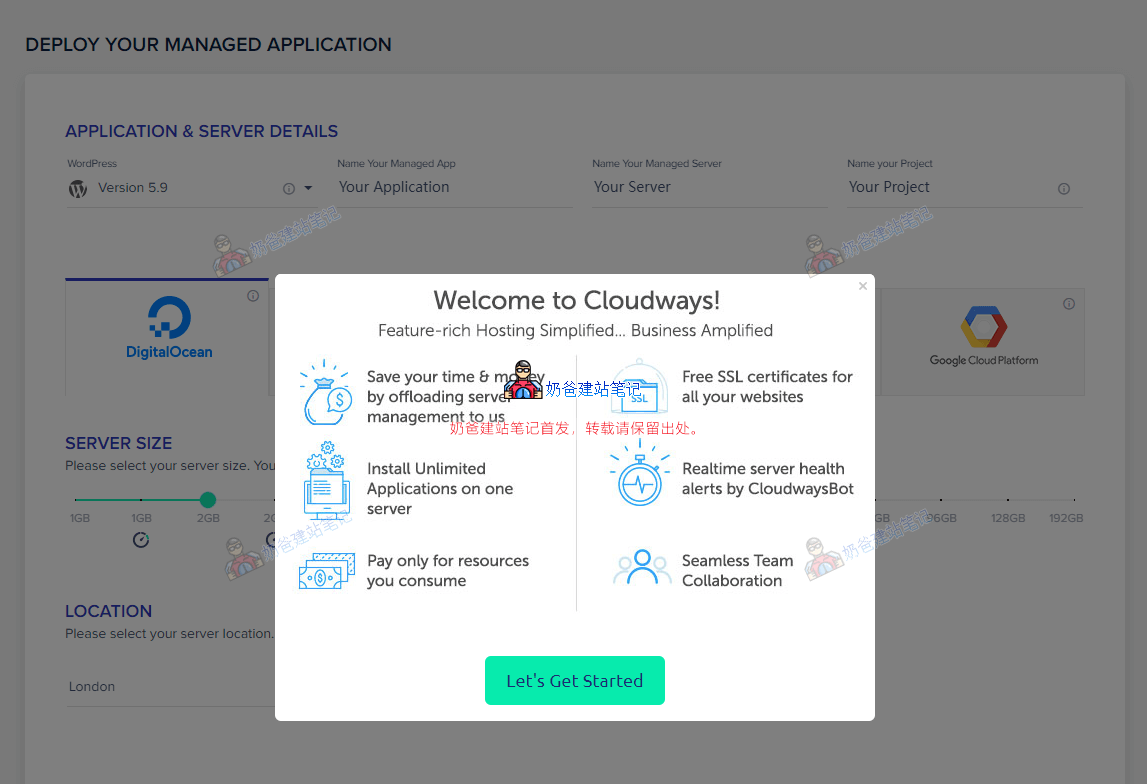
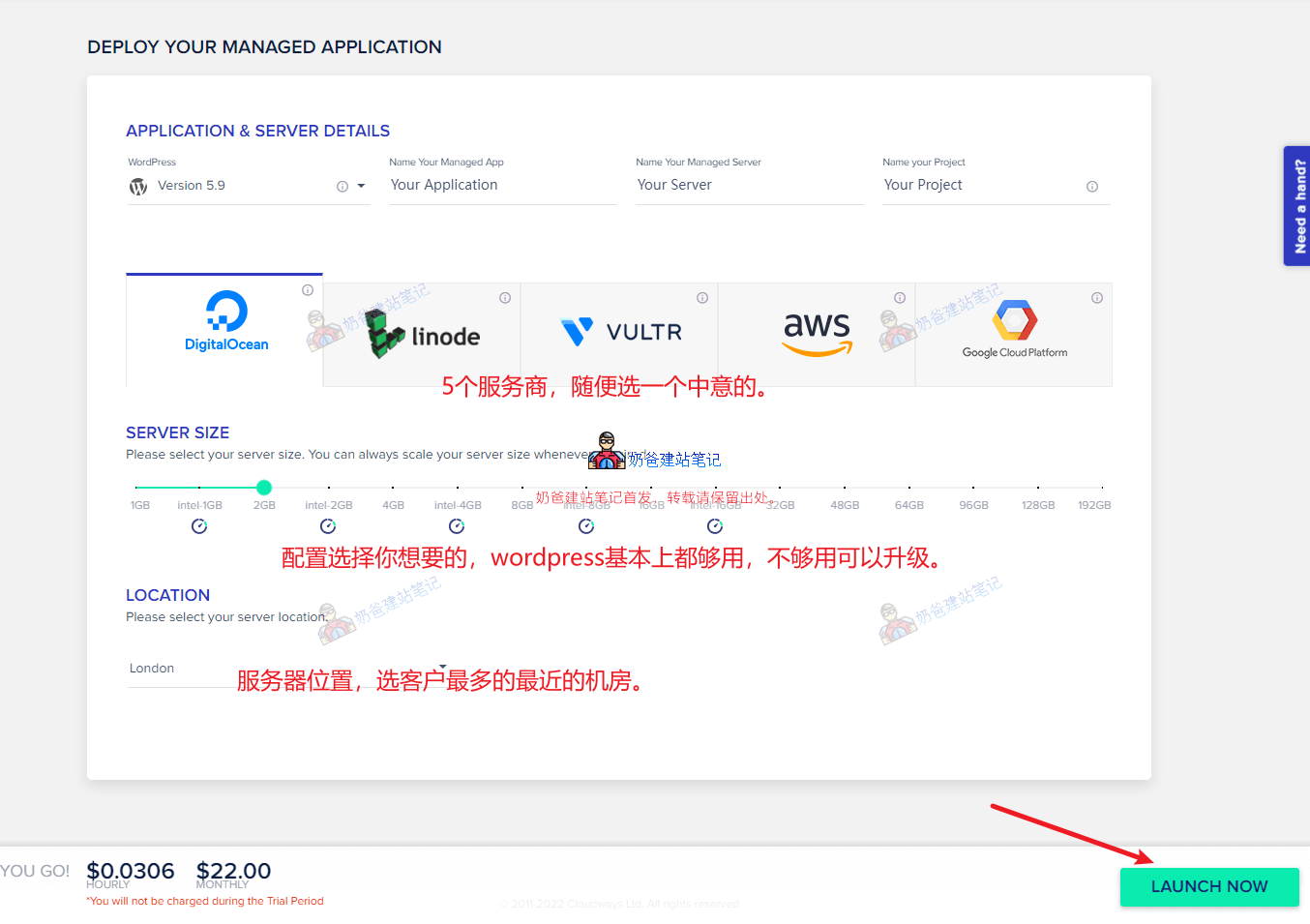
Once approved, you will receive an account activation email. After activation, log in to Cloudways, and the service creation interface will appear, as shown in the figure below:Choose the appropriate server provider and configuration according to your needs, then proceed to the next step.Cloudways创建服务Wait a few minutes, and the website will be created.  

Next, server management.

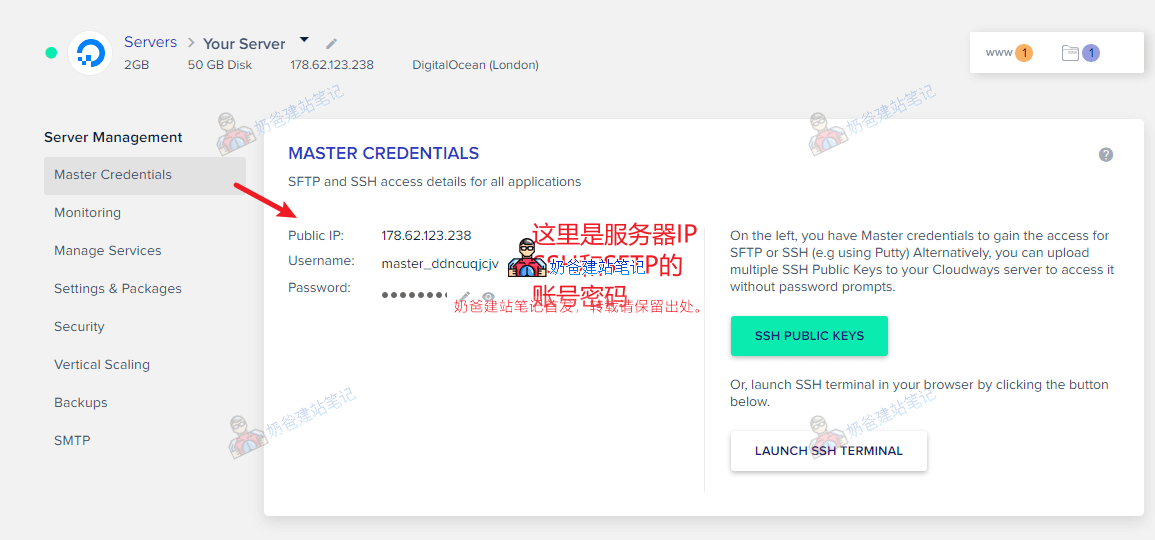
After the server is created, click the server tab to enter the server details page, where you will see an interface like the one shown below.Master CredentialsInterface, you can see your server IP (Public IP), SSH/SFTP username (Username) and password (Password). This account is what you can use toXSHELL and XSFTPThis type of software to connect to the server for server management or file upload/download, but generally, novice users on Cloudways do not need to use it.MonitoringInterface is server monitoring, where you can see your server usage.Manage ServicesInterface is server process management, similar to the task manager on a computer.Settings & PackagesInterface is software configuration and optimization, such as setting PHP timeout, upload size, memory limit, changing PHP version, etc.SecurityInterface is mainly for setting IP whitelist and blacklist for SSH and database.Vertical ScalingInterface is for scaling the server up or down.BackupsInterface is for website backup, where you can set up automatic backups or perform immediate backups.SMTPThe interface is for configuring email sending functionality on the server, but this requires an additional fee (not expensive). You can also install a plugin on WordPress to achieve this yourself.

Manage WordPress

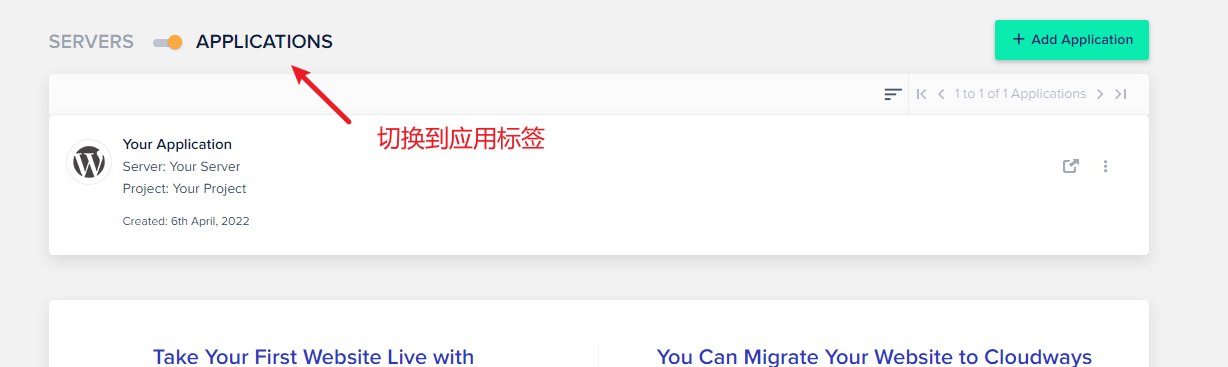
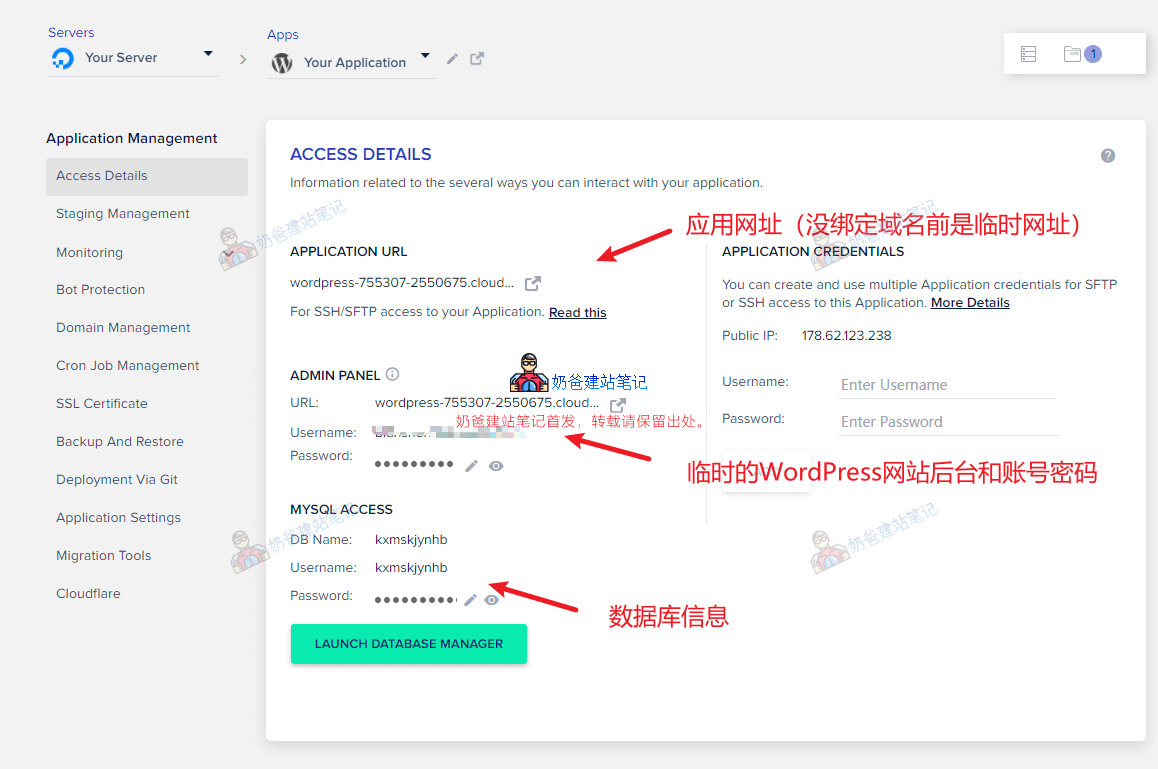
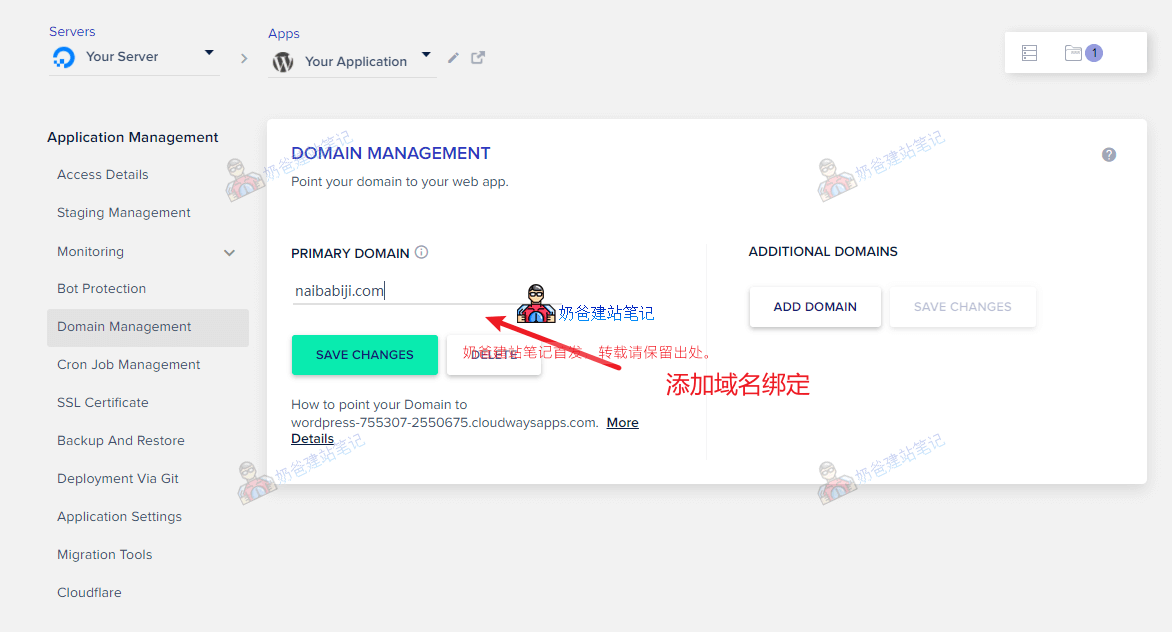
After introducing the server, let's talk about WordPress. After the server is installed, Cloudways has already installed WordPress for you by default.cloudways应用Click the menu bar or the 'Applications' in the image above to switch to the application tab. From the image above, we can see that a WordPress website has been installed for us by default. If you want to create multiple websites, simply click the 'Add Application' button in the upper right corner to create them. Click the application title to enter the details page, where you can see the interface shown in the image below. Access DetailsThis interface displays the basic information of your application, including the URL, account, password, etc.Staging ManagementThis interface creates an identical testing environment copy of your website for testing or debugging new features. It is generally not frequently used for small websites.MonitoringThis interface is also for monitoring, allowing you to monitor website traffic, PHP, database, and other information separately.Bot ProtectionThis interface shows statistics from a security plugin, which requires the WP plugin installed by default on Cloudways to function.Cloudways域名绑定 Domain ManagementThis interface is for binding your own domain to WordPress, so you don't have to access it via a temporary domain.
Naiba recommends binding your domain here first, then entering the WordPress Admin Dashboard to build the website and perform other tasks. This avoids potential link errors when switching from a temporary domain to the official domain after the site is built (there is a possibility that Cloudways' automatic domain replacement may not be completely clean).
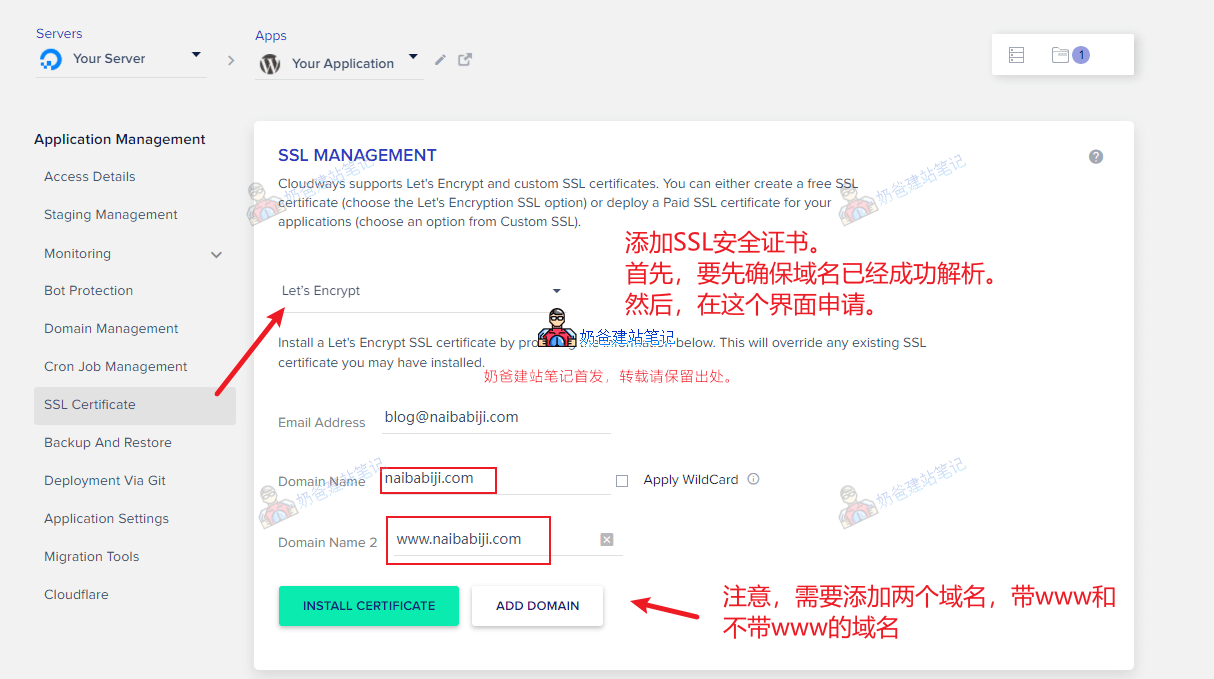
After adding the domain, you need to go to the domain registrar's website to set up DNS resolution. Simply put, this means adding two A records, with the record value being your server's IP address. Reference tutorials: Cron Job ManagementThis interface is generally not used; it is for scheduled task management.cloudways申请SSL证书 SSL CertificateThis interface is for applying for an SSL security certificate. After your domain resolution is successful, come to this interface to apply for the SSL certificate, so the website can be accessed via HTTPS.Backup And RestoreThis interface is for backup and restore.Deployment Via GitThis interface is generally not used; it is for deployment via Git.Application SettingsThis interface allows you to configure settings such as the WordPress installation folder (not recommended to change) and also configure PHP parameters specifically for this WordPress installation.Migration ToolsThis interface is for migrating websites. I haven't used it, so I won't comment.CloudflareThe interface is a free CDN service, just fill in your email to activate it.

How to delete and add a new WordPress website?

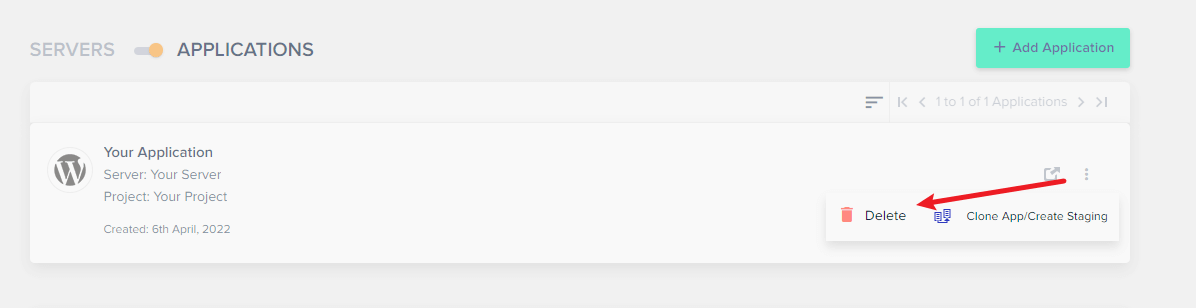
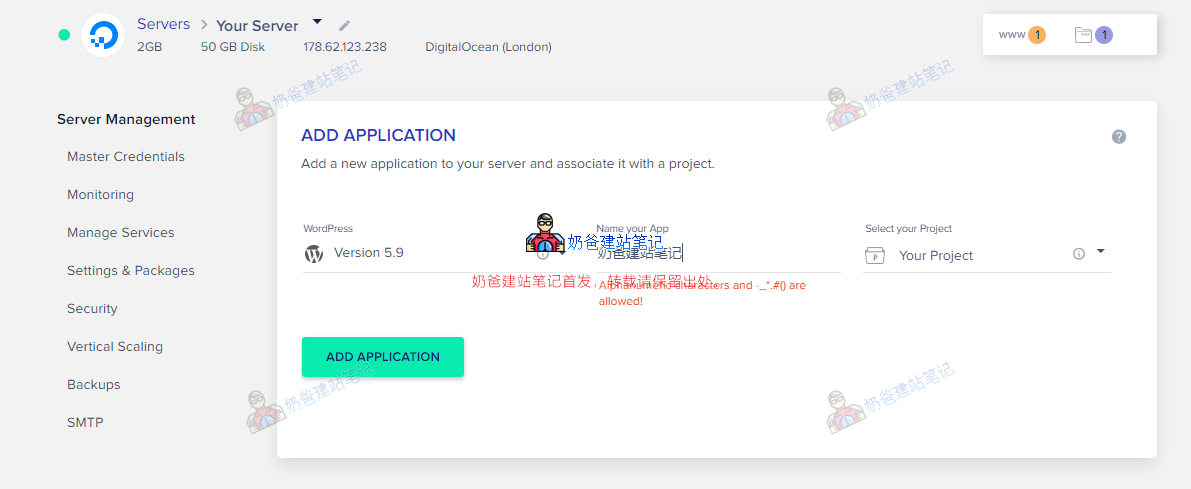
If you need to delete a WordPress website, simply click the delete button behind the application, then enter „DELETE“ in the pop-up interface.It is important to note that you must ensure at least one Application is running on the server. If you want to delete an old one, you can first create a new application and then delete the old one. If you need to add a new website, just click the Add Application button in the upper right corner, then select which server you want to create it on, choose the WordPress version, add a name, and create it.WordPress创建第二个网站

How to delete a Cloudways server?

To delete a Cloudways server, directly click the three dots behind the server, select Delete, and then enter DELETE in the confirmation pop-up interface to proceed.At this point, the basic usage tutorial for Cloudways has been introduced. If you have any further questions, feel free to leave a comment for discussion.

🚀 Still feeling confused after reading the tutorial? Let me guide you step-by-step.

「Naibabiji WordPress Website Building Coaching Service」—From choosing a domain and buying hosting, to installing a Theme and publishing content, I「ll coach you through every step, helping you avoid detours and reach your goal directly.

👉 Learn about the Website Building Coaching Service
<

„Cloudways Tutorial, How is Cloudways? Is it Worth Buying?“ has 7 comments

  1. Oskasays:

    Is Cloudways' CDN now a paid service?

  2. duosays:

    Hello!
    Today when I opened Cloudways, only DigitalOcean, AWS, and Google Cloud were available, Vultr is gone. Is Vultr no longer providing service?

    • Leesays:

      DO and Vultr are competitors (in the same tier). AWS and Google Cloud are in the first tier. DO is Cloudways' own, so it's normal to remove Vultr. Vultr's official website is still selling products normally.

      • duosays:

        You often use Vultr servers, right? I want to follow your tutorial to achieve website building freedom, haha.

  3. Grelosays:

    Hello, may I ask,
    Cloudways' plan DO1GB
    RAM: 1 GB
    Processor: 1
    Core Storage: 25GB
    Bandwidth: 1TB
    Compared with Siteground's shared hosting plan GrowBig Hosting, which one is better and faster?

Post Reply

Your email address will not be published. Required fields are marked with*marked

🔒 Security Verification
Find Rabbit
🐰
Rabbit
🐶
Puppy
🐹
Hamster
🐱
Kitten

×
二维码

Scan QR Code to Follow

AI Website Building Assistant

🤖
Hello! I am the Naibabiji AI Assistant. How can I help you?
Quick Consultation: