Both Astra and Avada are well-known classic WordPress themes. For beginners building a website, the question often arises: should I choose Astra or Avada? Here, Naiba will analyze how to choose between these two themes and which one is more suitable for you.
- Avada Theme is the best-selling WordPress theme on Themeforest, and many foreign trade websites in China use it.
- Astra was launched later than Avada and is currently the fastest-growing WordPress theme.
NaibabijiHere, we will analyze the differences between these two themes from multiple aspects.
Overall Comparison
Avada and Astra are sold on different platforms: one on a third-party marketplace, and the other on its own website.
In terms of functional planningthey are also completely different, almost polar opposites.
- Astra Theme focuses on performance; the theme's core code is only a few hundred kilobytes, very streamlined, and it implements more features by installing add-on plugins.
- Avada Theme focuses on features, known as the Swiss Army knife of themes. Almost any function you might need in daily use can be found within the theme settings.
Therefore, in practical use, the twoWorking Methodare also different.
- After installing the Astra Theme, you can activate and use it directly. It provides the basic functions that WordPress should have, and more personalized features need to be achieved by installing corresponding extension plugins (it comes with a pro plugin).
- The Avada Theme integrates all functions into the theme code, so the theme is relatively large. Regardless of whether you use the functions or not, the code is there. After activating the theme, you also need to browse and configure all theme settings.
Furthermore, in terms ofpage builder supportthere are differences:
- Astra is compatible with currently popular page builders, including: Elementor, Beaver Builder, Gutenberg, and Brizy.
- Avada uses its own Fusion Builder Live page builder.
It cannot be said which page builder is better; these builders are all excellent.
Price Comparison
Next, let's compare the prices.
| Astra | Avada |
|---|---|
| – Has a free version | – No free version |
| –Astra Pro per year: $47, $169, $249. –Astra Pro one-time payment: $249, $499, $699. –Purchasing the Pro version gives you access to all theme features, such as new navigation menus, additional layouts, WooCommerce integration, additional color options, headers, footers, etc. –You also get a full set of starter templates – the size of the directory depends on the pricing tier you choose. –Support and updates are provided during your subscription period. | –Regular license: $60. –The price includes future update package downloads and 6 months of technical support. |
| – 14-day refund guarantee. | – No refund guarantee. |
| – Can be used on multiple websites. | – Can only be used on one website. |
| – Higher-level plans give you access to additional plugins, such as WP Portfolio, Ultimate Addons for Beaver Builder, Ultimate Addons for Elementor, Convert Pro, Schema Pro, and SkillJet Academy. | – You will receive five bundled premium plugins: Fusion White Label, Convert Plus, Advanced Custom Fields PRO, LayerSlider WP, Slider Revolution. Avada has been designed and optimized with pre-set content for these plugins. |
Comparing from a pricing perspective, we can see:
- Avada is cheaper, with a single price point of $60, which allows you to purchase and use it.
- Astra uses tiered pricing, where different levels grant access to different features. The one-time payment is relatively expensive, but it can be used on unlimited websites.
It's worth noting that Astra has a free version, which can also be used to build some decent websites.
Feature Comparison
As mentioned earlier, Avada integrates all features into the theme code, while Astra has very streamlined code and requires installing the Pro plugin to extend functionality.
With Avada, you can disable features in the backend, but you cannot remove their code. With Astra, you need to enable features one by one, and the code for features you don't enable is not added.
| Astra | Avada |
|---|---|
|
|
In terms of features alone, if you are not very familiar with WordPress, the features provided by Avada will undoubtedly be more extensive than those offered by Astra.
Theme Usage
The usage methods for the Avada and Astra Themes differ.
- The method for using Astra Pro is: WP Admin Dashboard - Themes - Add - Search for Astra or upload and install. Then, Plugins - Add, upload the Astra Pro Plugin.
- For Avada, simply go to: WP Admin Dashboard - Themes - Add - Upload the Theme installation package.
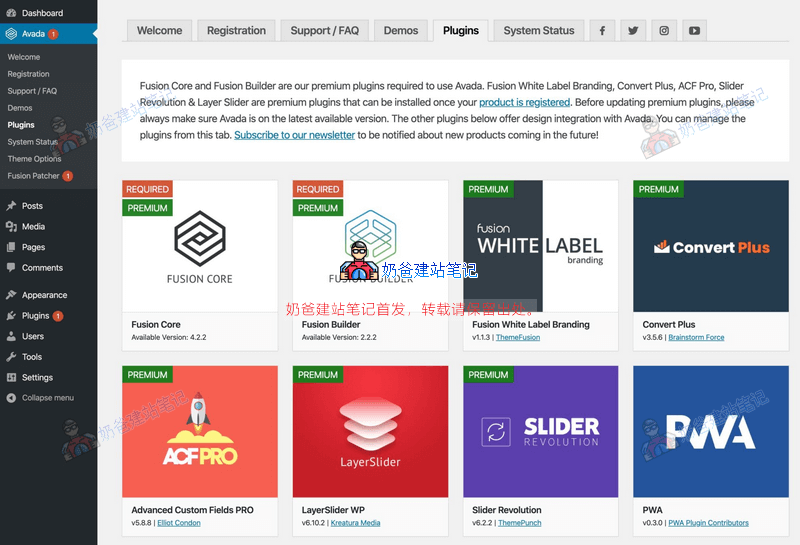
However, to use the full functionality of Avada, you also need to install the necessary plugins from the theme's plugin page.
Whether you install Astra or Avada, you will find that their interface is different from the demo you saw. So you need to import demo data to achieve the same effect as the demo.
Using the Astra Theme
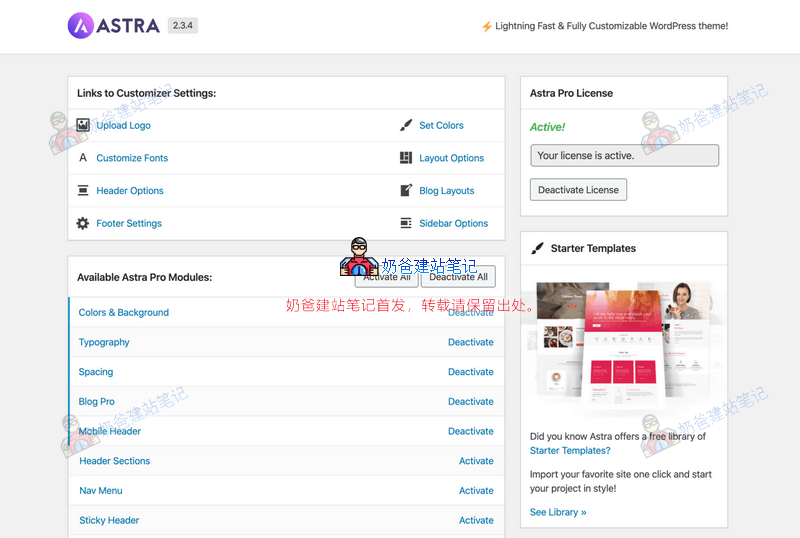
After installing the Astra theme and enabling the Pro plugin, you will be prompted to activate the license in the upper right corner of the Astra theme.
The available Astra Pro Modules features can be enabled on demand; if you don't enable a feature, its code won't be inserted into the theme.

If you want to import Astra's demo themes, you need to install the Starter Templates plugin, and then you will see the theme demo menu. All the demo templates shown in the image above can be imported.

During import, Astra also allows you to choose whether to import the entire demo or just the demo data for a single page, making it convenient to design your website pages independently.
Astra's theme settings are integrated with WordPress's customizer, so making any adjustments is very intuitive, and changes are visible immediately after modification.
Avada Theme Usage
After installing the Avada theme normally and entering the activation code, you can see all the feature settings panels.
There will be an Avada menu in the navigation bar. Click on Plugins under the menu to enter the plugin interface. If you want to achieve the demo site effect, these plugins must be enabled.
Avada's demo data also does not require a separate plugin installation; simply click on the Demo menu to enter and see the demo templates that come with the theme.
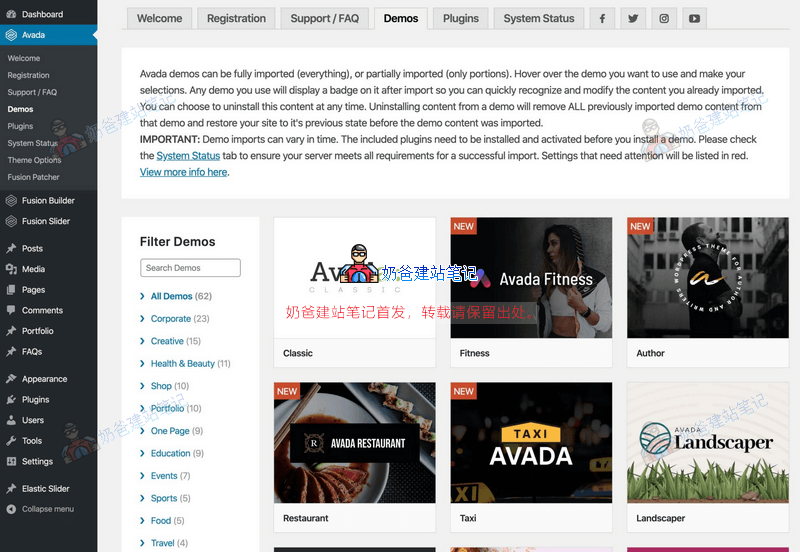
As long as you have purchased a key, you can freely import Avada's built-in demo data, whereas for Astra, some advanced demo data require a higher-tier account to be supported.
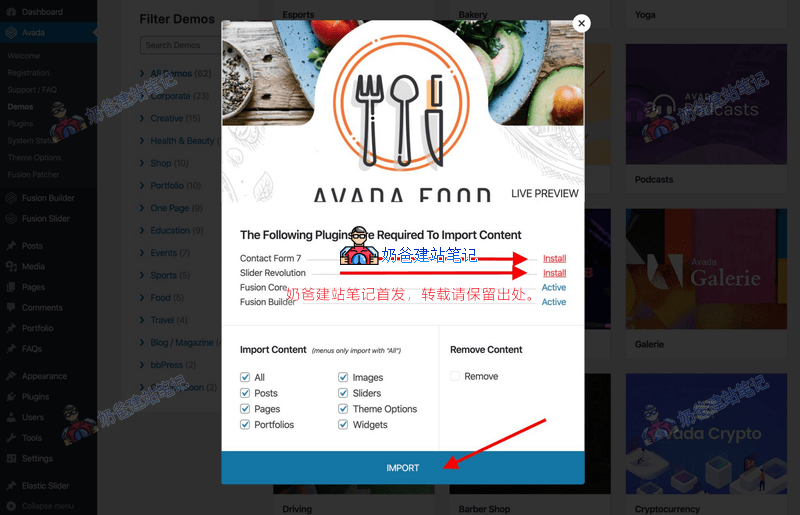
When importing demo data, Avada does not have an option to import individual pages; you can only import the entire demo data at once.
If the plugins used by the theme are not installed, it will prompt you to install them first. The same goes for Astra.
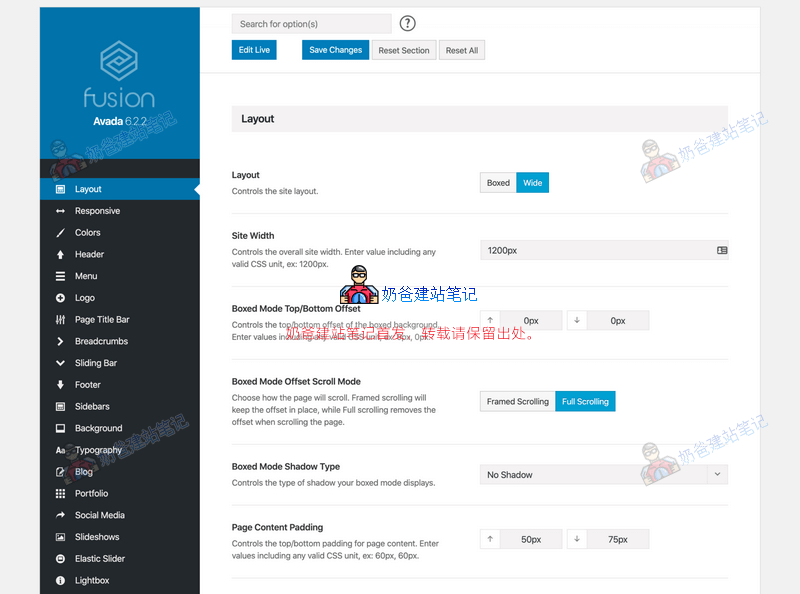
Avada has a very large number of theme options, as shown in the image above. I think for friends who are new to WordPress, seeing so many setting menus will definitely be overwhelming.
Technical Support
First, it's important to understand that technical support only provides answers regarding the functionality and usage of the theme; they will not help you solve actual technical problems you encounter.
- Avada only includes 6 months of technical support by default, but you can pay extra to extend it.
- Astra provides technical support throughout the service period (one year or lifetime).
Both themes include comprehensive technical documentation and video materials (all in English). If you can understand English, you can find answers to most questions.
Summary
Both Avada and Astra are excellent premium WordPress themes. Either one can be used to create beautiful and powerful websites. Naiba's personal suggestion on choosing between these two themes is to base your decision on your own needs. The simplest way is to first look at the demos and see which theme's demo is more suitable for the website you want to create.
Astra focuses more on performance, with a smaller codebase. Its features are implemented through bundled plugins, essentially separating the feature code into a standalone plugin.
Avada, on the other hand, integrates all features and has consistently maintained the top sales position, proving its solid capabilities.
If speed is a priority, Astra is recommended. If you prioritize features (for example, you don't know which features you'll need but want the theme to support them when you do), then choose Avada.
Avada Download Link Astra Download Link
Related articles about the two themes: