
If you have a website built with WordPress, then as a website administrator, the security of the website becomes particularly important.How can you know if your website is secure?This articleNaibabijiintroduces the conventional WordPress security check process.
WordPress Security Audit Checklist
1. Keep Software Updated
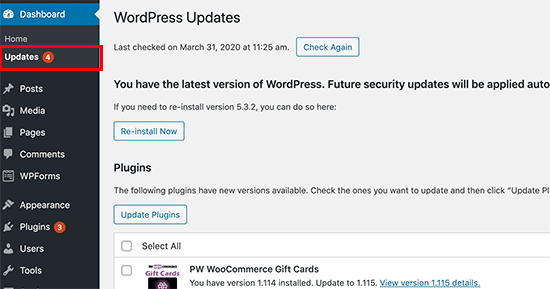
WordPress itself, as well as themes and plugins, are updated from time to time, usually including bug fixes and new features. Therefore, for security, we must keep the software up to date.
Some excellent managed hosts will automatically upgrade for you, for exampleSiteGround, or you can manually upgrade yourself every once in a while.
If you are concerned about compatibility issues with the new version, you can wait a few days to update, or set up a test environment to update and verify before updating the main site.
2. Check Website Users
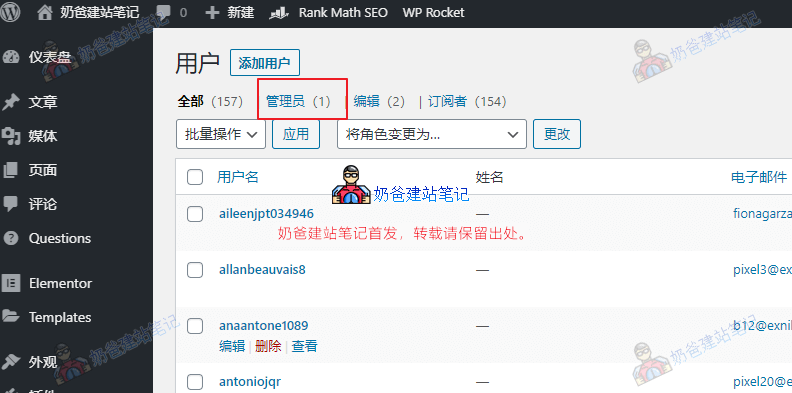
In the Users section of the WordPress dashboard, you can see the list of users on your site. Usually, you only need to pay attention to the administrator account.
For a normal site, if you haven't added any manually, there should be only one administrator account. If you find an unfamiliar administrator account, you need to be careful.
If your site uses WooCommerce to build an online store, there will definitely be many registered accounts. Only accounts with roles like Editor or Author can post articles on your site, so you also need to pay attention to them.
3. Analyze Website Traffic Status
For a normal website, traffic is relatively stable and does not fluctuate dramatically. If you notice a sudden drop in traffic, you need to investigate the cause.
For methods of tracking traffic, see:How to add Google Analytics tracking code to view daily traffic when building your own website
4. Check Website Backup Data
Naiba previously sharedPrevent Data Loss: 10 Excellent WordPress Backup Plugins Recommendedarticle, and I believe many friends have followed the steps.
However, if your website is particularly important, it is recommended that you regularly check whether the backup data exists in the set location and whether the backup data is usable. Previously, the backup plugin Naiba used had garbled data, but fortunately Naiba restored it manually. If the data cannot be restored, the backup is useless.
5. Utilize Some Online Security Scans
To be honest, the significance of these online scans is not particularly great. If the situation reaches a point where they can detect it, as an administrator who visits your own website daily, you should have already noticed the problem.
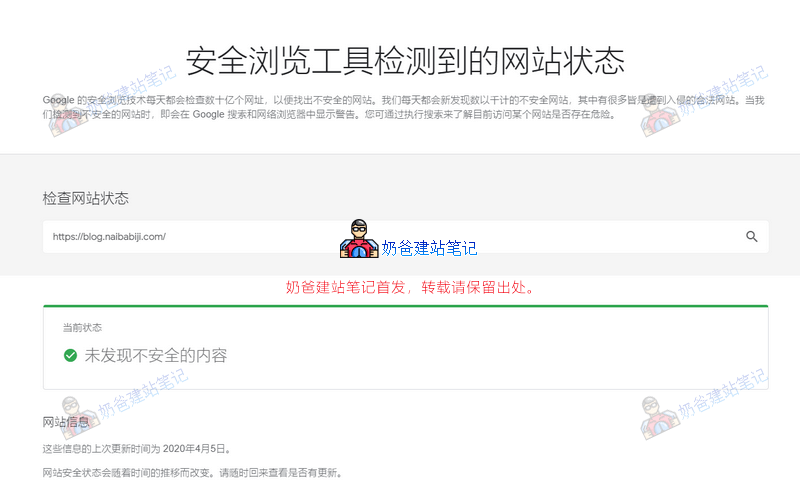
Since most foreign trade websites focus on Google SEO, we can simply use Google's website status checking tool to test.
https://transparencyreport.google.com/safe-browsing/search
How to Protect WordPress Security?
For ordinary websites, few hackers specifically target your site, so it is sufficient to do routine security protection work.
Specifically include:
- A secure server;
- A highly secure password;
- Do not easily install Themes and Plugins from unknown sources;
- Perform regular backups.
If you still feel uneasy, you can also install some security Plugins.