
How to create a beautifultimeline pageusing WordPress? If you don't know how to code yourself, then NaibaWebsite Building NotesHere I share 4 WP Timeline plugins that can generate timeline pages.
The following 4 timeline plugins come with different styles, you can choose the one you like.
Timeline plugin Timeline Express
The effect of Timeline Express is as shown below:
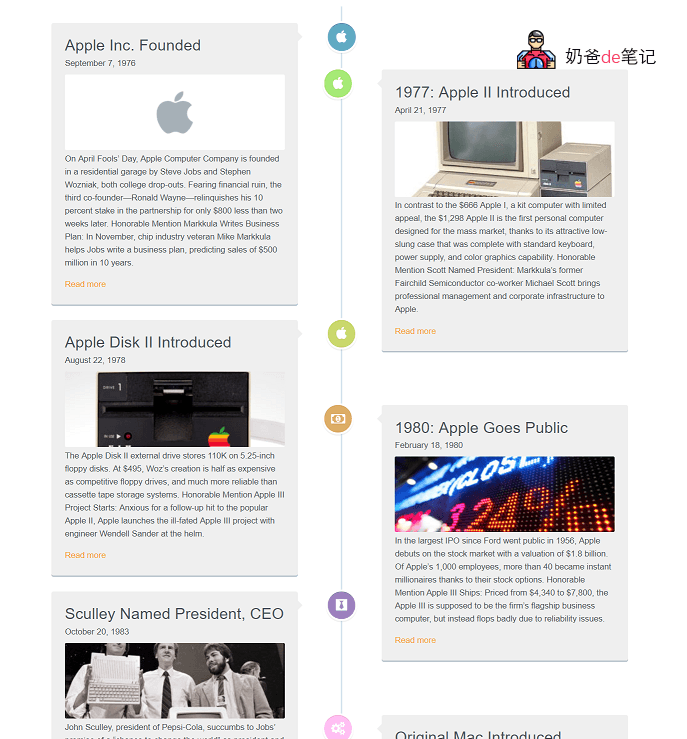
Timeline Express supports FontAwesome icons, CSS3 animation effects, allows setting icons for timeline content, announcement color, background color, date visibility, and whether to display full text. Its features are a bit more than the TM Timeline plugin below.
How to use Timeline Express
After installing the plugin, click the New Announcement button to publish a new announcement (timeline content). When publishing content, you can modify the color, icon, date, and also set a banner icon.
The method to call Timeline Express: Create a new page in the backend, insert the following shortcode into the page, and publish it.
[timeline-express]
Timeline plugin TM Timeline
The effect of TM Timeline is as shown below (please ignore the date and language mismatch):
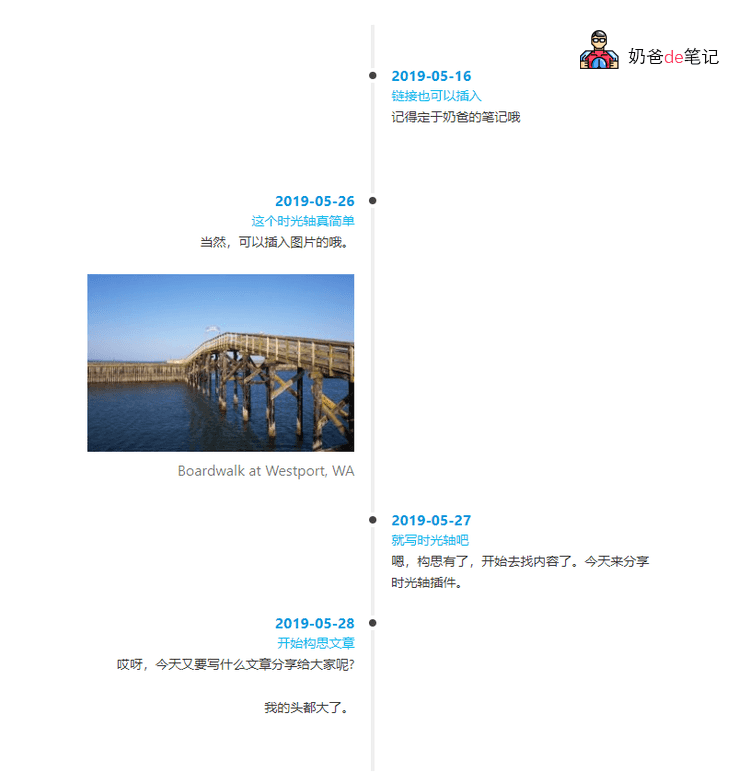
TM Timeline supports horizontal, vertical, and alternating vertical layouts. Its features are weaker compared to Timeline Express; you cannot set the background and icons yourself, and there are no CSS3 animation effects. However, Naiba personally feels it looks cleaner.
How to call TM Timeline: In the TM Timeline settings, configure the style you need, then click Generate shortcode to create the shortcode. Then copy the shortcode and add it to the page to call it.
Timeline plugin Event Timeline Feed
Event Timeline Feed is a new timeline plugin. At the time of this article's publication, it supports 4 layout styles by default and has the following features:
- Unlimited event timelines
- Multiple eye-catching layouts
- Customizable Layouts
- Typography settings
- Unlimited color options
- Event links, icons, dates
- Timeline feed shortcode
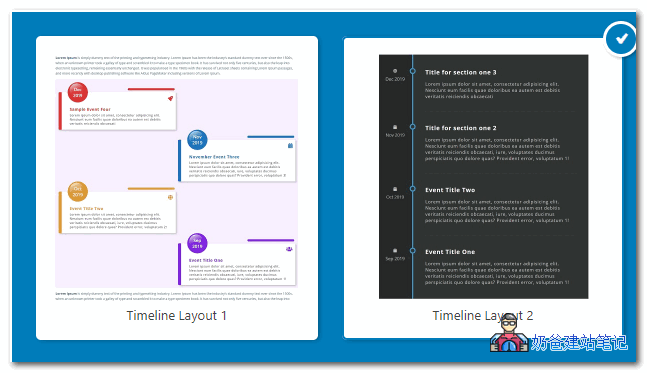
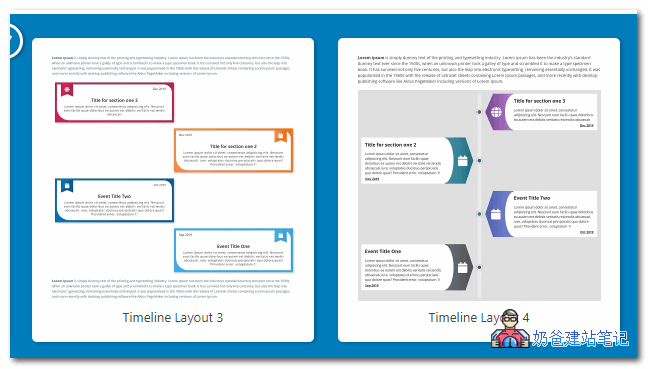
The colors of the layout can be modified in the backend. The usage is very simple: after creating a timeline in the backend, 'Add Events to Timeline' to add timeline content, as shown in the figure below:
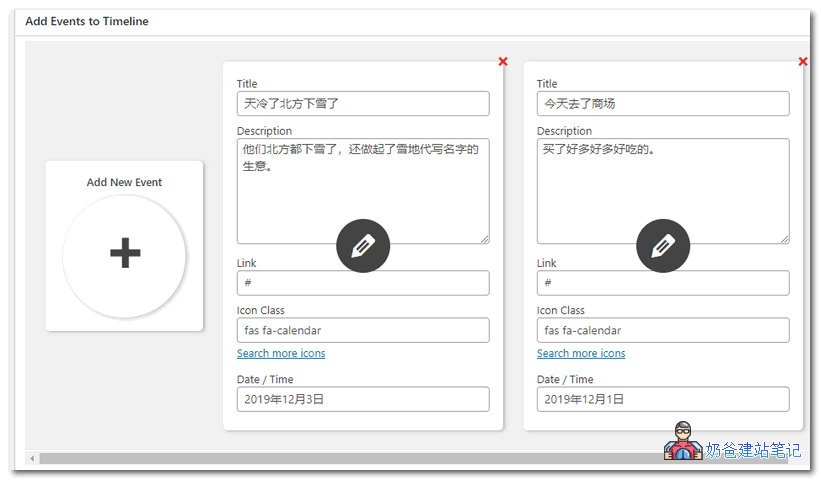
It is very simple to use. After adding the timeline, copy the shortcode next to it, create a new page, paste the shortcode, publish it, and you can see yourtimeline page.
Event Timeline Feed is a relatively new one.WP timeline plugin, so you may not be able to find it directly by searching in the WP backend. You can download the installation package from the link below and upload it for installation.
Paid timeline plugin Bold Timeline
Bold Timeline is a paid WordPress timeline plugin, so its styles and features are also the most comprehensive among the plugins recommended in this article.
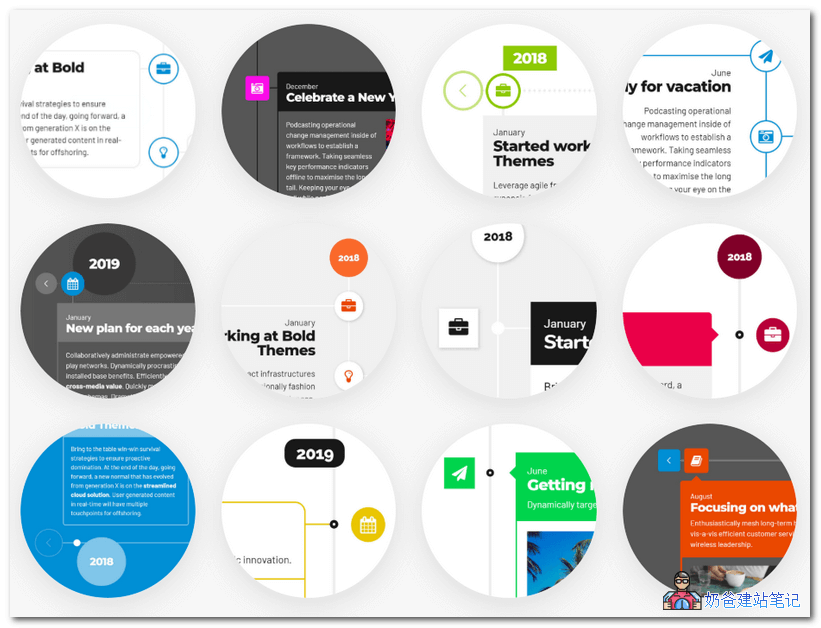
You can use Bold Timeline with any WordPress theme and any page builder to display: company history, author biography, blog list, news story line, historical events, product updates, task list, life story, work experience, step-by-step guide, project roadmap, event timeline, or other content.
Bold Timeline comes with 27 demo styles, I believe you can find a timeline that suits your style.
If you want to test it simply, it's below.
Join Group to DownloadGroup 774633089 Shared > WordPress Plugins > CJ15.boldtimeline102
Using a timeline plugin on WordPress to generate a timeline page to record blog history or something is quite interesting. Looking back after many years,your bloghas experienced various things.