
Previously, I sharedthe method for adding Google Analytics code in Astra Pro, so if you are using the free version ofAstra Theme, how to add Google Analytics code?
The method is also very simple. The specific steps are as follows:
1. Log in to the WordPress backend, select Theme - Astra Settings - Footer Settings. As shown below:
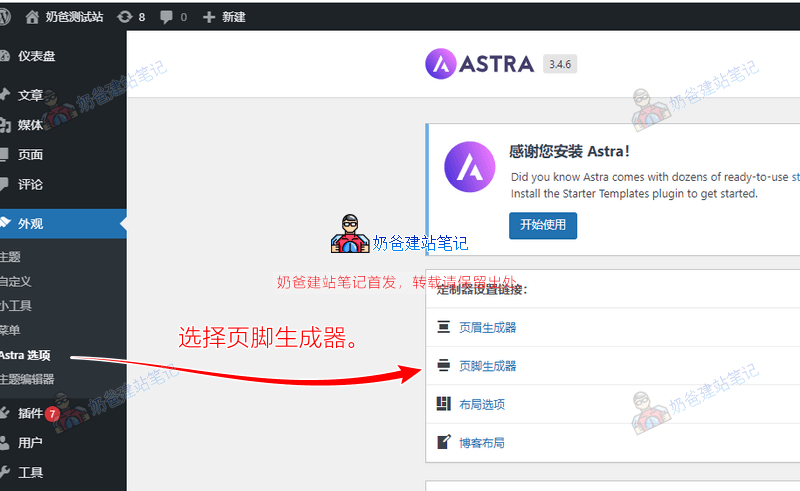
2. In the blank space of the Copyright column, click and select an HTML from the popped-up options.

3. Add the Google Analytics code there (other analytics codes can be added in the same way).

If you don't have a Google Analytics code yet, then followthis articleGo apply for a Google Analytics code, then add the code back.
After adding, you can go to the website frontend, right-click, view the website source code, then search for part of the data in the added code, such as Global site tag, to see if the code is loaded successfully.
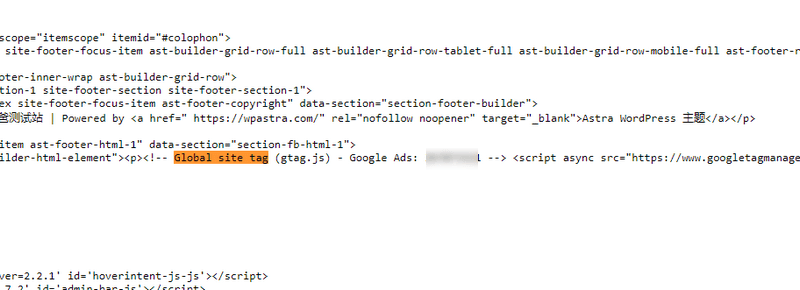
After adding the tracking code, you can see the statistics soon, but usually the data is accurate only after the next day, so you can see the website traffic data the next day.
Additionally, Google officially recommends adding it to the <head> code, so you can choose Astra's header builder. To avoid problems when users load the page, we are used to adding it to the footer.
In addition to the above method, you can also use plugins to add code. See: