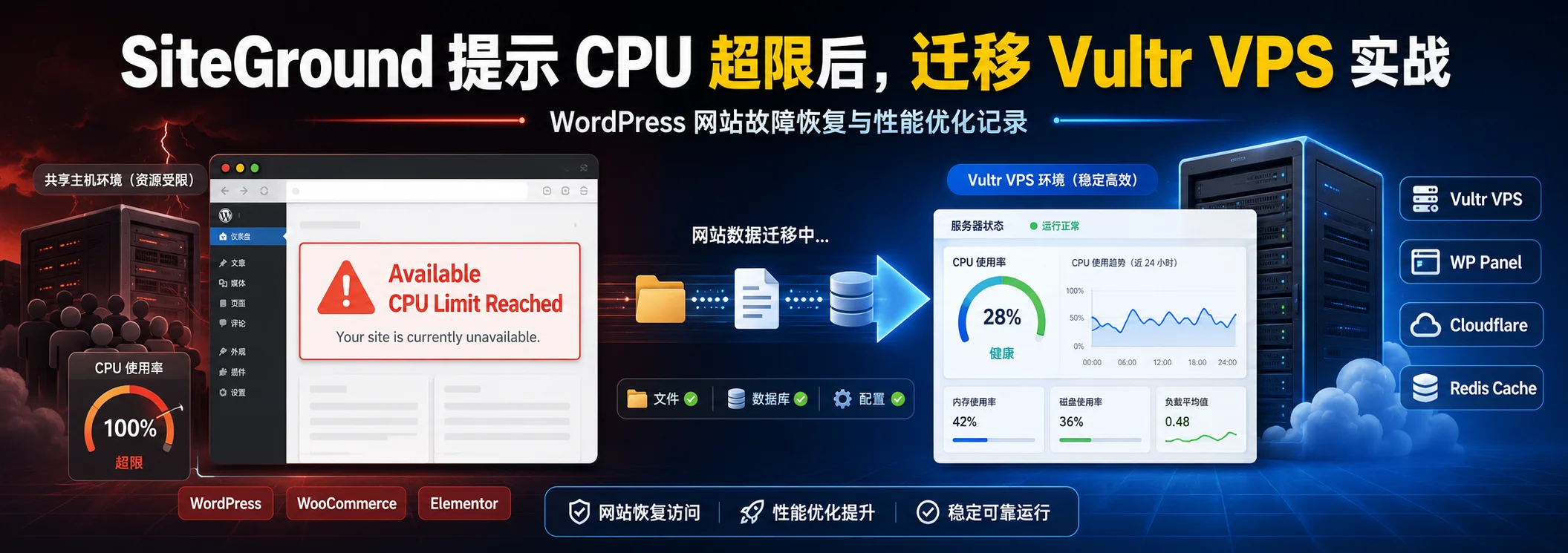
Naiba just finished handling a real SiteGround website migration where the site showed „Available CPU Limit Reached“ and was inaccessible. This article shares the process and subsequent optimization ideas.
Basic information of the website handled this time
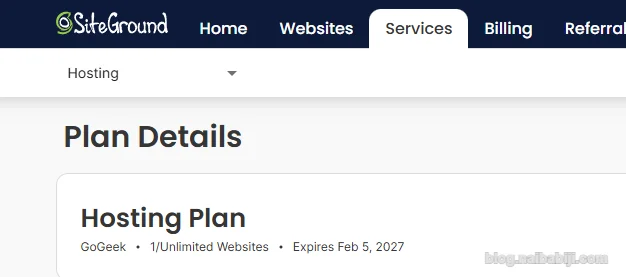
SiteGround server GoGeek plan, expiring on February 5, 2027.
Using WordPress + Elementor + WooCommerce combination, with a total of 5729 products.

SiteGround prompt: Available CPU Limit Reached
Site/s part of your hosting plan – Hosting Plan has reached 100% of the allowed monthly CPU seconds per month and your web service is limited for the month.
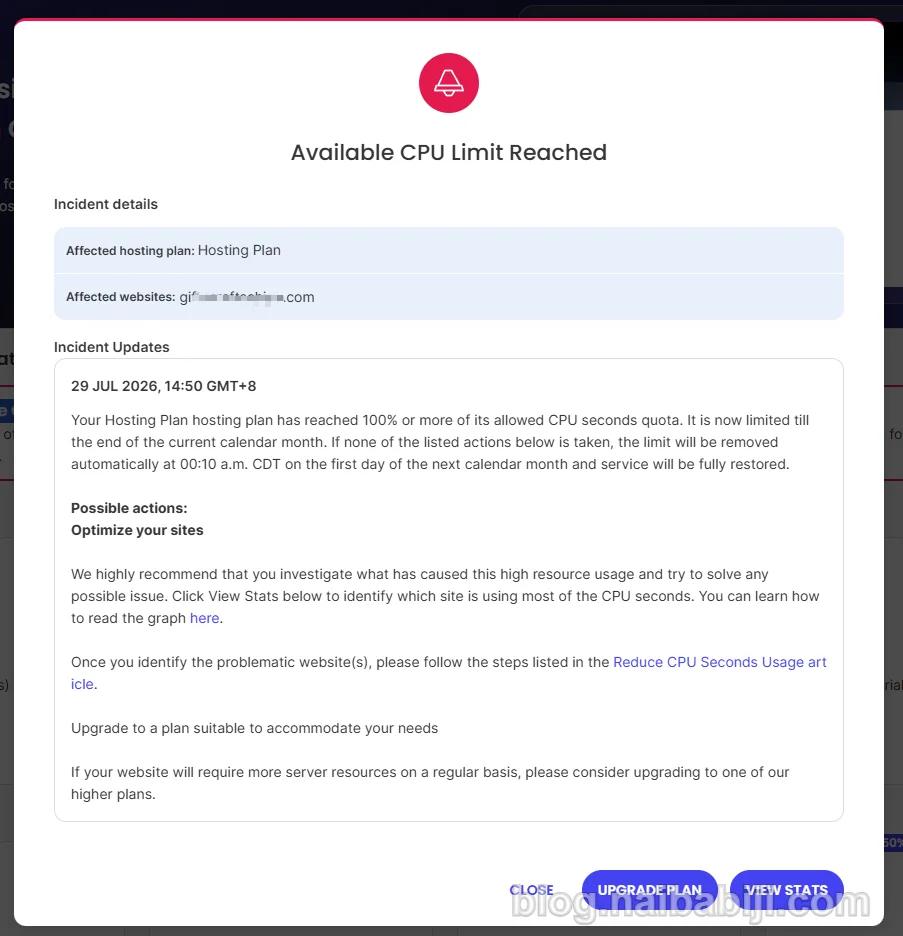
Simply put, the CPU resources allowed for the current hosting plan in the current month have been exhausted, and the website service is restricted.
The problem encountered this time is not just a slowdown in website loading speed, butthe website is no longer accessible normally。
For business websites, the impact of website downtime is quite direct:
- Customers cannot access product pages;
- Search engine crawling may be affected;
- Ad traffic cannot convert after entering;
- Business email, inquiry portals, and other operations may be affected.
Therefore, although the plan still has more than half a year until expiration, Naiba still recommends switching to an independent VPS server.
Why does SiteGround run out of CPU resources?
SiteGround itself is still a shared virtual host. Although it says no limit on the number of websites, it restricts your overall resource usage. In this case, the website contains too many Elementor plugins, plus WooCommerce has over 5000 products. When loading product pages, it instantly puts pressure on the server's CPU resources. Long-term high CPU usage triggered SiteGround's limit, causing the website to be inaccessible.
Why ultimately choose to migrate to Vultr VPS?
For this website's situation, there are only two solutions to make the website accessible again:
Option 1: Continue upgrading the SiteGround plan
Advantages:
- No need to migrate the website;
- Simple operation.
Disadvantages:
- Still subject to hosting environment limitations;
- May encounter resource shortages again after subsequent website growth;
- Limited control over the server environment.
Option 2: Migrate to a VPS server
Advantages of VPS:
- Dedicated server resources allocated exclusively;
- Freedom to adjust runtime environments such as PHP and cache;
- Ability to install required software;
- More suitable for long-term operation of enterprise WordPress websites.
Finally chose to migrate the website to Vultr VPS and useWP Panelto manage the server environment.
For users who already use WordPress and want to control the server environment themselves, VPS is a common upgrade path after shared hosting.
If you are considering building a website on VPS, you can refer to:
《Can a cheap VPS build a website? Naiba tests a $1.99 VPS for website building》
Complete process of migrating a WordPress website from SiteGround to Vultr VPS
The following records the entire actual migration process.
Step 1: Back up SiteGround website files and resolve the domain
Since the original website is no longer accessible, we can directly point the domain to the new server's IP. This way, by the time the backup is restored, the DNS resolution will have taken effect, and the website can be brought back online as quickly as possible.
At the same time, because SiteGround's backup download requires payment, we have to manually back up. Enter the SiteGround management panel and back up website files through the file management feature.
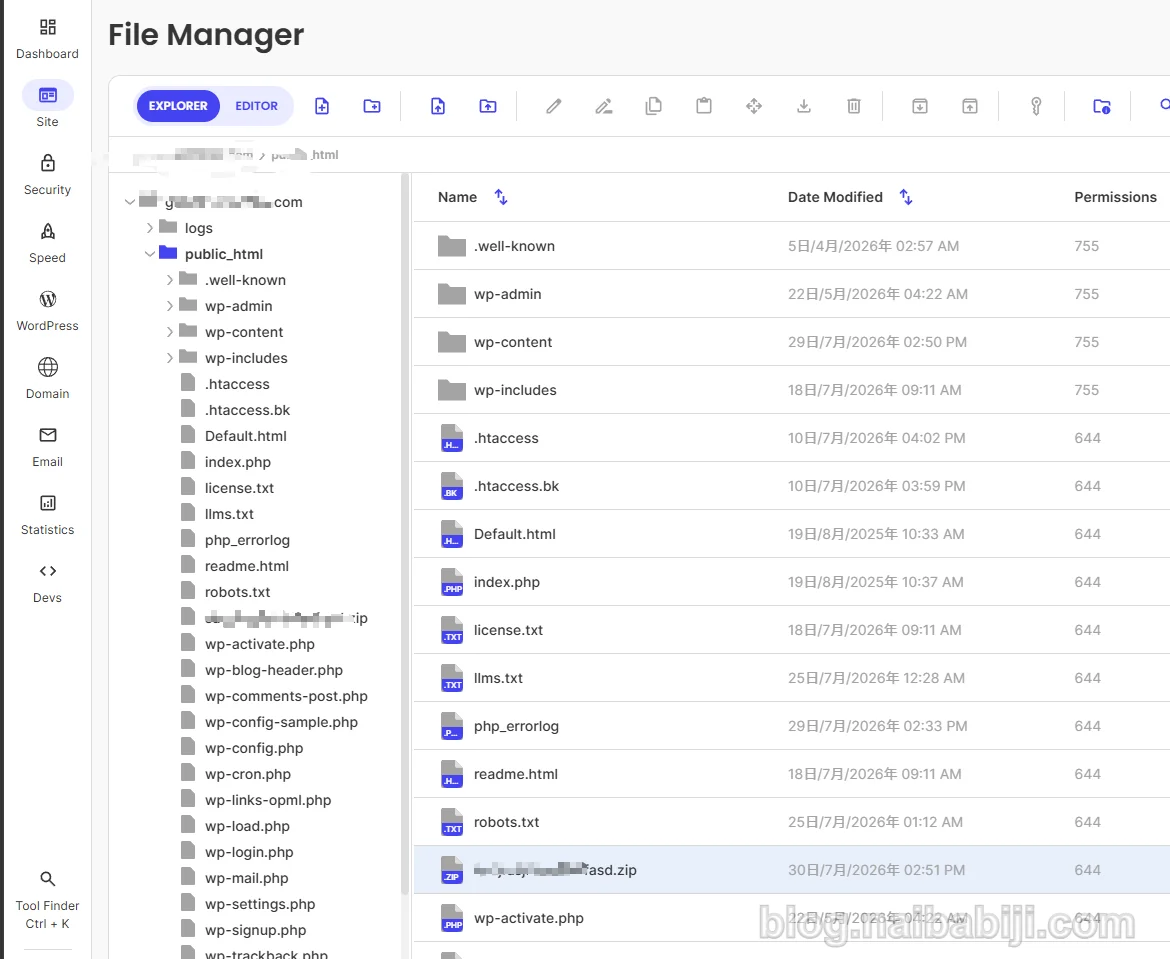
The website we are operating on has over 5,000 products, so the backup file is relatively large, totaling:10GB
Step 2: Install WP Panel environment on Vultr server
The new server chooses Vultr VPS. (Don't have a Vultr server? Refer toVultr purchase and usage tutorial.)
After the server is ready, install the WP Panel management environment.
WP Panel helps manage:
- WordPress websites;
- PHP environment;
- Nginx configuration;
- Database;
- SSL certificates;
- Caching services;
- Server and website security.
For WordPress users who do not want to manage the server entirely through the command line, a server management panel can reduce maintenance difficulty.
Already a Baota Panel user? Consider "How to Migrate a WordPress Website from Baota Panel to WP Panel》
Step 3: Migrate Website Files via SSH
Since the backup file is large, uploading directly through a browser is neither fast nor stable.
Therefore, use SSH to transfer files.
Specific process:
- Log in to the SiteGround server, create an SSH key in the SSH Keys Manager interface under the DEV menu;
- Connect using SSH software and push the backup file to the Vultr VPS website directory;
- Extract the website files;
- Execute file permission repair in WP Panel.
Downloading and restoring a 10GB backup file via upload has low speed and success rate, so it is recommended to use SSH for restoration. If you are not familiar, you can ask AI to guide you.
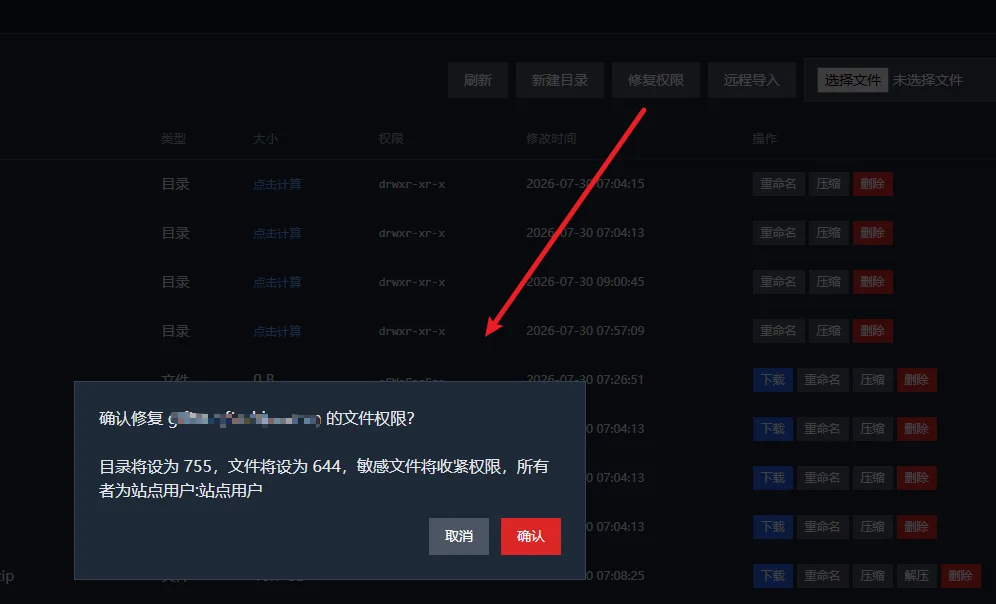
Step 4: Restore the WordPress Database
After the website file migration is complete, the database also needs to be restored. First, export the database backup file from SiteGround, then restore it on the Vultr server.
Operation process:
- Log in to SiteGround database management;
- Enter phpMyAdmin to export the database file;
- In WP Panel, go to the database interface corresponding to the website and upload the database file to restore;
- Click the WP Panel database interface to automatically detect the table prefix, synchronize database information, and modify the password, which will automatically write to the wp-config.php file.
After the database restoration is complete, the basic website environment migration is finished.
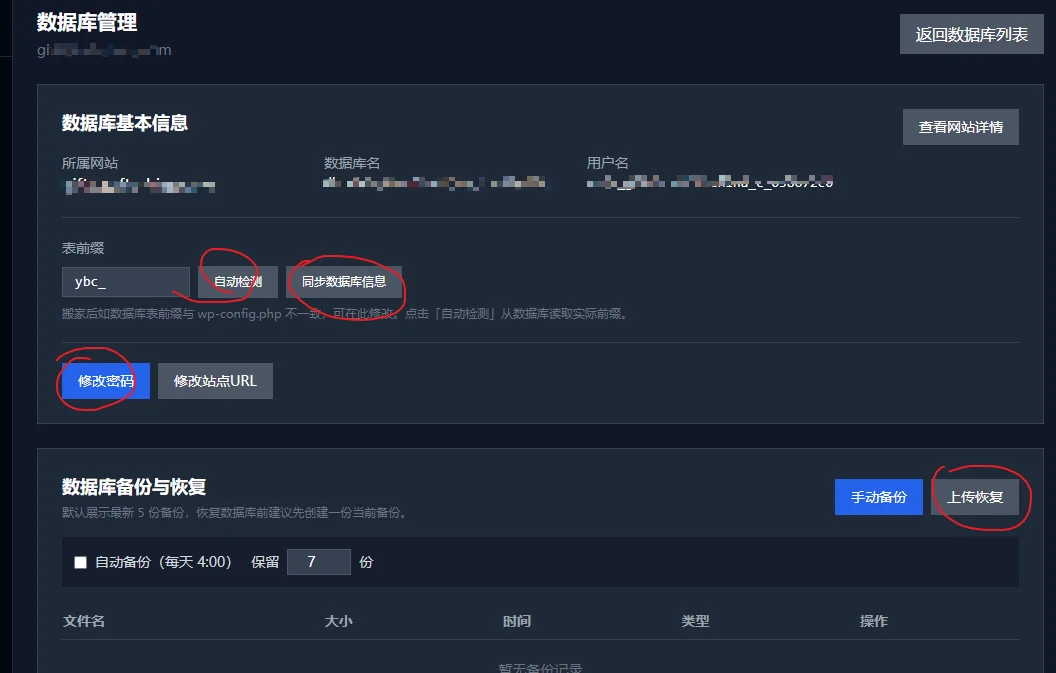
At this point, if your domain name resolution has taken effect, you can access your website via the domain name.
Configure Cloudflare CDN and Cache Optimization After Migration
Previously, the website used SiteGround's built-in CDN. Now that the server has been changed, we naturally cannot continue using their CDN, so we use the free Cloudflare CDN.
1. CloudFlare CDN
After migrating to VPS, you need to reconfigure the CDN. Simply register an account on Cloudflare, add your website, and switch the DNS of your domain. The specific steps can be guided by AI step by step or you can find corresponding tutorials online.
2. WP Panel Nginx FastCGI Cache
When accessing a WordPress website, PHP programs need to be executed to generate pages. FastCGI cache can reduce repeated PHP execution and improve page response speed. Simply enable it with one click on the website details page in the WP Panel backend.
3. Redis Object Cache
When WordPress queries the database extensively, object cache can reduce database pressure.
Especially for websites like WooCommerce that contain a large amount of product data, Redis can help improve database access efficiency. Similarly, WP Panel supports Redis by default, and the Redis Object Cache plugin is also checked by default when creating a website. Just enable it directly.
Performance After Migration
After the migration is complete, the website has resumed normal access.
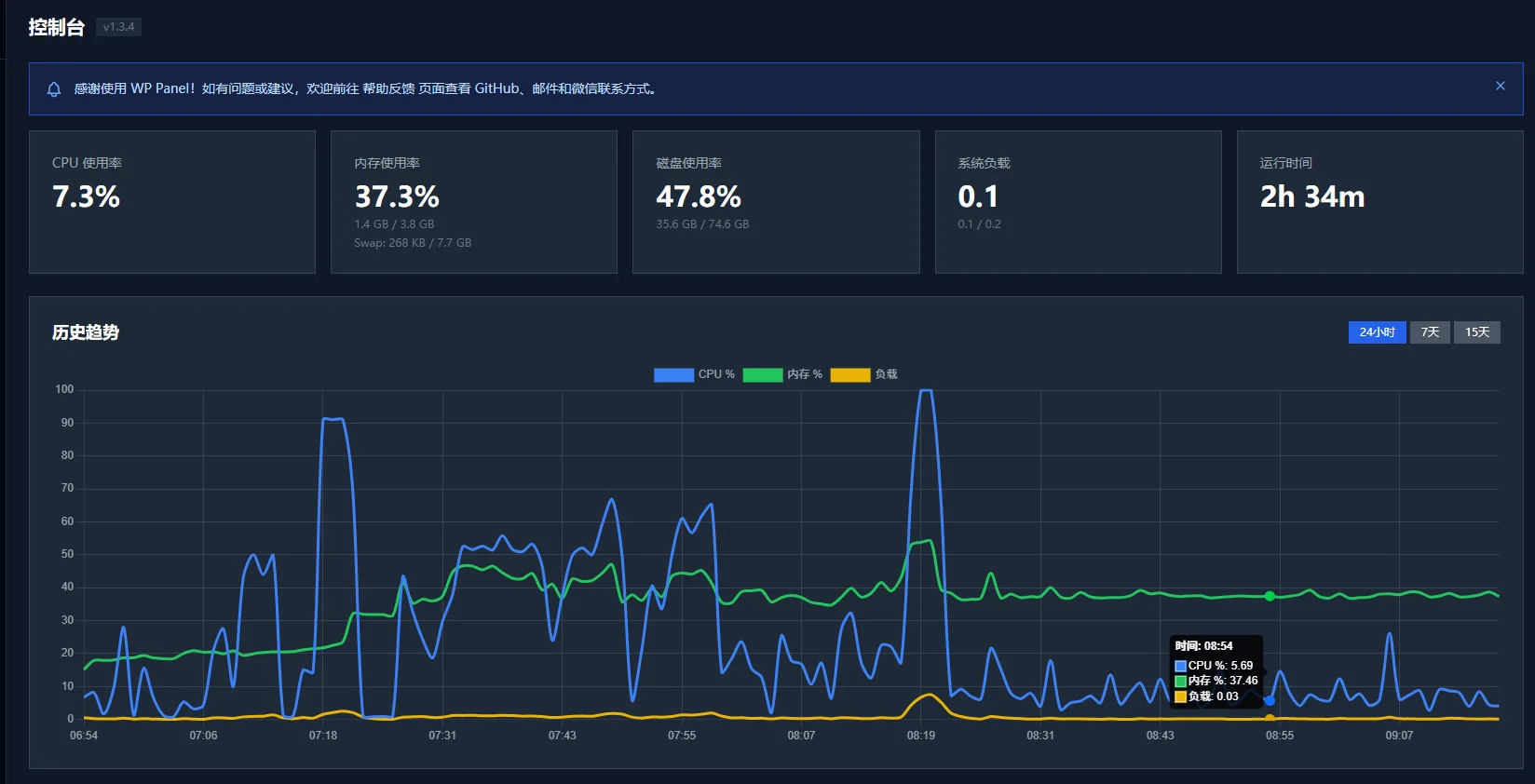
In a new Vultr VPS environment:
- The daily CPU usage of the website remains below 50%;
- When accessing product pages, the CPU may momentarily spike to 100%.
This indicates that the server resource issue has been improved, but the website itself still has room for further optimization.
Naiba has done a simple analysis of this site's performance, which is a typical case of a self-taught website building approach where insufficient functionality is compensated by plugins.
The combination of Elementor + WooCommerce itself is slow without optimization, and with many products, the resource usage is very high during frontend database queries.
And this website uses 5 Elementor-related plugins:
- Elementor;
- Elementor Pro;
- ElementsKit Lite;
- ElementsKit Pro;
- Jeg Kit for Elementor.
Elementor is still recommended by Naiba as a page builder plugin for beginners, but at most one free version of Elementor plus one extension is recommended, meaning the above 5 plugins need to be reduced to 3. Otherwise, too many resources are loaded, and there may be functional conflicts.
Another direction worth optimizing is to reassess whether WooCommerce is suitable for the current website.
WooCommerce itself is very powerful and can support:
- Online shopping;
- Payment;
- Order management;
- Inventory management.
However, many foreign trade enterprise websites do not actually need full e-commerce functionality. They only need product display and receiving inquiries. In this case, a lighter product display solution can be considered.
For example:B2B Product Catalog – without e-commerce functionality, supports inquiry forms and bulk quotes
If you want to switch from WooCommerce to a B2B product catalog plugin, you can also refer to:WooCommerce to B2B Product Display Importer
Summary: When should shared hosting be upgraded to VPS?
The CPU Limit Reached issue on SiteGround this time is essentially not a sudden server failure, but rather that the website scale has exceeded the capacity of the current shared hosting plan.
For:
- Corporate websites;
- WooCommerce stores;
- Websites with a large number of products;
- WordPress sites using many plugins;
When shared hosting frequently encounters resource limits, upgrading to VPS is usually a more long-term solution.
However, upgrading the server cannot solve all performance issues.
A more reasonable approach is:
Server environment upgrade + WordPress optimization + Plugin reduction + Cache configuration
Only then can the website run stably for a long time.
If you are learning to build a website on your own, try to keep plugins minimal. Remove all plugins that can be removed, and remove all design effects that require plugins to achieve.
When the website really generates profit, hire someone to rebuild the website professionally and efficiently.