
WeWhen building a foreign trade website with WordPressor other B2B websites, the WooCommerce plugin is typically used for product management. Usually, when conducting B2B business, we do not want product prices to be displayed on the website. If your website shows prices, you can remove them using the following methods.
1. Do not fill in product prices
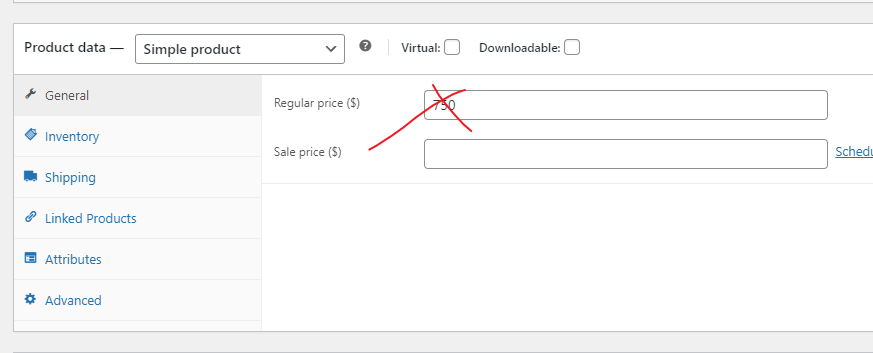
When editing a product, as long as we do not fill in price information in the product data, the price will not be displayed on the website.
2. Use a plugin
If many of your products contain price information and manually deleting the prices is too troublesome, you can also use the following plugins to remove price display.
Below are several WooCommerce Catalog mode plugins compiled by Naibabiji. You can choose one that works and install it.
- YITH WooCommerce Catalog Mode
- ELEX WooCommerce Catalog Mode
- PRyC WP/WooCommerce: Catalog Mode
- NS WooCommerce Catalog
3. Disable price display in theme settings
Some premium WordPress themes have Catalog mode enabled by default in their settings, or you can set them not to display prices.
For exampleWoodMart ThemeBy default, you can enable Catalog mode in the theme settings, and you can also set it to not show prices when logged out and show prices when logged in.
Astra ThemeIn the theme customizer, you can set which elements to display on the product page. If you don't want to show the price, simply uncheck the price option.
4. Use function code to hide
In addition to the three methods above, we can also use function code to hide product prices (the plugins in step two work on the same principle). If you want to try manually hiding with code, copy the code below and paste it into your theme's functions.php file.
remove_action( 'woocommerce_single_product_summary', 'woocommerce_template_single_price', 10 );
remove_action( 'woocommerce_after_shop_loop_item_title', 'woocommerce_template_loop_price', 10 );
If the above code is ineffective, there might be a conflict with your theme's code execution order. You can try the code below.
add_filter( 'woocommerce_get_price_html', 'naiba_hide_price' );
function naiba_hide_price( $price ) {
$price = 'Please contact us for a quote';
return $price;
}}
The above code will hide the price and output the text „Please contact us for a quote“. If you don„t need the text, simply delete it and leave it empty.
Of course, you can also hide it using CSS code, but CSS hiding is a pseudo-hide; the price can still be seen in the page source code. Therefore, Naiba will not introduce the CSS method for hiding prices here.
Related articles:Several Ways to Delete and Hide the WooCommerce Add to Cart Button – Naibabiji