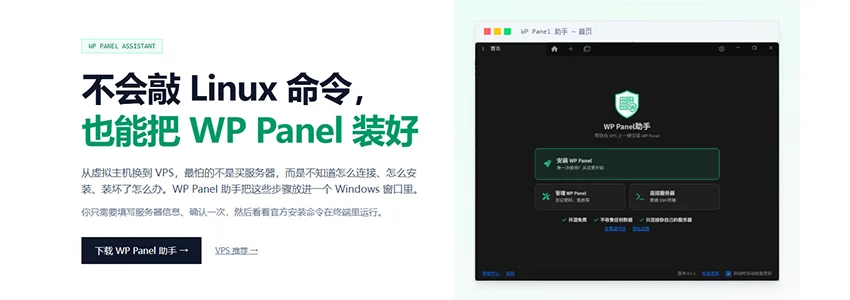
Naiba has been sharing on the Naibabiji websitebuilding your own websiterelated knowledge. With the development of AI, more and more users are starting to use AI for website building, and traditional shared hosting is not very friendly for AI website building. Using a VPS together with WP Panel makes website building easier. For example:VPS + WP Panel + AI, 4 Steps to Complete WordPress Theme/Plugin Development。
Naiba previously sharedWP Panel, which is a server management panel specifically optimized for WordPress website building. Although it solves the problem of managing websites on a VPS, many novice users cannot handle the VPS installation and deployment, so now the WP Panel Assistant has been developed.
Introduction to WP Panel Assistant
WP Panel Assistant is a desktop SSH client based on secondary development of the open-source project Tabby. Its vision is:Even without knowing Linux commands, you can still install WP Panel。
It combines the connection, terminal, and SFTP file transfer capabilities of an ordinary SSH client with WP Panel's novice installation wizard. For novices who have just bought a VPS and are not yet familiar with Linux commands, there is no need to first research a bunch of SSH software and installation tutorials. Open WP Panel Assistant and you can operate step by step starting from connecting to the server.
Official website address:WP Panel Assistant – WP Panel Panel
What can WP Panel Assistant do?
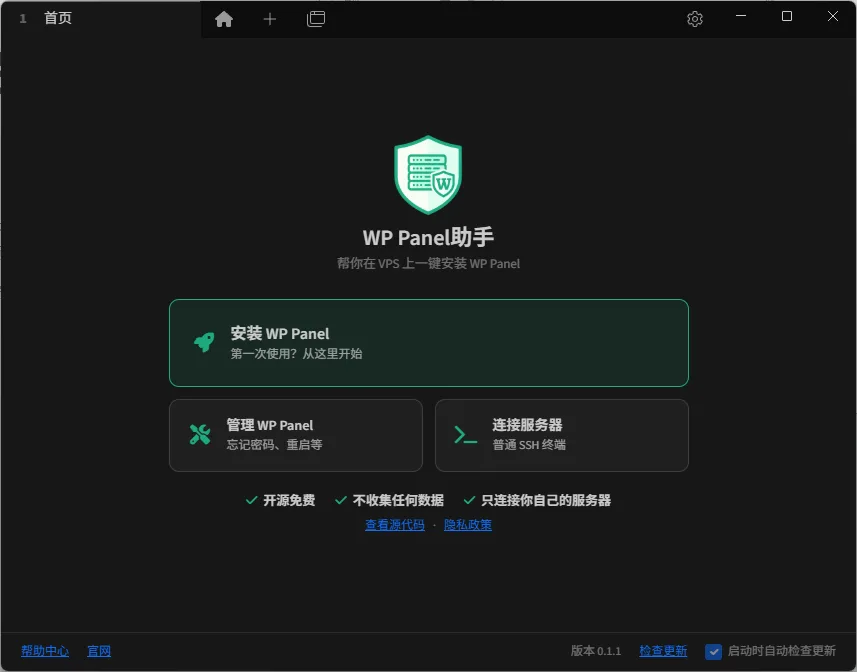
After downloading and installing WP Panel Assistant, open the software and you will see a relatively simple homepage. It does not, like some feature-heavy server tools, immediately present many commands and settings. The current version mainly has the following types of features.
1. Connect to VPS using SSH and SFTP
WP Panel Assistant is essentially still an SSH client. You can fill in the server IP or domain name, SSH port, username, and password or private key file, and then connect to your own VPS. After connecting, you can use the terminal to execute commands, or use SFTP to browse and transfer server files.
When connecting to the server for the first time, the assistant will display the host fingerprint, and will continue connecting only after the user confirms. If the server is reinstalled later or the host fingerprint changes, the software will display both the old and new fingerprints and require the user to confirm the reason, and will not directly ignore the security warning. This is important for novices; host fingerprint checking should not be disabled just to save trouble.
2. Install WP Panel step by step
On the homepage, click „Install WP Panel“, fill in the server address, port, username, and login method according to the wizard, and then select the server location. The assistant will first connect to the VPS and display the complete command before formally executing the installation command. Installation will start only after the user confirms.
It should be explained here thatWP Panel Assistant does not redevelop a server installation program. What it does is safely input the official WP Panel installation command into a visible SSH terminal.Installation checks, system compatibility judgment, and final installation results are still based on the output of the WP Panel installation script.
Currently, the WP Panel installation script checks root privileges, system version, CPU architecture, memory, disk, necessary commands, systemd, virtualization environment, and ports such as 80, 443, 8443, and 3306. The current installation requirements are mainly Debian 13 x86_64. When purchasing a VPS, you can first refer toNaiba's tested VPS recommendations, and then confirm whether the service provider supports reinstalling Debian 13.
3. If the connection drops during installation, it can be resumed
Installing WP Panel may take some time. If the SSH connection is interrupted due to network problems, directly executing commands in an ordinary terminal may indeed cause the installation process to be interrupted as well. WP Panel Assistant runs the installation command in a screen session, so after a brief computer network disconnection, you can reconnect and resume the installation progress.
During installation, the software will try to prevent the computer from sleeping, and the terminal will continuously display the raw output of the installation script. After installation is complete, the assistant will also check from the local machine whether the server's port 8443 is accessible. If the port is not open, it will remind the user to open port 8443 in the VPS service provider's security group.
4. Manage WP Panel after installation is complete
For servers that already have WP Panel installed, you can directly use the „Manage WP Panel“ feature without having to manually search for commands each time. Currently, common operations such as viewing the panel address, resetting a forgotten login password, unblocking an IP, restarting the panel, running diagnostic checks, and viewing logs are provided.
These operations are ultimately executed in the visible terminal on the right, and the command output is displayed as-is. For example, when you forget the panel password, the assistant will first pop up a confirmation dialog becausewpp passwordit will immediately reset both layers of login passwords and restart the panel; after execution, be sure to save the new password properly. For information about WP Panel's own anomaly monitoring and security features, you can also continue readingIntroduction to WP Panel Anomaly Monitoring。
Who is the WP Panel Assistant suitable for?
If you are already familiar with Linux commands and use the terminal all the time, the WP Panel Assistant may not necessarily be faster than your existing SSH tools; it is mainly intended for the following types of users:
- Buying a VPS for the first time and not knowing how to connect to the server via SSH.
- Wanting to use WP Panel but not wanting to manually copy a long installation command.
- Worried about disconnection during installation and not knowing how to use screen to resume progress.
- Already have WP Panel installed, but are unfamiliar with common operations such as resetting a forgotten password or viewing logs.
- Wanting to complete both SSH terminal and SFTP file management within a single application.
What should be noted when using it?
First, the WP Panel Assistant will not purchase a VPS for you, nor will it automatically provision a server. You still need to prepare a VPS that meets the requirements in advance and obtain the server IP, SSH port, username, and password or private key. Network quality, pricing, and renewal rules also differ between providers; you cannot ignore the choice of the VPS itself just because an installation assistant is available.
Second,the assistant only enters the installation command into the SSH terminal; it does not upload the server password to the cloud, nor does it remotely store SSH credentials.The software homepage also clearly states that it „does not collect any data.“ If you choose to remember the password, it will be stored in the local system credential store rather than in an ordinary configuration file; if you are unsure, you can also leave the remember password option unchecked.
Finally, the installation commands and server operations themselves still carry risks. Before executing, confirm that the server is indeed yours, check the IP and host fingerprint, carefully read the prompts in the terminal, and do not send passwords, private keys, or terminal contents to others. The WP Panel Assistant will not automatically perform dangerous operations such as wiping or reinstalling on the user's behalf.
VPS + WP Panel makes website building a little simpler
In the past, many people were afraid to use a VPS, mainly because they found installing the system, connecting via SSH, executing commands, and configuring the panel too troublesome. Now, with WP Panel and the WP Panel Assistant, at least the beginner installation steps that are most likely to get stuck can be organized into a relatively clear process.
If you are planning to use AI to develop a WordPress theme or plugin, you can first readThe complete workflow of VPS + WP Panel + AI; if you just want to build your own WordPress website from scratch, you can also start fromBeginner Website Building Roadmapto get started.
The WP Panel Assistant is currently still in its first version and will continue to be improved based on feedback from real users. For beginners unfamiliar with VPS, it may not solve all server problems, but it can at least make the steps of connecting, installing, and daily management a bit simpler. You can download it directly fromGitHub ReleasesorCloud Storage Download, and once installation is complete, you can start using it.