When your website frequently features long articles, it's necessary to add a back-to-top button, asBuild a Websitebuilding a website requires considering user experience. This article explains how to add a back-to-top button to a WordPress site.
Plugin Method
UseWordPress PluginUsing a WordPress plugin is a ready-to-use method, very simple and suitable for beginners.
WPFront Scroll Top
The WPFront Scroll Top plugin allows you to easily add a 'go to top' button with customizable options and various top-scrolling patterns. The WPFront Scroll Top plugin includes the following features.
Features
Show button when user scrolls down the page.
Scroll to top of page with animation.
Link to elements within the page.
Use URL to link to other pages.
Create text, image, or Font Awesome buttons.
Set any image you want.
Hide on small devices.
Hide on iframes.
Page/Post filter.
Auto hide.
Asynchronous JavaScript.
WPFront Scroll Top comes with many button effects and supports custom images, as shown below:
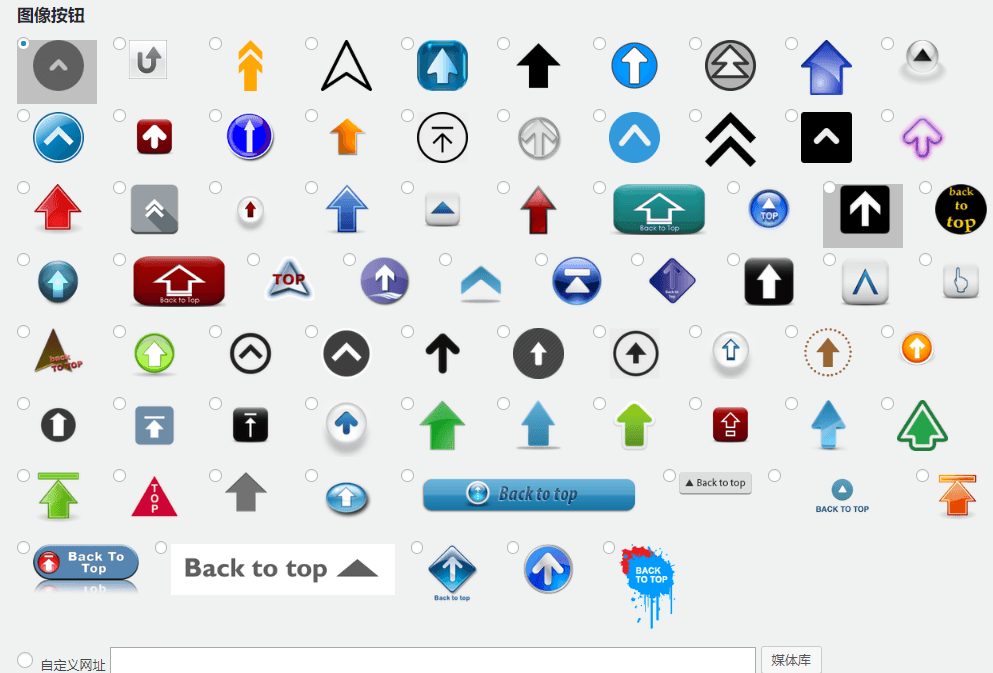
After installing WPFront Scroll Top, you need to enable it in the settings before use, supports JS asynchronous loading.
Extension Download Address:https://wordpress.org/plugins/wpfront-scroll-top/
To Top
To Top's settings are relatively simple, and the supported features are as follows:
Features
Show icon when user scrolls down the page
Live preview via Customizer
Scroll to top of page with animation
Set icon/image opacity
Set icon (dashboard) or image to top button
For icons, set background color, icon color, icon size, and icon shape (from square to circle)
Set any image you want
Set image width
Set icon position
Show/hide top button in admin pages.
Auto hide
Hide on small devices
The interface only has 3 icons by default. You can modify the icon color, but cannot customize the icon.

Extension Download Address:https://wordpress.org/plugins/to-top/
Simple Scroll to Top Button
Simple Scroll to Top Button's settings are also relatively simple, defaulting to 10 top-scrolling button patterns, does not support custom images, but allows setting button shape, color, size, etc.
Features
Lightweight and fast
Secure code with clear coding standards
Intuitive interface with many settings
Cross-browser compatible (works smoothly in any modern browser)
Compatible with All WordPress Themes
RTL (Right-to-Left) compatible
Translation ready
Main features include
Retina display support
FontAwesome integration (40 icon combinations available)
Background color changer (unlimited colors)
Icon color changer (unlimited colors)
Customizable button background and icon
Customizable button size
Adjustable scroll duration
Option to enable/disable the button
Option to display the button only on the full site or homepage
Auto-hide button at the top of the page
Live preview
The button effects of Simple Scroll to Top Button are as shown below:
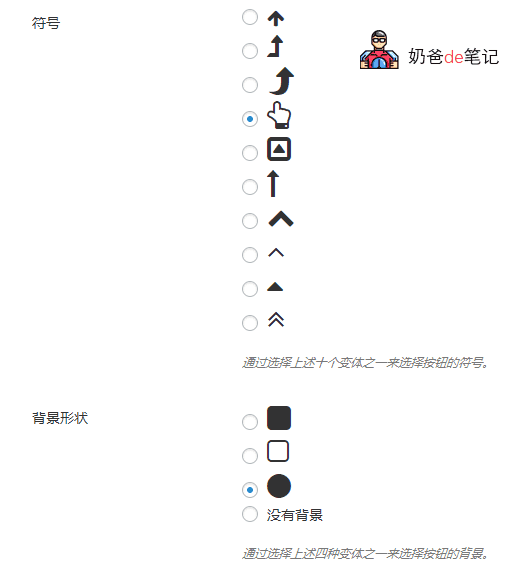
Extension Download Address:https://wordpress.org/plugins/simple-scroll-to-top-button/
Scroll Top
Scroll Top is very simple, just like To Top, and supports custom CSS styles.
Features include:
No setup required.
Custom target.
Unlimited colors.
Retina support (icon font).
Choose text or icon font.
Customizable text.
Position switcher (left or right).
Change your preferred animation.
Custom CSS area
The effect of Scroll Top is as shown below:

Extension Download Address:https://wordpress.org/plugins/scroll-top/
Searching for "go to top" or "back to top" in the WordPress plugin repository will reveal more plugins for returning to the top. Their functions are mostly similar; just pick one that works.
Next is the code-based method for adding a back-to-top button to a WordPress site.
Code Method
There are many code-based methods available online. Here, I will only share the one currently used on Naiba's website.
First, create a file named back-to-top.js with the following content:
jQuery( document ).ready(function($){
  var offset = 100,
      speed = 250,
      duration = 500,
      scrollButton = $('#topbutton');

  $( window ).scroll( function() {
    if ( $( this ).scrollTop() < offset) {
      scrollButton.fadeOut( duration );
    } else {
      scrollButton.fadeIn( duration );
    }
  });

  scrollButton.on( 'click', function(e){
    e.preventDefault();
    $( 'html, body' ).animate({
      scrollTop: 0
    }, speed);
  });
});
You can alsoclick here to download directly from GitHub(May need a proxy to open)
After creating it, upload the JS file to the js directory of your theme.
Then reference this JS file. There are two methods: one is to reference it in the theme functions, and the other is to manually add it to the website theme footer file (the method Naiba uses).
For referencing in theme functions,insert the following code into the functions.php file.
/**
 * 引用JS文件
 */
function themeslug_add_button_script() {
  wp_enqueue_script( 'custom-script', get_stylesheet_directory_uri() . '/js/back-to-top.js', array( 'jquery' ) );
}
add_action( 'wp_enqueue_scripts', 'themeslug_add_button_script' );

/**
 * 网页添加返回按钮
 */
function themeslug_add_scroll_button() {
  echo '<a href="#" id="topbutton"></a>';
}
add_action( 'wp_footer', 'themeslug_add_scroll_button' );
You canuse Code Snippets to addthe above code, which is safer on one hand, and on the other hand, if you change themes, the code will still work without needing to re-add it. (However, note that after changing themes, upload the js file or modify it to an absolute address yourself.)
For modifying the footer file reference,insert the following code into footer.php.
<a href="#" id="topbutton"></a>
<script type='text/javascript' src="https://blog.naibabiji.com/wp-content/themes/twentytwelve/js/back-to-top.js "></script>
In the above code, https://blog.naibabiji.com/wp-content/themes/twentytwelve/js/back-to-top.js should be modified to your actual address.
Finally, add CSS styles.
In the theme's CSS file style.css, add the following code.
#topbutton {
  position: fixed;
  display: none;
  height: 40px;
  width: 40px;
  line-height: 40px;
  right: 15px;
  bottom: 15px;
  z-index: 1;
  background: #000000;
  border-radius: 2px;
  text-decoration: none;
  color: #ffffff;
  text-align: center;
}

#topbutton:after {
  content: "\2191";
}
Once everything is done, refresh the frontend to see the effect.
Your button might be an „↑“ symbol. If you want to change it to ▲, just modify \2191 to \25B2.