
During the website building process, we might need to reinstall the website for various reasons, such as the site being infected with a virus, or being unsatisfied with the current site and wanting to start over. This article from Naibabiji will share with youseveral methods for reinstalling a WordPress website.。
Methods for Reinstalling WordPress
To reinstall a WordPress website, you can choose to reinstall the database, reinstall the website files, or reinstall both the database and the website files.
If you have a new website that became messy after installing Themes and Plugins yourself and you want to start over, simply using a plugin to reset the database is sufficient. This is the most convenient and quickest method.
Method 1: Reset Database Using WP RESET
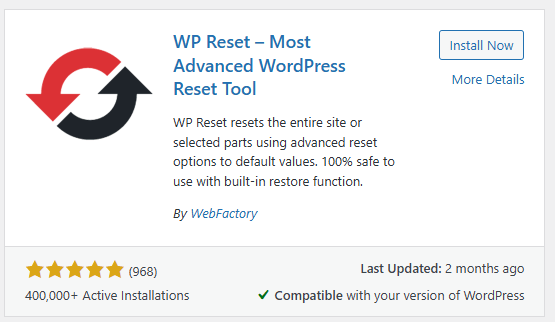
In the article „7 WordPress Database Plugins for _Cleaning_Optimizing_Resetting_Repairing_Searching", we introduced the WP Reset plugin, which can directly help you restore the WordPress database to its state right after installation.
Specific reset steps:
- In the website Admin Dashboard, go to Plugins, Add New, search for 'wp reset', then install and activate the plugin.
- You can find the WP Reset plugin entry in the left-hand menu, click to enter.
- The first time you use it, there is a pricing prompt; simply click on a blank area to skip the prompt.
- In the plugin's Site Reset section, type 'reset', then click the button to perform the database reset.
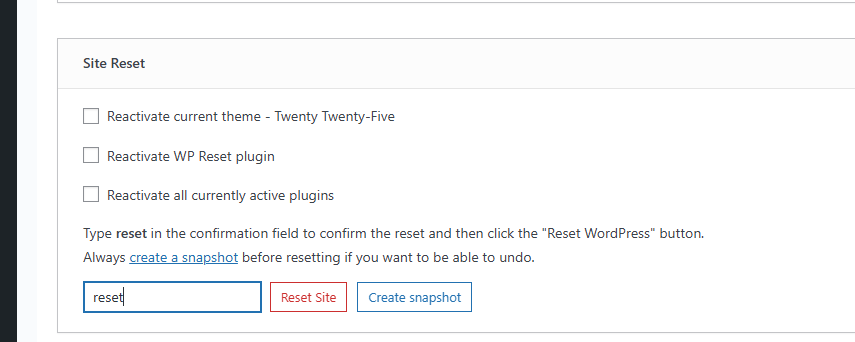
After clicking the Reset Site button, the plugin will restore your website's database to the state immediately after WordPress installation. The Theme and Plugin files you installed will still remain on the server, but they will be deactivated.
Using this method to reset a website is more suitable for testing Theme demo data. If you need to delete all files on the website, keeping only the default WordPress files, then please use the methods introduced later to reinstall WordPress.
Method 2: Reinstall WordPress via Baota Panel
There are two operational methods for reinstalling WordPress via Baota Panel. The general idea is to first delete the existing website data, then reinstall a new one.
You can directly select to delete the website from the website list, and delete the corresponding FTP, database, and root directory for the website. Then, add a new website and follow themethod for installing WordPress via Baota Panelto do it again.
You can also enter the database to empty (or delete) the existing website's database, then delete all or some of the website files in the website folder, and then reinstall WordPress.
Method 3: Reinstall WordPress on SiteGround Shared Hosting
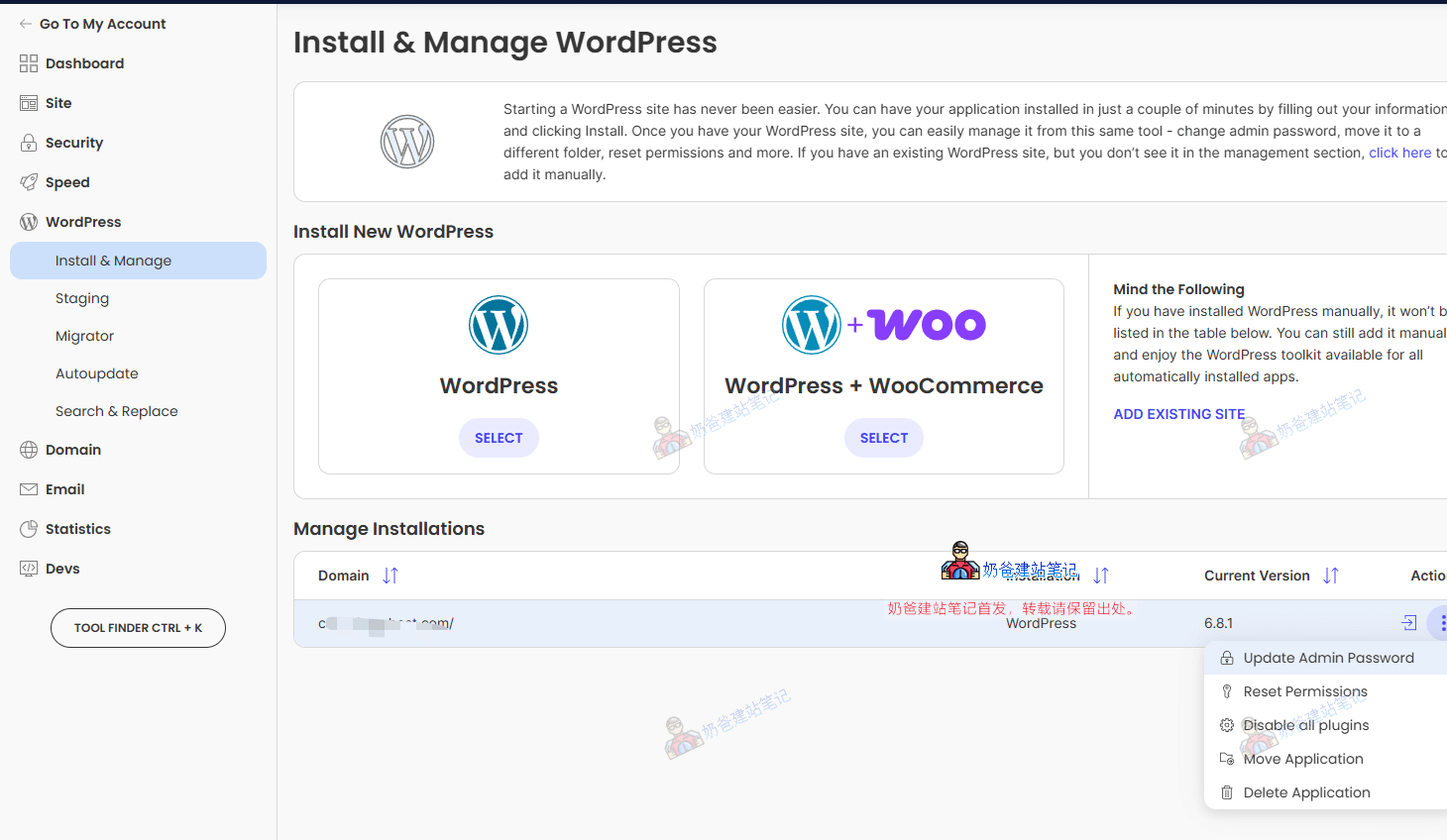
Considering many foreign trade users use SiteGround servers, here is a separate guide on how to reinstall WordPress on SiteGround.
The method for reinstalling WordPress on SiteGround is very simple. After logging into the backend, select Install & Manage under the WordPress menu, find the website you want to reinstall, choose Delete Application. After deletion, simply Install New WordPress.
Method 4: Reinstall WordPress on cPanel Shared Hosting
Many friends purchase Shared Hosting that uses the cPanel control panel. If you want to reinstall WordPress, just follow the steps below.
- Log in to the cPanel Admin Dashboard, and enter File Manager.
- Delete all the website's files (please backup and download them locally first if needed), then uploadthe latest WordPress installation package file.。
- Go to the Database Management section in cPanel, delete the original database or create a brand new one.
- Access the website via its URL to enter the WordPress installation interface and fill in the database information.
- The new WordPress website is now installed.
If you don't know how to delete the database, you can also set a new database table prefix when reinstalling WordPress. The default is wp_; you can set it to wp2_, which will be recognized as a new website's database information.
Precautions for Reinstalling WordPress
1. If you reinstall the database separately, the website's files (code, Theme, Plugin, uploaded images, etc.) will not be lost.
2. Remember to backup the website data files if needed, otherwise clicking 'delete website' will remove all data along with it.