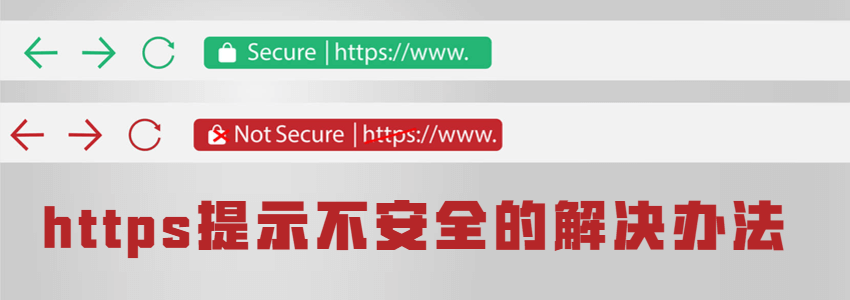
Nowadays, building a websiteInstalling an SSL certificatehas become a standard for websites.
You followed an online tutorialapplied for and installed an SSL certificate, when accessing the website via HTTPS, you found that the small green lock did not appear; instead, it prompted „Your connection to this site is not fully secure", so below, Naiba will teach you how to solve this problem.
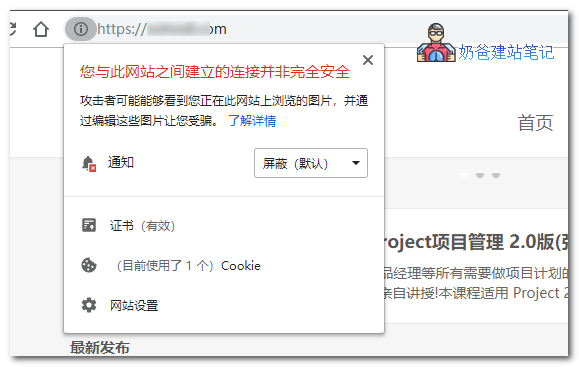
To resolve the website warning „Your connection to this site is not fully secure", the browser address bardoes not show the HTTPS green lock, there are two solutions:
- Manually modify resources to HTTPS
- Use a plugin to assist
Naiba recommends using the manual method to modify resources, as installing a plugin just for this solvable issue is not worthwhile.
Manually modify resources to HTTPS
To manually modify the website to HTTPS, you just need tofollow the steps below to check and operate.
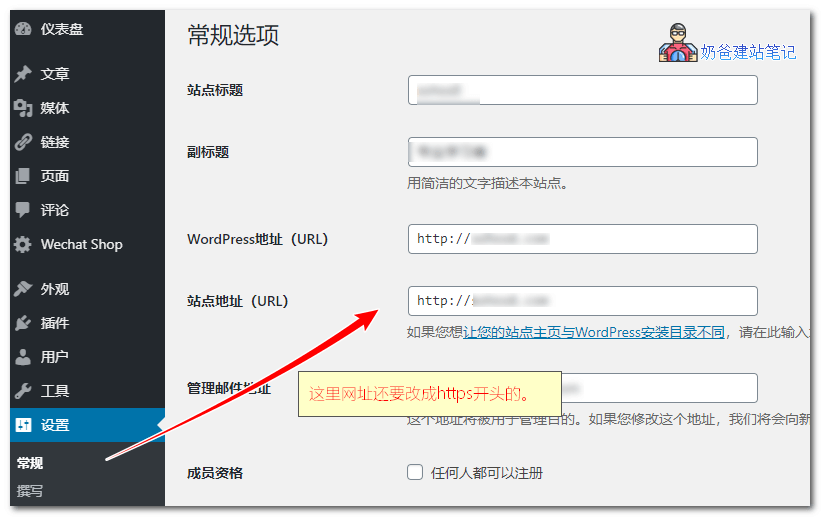
1. Log in to the website backend, go to General Settings, and change both the WordPress Address and Site Address to HTTPS URLs.
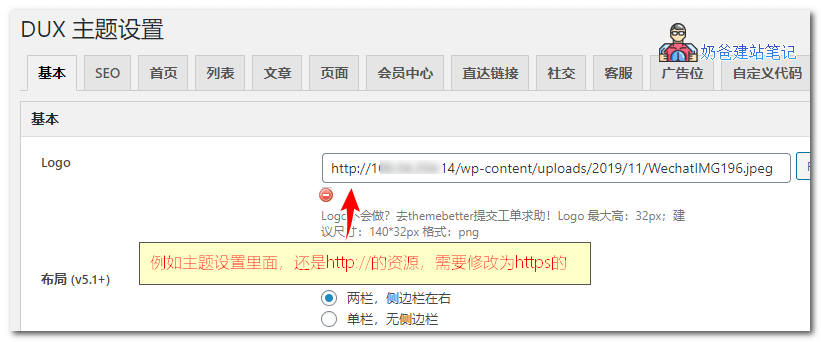
2. Check the theme settings and replace HTTP resources with new HTTPS ones.
3. Some images or links inserted in your articles may use HTTP URLs, or you might have previouslyaccessed the website using an IP address, then you need tobatch replacethem with the new HTTPS URLs.
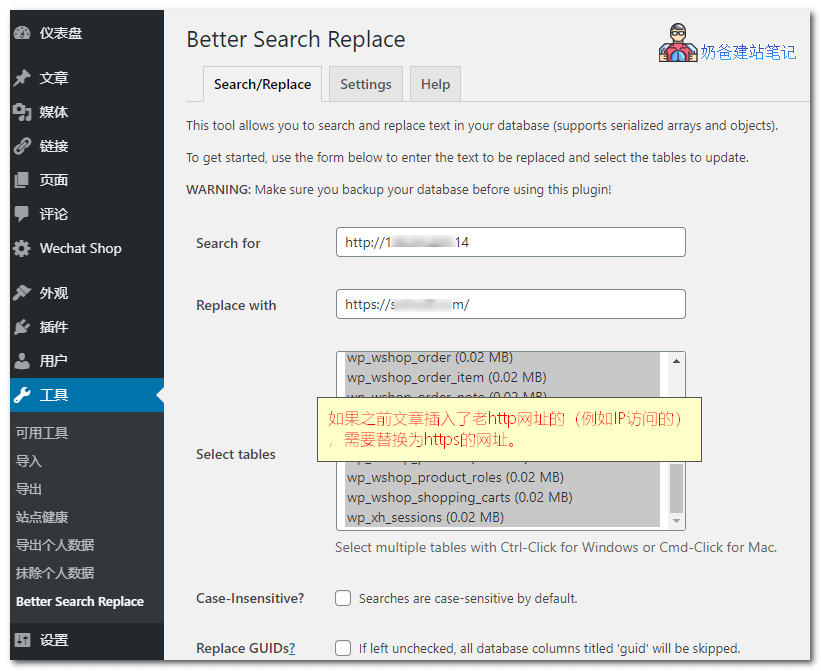
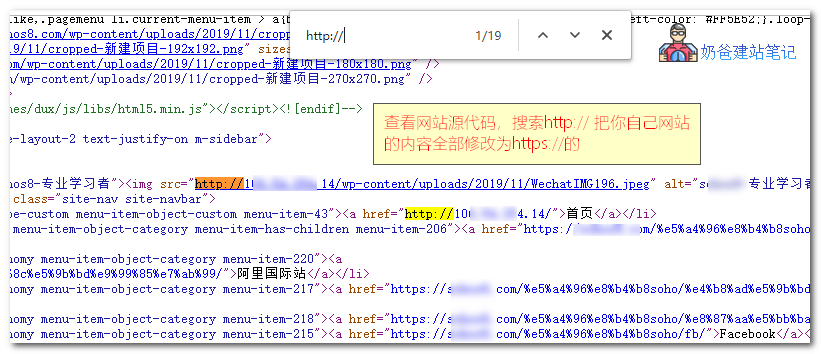
4. If it still doesn't show as secure or display the lock icon, then view the source code file, search for http://, identify which resources belong to your own website, find them, and replace them with HTTPS URLs.
Finally, the small lock appears, and the connection is secure.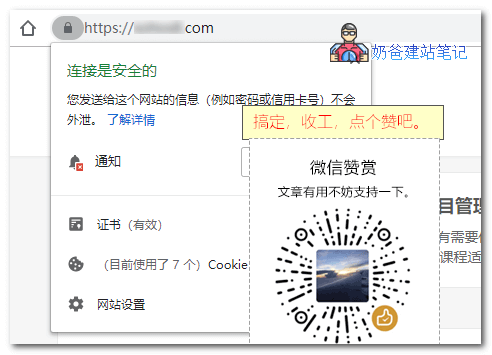
Use a plugin to assist
If you find manual modifications challenging, you can install the following plugin to implement site-wide SSL.
Really Simple SSL
Really Simple SSL automatically detects your settings and configures your site to run over HTTPS. To keep it lightweight, options are kept to a minimum. The entire site will be moved to SSL.
Three simple setup steps:
- Apply for an SSL certificate and configure it (I cannot assist you with this, sorry).
- Activate this plugin.
- Click 'Enable SSL'.