After installing the plugin, select Generate ZIP from the admin dashboard menu, then Compress to ZIP. Wait for the compression to complete, and you can use the Download ZIP button to download the backed-up data. The backup only retains the original image files and does not include thumbnails. However, if your website's upload folder is very large, the compression may time out. In that case, you can try increasing the server's timeout time or use other backup methods.Download LinkOf course, this method is only suitable when you need to download the original upload folder data. If you want to fully back up the website, you also need a database backup.A plugin that can package and compress the upload folder: ZIP from Media
Today, Naiba shares with you a plugin that can pack, compress, and provide downloads for all files and folders under WordPress's upload folder: ZIP from Media. The upload folder is WordPress's default upload directory. The website's Media Library, images, videos, and other files, as well as files uploaded by some plugins, are all stored in this directory. We can directly back up the contents of this folder to avoid data loss. Or, in some special cases, you may need to manually save a copy of the materials uploaded to the website. Then you can use the ZIP from Media plugin introduced in this article to help.
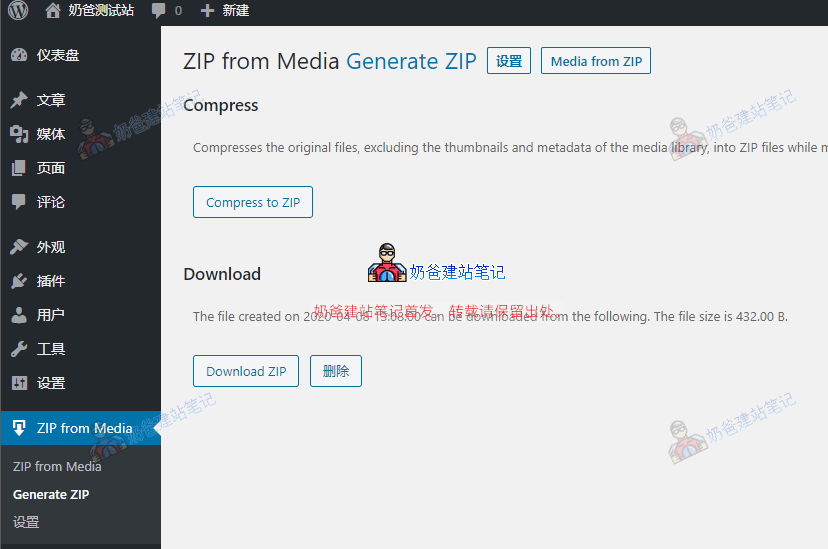
After installing the plugin, select Generate ZIP from the admin dashboard menu, then Compress to ZIP. Wait for the compression to complete, and you can use the Download ZIP button to download the backed-up data. The backup only retains the original image files and does not include thumbnails. However, if your website's upload folder is very large, the compression may time out. In that case, you can try increasing the server's timeout time or use other backup methods.Download LinkOf course, this method is only suitable when you need to download the original upload folder data. If you want to fully back up the website, you also need a database backup.
After installing the plugin, select Generate ZIP from the admin dashboard menu, then Compress to ZIP. Wait for the compression to complete, and you can use the Download ZIP button to download the backed-up data. The backup only retains the original image files and does not include thumbnails. However, if your website's upload folder is very large, the compression may time out. In that case, you can try increasing the server's timeout time or use other backup methods.Download LinkOf course, this method is only suitable when you need to download the original upload folder data. If you want to fully back up the website, you also need a database backup.🚀 Still feeling confused after reading the tutorial? Let me guide you step-by-step instead.
「Naibabiji WordPress Website Building Coaching」 — From selecting a domain and purchasing hosting to installing themes and publishing posts, I「ll guide you through every step, helping you avoid detours and reach your goals directly.
👉 Learn about Website Building Coaching Service
Comments are closed
The comment function for this article is closed. If you have any questions, please feel free to contact us through other channels.